A USB to Type C hub transforms a single USB-C port on modern laptops and devices into multiple connections, allowing users to connect various peripherals like external monitors, USB-A devices, and SD cards. These hubs are essential for expanding connectivity on sleek, ultra-thin laptops that often lack dedicated ports for every peripheral, providing an elegant solution for modern digital workflows.
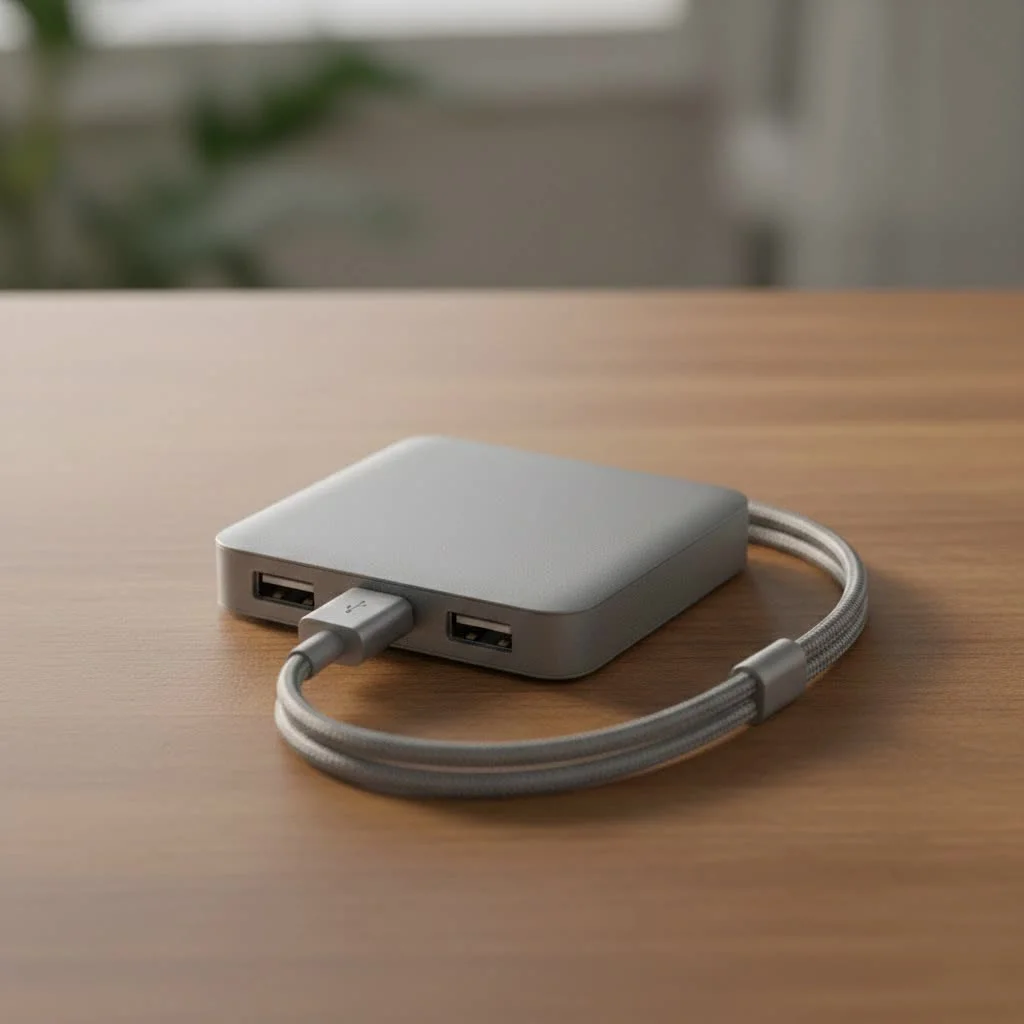
A USB to Type C hub, also known as a multiport adapter, plugs into one of your computer’s USB-C ports and provides a variety of other connections. It acts as a power strip for your data and peripherals, enabling connections for legacy USB-A devices and 4K monitors through one streamlined connection.
What is a USB to Type C Hub, Really?
At its core, a USB to Type C hub is a problem-solver. It acts as a bridge between your modern USB-C enabled device (like a MacBook, Dell XPS, or a modern tablet) and the vast ecosystem of accessories that use different connection types. While often used interchangeably, it’s helpful to distinguish between a hub and a docking station. Hubs are typically smaller, more portable, and draw power directly from the host device (bus-powered). Docking stations are larger, often have their own external power source, and are designed for a more permanent desk setup with even more port options. For most users on the go, a hub strikes the perfect balance between functionality and portability.
The Anatomy of a Hub: Decoding the Ports
Not all USB-C hubs are created equal. The value of a hub lies in the variety and specification of its ports. Understanding what each port does is the key to choosing the right one for your specific workflow.
Essential Ports for Everyday Use
- USB-A Ports: These are the classic rectangular USB ports you’re most familiar with. They are essential for connecting legacy devices like keyboards, mice, thumb drives, and external hard drives. Look for hubs with USB 3.0 (often colored blue or marked with “SS” for SuperSpeed) for data transfer speeds up to 5Gbps, which is significantly faster than the older USB 2.0 standard.
- HDMI / DisplayPort: If you plan to connect your laptop to an external monitor, TV, or projector, a dedicated video output port is a must. HDMI is the most common, but DisplayPort is also available. Pay close attention to the specifications—some hubs support 4K resolution at a choppy 30Hz, while premium models offer a much smoother 4K at 60Hz.
- SD and microSD Card Readers: For photographers, videographers, and content creators, this is a non-negotiable feature. Having built-in card readers allows you to transfer photos and videos from your camera directly, without needing a separate dongle.
Advanced Ports for Power Users
|
Our Picks for the Best USB Hub in 2026
As an Amazon Associate I earn from qualifying purchases.
|
||
| Num | Product | Action |
|---|---|---|
| 1 | Powered USB Hub 10Gbps, intpw 9-Port USB 3.2 Hub, USB C Hub with USB A/USB C 3.2, 4 USB 3.0, 2 PD 45W Charging Ports, 65W Power Adapter and 3.3FT Cable, Aluminum USB Hub for Laptop, iPhone 17/16/15,PC |

|
| 2 | 3-in-1 USB C Splitter, 3 in 1 Type-C Charging Data Cable Data Transmission Decive Charging Adapter Power Charger Equipment for ome Office Use, Fast & Efficient |
|
| 3 | 13 in 1 USB C Docking Station - Dual Monitor, Triple Display, 8 USB C/A Ports, Ethernet, Audio - LIONWEI USB C Hub for MacBook,Dell,HP,Lenovo,Surface |
|
| 4 | Anker Laptop Docking Station Dual Monitor, 8-in-1 USB C Hub, 4K Dual Monitor with 2 HDMI, 1 Gbps Ethernet Hub, 85W Power Delivery, SD Card Reader for MacBook Pro, XPS and More (Charger not Included) |
|
| 5 | P9R PRO USB C Hub Ethernet, 10 in 1 USB Docking Station 10Gbps with 4K@60Hz HDMI, USB C and 2 USB A 3.2, LAN, 2 USB A 2.0, PD 100W, SD/TF Ports, USB to Ethernet Adapter for PC, iPhone 16/15, Mac |
|
| 6 | USB Hub 3.0, 7-Port USB Hub Splitter with Individual On/Off Switches and Lights, 3.2ft/1m Long Cable Compatible with MacBook, Laptop, Surface Pro, PS4, PC, Flash Drive, Mobile HDD |
|
| 7 | UGREEN USB 3.0 Hub, 4 Ports USB A Splitter Ultra-Slim USB Expander for Mouse, Keyboard, Flash Drive, U Disk, Printer Compatible with Laptop, Desktop PC, Xbox, PS5, and More |
|
| 8 | USB C Docking Station with M.2 NVMe SSD Enclosure 10Gbps, 9 in 1 USB-C Hub, Type C SSD Slot with 4K@60Hz HDMI, USB 3.2 Gen2, PD100W, SD/TF Card Reader, Laptop Docking Station for Dell/HP/Lenovo/Mac |
|
| 9 | Powered USB Hub, Wenter 11-Port USB Splitter Hub (10 Faster Data Transfer Ports+ 1 Smart Charging Port) with Individual LED On/Off Switches, USB Hub 3.0 Powered with Power Adapter for Mac, PC |
|
| 10 | Anker USB Hub 4 Ports with 5Gbps Data Transfer, Multiple USB 3.0 Hub, USB Splitter for Laptop, Extender for A Port Laptop, PC, Desktop and More [Charging Not Supported](0.7 ft USB-A) |
|
- Ethernet Port: While Wi-Fi is convenient, a wired internet connection offers superior speed and stability. An Ethernet port is a lifesaver for online gamers, streamers, or anyone who needs a rock-solid connection for video conferencing or large file transfers. Most hubs offer Gigabit Ethernet, providing speeds up to 1000Mbps.
- USB-C Power Delivery (PD): This is one of the most critical features. A USB-C port with Power Delivery allows you to charge your laptop through the hub. You plug your laptop’s USB-C charger into the hub, and the hub passes power through to your laptop while simultaneously running all the other connected peripherals. Without it, you’d have to choose between using your hub and charging your device.
- Additional USB-C Data Ports: Some hubs include extra USB-C ports for connecting modern peripherals like SSDs or smartphones. Note that these are typically for data only and may not support video output unless specified.
How to Choose the Perfect USB to Type C Hub
Navigating the sea of options can be daunting. By focusing on your personal needs, you can easily narrow down the choices and find the perfect hub.
Step 1: Analyze Your Daily Workflow
Start by taking inventory of the devices you use every day. Are you a writer who just needs to connect a mouse and keyboard? Or are you a graphic designer who needs to connect multiple monitors, an external drive, and an SD card reader simultaneously? Make a list of your “must-have” ports.
Step 2: Prioritize Speed and Performance
Consider your performance requirements.
- Video: Do you need 4K at 60Hz for smooth video editing, or is 1080p or 4K at 30Hz sufficient for presentations?
- Data: Are you transferring large files regularly? If so, ensure the hub’s USB-A and USB-C ports support USB 3.0/3.1 speeds.
- Internet: Is a stable, high-speed connection critical? Then a Gigabit Ethernet port is a must.
“A common mistake is buying a hub with all the bells and whistles without checking if the specs match your needs,” advises David Chen, our lead tech analyst at Meeob. “For instance, getting a 4K 60Hz-capable hub is only useful if both your laptop and monitor support that standard. Always match the hub’s capabilities to your existing gear.”
Step 3: Don’t Skimp on Power Delivery (PD)
For laptop users, a hub with Power Delivery is almost always the right choice. Check your laptop’s charger to see its wattage (e.g., 65W or 96W). Choose a hub that supports a similar or higher wattage to ensure your laptop charges at full speed, even with multiple devices connected.
Step 4: Check for Compatibility
While USB-C is a universal standard, not all devices implement it in the same way. Always check the hub’s product page for a list of compatible devices. This is especially important for features like video output, which requires the host device’s USB-C port to support “DisplayPort Alternate Mode.”
Frequently Asked Questions (FAQ)
Here are answers to some of the most common questions we receive about the USB to Type C hub.
Q: Will a USB-C hub slow down my devices?
A: A well-designed hub should not noticeably slow down your devices. However, all connected peripherals share the total bandwidth of the single USB-C port. If you are running multiple high-bandwidth devices simultaneously (like a 4K monitor and a high-speed SSD), you might see a slight dip in performance, but for most use cases, it’s negligible.
Q: My USB-C hub gets warm. Should I be concerned?
A: It is normal for USB-C hubs to become warm during operation, especially when using Power Delivery or transferring large amounts of data. The metal casing on most hubs is designed to dissipate this heat. However, if the hub becomes excessively hot to the touch, you should unplug it and contact the manufacturer.
Q: What is the difference between a USB-C hub and a Thunderbolt hub?
A: While they use the same physical connector, Thunderbolt (3 or 4) is a more powerful technology that offers significantly higher bandwidth (up to 40Gbps) compared to standard USB-C (5-10Gbps). Thunderbolt hubs can support more demanding setups, like dual 4K monitors at 60Hz. They are also more expensive and are only compatible with devices that have a Thunderbolt port.
Q: Can I use a USB-C hub with my tablet or smartphone?
A: Yes! Many modern tablets (like the iPad Pro) and Android phones with USB-C ports support hubs. This can turn your mobile device into a mini-desktop, allowing you to connect a keyboard, mouse, external display, and storage.
Conclusion: Your Gateway to Full Connectivity
The USB to Type C hub is more than just an accessory; it’s an essential tool for unlocking the full potential of your modern devices. By bridging the gap between the minimalist design of new laptops and the diverse world of peripherals, it provides the freedom and flexibility to work, play, and create without limits. By carefully considering your needs regarding ports, power, and performance, you can select a hub that will serve as the reliable heart of your digital setup for years to come. Stop living a life of dongles and adapters—embrace the power of a single, elegant solution.
Frequently Asked Questions
Will a USB-C hub slow down my connected devices?
A well-designed USB-C hub should not noticeably slow down your devices. All connected peripherals share the total bandwidth of the single USB-C port, so running multiple high-bandwidth devices simultaneously (e.g., a 4K monitor and a high-speed SSD) might cause a slight performance dip, but this is negligible for most use cases.
Is it normal for my USB-C hub to get warm during use?
Yes, it is normal for USB-C hubs to become warm during operation, especially when using Power Delivery or transferring large amounts of data. The metal casing on most hubs is designed to dissipate this heat. If the hub becomes excessively hot to the touch, you should unplug it and contact the manufacturer.
What is the key difference between a USB-C hub and a Thunderbolt hub?
Thunderbolt (3 or 4) is a more powerful technology than standard USB-C, offering significantly higher bandwidth of up to 40Gbps compared to USB-C's 5-10Gbps. Thunderbolt hubs can support more demanding setups, such as dual 4K monitors at 60Hz, are generally more expensive, and require a device with a Thunderbolt port for compatibility.
Can I use a USB-C hub with my tablet or smartphone?
Yes, many modern tablets, such as the iPad Pro, and Android phones with USB-C ports support hubs. This functionality allows you to connect peripherals like a keyboard, mouse, external display, and storage to your mobile device, effectively turning it into a mini-desktop setup.
What is USB-C Power Delivery (PD) on a hub?
USB-C Power Delivery (PD) is a critical feature that allows you to charge your laptop directly through the hub. You connect your laptop's USB-C charger to the hub, and the hub passes power to your laptop while simultaneously operating all other connected peripherals. This eliminates the need to choose between using your hub and charging your device.
Get our weekly buyer guide
Practical specs, not advice. Unsubscribe anytime.
The hub works fine for connecting my mouse and keyboard, and I appreciate having the extra ports. However, when I try to connect my 4K monitor through it, the display sometimes flickers. It’s not constant, but it’s enough to be a bit annoying during work. Maybe it’s just my specific setup, but something to consider.
I recently got a new MacBook Pro and immediately realized I needed a way to connect my older USB-A external hard drive and my SD card for photo transfers. This USB to Type C hub has been a lifesaver! It’s super compact and handles everything without any lag. Definitely an essential for anyone with a modern, ultra-thin laptop.
This USB to Type C hub is a game-changer for my tablet. I can now connect a full-sized keyboard, a mouse, and even an external flash drive all at once, transforming it into a much more productive device. It’s truly a problem-solver for expanding connectivity on devices that are usually limited to just one or two ports.
I was looking for a multiport adapter that could handle both my legacy USB-A devices and also provide an HDMI output for a second screen. This hub does exactly that. It’s great for my Dell XPS, turning one USB-C port into a full workstation. The build quality feels solid too, which is a plus.