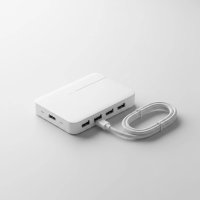
In today’s fast-paced digital world, connectivity is king. Our laptops and devices are becoming ever sleeker, often at the expense of essential ports. That’s where an Anker USB C Hub swoops in as your ultimate connectivity companion, transforming a single USB-C port into a versatile powerhouse for all your peripherals. If you’ve ever found yourself juggling adapters or wishing for more ports, you’re not alone. Anker, a brand synonymous with reliable power and connectivity solutions, offers a diverse range of USB-C hubs designed to streamline your workflow and enhance your digital experience.
What Exactly is an Anker USB C Hub and Why Do You Need One?
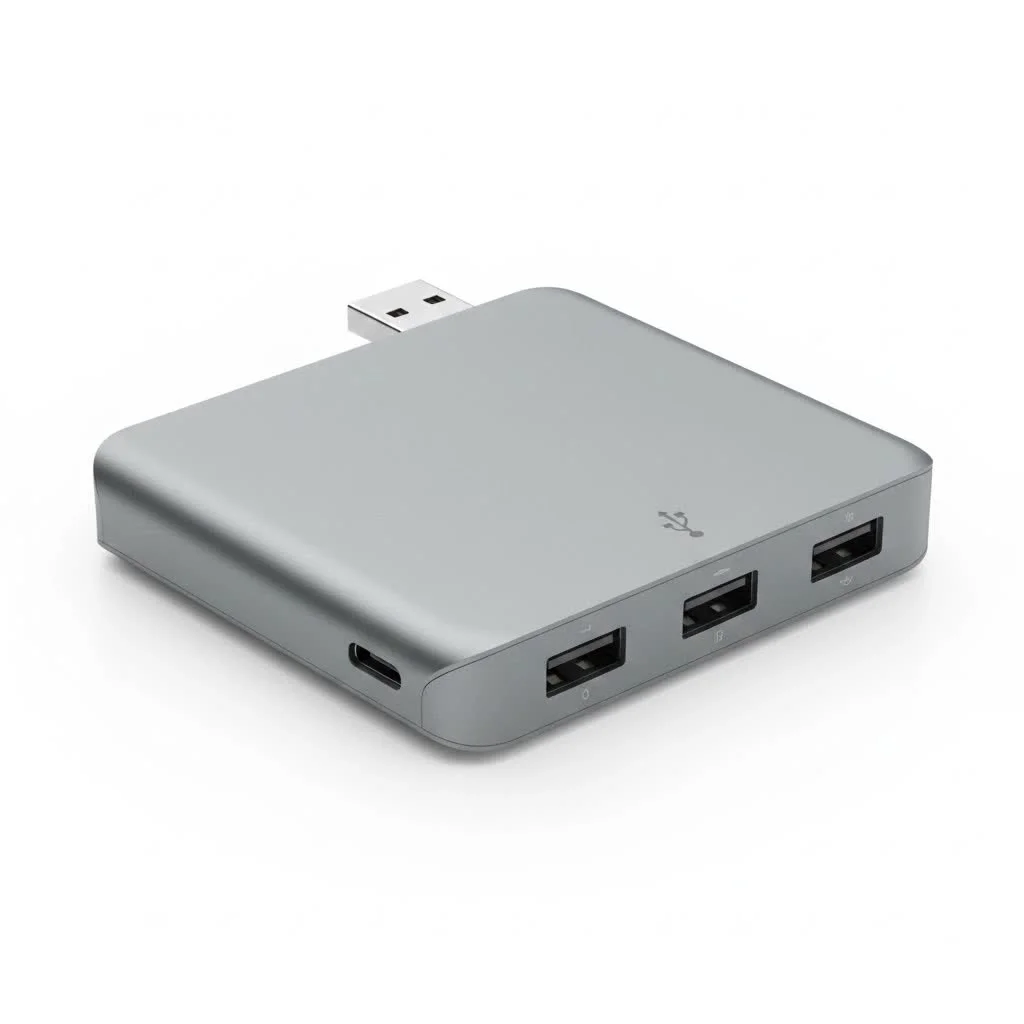
An Anker USB C Hub is essentially a multi-port adapter that connects to your device’s USB-C port, expanding its capabilities significantly. Think of it as a central station for all your gadgets, allowing you to connect external monitors, USB drives, memory cards, Ethernet cables, and more, all through one convenient connection. But why Anker? With over a decade of hands-on experience in this field, I’ve seen countless brands come and go, but Anker consistently stands out for its robust build quality, innovative features, and commitment to user experience. They don’t just add ports; they engineer solutions that work seamlessly and reliably, making them a trusted choice for both casual users and professionals.
Unpacking the Power: Key Features and Connectivity Options
The true value of an Anker USB C Hub lies in the array of ports and capabilities it offers. Understanding these features is crucial for choosing the right hub for your specific needs.
Essential Ports for Every Setup
Modern Anker hubs typically come packed with a variety of ports, addressing almost every connectivity need:
- USB-A Ports: These are your classic USB ports, perfect for connecting older peripherals like mice, keyboards, external hard drives, or flash drives. Many Anker hubs offer multiple USB-A ports, often supporting USB 3.0 for data transfer speeds up to 5 Gbps.
- USB-C Data Ports: Beyond the main input, some hubs include additional USB-C ports solely for data transfer, also often reaching 5 Gbps or even 10 Gbps on higher-end models. It’s important to note these are typically for data only and do not support video output or charging other devices.
- HDMI and DisplayPort: For extending your desktop or mirroring your screen, these video output ports are indispensable. Most Anker hubs support HDMI, commonly offering 4K resolution at 30Hz, while some advanced models can achieve 4K at 60Hz or even support dual displays with technologies like Thunderbolt or DisplayPort.
- Ethernet Port: For a stable and fast internet connection, an Ethernet port (usually Gigabit Ethernet) bypasses Wi-Fi inconsistencies, which is vital for online gaming, large file transfers, or critical work tasks.
- SD/MicroSD Card Slots: Photographers, videographers, and drone enthusiasts will appreciate integrated card readers, offering convenient and quick access to media files, often with transfer speeds up to 104 MB/s.
- USB-C Power Delivery (PD-IN) Port: This is a game-changer. It allows you to charge your laptop through the hub itself, meaning you only need one cable connected to your laptop. Anker hubs often support significant pass-through charging, commonly up to 85W (when connected to a 100W PD charger, as the hub itself consumes around 15W for its operation).
Blazing Fast Data Transfer Speeds
|
Our Picks for the Best USB Hub in 2026
As an Amazon Associate I earn from qualifying purchases.
|
||
| Num | Product | Action |
|---|---|---|
| 1 | P9R PRO USB C Hub Ethernet, 10 in 1 USB Docking Station 10Gbps with 4K@60Hz HDMI, USB C and 2 USB A 3.2, LAN, 2 USB A 2.0, PD 100W, SD/TF Ports, USB to Ethernet Adapter for PC, iPhone 16/15, Mac |

|
| 2 | 3-in-1 USB C Splitter, 3 in 1 Type-C Charging Data Cable Data Transmission Decive Charging Adapter Power Charger Equipment for ome Office Use, Fast & Efficient |
|
| 3 | UGREEN USB 3.0 Hub, 4 Ports USB A Splitter Ultra-Slim USB Expander for Mouse, Keyboard, Flash Drive, U Disk, Printer Compatible with Laptop, Desktop PC, Xbox, PS5, and More |
|
| 4 | USB C Docking Station with M.2 NVMe SSD Enclosure 10Gbps, 9 in 1 USB-C Hub, Type C SSD Slot with 4K@60Hz HDMI, USB 3.2 Gen2, PD100W, SD/TF Card Reader, Laptop Docking Station for Dell/HP/Lenovo/Mac |
|
| 5 | USB Hub 3.0, 7-Port USB Hub Splitter with Individual On/Off Switches and Lights, 3.2ft/1m Long Cable Compatible with MacBook, Laptop, Surface Pro, PS4, PC, Flash Drive, Mobile HDD |
|
| 6 | Powered USB Hub, Wenter 11-Port USB Splitter Hub (10 Faster Data Transfer Ports+ 1 Smart Charging Port) with Individual LED On/Off Switches, USB Hub 3.0 Powered with Power Adapter for Mac, PC |
|
| 7 | Powered USB Hub 10Gbps, intpw 9-Port USB 3.2 Hub, USB C Hub with USB A/USB C 3.2, 4 USB 3.0, 2 PD 45W Charging Ports, 65W Power Adapter and 3.3FT Cable, Aluminum USB Hub for Laptop, iPhone 17/16/15,PC |
|
| 8 | Anker Laptop Docking Station Dual Monitor, 8-in-1 USB C Hub, 4K Dual Monitor with 2 HDMI, 1 Gbps Ethernet Hub, 85W Power Delivery, SD Card Reader for MacBook Pro, XPS and More (Charger not Included) |
|
| 9 | Anker USB Hub 4 Ports with 5Gbps Data Transfer, Multiple USB 3.0 Hub, USB Splitter for Laptop, Extender for A Port Laptop, PC, Desktop and More [Charging Not Supported](0.7 ft USB-A) |
|
| 10 | 13 in 1 USB C Docking Station - Dual Monitor, Triple Display, 8 USB C/A Ports, Ethernet, Audio - LIONWEI USB C Hub for MacBook,Dell,HP,Lenovo,Surface |
|
When it comes to moving files, speed matters. Anker USB C Hubs offer varying data transfer rates:
- 5 Gbps: This is standard for USB 3.0/3.1 Gen 1 ports and is sufficient for most external hard drives and everyday peripherals.
- 10 Gbps: Found on premium models like the Anker 555 USB-C Hub (8-in-1), these faster USB-C and USB-A data ports are ideal for high-speed external SSDs, allowing for rapid transfer of large video files, backups, or high-resolution photos.
Crystal-Clear Video Output
Connecting to an external display elevates productivity and entertainment. Anker hubs offer:
- 4K@30Hz: A common standard for HDMI ports, suitable for most general use and presentations.
- 4K@60Hz and Dual Display: Higher-end hubs and Thunderbolt docks, such as the Anker 547 USB-C Hub or the Anker Prime Thunderbolt 5 Docking Station, can push 4K@60Hz or even support dual 8K displays, providing a smoother visual experience and greater screen real estate. Remember, for optimal video performance, your laptop, the hub, and the external monitor must all support the desired resolution and refresh rate – it’s all about the “weakest link” in the chain.
Smart Power Delivery
The ability to charge your laptop while using the hub is incredibly convenient. Anker’s Power Delivery (PD) functionality ensures your device stays powered. For example, if your laptop requires 85W of charging, you’ll need a 100W PD charger connected to the hub, as the hub itself utilizes about 15W to operate efficiently. This intelligent power distribution ensures your devices are charged safely and effectively.
Discovering the Diversity: Types of Anker USB C Hubs
Anker’s portfolio of USB-C hubs is vast, catering to different lifestyles and professional demands. From portable companions to powerful desktop docking stations, there’s an Anker hub for everyone.
Compact and Travel-Friendly Hubs
For those constantly on the go, slim and lightweight hubs are essential. The Anker 543 USB-C Hub (6-in-1, Slim) is a prime example, offering HDMI, Gigabit Ethernet, USB-A, and USB-C data ports in a compact form factor. These hubs are designed to easily slip into your bag, providing essential connectivity without adding bulk.
Multi-Port Desktop Hubs
When your desk is your command center, a more comprehensive hub is needed. The Anker 555 USB-C Hub (8-in-1) and Anker 565 USB-C Hub (11-in-1) are robust options, providing an impressive array of ports including multiple USB-A, USB-C data, HDMI, DisplayPort, Ethernet, and card readers. These are perfect for creating a powerful workstation with numerous peripherals.
Advanced Thunderbolt Docks
For the ultimate in performance and connectivity, Anker offers Thunderbolt-compatible docking stations. The Anker Prime Thunderbolt 5 Docking Station (14-in-1) is a powerhouse, delivering up to 232W of power, supporting dual 8K displays, and offering a rich selection of high-speed ports like HDMI 2.1 and DisplayPort 2.1. These are ideal for demanding creative professionals and power users.
Plug-in vs. Cable-Attached Designs
Anker hubs come in two main form factors:
- Cable-Attached: Most Anker USB-C hubs feature a built-in cable, offering flexibility in desk arrangement and allowing more space around your laptop’s port. The Anker 341 USB-C Hub (7-in-1) is a popular example of this design.
- Direct Plug-in: Some specialized hubs, like the Anker PowerExpand Direct 7-in-2 USB-C PD Media Hub, plug directly into your laptop’s USB-C ports, often designed to perfectly match specific models like MacBooks for a seamless aesthetic.
Your Personalized Guide: Choosing the Right Anker USB C Hub
Selecting the perfect Anker USB C Hub doesn’t have to be complicated. Here’s a step-by-step guide to help you make an informed decision:
1. Check Your Laptop’s USB-C Port Compatibility
This is arguably the most critical step. Your laptop’s USB-C port isn’t just a USB-C port. To get the most out of an Anker hub, especially for video output and charging, ensure your laptop’s USB-C port supports:
- DisplayPort Alternate Mode (DP Alt Mode): Essential for video output via HDMI or DisplayPort.
- Power Delivery (PD): Necessary if you want to charge your laptop through the hub.
- Thunderbolt 3/4/5 or USB4: For maximum performance, data speeds, and advanced display capabilities, especially with Anker’s Thunderbolt docks. You can usually find this information in your laptop’s manual or on the manufacturer’s website.
2. Assess Your Connectivity Needs
Before buying, make a list of all the devices and peripherals you intend to connect to your hub:
- How many USB-A devices do you have? (Mouse, keyboard, printer, external drive)
- Do you need an external monitor? What resolution and refresh rate?
- Is a wired internet connection important?
- Do you frequently use SD or MicroSD cards?
- Will you be transferring large files that demand high-speed USB ports (10 Gbps)?
- Do you want to charge your laptop through the hub?
3. Consider Power Requirements
If pass-through charging is a priority, factor in both your laptop’s charging needs and the hub’s power consumption (typically 15W). If your laptop needs 65W, you’ll need at least an 80W PD charger for the hub. Always pair a high-wattage hub with an equally capable USB-C PD charger and cable for optimal performance.
4. Portability vs. Desktop Setup
- For Travel: Opt for compact, slim hubs like the Anker 543 USB-C Hub.
- For a Fixed Workstation: A multi-port hub like the Anker 565 or a Thunderbolt dock might be a better fit, offering more ports and robust power delivery.
5. Set a Budget
Anker offers hubs across a range of price points. Generally, the more ports, higher data speeds, advanced video output (like 4K@60Hz or dual displays), and Thunderbolt compatibility, the higher the price. Define your essential needs first, and then explore options within your budget.
“Choosing an Anker USB C Hub is about empowering your setup, not complicating it,” says David Chen, Lead Hardware Engineer at Meeob. “Focus on your core connectivity requirements, check your laptop’s capabilities, and Anker will almost certainly have a hub that fits your workflow perfectly. It’s about smart expansion.”
Tips for Optimal Performance and Troubleshooting Your Anker USB C Hub
Even with a top-tier Anker USB C Hub, a few best practices can ensure smooth operation and help troubleshoot common issues.
- Ensure Full Compatibility: As mentioned, your host device’s USB-C port must support DisplayPort Alt Mode for video and Power Delivery for charging. Always double-check your laptop’s specifications.
- Use the Right Power Adapter: If you’re charging your laptop via the hub, always use a USB-C Power Delivery wall charger with sufficient wattage (e.g., 100W for 85W laptop charging) and a compatible USB-C to USB-C cable. Underpowered chargers will not adequately charge your laptop.
- “Weakest Link” for Video: For optimal display resolution and refresh rate, every component in your setup – your laptop’s port, the Anker USB C Hub, and your monitor – must support the desired specifications. If one link in the chain falls short, the output will be limited by that component.
- Handle with Care: While Anker products are built to last, avoiding excessive bending of cables or harsh impacts can prolong the life of your hub.
- Specific Device Considerations: If you use Samsung devices, be aware that some Anker USB-C hubs may not support Samsung’s PPS (Programmable Power Supply) fast charging protocol, resulting in standard charging speeds. This is typically a compatibility limitation with specific charging technologies rather than a hub malfunction.
Frequently Asked Questions about Anker USB C Hubs
Q1: Will an Anker USB C Hub work with any laptop?
A1: Anker USB-C hubs are compatible with most laptops that have a USB-C port supporting key features like DisplayPort Alternate Mode, Power Delivery, and often Thunderbolt 3/4/5 or USB4 for advanced functionality. Always check your laptop’s USB-C port specifications to ensure full compatibility, especially for video output and charging.
Q2: Is it safe to charge my laptop through an Anker USB C Hub?
A2: Yes, it is generally safe to charge your laptop through an Anker USB C Hub as long as the hub supports Power Delivery (PD) and you use an adequately powerful USB-C PD wall charger. Anker hubs are designed with safety features to protect your devices, but ensure the charger’s wattage exceeds your laptop’s needs plus the hub’s consumption.
Q3: What’s the difference between a USB-C data port and a USB-C PD-IN port on an Anker hub?
A3: A USB-C data port on an Anker hub is specifically for transferring data to and from peripherals (like external drives) and typically does not support charging or video output. A USB-C PD-IN port, on the other hand, is exclusively for connecting a power adapter to provide pass-through charging to your laptop and power to the hub itself; it does not support data transfer or video output.
Q4: Can I connect two external monitors to a single Anker USB C Hub?
A4: The ability to connect two external monitors depends on the specific Anker hub and your laptop’s capabilities. Many standard hubs feature only one HDMI or DisplayPort. However, advanced Anker Thunderbolt docks or hubs utilizing DisplayLink technology can support multiple external displays. For macOS users, Multi-Stream Transport (MST) for dual monitors is often not supported.
Q5: Why is my Anker USB C Hub getting warm?
A5: It’s normal for an Anker USB C Hub to get warm during use, especially when multiple ports are active, transferring large amounts of data, or providing pass-through charging to your laptop. This is due to the power being processed through the hub. As long as it’s not excessively hot to the touch, it typically indicates normal operation.
Q6: Do Anker USB C Hubs support Thunderbolt ports?
A6: Yes, Anker USB C Hubs are compatible with Thunderbolt ports. While a standard USB-C hub might not utilize the full speed of a Thunderbolt port, dedicated Anker Thunderbolt docks are designed to harness the superior bandwidth and power of Thunderbolt, offering unparalleled connectivity and performance for compatible devices.
The Anker Advantage: Empower Your Connectivity
In conclusion, an Anker USB C Hub is an indispensable tool for anyone looking to expand their device’s connectivity and streamline their digital life. From boosting productivity with multiple external displays and reliable Ethernet to facilitating creative workflows with high-speed card readers and data ports, Anker offers a solution for every need. By understanding your specific requirements and considering factors like port selection, power delivery, and compatibility, you can confidently choose the perfect Anker hub to unlock your device’s full potential. Embrace the convenience and efficiency that a quality Anker USB-C hub brings, and elevate your computing experience to new heights.
Get our weekly buyer guide
Practical specs, not advice. Unsubscribe anytime.