In today’s world of sleek, ultra-thin laptops, minimalism often comes at a cost: a distinct lack of ports. You have your charger, your mouse, maybe an external hard drive, and suddenly you’re out of connections. It’s a modern productivity bottleneck. This is where a USB hub for laptop users becomes not just a handy accessory, but an essential tool for unlocking your device’s full potential. It’s the simple, elegant solution to the perennial problem of “not enough ports,” transforming a single USB port into a powerful workstation.
What is a USB Hub and Why Do You Need One?
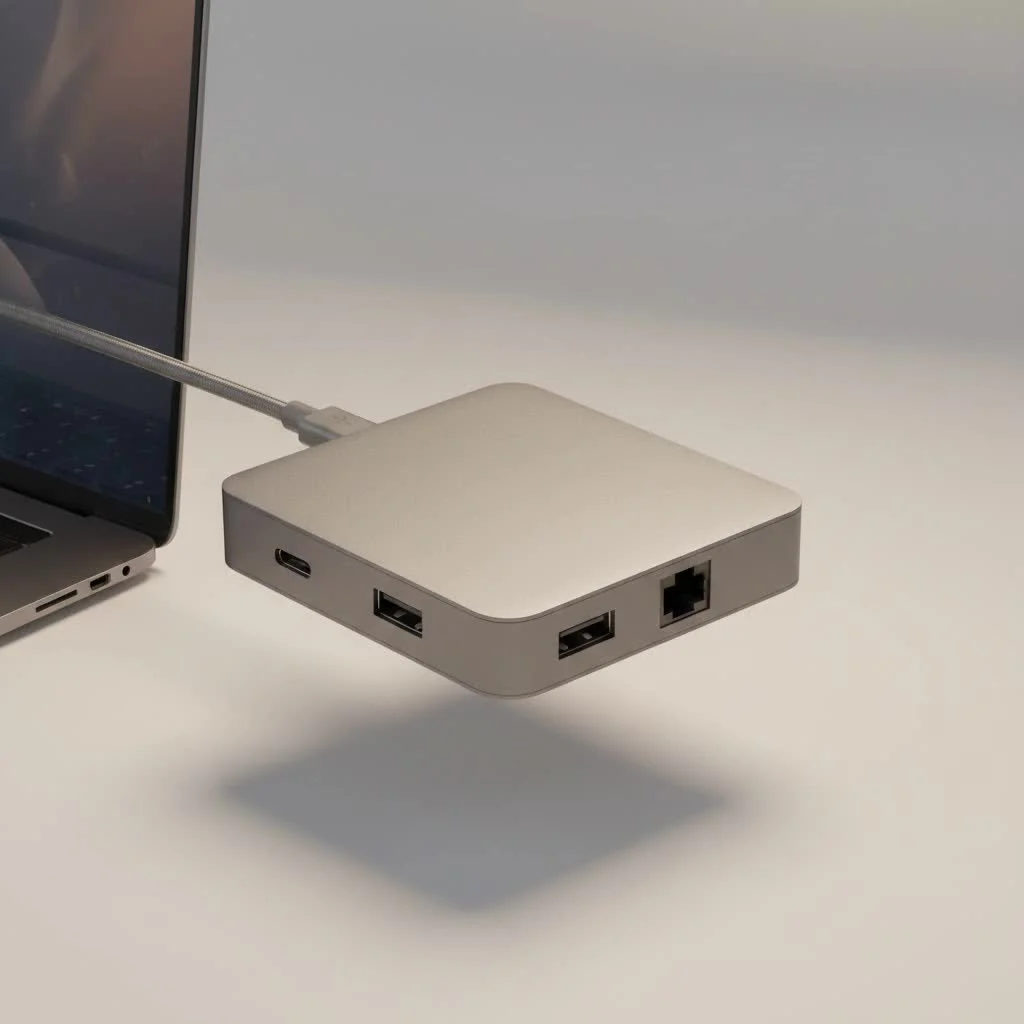
Think of a USB hub as a power strip for your data. It’s a small device that plugs into one of your laptop’s USB ports (either USB-A or USB-C) and expands it into multiple new ports. This allows you to connect several peripherals—like a keyboard, mouse, webcam, flash drive, and external monitor—all at the same time. For anyone juggling multiple devices, from creative professionals and remote workers to students and gamers, a reliable USB hub is a non-negotiable part of their tech arsenal. It declutters your workspace and streamlines your workflow, saving you the constant hassle of plugging and unplugging cables.
The Main Types of USB Hubs for Laptops
Navigating the world of USB hubs can seem confusing at first, with a variety of types, connectors, and features. Let’s break down the most common categories to help you understand your options.
USB-A vs. USB-C Hubs
The primary distinction between hubs is the type of connector they use to plug into your laptop.
- USB-A Hubs: These use the classic rectangular connector that has been the standard for decades. They are perfect for older laptops or for expanding connectivity on machines that still feature multiple USB-A ports. They are widely compatible with a vast range of legacy devices.
- USB-C Hubs: These feature the small, reversible oval connector found on nearly all modern laptops, including MacBooks, Dell XPS models, and Chromebooks. USB-C is more than just a connector shape; it supports faster data transfer speeds and higher power delivery, and can even carry video signals. A USB-C hub is the most future-proof option and often comes with a wider variety of port types.
Powered vs. Unpowered (Bus-Powered) Hubs
This is one of the most critical decisions you’ll make when choosing a hub.
- Unpowered Hubs (Bus-Powered): These hubs draw all their power directly from the laptop’s USB port. They are incredibly portable and convenient, making them ideal for connecting low-power devices like a mouse, keyboard, or flash drive. However, their power output is limited. If you try to connect multiple power-hungry devices, like external hard drives or webcams, you might find they don’t work reliably, or at all.
- Powered Hubs (Self-Powered): These hubs come with their own AC adapter that plugs into a wall outlet. This provides a dedicated, stable power source for each port. A powered USB hub for laptop setups is essential if you plan to connect high-draw peripherals. It ensures every connected device gets the electricity it needs to function correctly without draining your laptop’s battery or overloading its USB port.
“A common mistake I see is users trying to run an entire desk setup—monitor, hard drive, and webcam—through a tiny, unpowered hub,” notes Alex Carter, lead hardware specialist at Meeob. “Investing in a powered hub is the single best way to ensure stability and prevent data corruption issues with external drives.”
Multi-port Hubs and Docking Stations
|
Our Picks for the Best USB Hub in 2026
As an Amazon Associate I earn from qualifying purchases.
|
||
| Num | Product | Action |
|---|---|---|
| 1 | Anker Laptop Docking Station Dual Monitor, 8-in-1 USB C Hub, 4K Dual Monitor with 2 HDMI, 1 Gbps Ethernet Hub, 85W Power Delivery, SD Card Reader for MacBook Pro, XPS and More (Charger not Included) |

|
| 2 | 3-in-1 USB C Splitter, 3 in 1 Type-C Charging Data Cable Data Transmission Decive Charging Adapter Power Charger Equipment for ome Office Use, Fast & Efficient |
|
| 3 | 13 in 1 USB C Docking Station - Dual Monitor, Triple Display, 8 USB C/A Ports, Ethernet, Audio - LIONWEI USB C Hub for MacBook,Dell,HP,Lenovo,Surface |
|
| 4 | Powered USB Hub, Wenter 11-Port USB Splitter Hub (10 Faster Data Transfer Ports+ 1 Smart Charging Port) with Individual LED On/Off Switches, USB Hub 3.0 Powered with Power Adapter for Mac, PC |
|
| 5 | Powered USB Hub 10Gbps, intpw 9-Port USB 3.2 Hub, USB C Hub with USB A/USB C 3.2, 4 USB 3.0, 2 PD 45W Charging Ports, 65W Power Adapter and 3.3FT Cable, Aluminum USB Hub for Laptop, iPhone 17/16/15,PC |
|
| 6 | Anker USB Hub 4 Ports with 5Gbps Data Transfer, Multiple USB 3.0 Hub, USB Splitter for Laptop, Extender for A Port Laptop, PC, Desktop and More [Charging Not Supported](0.7 ft USB-A) |
|
| 7 | UGREEN USB 3.0 Hub, 4 Ports USB A Splitter Ultra-Slim USB Expander for Mouse, Keyboard, Flash Drive, U Disk, Printer Compatible with Laptop, Desktop PC, Xbox, PS5, and More |
|
| 8 | P9R PRO USB C Hub Ethernet, 10 in 1 USB Docking Station 10Gbps with 4K@60Hz HDMI, USB C and 2 USB A 3.2, LAN, 2 USB A 2.0, PD 100W, SD/TF Ports, USB to Ethernet Adapter for PC, iPhone 16/15, Mac |
|
| 9 | USB Hub 3.0, 7-Port USB Hub Splitter with Individual On/Off Switches and Lights, 3.2ft/1m Long Cable Compatible with MacBook, Laptop, Surface Pro, PS4, PC, Flash Drive, Mobile HDD |
|
| 10 | USB C Docking Station with M.2 NVMe SSD Enclosure 10Gbps, 9 in 1 USB-C Hub, Type C SSD Slot with 4K@60Hz HDMI, USB 3.2 Gen2, PD100W, SD/TF Card Reader, Laptop Docking Station for Dell/HP/Lenovo/Mac |
|
While simple hubs just add more USB ports, many modern devices are multi-port adapters that offer a suite of different connections. These can include:
- HDMI/DisplayPort: For connecting external monitors, essential for a dual-screen setup.
- SD/MicroSD Card Readers: A lifesaver for photographers and videographers who need to transfer files quickly.
- Ethernet Port: For a stable, wired internet connection that’s faster and more reliable than Wi-Fi.
- Audio Jack: For connecting headphones or external speakers.
While a multi-port hub offers immense versatility, a docking station is a step beyond. A docking station is typically a larger, powered unit designed to be a permanent desk fixture, turning your laptop into a full desktop PC with a single cable.
How to Choose the Perfect USB Hub for Your Laptop
Selecting the right hub doesn’t have to be complicated. Follow this simple checklist to find the perfect match for your needs.
- Identify Your Laptop’s Ports: First, look at your laptop. Does it have USB-A ports, USB-C ports, or a mix of both? This determines the type of hub connector you need. If you have a USB-C port, a USB-C hub is generally the most versatile choice.
- List Your Peripherals: Make a list of all the devices you want to connect simultaneously. Count how many USB-A, USB-C, and other connections you need. Always choose a hub with at least one more port than you currently need to leave room for future expansion.
- Assess Your Power Needs: Look at your list of devices again. Are they low-power (mouse, keyboard) or high-power (external SSDs, webcams, charging your phone)? If you have even one high-power device, a powered hub is strongly recommended for stable performance.
- Consider Data Transfer Speed: The USB standard matters for speed.
- USB 2.0: An older standard (480 Mbps). Fine for mice and keyboards, but very slow for file transfers.
- USB 3.0/3.1/3.2: Much faster standards (5 Gbps to 20 Gbps). This is the sweet spot for most users, offering speedy file transfers from external drives.
- USB4/Thunderbolt: The fastest available (up to 40 Gbps). These are premium options necessary for high-resolution displays and lightning-fast external SSDs.
- Think About Portability: If you’re constantly on the move, a compact, bus-powered hub made of lightweight aluminum is an excellent choice. If the hub will live on your desk, you can opt for a larger, more robust powered model.
Frequently Asked Questions (FAQ)
What is the difference between a USB hub and a docking station?
A USB hub primarily expands the number of USB ports available. A docking station is a more comprehensive solution that not only adds USB ports but also typically includes multiple video outputs (HDMI, DisplayPort), an Ethernet port, audio jacks, and its own power supply, effectively converting a laptop into a desktop setup with one cable.
Can a USB hub damage my laptop?
A well-made hub from a reputable brand will not damage your laptop. However, extremely cheap, uncertified hubs can potentially have poor power management that could, in rare cases, harm your laptop’s port. Stick to trusted brands to ensure safety and reliability.
Will a USB hub slow down my devices?
A USB hub shares the bandwidth of the single port it’s connected to. If you connect multiple high-speed devices (like two fast SSDs) and use them simultaneously, you may notice a slowdown compared to plugging one directly into the laptop. For everyday use with a mix of devices, the effect is generally unnoticeable.
Can I charge my laptop through a USB hub?
You can only charge your laptop through a USB-C hub that supports USB Power Delivery (PD). You must plug the hub into a USB-C port on your laptop that also supports PD, and you’ll need to use your laptop’s original power adapter connected to the hub’s PD input port.
How many USB devices can I connect to a hub?
The theoretical limit for the USB protocol is 127 devices, but this is not practical. The real-world limit is determined by the number of ports on the hub and the total power and bandwidth requirements of the connected devices.
Conclusion: Expand Your Possibilities
A USB hub for laptop users is an indispensable accessory that breaks down the physical limitations of modern hardware. By understanding the key differences between connector types, power options, and additional features, you can confidently choose a hub that perfectly suits your workflow. Whether you’re a student creating a flexible study station, a professional building a powerful home office, or a creator needing to connect a range of gear, the right hub will expand your connectivity and let you focus on what truly matters: getting things done.
Get our weekly buyer guide
Practical specs, not advice. Unsubscribe anytime.

I got a basic 4-port USB-A hub after reading this, hoping to connect my mouse, keyboard, and a couple of flash drives. It works okay for the most part, but sometimes when I have all four ports in use, my mouse gets a little laggy. I think I might need to upgrade to something with more power delivery, especially since I’m connecting it to an older laptop. Still, it’s better than nothing.
I was constantly juggling my external hard drive and my webcam because my new ultrathin laptop only has two USB-C ports. This guide really helped me understand the different types of hubs. I ended up getting a 7-in-1 USB-C hub with HDMI and it’s been a game changer for my home office setup. No more unplugging things just to connect something else!
This guide was exactly what I needed! My MacBook Pro has been a nightmare for connectivity, and I was always running out of ports for my external monitor and various dongles. I followed the advice and got a high-speed USB-C hub with multiple USB 3.0 ports and an Ethernet port. Now my single USB-C port truly transforms into a powerful workstation, just like it said. Highly recommend doing your research before buying!
Great info here! I’ve always just bought whatever USB hub was cheapest, but understanding the difference between powered and unpowered hubs was really useful. I picked up a powered USB-A hub for my older desktop and it handles all my peripherals, including a printer and scanner, without any issues. Definitely worth investing a bit more for the right solution.