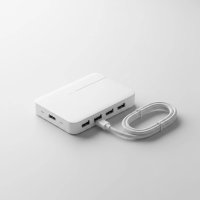
In our rapidly evolving digital world, new technologies constantly emerge, bringing incredible convenience and power. Yet, sometimes, these advancements leave us with a bit of a dilemma. You’ve got that sleek new laptop with its versatile USB-C ports, but your trusty external hard drive, mouse, and keyboard still rock the classic USB-A connection. This is where a high-quality USB A to C hub becomes your digital hero, seamlessly bridging the gap between your cherished legacy devices and your cutting-edge tech. It’s an essential tool for anyone looking to expand their connectivity without replacing every peripheral they own.
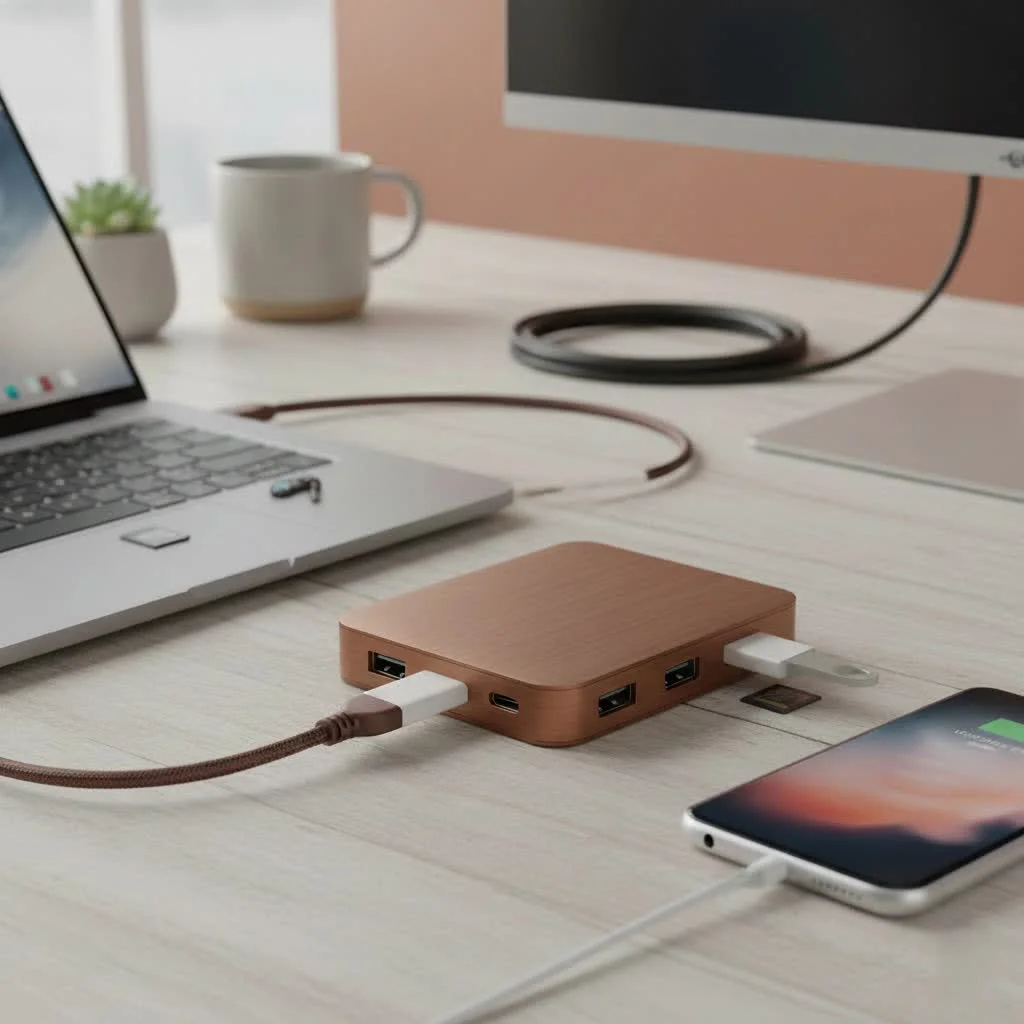
Think about it: fewer ports on slimmer laptops mean you’re often left scrambling for connections. A well-chosen USB-A to C hub isn’t just an accessory; it’s a foundational component for a productive, organized, and truly versatile setup. It unlocks the full potential of your modern devices by embracing the past, ensuring none of your gear gets left behind.
What Exactly is a USB-A to C Hub?
At its core, a USB A to C hub is a device that connects to your computer’s single USB-C port and provides multiple output ports, typically including several traditional USB-A ports. It effectively transforms one USB-C connection into several usable ports for your existing USB-A devices. While it might sound simple, the technology packed into these hubs can be quite sophisticated, handling data, power, and even video signals.
The need for these hubs has grown exponentially as manufacturers increasingly adopt USB-C as the standard, primarily due to its reversible connector, higher power delivery capabilities, and impressive data transfer speeds. However, billions of USB-A devices are still in active use globally, making this type of hub indispensable. It’s the perfect solution for extending the life of your peripherals and making your new devices truly work with your entire ecosystem.
The Power of Connectivity: Features of a Good USB-A to C Hub
Not all USB A to C hubs are created equal. To truly get the most out of your connectivity, you need to understand the key features that differentiate a good hub from a great one. These aren’t just technical jargon; they directly impact your daily workflow and overall experience.
Unpacking Data Transfer Speeds
When you’re transferring large files, speed is king. The USB-A ports on your hub aren’t all the same. Here’s what you should know:
- USB 2.0 (480 Mbps): These are the slowest. While fine for a mouse or keyboard, they’re not ideal for data-heavy tasks like external drives. You’ll often find these on very cheap hubs.
- USB 3.0 / USB 3.2 Gen 1 (5 Gbps): This is the standard for most modern USB-A ports. They offer a significant speed boost over USB 2.0 and are suitable for most external drives and general peripherals. Many hubs will feature these ports.
- USB 3.2 Gen 2 (10 Gbps): For lightning-fast transfers with compatible external SSDs or high-speed capture cards, look for USB-A ports rated for 10 Gbps. These ports can prevent bottlenecks when you’re working with demanding hardware.
Always check the specifications. A blue port often indicates USB 3.0 speeds, but explicit labeling is always best.
Power Delivery (PD) Capabilities
|
Our Picks for the Best USB Hub in 2026
As an Amazon Associate I earn from qualifying purchases.
|
||
| Num | Product | Action |
|---|---|---|
| 1 | 3-in-1 USB C Splitter, 3 in 1 Type-C Charging Data Cable Data Transmission Decive Charging Adapter Power Charger Equipment for ome Office Use, Fast & Efficient |

|
| 2 | USB C Docking Station with M.2 NVMe SSD Enclosure 10Gbps, 9 in 1 USB-C Hub, Type C SSD Slot with 4K@60Hz HDMI, USB 3.2 Gen2, PD100W, SD/TF Card Reader, Laptop Docking Station for Dell/HP/Lenovo/Mac |
|
| 3 | P9R PRO USB C Hub Ethernet, 10 in 1 USB Docking Station 10Gbps with 4K@60Hz HDMI, USB C and 2 USB A 3.2, LAN, 2 USB A 2.0, PD 100W, SD/TF Ports, USB to Ethernet Adapter for PC, iPhone 16/15, Mac |
|
| 4 | Anker USB Hub 4 Ports with 5Gbps Data Transfer, Multiple USB 3.0 Hub, USB Splitter for Laptop, Extender for A Port Laptop, PC, Desktop and More [Charging Not Supported](0.7 ft USB-A) |
|
| 5 | Anker Laptop Docking Station Dual Monitor, 8-in-1 USB C Hub, 4K Dual Monitor with 2 HDMI, 1 Gbps Ethernet Hub, 85W Power Delivery, SD Card Reader for MacBook Pro, XPS and More (Charger not Included) |
|
| 6 | Powered USB Hub 10Gbps, intpw 9-Port USB 3.2 Hub, USB C Hub with USB A/USB C 3.2, 4 USB 3.0, 2 PD 45W Charging Ports, 65W Power Adapter and 3.3FT Cable, Aluminum USB Hub for Laptop, iPhone 17/16/15,PC |
|
| 7 | 13 in 1 USB C Docking Station - Dual Monitor, Triple Display, 8 USB C/A Ports, Ethernet, Audio - LIONWEI USB C Hub for MacBook,Dell,HP,Lenovo,Surface |
|
| 8 | Powered USB Hub, Wenter 11-Port USB Splitter Hub (10 Faster Data Transfer Ports+ 1 Smart Charging Port) with Individual LED On/Off Switches, USB Hub 3.0 Powered with Power Adapter for Mac, PC |
|
| 9 | UGREEN USB 3.0 Hub, 4 Ports USB A Splitter Ultra-Slim USB Expander for Mouse, Keyboard, Flash Drive, U Disk, Printer Compatible with Laptop, Desktop PC, Xbox, PS5, and More |
|
| 10 | USB Hub 3.0, 7-Port USB Hub Splitter with Individual On/Off Switches and Lights, 3.2ft/1m Long Cable Compatible with MacBook, Laptop, Surface Pro, PS4, PC, Flash Drive, Mobile HDD |
|
Modern USB-C ports aren’t just for data; they’re also incredible power conduits. Many USB A to C hubs now include Power Delivery (PD) passthrough, allowing you to charge your laptop or host device through the hub itself. This means you only need one cable running to your laptop for both power and all your connected peripherals, keeping your workspace clean and organized.
- What to Look For: Common PD ratings include 65W, 85W, or even 100W. Ensure the hub’s PD capacity matches or exceeds your laptop’s charging requirements for optimal performance. A robust USB-C hub with PD can transform your laptop into a full workstation, even charging other devices simultaneously.
Video Output (HDMI/DisplayPort)
If you plan to connect an external monitor, your hub needs to support video output.
- HDMI: This is the most common video port found on hubs. Look for hubs that support 4K resolution at 60Hz for a smooth, high-quality display experience. Older or cheaper hubs might only offer 4K at 30Hz, which can feel sluggish.
- DisplayPort Alt Mode/Thunderbolt: Your device’s USB-C port must support DisplayPort Alt Mode (or be a Thunderbolt port) for video output to work. Always check your device’s specifications.
Additional Ports: Expanding Beyond the Basics
A truly versatile USB A to C hub often includes more than just USB-A ports:
- Ethernet: For a stable, high-speed wired internet connection, especially crucial in areas with unreliable Wi-Fi.
- SD/microSD Card Readers: Indispensable for photographers, videographers, or anyone needing to transfer files from cameras and drones.
- Additional USB-C Data Ports: Sometimes you need another USB-C port purely for data, which some hubs provide.
“A well-designed USB-A to C hub isn’t just about adding ports; it’s about creating an efficient ecosystem where all your devices work in harmony, maximizing both productivity and convenience,” says Dr. Elena Petrova, Lead Connectivity Architect at Meeob Labs.
Types of USB-A to C Hubs: Finding Your Perfect Match
The market offers a diverse range of USB A to C hubs, each tailored for different needs. Understanding these categories will help you narrow down your choices.
Basic Data Hubs
These are the simplest hubs, often focusing solely on providing additional USB-A ports. They are typically bus-powered, meaning they draw power directly from your host device.
- Ideal for: Connecting low-power peripherals like a mouse, keyboard, or flash drives when you just need more standard USB ports.
- Pros: Compact, affordable, and highly portable.
- Cons: Limited power output for multiple high-drain devices; usually lacks video or Ethernet ports.
Multiport Adapters
Stepping up in functionality, these hubs offer a wider array of ports beyond just USB-A, making them incredibly versatile.
- Ideal for: Users who need to connect USB-A devices, an external display, and a wired internet connection while on the go or at a minimalist desk setup.
- Pros: Combines multiple functions (USB-A, HDMI, Ethernet, PD passthrough) in a portable form factor.
- Cons: May have fewer USB-A ports than a basic hub; some models might compromise on certain port speeds (e.g., 30Hz HDMI).
Docking Stations
While often considered a separate category, many USB-C docking stations essentially function as advanced USB A to C hubs. They offer the most extensive connectivity, usually featuring dedicated power supplies for robust performance.
- Ideal for: Creating a permanent desktop workstation with multiple monitors, numerous peripherals, and high-power charging for laptops.
- Pros: Maximum port variety, high power delivery, superior cooling, and stable connections.
- Cons: Less portable, generally more expensive, and typically requires external power.
How to Choose the Right USB-A to C Hub for Your Needs
Selecting the perfect USB A to C hub involves a bit of self-reflection and understanding your specific requirements. Don’t just grab the first one you see; a thoughtful choice will pay dividends.
1. Assess Your Device’s USB-C Port Capabilities
Before you shop, understand what your laptop, tablet, or phone’s USB-C port can actually do. USB-C is just the connector shape; the underlying technology varies widely.
- Look for symbols next to the port: a plain USB trident means basic data, a “D” or a DisplayPort logo indicates video output (DisplayPort Alt Mode), and a lightning bolt signifies Thunderbolt capabilities.
- Check your device’s manual for specific data, video, and power support.
2. Identify Your Peripheral Needs
Make a list of everything you want to connect.
- Do you need to plug in a wired keyboard and mouse?
- An external SSD or flash drive for data transfer?
- A printer or scanner?
- An external monitor for presentations or extended desktop space?
- An Ethernet cable for a reliable network connection?
- SD cards from your camera?
This list will dictate the number and type of ports you need on your hub.
3. Consider Power Requirements
- Bus-powered hubs: These draw all their power from your laptop’s USB-C port. They’re great for portability but can struggle with multiple power-hungry devices, potentially draining your laptop’s battery faster.
- Externally powered hubs: These come with their own AC adapter. They provide more stable and consistent power to all connected devices, making them ideal for desktop setups or when connecting high-power peripherals like multiple external hard drives. They are also essential if you want your hub to provide Power Delivery passthrough charging for your laptop.
4. Evaluate Port Speeds and Types
As discussed earlier, pay close attention to the advertised speeds for both USB-A and any additional USB-C data ports. Opt for USB 3.0 (5 Gbps) or faster for data ports. For video, aim for 4K@60Hz HDMI if your monitor supports it. Avoid hubs with only USB 2.0 data ports unless you only need to connect very basic, low-speed devices.
5. Check for Build Quality and Portability
A reliable hub should be built to last.
- Material: Aluminum or metal casings are preferable as they dissipate heat better than plastic, preventing throttling over time.
- Cable: Look for thick, flexible cables with good strain relief where they connect to the hub. Detachable cables can offer more flexibility and easier replacement.
- Certifications: USB-IF certification indicates compliance with standards and reduces risks like over-voltage.
- Size and Weight: If you travel frequently, a compact, lightweight hub is crucial.
6. Compatibility: OS and Specific Device Considerations
Most basic hubs are plug-and-play with Windows, macOS, and ChromeOS. However, for more advanced features like multiple external monitors, especially with Apple’s M1, M2, or M3 Macs, you might need a hub that explicitly supports DisplayLink technology and its associated drivers. Always verify compatibility with your operating system and specific device model.
Practical Applications: Where USB-A to C Hubs Shine
The versatility of a USB A to C hub makes it an indispensable tool in various scenarios:
- Creating a Portable Workstation: When you’re constantly on the move, a compact multiport hub allows you to quickly transform your laptop into a full-fledged workstation at any desk. Connect a monitor, full-sized keyboard, and mouse, and you’re ready to tackle serious work.
- Expanding Laptop Connectivity: Many modern ultra-thin laptops only offer a couple of USB-C ports. A hub instantly expands these into multiple USB-A ports for legacy devices, an HDMI port for an external display, and an Ethernet port for reliable internet, bringing back the connectivity you miss.
- Gaming Setups: Connect your favorite USB-A gaming peripherals, external storage for game libraries, and even a wired controller to your USB-C enabled gaming laptop or handheld console through a robust hub.
Frequently Asked Questions About USB-A to C Hubs
Q: Can a USB-A to C hub charge my laptop?
A: Yes, many USB A to C hubs feature a USB-C Power Delivery (PD) input port. This allows you to plug your laptop’s USB-C charger into the hub, which then charges your laptop while also powering all connected peripherals through the hub itself.
Q: What speeds can I expect from the USB-A ports on a USB-C hub?
A: The speeds vary significantly. Look for USB-A ports that support USB 3.0 (also known as USB 3.2 Gen 1) for 5 Gbps data transfer, or even USB 3.2 Gen 2 for 10 Gbps. Avoid hubs with only USB 2.0 (480 Mbps) USB-A ports if you plan to transfer large files.
Q: Are all USB-C hubs compatible with every USB-C device?
A: While the physical connector is universal, the underlying capabilities of USB-C ports on devices can differ. Always check if your device’s USB-C port supports data, video (DisplayPort Alt Mode), and power delivery if you need these functions from your hub.
Q: What’s the difference between a USB-C hub and a docking station?
A: A USB-C hub is generally smaller, more portable, and offers a selection of common ports, often bus-powered. A docking station is typically larger, provides a more extensive array of ports (including specialized ones), usually has its own dedicated power supply, and is designed for a more permanent desktop setup.
Q: Is it safe to use third-party USB-C hubs?
A: Yes, third-party USB A to C hubs are safe to use if chosen carefully. Look for reputable brands, read reviews, and ideally, choose hubs with USB-IF certification, which ensures they meet industry standards for safety and performance.
Final Thoughts: Embrace Seamless Connectivity
The transition to USB-C can feel like a hurdle when you have a drawer full of trusty USB-A devices. However, with the right USB A to C hub, this transition becomes a seamless upgrade, not a compromise. By understanding the key features like data transfer speeds, power delivery, and various port options, you can confidently choose a hub that not only meets your current needs but also future-proofs your setup.
At Meeob, we believe in empowering you with the knowledge to make smart tech choices. So go ahead, unlock the full potential of your devices, streamline your workspace, and enjoy the unparalleled convenience that a well-chosen USB-A to C hub brings. What amazing connections will you make today?
Get our weekly buyer guide
Practical specs, not advice. Unsubscribe anytime.