A USB-C hub expands a laptop’s connectivity by converting a single USB-C port into multiple ports, such as USB-A, HDMI, Ethernet, and SD card readers. This essential accessory addresses the limited port availability on modern ultra-thin laptops, enabling users to connect various peripherals simultaneously for enhanced productivity.
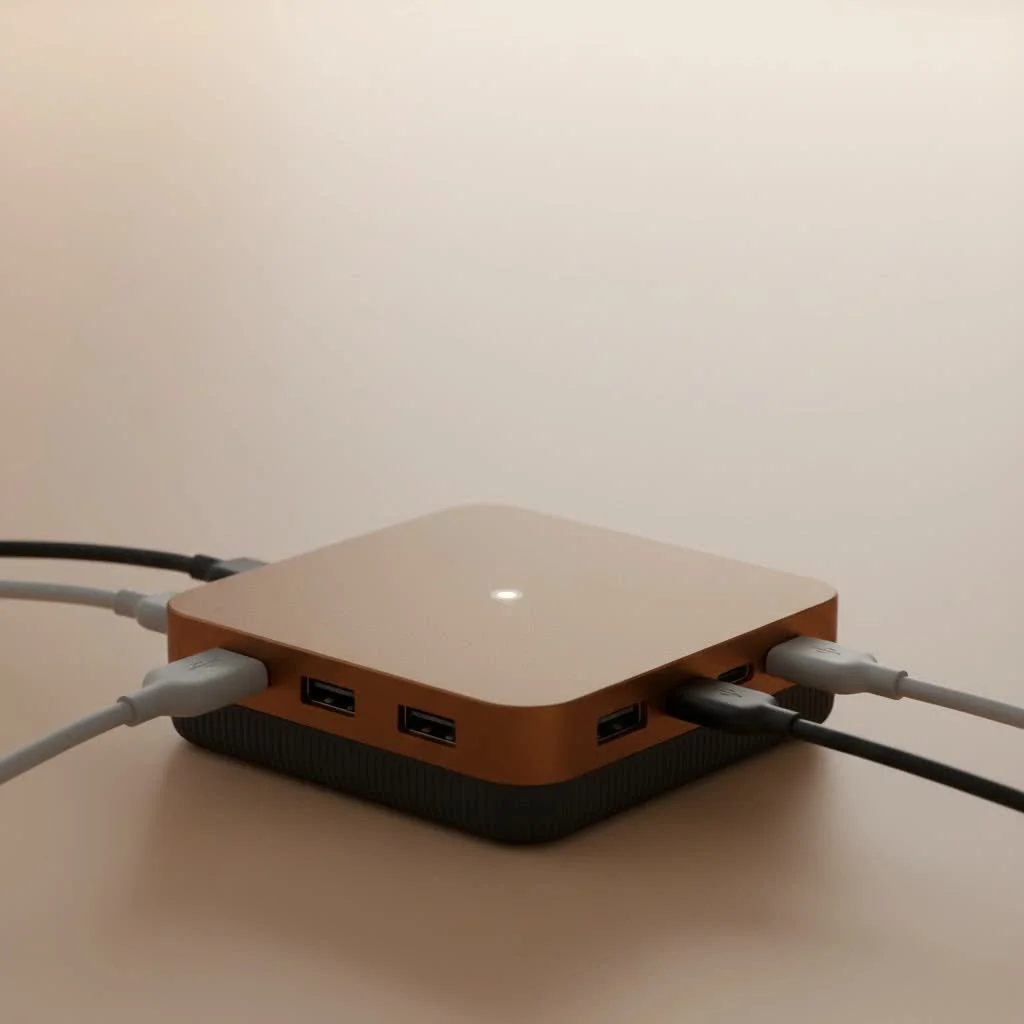
Having observed the evolution of computer peripherals for over a decade, I’ve seen the USB-C hub become a must-have device. This guide will detail everything from understanding different port types to selecting the ideal hub for your setup, ensuring seamless and efficient device connectivity.
What Exactly is a USB-C Hub?
A USB-C hub is a device that increases the number and variety of ports available on your laptop, tablet, or smartphone. By plugging into one USB-C port, it provides a range of connections, including traditional USB-A, HDMI for video, Ethernet for wired internet, and SD card readers. It functions like a power strip for your data and peripherals, allowing one connection point to support your entire digital workspace.
The strength of a USB-C hub lies in the USB-C standard’s versatility, which can manage data transfer, video output, and power delivery through a single, reversible connector. This allows a compact hub to replace numerous individual adapters and dongles, reducing desk clutter and simplifying your mobile toolkit.
Decoding the Ports: A Guide to Your Hub’s Connections
USB-C hubs vary significantly in their offerings. The utility of a hub is primarily determined by the ports it provides. Understanding each port’s function is crucial for selecting the right hub for your specific requirements.
HDMI or DisplayPort: Your Gateway to Bigger Screens
To connect your laptop to an external monitor, TV, or projector, a video output port is necessary.
- HDMI: This is the most common video port on hubs and displays, ideal for most users, supporting high-definition video and audio via a single cable.
- DisplayPort: Often preferred by gamers and creative professionals, DisplayPort can offer higher refresh rates and resolutions than HDMI.
A critical specification to check is the supported resolution and refresh rate, typically listed as “4K@30Hz” or “4K@60Hz.” For optimal video and smooth mouse movement, especially on larger screens, prioritize a hub that supports 4K@60Hz.
USB-A: Connecting Your Legacy Devices
Despite the prevalence of USB-C, most existing peripherals—such as keyboards, mice, flash drives, and external hard drives—still utilize the rectangular USB-A connector. A high-quality USB-C hub will include several USB-A ports, allowing you to continue using your current accessories. Look for USB 3.0 (or higher) ports for significantly faster data transfer speeds compared to the older USB 2.0 standard.
Ethernet: For Rock-Solid Internet
|
Our Picks for the Best USB Hub in 2026
As an Amazon Associate I earn from qualifying purchases.
|
||
| Num | Product | Action |
|---|---|---|
| 1 | P9R PRO USB C Hub Ethernet, 10 in 1 USB Docking Station 10Gbps with 4K@60Hz HDMI, USB C and 2 USB A 3.2, LAN, 2 USB A 2.0, PD 100W, SD/TF Ports, USB to Ethernet Adapter for PC, iPhone 16/15, Mac |

|
| 2 | Powered USB Hub, Wenter 11-Port USB Splitter Hub (10 Faster Data Transfer Ports+ 1 Smart Charging Port) with Individual LED On/Off Switches, USB Hub 3.0 Powered with Power Adapter for Mac, PC |
|
| 3 | Anker Laptop Docking Station Dual Monitor, 8-in-1 USB C Hub, 4K Dual Monitor with 2 HDMI, 1 Gbps Ethernet Hub, 85W Power Delivery, SD Card Reader for MacBook Pro, XPS and More (Charger not Included) |
|
| 4 | USB Hub 3.0, 7-Port USB Hub Splitter with Individual On/Off Switches and Lights, 3.2ft/1m Long Cable Compatible with MacBook, Laptop, Surface Pro, PS4, PC, Flash Drive, Mobile HDD |
|
| 5 | 13 in 1 USB C Docking Station - Dual Monitor, Triple Display, 8 USB C/A Ports, Ethernet, Audio - LIONWEI USB C Hub for MacBook,Dell,HP,Lenovo,Surface |
|
| 6 | USB C Docking Station with M.2 NVMe SSD Enclosure 10Gbps, 9 in 1 USB-C Hub, Type C SSD Slot with 4K@60Hz HDMI, USB 3.2 Gen2, PD100W, SD/TF Card Reader, Laptop Docking Station for Dell/HP/Lenovo/Mac |
|
| 7 | Powered USB Hub 10Gbps, intpw 9-Port USB 3.2 Hub, USB C Hub with USB A/USB C 3.2, 4 USB 3.0, 2 PD 45W Charging Ports, 65W Power Adapter and 3.3FT Cable, Aluminum USB Hub for Laptop, iPhone 17/16/15,PC |
|
| 8 | 3-in-1 USB C Splitter, 3 in 1 Type-C Charging Data Cable Data Transmission Decive Charging Adapter Power Charger Equipment for ome Office Use, Fast & Efficient |
|
| 9 | Anker USB Hub 4 Ports with 5Gbps Data Transfer, Multiple USB 3.0 Hub, USB Splitter for Laptop, Extender for A Port Laptop, PC, Desktop and More [Charging Not Supported](0.7 ft USB-A) |
|
| 10 | UGREEN USB 3.0 Hub, 4 Ports USB A Splitter Ultra-Slim USB Expander for Mouse, Keyboard, Flash Drive, U Disk, Printer Compatible with Laptop, Desktop PC, Xbox, PS5, and More |
|
While Wi-Fi offers convenience, a wired Ethernet connection provides superior speed, stability, and security. For online gamers, streamers, or anyone frequently downloading large files, an Ethernet port on your hub is an essential feature. It ensures a reliable connection that Wi-Fi cannot always guarantee, particularly in congested network environments.
SD and microSD Card Readers: A Creator’s Best Friend
For photographers, videographers, and content creators, an integrated SD and/or microSD card reader is highly beneficial. It eliminates the need for a separate card reader, enabling direct and easy transfer of photos and videos from your camera’s memory card to your computer.
USB-C Power Delivery (PD): Charge While You Work
This is one of the most vital features. A USB-C port with Power Delivery (PD) allows you to charge your laptop through the hub. You connect your laptop’s USB-C charger to the hub’s PD port, and the hub then delivers power to your computer while simultaneously operating all connected peripherals. Without PD, your laptop’s battery would power the hub and all connected devices, leading to rapid battery drain. Ensure the hub’s PD wattage (e.g., 60W, 85W, 100W) meets or exceeds your laptop’s power requirements.
How to Choose the Right USB-C Hub for You
With a clear understanding of the available ports, selecting the perfect hub involves matching its features to your specific workflow.
“The best USB-C hub isn’t the one with the most ports; it’s the one with the right ports for you,” advises tech expert David Carter. “A minimalist traveler has very different needs from a video editor with a multi-monitor desk setup. Start by listing the devices you use daily.”
Step 1: Identify Your Primary Use Case
- For the Traveler or Minimalist: Opt for a small, lightweight hub with essential ports: a couple of USB-A ports, an HDMI port, and potentially an SD card reader. Portability is paramount.
- For the Home Office Pro: A more robust hub is recommended. Prioritize multiple USB-A ports, dual monitor support (if required), an Ethernet port for stable internet, and high-wattage Power Delivery to power your workstation.
- For the Creative Professional: Focus on high-speed connectivity. Look for USB 3.1 Gen 2 or Thunderbolt ports for rapid file transfers, a high-quality 4K@60Hz HDMI or DisplayPort output, and reliable SD/microSD card readers.
Step 2: Check Your Laptop’s Specifications
Confirm that your laptop’s USB-C port supports “DisplayPort Alternate Mode” if you intend to connect an external monitor. This feature enables video signals to be transmitted through the USB-C port. Verify your laptop’s charging wattage to select a hub with adequate Power Delivery.
Step 3: Build Quality and Brand Reputation
Given that a hub manages significant data and power, investing in a well-made product from a reputable brand is advisable. Inexpensive, unbranded hubs can be unreliable, often featuring failing ports or speeds that do not meet advertised claims. Look for hubs with aluminum casings, which are effective at dissipating heat.
Frequently Asked Questions (FAQ)
What’s the difference between a USB-C hub and a docking station?
While both expand connectivity, docking stations are typically larger, less portable, and more powerful. They often have their own power source and are designed for stationary desktop setups, offering more ports and higher performance than a standard hub. Hubs are generally smaller, bus-powered (drawing power from the laptop), and designed for portability.
Do USB-C hubs get hot?
Yes, it is normal for a USB-C hub to become warm during use, especially when multiple ports are active and it is handling Power Delivery. The hub processes a significant amount of data and power. However, if it becomes uncomfortably hot to the touch, it could indicate a faulty unit.
Can I use any USB-C hub with my MacBook or Windows laptop?
Generally, yes. USB-C is a universal standard, and most hubs are compatible with both macOS and Windows. However, it is always prudent to check the product description for any specific compatibility notes, particularly for features like multi-monitor support, which can vary between operating systems.
Will a USB-C hub slow down my internet or data transfer speeds?
A hub’s total bandwidth is shared among all its ports. If you are simultaneously using every port for high-demand tasks, such as transferring large files while streaming 4K video, you might observe a performance decrease. For typical everyday use, however, a quality hub should manage bandwidth distribution without any noticeable slowdown.
Your Connection to a a More Productive Workflow
Choosing the right USB-C hub empowers your workflow and overcomes the limitations of modern laptop design. By identifying the ports you truly need and understanding key features like Power Delivery and video output capabilities, you can select an accessory that restores missing connectivity and declutters your workspace. A great hub is a small investment that yields significant returns in convenience and productivity, transforming your single-port laptop into the versatile machine it was designed to be.
Frequently Asked Questions
What is the primary difference between a USB-C hub and a docking station?
The primary difference is portability and power. USB-C hubs are typically smaller, bus-powered, and designed for portability, while docking stations are larger, less portable, often have their own power source, and are designed for stationary desktop setups, offering more extensive port options and higher performance.
Is it normal for a USB-C hub to become warm during operation?
Yes, it is normal for a USB-C hub to become warm, especially when multiple ports are active and it's handling Power Delivery. The hub processes significant data and power. However, if it becomes uncomfortably hot to the touch, it may indicate a faulty unit.
Are USB-C hubs universally compatible with both MacBooks and Windows laptops?
Most USB-C hubs are compatible with both macOS and Windows because USB-C is a universal standard. However, it's always advisable to check the product description for specific compatibility notes, particularly for advanced features like multi-monitor support, which can vary.
Can a USB-C hub negatively impact my internet or data transfer speeds?
A hub's total bandwidth is shared among all its ports. If you are simultaneously using every port for high-demand tasks, such as transferring large files while streaming 4K video, you might observe a performance decrease. For typical everyday use, a quality hub should manage bandwidth without noticeable slowdown.
What specific resolution and refresh rate should I look for in a USB-C hub for external monitors?
For smooth video and mouse movement, especially on a larger screen, aim for a USB-C hub that supports 4K@60Hz. This specification ensures a high-quality display experience when connecting to an external monitor, TV, or projector.
Get our weekly buyer guide
Practical specs, not advice. Unsubscribe anytime.
I was constantly juggling dongles for my new ultra-thin laptop, and it was driving me crazy. This guide really helped me understand the different port types available in USB-C hubs. I ended up getting one with HDMI and multiple USB-A ports, and it’s been a game-changer for my home office setup. Everything connects seamlessly now, and I finally have enough ports!
The information on converting a single USB-C port into multiple connections was very helpful. I bought a hub based on the advice, and while it works well for my USB-A devices and SD card, the HDMI port sometimes flickers when I connect it to my older monitor. It’s not a deal-breaker, but it’s a bit annoying. Maybe I needed to check monitor compatibility more closely.
I’ve been looking for a good USB-C hub for a while, especially one that includes an Ethernet port. My Wi-Fi can be a bit spotty, so having a reliable wired connection is crucial for my work. The recommendations here were solid, and I found a great hub that fits my needs perfectly. It’s definitely enhanced my productivity, no more dropped video calls.
As someone who uses a lot of peripherals, the limited port availability on modern laptops has always been a pain. This guide broke down the essentials of a USB-C hub perfectly. I appreciated the detail on what exactly a USB-C hub is and how it expands connectivity. My new hub with an SD card reader and several USB-A ports has made transferring files and connecting my mouse and keyboard so much easier.