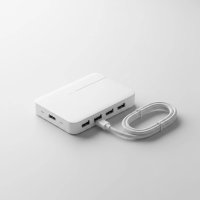
Running out of USB ports on your PC is a modern-day frustration we’ve all faced. Between your keyboard, mouse, webcam, external hard drive, and charging cables, the built-in ports on your desktop or tower fill up fast. That’s where a quality USB hub for PC comes in, transforming a single USB port into a powerful workstation for all your peripherals. But with so many options on the market, how do you choose the right one? This guide will break down everything you need to know to find the perfect hub for your setup.
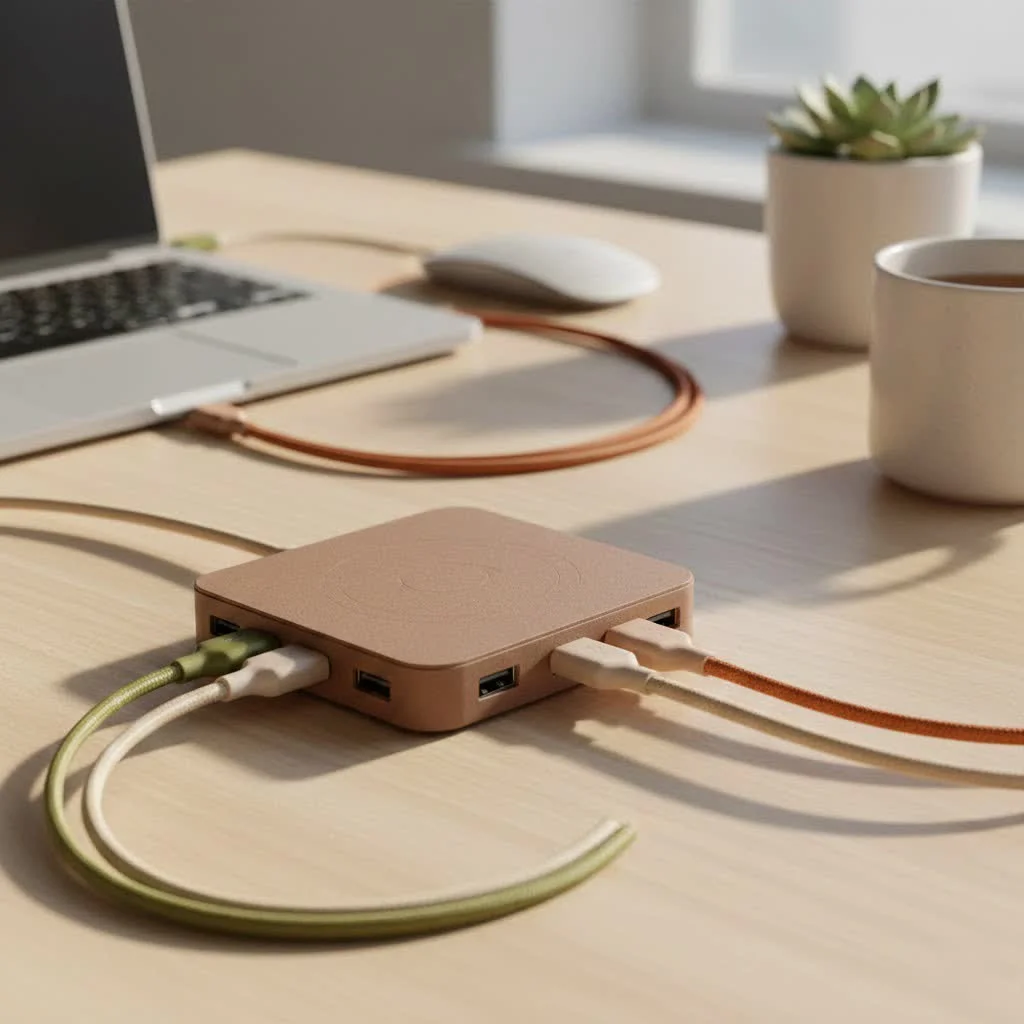
As experts in connectivity at Meeob, we understand that a USB hub isn’t just an accessory; it’s the central nervous system for your digital life. It keeps your devices connected, your data flowing, and your workspace organized.
Why Do You Even Need a USB Hub for Your PC?
The primary reason is simple: modern computing requires more connections than ever before. A standard desktop PC might come with a handful of USB ports, but this is often insufficient for users who rely on multiple devices simultaneously. A USB hub for PC solves this by expanding your connectivity options, allowing you to connect everything you need without constantly plugging and unplugging cables. It centralizes your connections, which can lead to a cleaner, more organized desk setup.
The Main Types of USB Hubs Explained
Before you buy, it’s crucial to understand the different types of hubs available. The choice you make will depend on the devices you plan to connect and how you intend to use them.
Powered vs. Unpowered (Bus-Powered) Hubs
This is one of the most critical distinctions.
- Unpowered (Bus-Powered) Hubs: These hubs draw power directly from the computer they are connected to. They are perfect for connecting low-power devices like a mouse, keyboard, or flash drive. They are generally smaller, more portable, and less expensive. However, they share the limited power from a single host port among all connected devices, which can be a problem for power-hungry peripherals.
- Powered Hubs: These hubs come with their own external power adapter that plugs into a wall outlet. This provides dedicated power to each port, ensuring that high-drain devices like external hard drives, webcams, printers, and scanners operate reliably without overwhelming your PC’s power supply. If you plan to connect more than a couple of simple devices or anything that requires stable power, a powered hub is the safest bet.
“Think of it this way,” says David Chen, Lead Hardware Analyst at Meeob. “An unpowered hub is like splitting a single lane of traffic into four, which is fine for a few bicycles. A powered hub builds four brand-new lanes, each with its own power source, ready for heavy-duty trucks. For a robust PC setup, you want the new lanes.”
Data Transfer Speeds: From USB 2.0 to USB4
|
Our Picks for the Best USB Hub in 2026
As an Amazon Associate I earn from qualifying purchases.
|
||
| Num | Product | Action |
|---|---|---|
| 1 | USB Hub 3.0, 7-Port USB Hub Splitter with Individual On/Off Switches and Lights, 3.2ft/1m Long Cable Compatible with MacBook, Laptop, Surface Pro, PS4, PC, Flash Drive, Mobile HDD |

|
| 2 | Anker Laptop Docking Station Dual Monitor, 8-in-1 USB C Hub, 4K Dual Monitor with 2 HDMI, 1 Gbps Ethernet Hub, 85W Power Delivery, SD Card Reader for MacBook Pro, XPS and More (Charger not Included) |
|
| 3 | 3-in-1 USB C Splitter, 3 in 1 Type-C Charging Data Cable Data Transmission Decive Charging Adapter Power Charger Equipment for ome Office Use, Fast & Efficient |
|
| 4 | USB C Docking Station with M.2 NVMe SSD Enclosure 10Gbps, 9 in 1 USB-C Hub, Type C SSD Slot with 4K@60Hz HDMI, USB 3.2 Gen2, PD100W, SD/TF Card Reader, Laptop Docking Station for Dell/HP/Lenovo/Mac |
|
| 5 | Anker USB Hub 4 Ports with 5Gbps Data Transfer, Multiple USB 3.0 Hub, USB Splitter for Laptop, Extender for A Port Laptop, PC, Desktop and More [Charging Not Supported](0.7 ft USB-A) |
|
| 6 | Powered USB Hub 10Gbps, intpw 9-Port USB 3.2 Hub, USB C Hub with USB A/USB C 3.2, 4 USB 3.0, 2 PD 45W Charging Ports, 65W Power Adapter and 3.3FT Cable, Aluminum USB Hub for Laptop, iPhone 17/16/15,PC |
|
| 7 | P9R PRO USB C Hub Ethernet, 10 in 1 USB Docking Station 10Gbps with 4K@60Hz HDMI, USB C and 2 USB A 3.2, LAN, 2 USB A 2.0, PD 100W, SD/TF Ports, USB to Ethernet Adapter for PC, iPhone 16/15, Mac |
|
| 8 | 13 in 1 USB C Docking Station - Dual Monitor, Triple Display, 8 USB C/A Ports, Ethernet, Audio - LIONWEI USB C Hub for MacBook,Dell,HP,Lenovo,Surface |
|
| 9 | Powered USB Hub, Wenter 11-Port USB Splitter Hub (10 Faster Data Transfer Ports+ 1 Smart Charging Port) with Individual LED On/Off Switches, USB Hub 3.0 Powered with Power Adapter for Mac, PC |
|
| 10 | UGREEN USB 3.0 Hub, 4 Ports USB A Splitter Ultra-Slim USB Expander for Mouse, Keyboard, Flash Drive, U Disk, Printer Compatible with Laptop, Desktop PC, Xbox, PS5, and More |
|
The USB standard has evolved, and so have the speeds. The speed of your hub determines how quickly it can transfer data between your devices and your PC.
- USB 2.0: An older standard with a maximum speed of 480 Mbps. It’s sufficient for basic peripherals like keyboards and mice but is far too slow for transferring large files.
- USB 3.0 / 3.1 Gen 1 / 3.2 Gen 1: These are different names for the same standard, offering speeds up to 5 Gbps. This is the sweet spot for most users, providing fast data transfers for external hard drives and SSDs.
- USB 3.1 Gen 2 / 3.2 Gen 2: This standard doubles the speed to 10 Gbps, ideal for content creators and professionals who move massive files regularly.
- USB4 / Thunderbolt 4: The latest and fastest standards, offering speeds up to 40 Gbps. These are typically found on higher-end USB-C hubs and are capable of handling multiple high-resolution displays and ultra-fast storage simultaneously.
How to Choose the Right USB Hub for Your PC
Selecting the best USB hub for PC involves matching its features to your specific needs. Here are the key factors to consider.
Number and Type of Ports
First, count the number of devices you need to connect right now and add a couple of extra ports for future-proofing. But don’t just count the ports; look at the types of ports offered. Many modern hubs are multi-port adapters that include:
- USB-A: The traditional rectangular port, still essential for many legacy devices.
- USB-C: The newer, reversible oval port used for modern devices and high-speed data transfer.
- HDMI/DisplayPort: For connecting external monitors.
- Ethernet Port: Provides a stable, wired internet connection, which is often faster and more reliable than Wi-Fi.
- SD/MicroSD Card Readers: A must-have for photographers and videographers.
Power Delivery (PD)
If you’re using a laptop as your primary machine or want to charge devices, look for a USB-C hub with Power Delivery. A hub with PD can pass power from a wall adapter through to your connected laptop, allowing you to charge your machine and use the hub with a single USB-C cable. Check the wattage—60W is good for most ultrabooks, while more powerful gaming or creative laptops may require 100W or more.
Build Quality and Design
Since a USB hub will be a permanent fixture on your desk, consider its construction. Hubs with aluminum casings are more durable and better at dissipating heat than their plastic counterparts. Also, think about the design. Some hubs are long and thin, while others are square. Choose a shape that fits well within your workspace. The length of the included cable is also important; it needs to be long enough to reach from your PC’s port to where you want to place the hub on your desk.
Recommendations for Different PC Users
The ideal hub varies from person to person. Here’s what we at Meeob recommend for different user profiles.
For the Everyday Home Office User
For a standard desktop setup used for web browsing, email, and office applications, a simple powered USB hub for PC with 4-7 USB 3.0 ports is usually sufficient. This gives you enough ports for your main peripherals with room to spare for charging a phone or connecting a flash drive.
For the PC Gamer
Gamers need speed and stability. A powered USB 3.0 or 3.2 hub is essential to ensure that your gaming mouse, keyboard, and headset perform without any input lag. An extra port for a controller or external game drive is also a good idea. Some gamers might also appreciate a hub with an Ethernet port for a lag-free online experience.
For the Content Creator
Content creators demand the most from their peripherals. Look for a Thunderbolt or USB4 hub if your PC supports it. These offer the fastest speeds for transferring large video files from cameras and external SSDs. A hub with multiple display outputs (HDMI, DisplayPort) and built-in SD card readers is a massive workflow enhancement. Ample power delivery is also non-negotiable.
Frequently Asked Questions (FAQ)
Will a USB hub slow down my devices?
A USB hub splits the bandwidth of the single port it’s connected to. If you connect multiple high-bandwidth devices (like two external SSDs) to a hub and use them simultaneously, you may see a performance drop. However, for most common peripherals, a quality powered hub will not cause any noticeable slowdown.
Can I plug a USB hub into another USB hub?
This is called “daisy-chaining.” While it is technically possible, it is generally not recommended. Each hub adds a layer of complexity and potential failure points. It can also lead to power and data bandwidth issues, causing devices to disconnect or perform poorly.
Are all USB-C hubs the same?
Absolutely not. The term “USB-C” refers only to the physical connector shape. The capabilities of a USB-C port or hub can vary dramatically. It could support anything from basic USB 2.0 speeds to the ultra-fast 40 Gbps of Thunderbolt 4. Always check the technical specifications to see what data speeds and features (like video output or Power Delivery) the hub supports.
Conclusion: Expanding Your PC’s Potential
A USB hub for PC is no longer just a simple accessory; it’s an essential tool for creating an efficient, organized, and powerful workstation. By understanding the difference between powered and unpowered hubs, considering the necessary port types and speeds, and matching the features to your specific needs, you can easily find the perfect hub to unlock your PC’s full potential. Say goodbye to cable-swapping and hello to seamless connectivity.
Get our weekly buyer guide
Practical specs, not advice. Unsubscribe anytime.