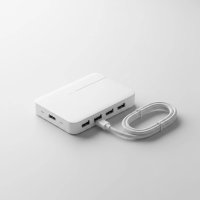
Ever found yourself staring at your laptop, wishing for just one more USB port? You’re not alone. In today’s interconnected world, managing multiple devices – from external hard drives and keyboards to webcams and charging cables – often leaves us short on available ports. Many of us instinctively search for solutions like a “usb to hub” to expand our device connectivity, and for good reason. A USB hub is an indispensable tool for anyone looking to streamline their digital life, offering a simple yet powerful way to multiply your existing USB ports and keep all your gadgets connected.
What Exactly is a USB Hub?
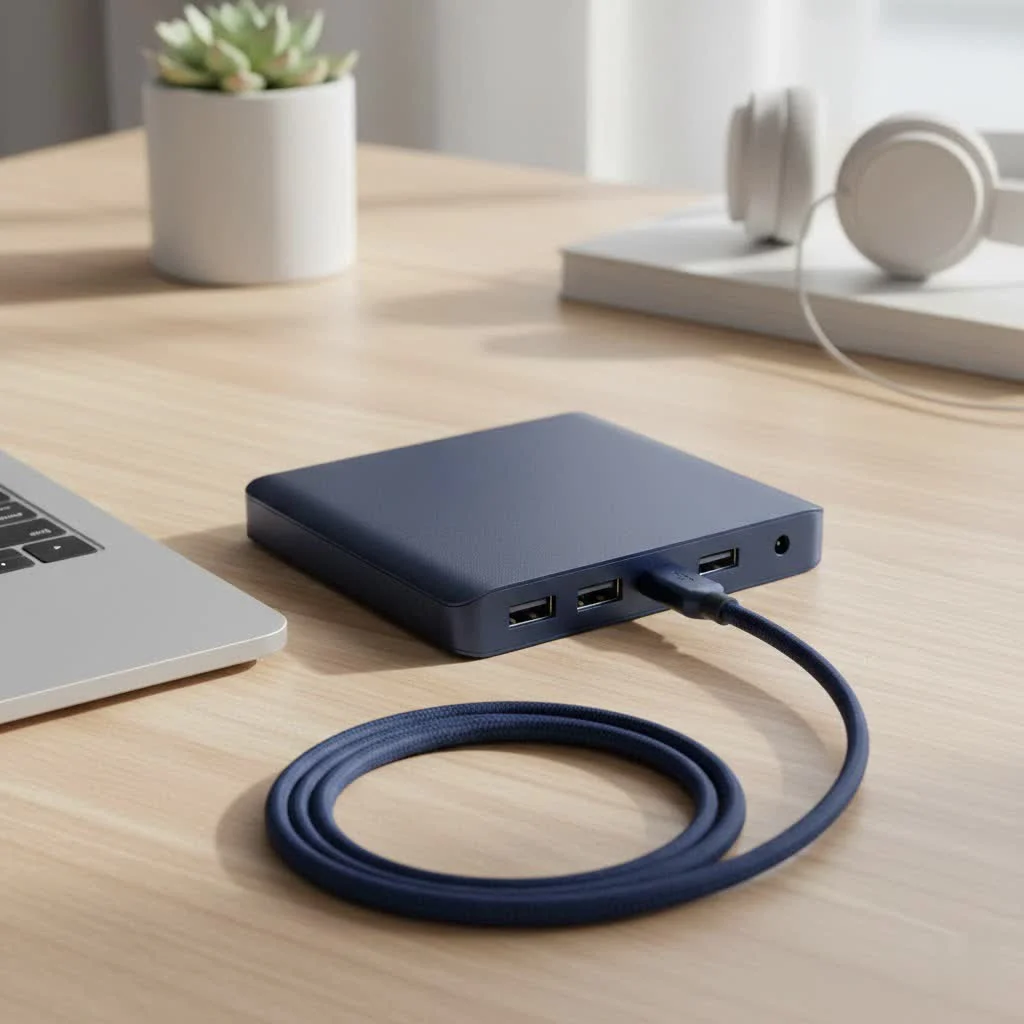
At its core, a “usb to hub” device, more commonly known as a USB hub, acts like a multi-outlet power strip for your USB ports. Instead of having just one port, you can plug a single USB hub into your computer, and suddenly you have several new ports ready for use. This means you can connect more peripherals, transfer data between multiple drives, or even charge several devices simultaneously without constantly plugging and unplugging cables. It’s a game-changer for anyone with a port-limited laptop or a desktop setup overflowing with USB devices.
Decoding USB Standards: From USB 2.0 to USB-C Hubs
Not all USB ports, or hubs, are created equal. Understanding the different USB standards is crucial when selecting the right “usb to hub” for your needs, as they dictate speed, power delivery, and compatibility.
USB 2.0 Hubs: The Enduring Standard
USB 2.0 hubs are often the most affordable and widely available. They offer data transfer speeds of up to 480 Mbps (Megabits per second).
- When to use them: USB 2.0 hubs are perfectly adequate for devices that don’t require high data speeds, such as keyboards, mice, printers, webcams, and older flash drives.
- Limitations: While reliable for basic peripherals, they can become a bottleneck for faster devices like external hard drives, leading to noticeably slower transfer times.
USB 3.0/3.1/3.2 Hubs: The Need for Speed
Stepping up from USB 2.0, USB 3.0 (also known as USB 3.1 Gen 1 or USB 3.2 Gen 1) introduced a significant leap in performance, boasting speeds of up to 5 Gbps (Gigabits per second) – roughly ten times faster than USB 2.0. Newer iterations like USB 3.1 Gen 2 and USB 3.2 Gen 2 further boosted speeds to 10 Gbps and 20 Gbps, respectively.
- Why they matter: These hubs are essential for high-bandwidth devices. If you’re frequently transferring large files to external SSDs, using high-resolution webcams, or connecting advanced audio interfaces, a USB 3.x hub will ensure smooth, fast operation.
- Identifying them: USB 3.x ports and hubs are typically identified by a blue internal tab, or sometimes a red or yellow one for charging-specific ports.
USB-C Hubs (and Thunderbolt): The Modern Multi-Tool
|
Our Picks for the Best USB Hub in 2026
As an Amazon Associate I earn from qualifying purchases.
|
||
| Num | Product | Action |
|---|---|---|
| 1 | 13 in 1 USB C Docking Station - Dual Monitor, Triple Display, 8 USB C/A Ports, Ethernet, Audio - LIONWEI USB C Hub for MacBook,Dell,HP,Lenovo,Surface |

|
| 2 | UGREEN USB 3.0 Hub, 4 Ports USB A Splitter Ultra-Slim USB Expander for Mouse, Keyboard, Flash Drive, U Disk, Printer Compatible with Laptop, Desktop PC, Xbox, PS5, and More |
|
| 3 | Anker Laptop Docking Station Dual Monitor, 8-in-1 USB C Hub, 4K Dual Monitor with 2 HDMI, 1 Gbps Ethernet Hub, 85W Power Delivery, SD Card Reader for MacBook Pro, XPS and More (Charger not Included) |
|
| 4 | 3-in-1 USB C Splitter, 3 in 1 Type-C Charging Data Cable Data Transmission Decive Charging Adapter Power Charger Equipment for ome Office Use, Fast & Efficient |
|
| 5 | Anker USB Hub 4 Ports with 5Gbps Data Transfer, Multiple USB 3.0 Hub, USB Splitter for Laptop, Extender for A Port Laptop, PC, Desktop and More [Charging Not Supported](0.7 ft USB-A) |
|
| 6 | Powered USB Hub 10Gbps, intpw 9-Port USB 3.2 Hub, USB C Hub with USB A/USB C 3.2, 4 USB 3.0, 2 PD 45W Charging Ports, 65W Power Adapter and 3.3FT Cable, Aluminum USB Hub for Laptop, iPhone 17/16/15,PC |
|
| 7 | USB Hub 3.0, 7-Port USB Hub Splitter with Individual On/Off Switches and Lights, 3.2ft/1m Long Cable Compatible with MacBook, Laptop, Surface Pro, PS4, PC, Flash Drive, Mobile HDD |
|
| 8 | Powered USB Hub, Wenter 11-Port USB Splitter Hub (10 Faster Data Transfer Ports+ 1 Smart Charging Port) with Individual LED On/Off Switches, USB Hub 3.0 Powered with Power Adapter for Mac, PC |
|
| 9 | P9R PRO USB C Hub Ethernet, 10 in 1 USB Docking Station 10Gbps with 4K@60Hz HDMI, USB C and 2 USB A 3.2, LAN, 2 USB A 2.0, PD 100W, SD/TF Ports, USB to Ethernet Adapter for PC, iPhone 16/15, Mac |
|
| 10 | USB C Docking Station with M.2 NVMe SSD Enclosure 10Gbps, 9 in 1 USB-C Hub, Type C SSD Slot with 4K@60Hz HDMI, USB 3.2 Gen2, PD100W, SD/TF Card Reader, Laptop Docking Station for Dell/HP/Lenovo/Mac |
|
The USB-C connector has rapidly become the new universal standard, offering incredible versatility. A USB-C “usb to hub” often goes beyond just expanding USB-A ports.
- Versatility: Many USB-C hubs are true multi-port adapters, incorporating not just USB-A ports but also HDMI or DisplayPort for video output, Ethernet for wired network connectivity, SD card readers, and even power delivery (PD) capabilities to charge your laptop through the hub itself.
- Thunderbolt compatibility: Some high-end USB-C hubs are compatible with Thunderbolt 3 or 4, offering even higher speeds (up to 40 Gbps) and advanced features like connecting multiple 4K displays or external GPUs.
- Future-proofing: If your laptop or device has a USB-C port, investing in a good quality USB-C hub is a smart move for future-proofing your connectivity.
Powered vs. Unpowered USB Hubs: What’s the Difference?
One of the most critical distinctions in the world of USB hubs is whether they are powered or unpowered. This choice directly impacts performance, stability, and what devices you can connect.
Unpowered Hubs: Simplicity with Limitations
An unpowered “usb to hub” draws all its power directly from the host computer’s USB port.
- Pros: They are typically more compact, portable, and don’t require an external power adapter, making them convenient for on-the-go use.
- Cons: The total power available to all connected devices is limited by the single port it’s plugged into. If you connect multiple power-hungry devices (like external hard drives, smartphone chargers, or certain USB microphones), you’ll quickly run into power issues. This can lead to devices not being recognized, intermittent disconnections, or slow performance.
Powered Hubs: The Powerhouse Solution
A powered USB hub comes with its own external power adapter, providing a dedicated power supply to all its ports.
- Pros: This is crucial for stability and performance, especially when connecting multiple devices. A powered “usb to hub” can reliably run several external hard drives, charge multiple phones, and ensure consistent power delivery to all connected peripherals without taxing your computer’s power supply. They prevent brownouts and ensure devices receive the power they need to function optimally.
- When to choose: If you plan to connect several devices, especially those with their own power requirements or if you intend to charge devices, a powered USB hub is almost always the superior choice.
Beyond Expansion: Practical Applications of a USB Hub
A USB hub isn’t just about adding more ports; it’s about unlocking new levels of convenience and functionality across various scenarios.
- For Laptops and Ultrabooks: Modern thin and light laptops often sacrifice ports for portability. A “usb to hub” instantly transforms a single USB-C port into a comprehensive workstation, adding USB-A, HDMI, Ethernet, and more, making it ideal for office work or presentations.
- For Desktop Expansion: Even desktops with multiple ports can benefit. A hub can bring easily accessible ports to your desk surface, preventing you from having to reach behind your tower. It’s perfect for quickly plugging in flash drives, charging devices, or connecting temporary peripherals.
- For Gaming Setups: Gamers can use hubs to connect multiple peripherals like gaming mice, keyboards, headsets, and controllers without running out of slots on their PC or console. A powered hub ensures all devices get stable power for uninterrupted gameplay.
- For Creative Professionals: Photographers, videographers, and musicians often rely on numerous external devices – high-speed external SSDs, card readers, audio interfaces, MIDI controllers. A high-speed, powered USB 3.x or USB-C hub is critical for maintaining workflow efficiency and data integrity.
- For Multi-Device Charging: Many powered USB hubs offer dedicated charging ports, allowing you to top up your smartphone, tablet, smartwatch, and other gadgets all from one central location, reducing clutter and the need for multiple wall adapters.
Choosing the Right USB Hub for Your Needs
Selecting the perfect “usb to hub” involves considering several factors to ensure it meets your specific requirements.
- Number of Ports: How many devices do you need to connect? Get a hub with at least one or two more ports than you currently need, allowing for future expansion.
- USB Standard Compatibility: Match the hub’s standard (2.0, 3.0, USB-C) to your most demanding devices. For speed-critical tasks, opt for USB 3.0 or higher.
- Power Source (Powered vs. Unpowered): If you’re connecting power-hungry devices or need reliable charging, a powered hub is non-negotiable. For basic peripherals and portability, an unpowered hub might suffice.
- Port Types: Beyond standard USB-A, do you need USB-C, HDMI, Ethernet, SD card readers, or audio jacks? A multi-function USB-C hub can be an all-in-one solution.
- Portability vs. Desktop Use: Compact, unpowered hubs are great for travel. Desktop hubs are often larger, powered, and designed to stay in one place.
- Brand and Build Quality: Invest in reputable brands to ensure reliability, durability, and better customer support. Cheap, unbranded hubs can lead to performance issues or even damage your devices.
According to Dr. Lena Sharma, a leading expert in peripheral technology, “A well-chosen USB hub isn’t just an accessory; it’s a productivity multiplier, allowing you to seamlessly integrate all your devices without compromise. Don’t underestimate the impact a quality ‘usb to hub’ can have on your daily digital experience.”
Frequently Asked Questions (FAQ)
Can I connect multiple USB hubs together?
Yes, you can daisy-chain USB hubs, but it’s generally not recommended for optimal performance, especially with unpowered hubs or for high-bandwidth devices. Each hub adds latency and can further divide the available bandwidth and power from the original port. For best results, use a single, well-chosen hub.
Will a USB hub slow down my devices?
A USB hub can potentially slow down devices if you connect many high-bandwidth devices to a single port, or if you’re using an older USB standard (like USB 2.0) for a device that requires faster speeds. A high-quality, powered USB 3.0 or USB-C hub generally minimizes any noticeable speed reduction for most users.
What’s the difference between a USB hub and a docking station?
While both expand connectivity, a USB hub primarily expands USB ports. A docking station is a more comprehensive solution, often offering a wider array of ports (multiple display outputs, higher power delivery, specialized ports) and is typically designed to transform a laptop into a full desktop workstation with a single connection.
Can I charge my phone fast with any USB hub?
Not necessarily. While many USB hubs can charge devices, the charging speed depends on the power output of the hub’s ports. For fast charging, look for a powered USB hub with ports that support higher amperage (e.g., 2.4A per port) or specific fast-charging standards like USB Power Delivery (USB-PD) on USB-C hubs.
Is it safe to leave a USB hub plugged in all the time?
Yes, it is generally safe to leave a USB hub plugged in continuously. Most modern hubs are designed for constant operation. However, if you’re not using your computer for an extended period, or if you have a powered hub and want to conserve energy, you might choose to unplug it.
Conclusion
The “usb to hub” solution, more accurately known as a USB hub, is far more than a simple accessory; it’s an essential component for navigating our increasingly device-rich world. Whether you’re a professional managing multiple peripherals, a gamer needing extra ports, or simply someone looking to declutter their desk, understanding the nuances of USB standards, power requirements, and port types will empower you to make an informed choice. By selecting the right USB hub, you can confidently expand your connectivity, optimize your workflow, and ensure all your devices operate seamlessly and efficiently. Take the time to assess your needs, choose wisely, and experience the unparalleled convenience a quality USB hub brings to your digital life.
Get our weekly buyer guide
Practical specs, not advice. Unsubscribe anytime.