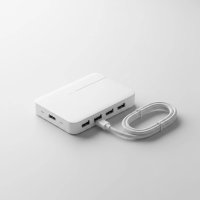
Ever found yourself in a tangled mess of cables or staring at a motherboard with too few USB headers, wondering how you’ll connect all your cool new PC components? You’re not alone! In today’s PC building world, where RGB lighting, liquid coolers, and a plethora of peripherals demand USB connectivity, an internal USB hub is no longer a luxury but a fundamental necessity for many enthusiasts and even casual users. It’s the silent workhorse that keeps everything powered and communicating smoothly inside your case, expanding your system’s capabilities without adding clutter to your desk.
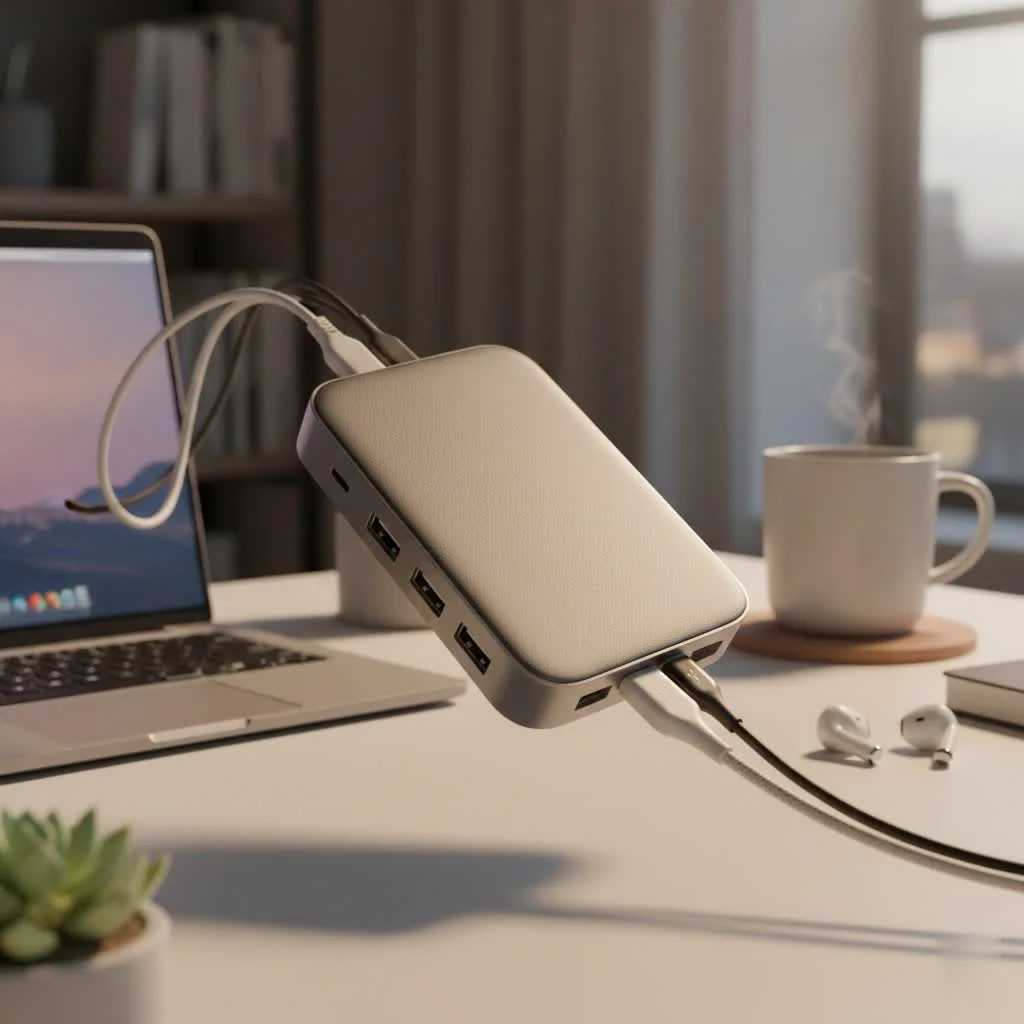
Think of an internal USB hub as the unsung hero tucked away within your PC. It takes one precious USB header from your motherboard and transforms it into multiple, allowing you to connect various internal devices like RGB controllers, AIO pump controllers, front panel USB ports, or even wireless dongles, all while keeping your cable management clean and your PC looking sharp. But with so many options out there, how do you choose the right one, and what exactly should you look for? Let’s dive in and demystify the world of internal USB hubs.
What Exactly Is an Internal USB Hub?
An internal USB hub is a device designed to increase the number of available USB ports inside your computer case. Unlike external hubs that sit on your desk, these hubs typically connect directly to a USB header on your motherboard (usually a 9-pin USB 2.0 header or a 19-pin USB 3.0 header) and provide additional internal headers for other components. This is especially crucial as modern motherboards, especially smaller form factors, often come with a limited number of these headers, making it challenging to hook up all your internal gadgets.
Why Would You Need an Internal USB Hub?
“Many people overlook the need for internal USB expansion until they’re halfway through a build and realize they have more components than headers,” explains Michael Chen, a veteran PC builder and hardware consultant. “It’s a small investment that prevents a lot of headaches and ensures all your internal peripherals can connect without issue.”
You’ll typically need an internal USB hub if you’re running out of USB 2.0 or 3.0 headers for:
- AIO Liquid Coolers: Many come with a USB connection for software control and monitoring.
- RGB Lighting Controllers: Brands like Corsair iCUE, NZXT CAM, or Razer Chroma often use internal USB for their advanced lighting effects.
- Fan Controllers: Similar to RGB, some fan controllers require a USB connection for software management.
- Front Panel USB Ports: If your case has more front panel USB ports than your motherboard can support.
- Internal Wireless Adapters or Bluetooth Modules: Some models connect via an internal USB header.
Types of Internal USB Hubs: Understanding Your Options
When you’re looking to expand your internal USB connectivity, you’ll primarily encounter two main types, differentiated by the USB standard they support:
USB 2.0 Internal Hubs
|
Our Picks for the Best USB Hub in 2026
As an Amazon Associate I earn from qualifying purchases.
|
||
| Num | Product | Action |
|---|---|---|
| 1 | USB Hub 3.0, 7-Port USB Hub Splitter with Individual On/Off Switches and Lights, 3.2ft/1m Long Cable Compatible with MacBook, Laptop, Surface Pro, PS4, PC, Flash Drive, Mobile HDD |

|
| 2 | 3-in-1 USB C Splitter, 3 in 1 Type-C Charging Data Cable Data Transmission Decive Charging Adapter Power Charger Equipment for ome Office Use, Fast & Efficient |
|
| 3 | Powered USB Hub 10Gbps, intpw 9-Port USB 3.2 Hub, USB C Hub with USB A/USB C 3.2, 4 USB 3.0, 2 PD 45W Charging Ports, 65W Power Adapter and 3.3FT Cable, Aluminum USB Hub for Laptop, iPhone 17/16/15,PC |
|
| 4 | 13 in 1 USB C Docking Station - Dual Monitor, Triple Display, 8 USB C/A Ports, Ethernet, Audio - LIONWEI USB C Hub for MacBook,Dell,HP,Lenovo,Surface |
|
| 5 | P9R PRO USB C Hub Ethernet, 10 in 1 USB Docking Station 10Gbps with 4K@60Hz HDMI, USB C and 2 USB A 3.2, LAN, 2 USB A 2.0, PD 100W, SD/TF Ports, USB to Ethernet Adapter for PC, iPhone 16/15, Mac |
|
| 6 | USB C Docking Station with M.2 NVMe SSD Enclosure 10Gbps, 9 in 1 USB-C Hub, Type C SSD Slot with 4K@60Hz HDMI, USB 3.2 Gen2, PD100W, SD/TF Card Reader, Laptop Docking Station for Dell/HP/Lenovo/Mac |
|
| 7 | Anker USB Hub 4 Ports with 5Gbps Data Transfer, Multiple USB 3.0 Hub, USB Splitter for Laptop, Extender for A Port Laptop, PC, Desktop and More [Charging Not Supported](0.7 ft USB-A) |
|
| 8 | Powered USB Hub, Wenter 11-Port USB Splitter Hub (10 Faster Data Transfer Ports+ 1 Smart Charging Port) with Individual LED On/Off Switches, USB Hub 3.0 Powered with Power Adapter for Mac, PC |
|
| 9 | Anker Laptop Docking Station Dual Monitor, 8-in-1 USB C Hub, 4K Dual Monitor with 2 HDMI, 1 Gbps Ethernet Hub, 85W Power Delivery, SD Card Reader for MacBook Pro, XPS and More (Charger not Included) |
|
| 10 | UGREEN USB 3.0 Hub, 4 Ports USB A Splitter Ultra-Slim USB Expander for Mouse, Keyboard, Flash Drive, U Disk, Printer Compatible with Laptop, Desktop PC, Xbox, PS5, and More |
|
These are the most common type and typically connect to a 9-pin USB 2.0 header on your motherboard. They expand a single header into multiple (often 3-4) USB 2.0 headers.
- Connectivity: Uses the standard 9-pin USB 2.0 header.
- Speed: Offers data transfer rates up to 480 Mbps (megabits per second). While not blazing fast, this is perfectly adequate for most internal peripherals like RGB controllers, fan controllers, and AIO pumps, which don’t require high bandwidth.
- Power: Draws power directly from the motherboard header, or often, for more stability and to handle multiple devices, they include a SATA power connection.
- Common Applications: Ideal for connecting multiple internal devices that rely on software control or basic data exchange, such as Corsair Commander Pro, NZXT Smart Device, or other proprietary lighting/fan hubs.
USB 3.0/3.1/3.2 Internal Hubs
While less common than their USB 2.0 counterparts for internal expansion, these hubs are designed for the larger 19-pin (or 20-pin) USB 3.0 header and offer significantly faster speeds. Some might even feature internal USB-C headers.
- Connectivity: Connects to a 19-pin (or 20-pin) USB 3.0/3.1/3.2 header.
- Speed: Offers much higher data transfer rates:
- USB 3.0 (now USB 3.2 Gen 1): Up to 5 Gbps (gigabits per second)
- USB 3.1 (now USB 3.2 Gen 2): Up to 10 Gbps
- USB 3.2 Gen 2×2: Up to 20 Gbps
- Power: Almost always requires supplementary power, typically from a SATA power connector, due to the higher power demands of faster USB devices.
- Common Applications: Primarily used when you need to expand internal USB 3.x connectivity, perhaps for a front panel USB 3.x port that uses an internal header connection, or for very specific high-bandwidth internal devices. These are less common for simple RGB/fan control.
Key Considerations When Choosing an Internal USB Hub
Selecting the right internal USB hub isn’t just about plugging it in; it’s about ensuring compatibility, stable performance, and adequate power delivery for all your connected devices.
Power Delivery (Very Important!)
This is arguably the most critical factor. Many internal USB hubs include an auxiliary power connector, usually a SATA power connector. Why? Because the USB headers on your motherboard can only supply a limited amount of power. If you connect multiple power-hungry devices to an unpowered hub, you risk instability, device drop-outs, or even damage.
Blockquote: “Always opt for an internal USB hub with a dedicated power input, like a SATA connector, especially if you plan to connect more than two devices or any device known to draw significant power,” advises Dr. Anya Sharma, an electrical engineering expert specializing in PC power delivery. “It ensures consistent voltage and prevents your system from becoming unstable under load.”
Number of Ports
Consider how many internal USB devices you need to connect now and potentially in the future. Internal USB hubs typically offer between 2 and 5 additional headers. It’s often wise to get one with a couple of extra ports to future-proof your setup.
Form Factor and Mounting
Internal USB hubs come in various shapes and sizes. Some are small PCBs that can be tucked away, while others might be designed to mount in a 2.5-inch drive bay or attach magnetically to your case. Consider your case’s internal layout and available space for easy installation and cable management.
Cable Length and Quality
Check the length of the cable that connects the hub to your motherboard header, as well as the length of any included SATA power cables. Ensure they are long enough to reach their respective connections without being stretched taut, which can lead to connectivity issues or cable damage. High-quality, shielded cables are always a plus for reliability.
Compatibility
While most USB 2.0 devices are backward compatible, ensure the hub you choose matches the header type on your motherboard (e.g., a USB 2.0 hub for a USB 2.0 header). Also, check for any specific compatibility notes from the hub manufacturer, especially for unique RGB ecosystems.
Installation: A Step-by-Step Guide
Installing an internal USB hub is generally a straightforward process, even for beginners. Here’s a quick guide:
- Power Down: Completely shut down your PC and unplug it from the wall socket.
- Open Your Case: Remove the side panel(s) of your PC case to access the motherboard.
- Locate a Free USB Header: Find an available 9-pin USB 2.0 or 19-pin USB 3.0 header on your motherboard. Refer to your motherboard manual if you’re unsure.
- Mount the Hub: Decide where to place your internal USB hub. Many come with adhesive pads or magnets. Choose a discreet location that allows for good cable routing.
- Connect to Motherboard: Carefully plug the hub’s input cable into the chosen motherboard USB header. Ensure it’s correctly oriented (a missing pin on one side usually indicates the correct alignment).
- Connect Power (if applicable): If your hub requires external power, connect a free SATA power cable from your power supply to the hub’s SATA power input.
- Connect Your Devices: Plug your internal peripherals (RGB controllers, AIO pumps, etc.) into the newly available headers on your internal USB hub.
- Cable Management: Tidy up all the cables using zip ties or Velcro straps to ensure good airflow and a clean look.
- Close Case and Power Up: Replace the side panel(s), plug in your PC, and power it on. Your new devices should now be recognized by your system.
Troubleshooting Common Internal USB Hub Issues
Even with careful installation, sometimes things don’t go as planned. Here are a few common issues and their solutions:
- Devices Not Detected:
- Check power: Ensure the hub is receiving adequate power, especially if it requires a SATA power connection.
- Verify connections: Double-check that the hub is firmly seated on the motherboard header and that your devices are correctly plugged into the hub.
- Try different ports/headers: Test the hub with a different motherboard header or try connecting devices to different ports on the hub.
- Intermittent Disconnections:
- Insufficient power: This is almost always a power issue. Make sure your hub is powered (if it has a power input) and that your PSU is delivering stable power.
- Faulty cables: Try swapping out the cables connecting your devices to the hub.
- Driver issues: Ensure you have the latest motherboard chipset drivers installed.
- Slow Speeds (for USB 3.0/3.1 hubs):
- Using a USB 2.0 header: Confirm the hub is plugged into a USB 3.x header on your motherboard.
- Cable quality: Low-quality or excessively long USB 3.x cables can degrade performance.
The Meeob.com Recommendation for the Savvy PC Builder
At Meeob.com, we believe in empowering you with the knowledge to make informed decisions for your PC. An internal USB hub is a small but mighty component that can significantly enhance your build experience and functionality. It eliminates the frustration of limited motherboard headers, enabling you to integrate all your exciting internal peripherals seamlessly. By understanding the types, power requirements, and installation process, you’re well on your way to a cleaner, more connected, and highly capable PC.
Frequently Asked Questions (FAQ)
What is the difference between an internal and external USB hub?
An internal USB hub resides inside your PC case, connecting to motherboard headers to expand connectivity for internal components like RGB controllers. An external USB hub sits on your desk, connecting to an external USB port on your PC to add ports for external peripherals like keyboards, mice, or external drives.
Do internal USB hubs affect performance?
For most internal peripherals like RGB lighting or fan controllers, an internal USB 2.0 hub will have virtually no noticeable impact on system performance. They primarily handle low-bandwidth data for control signals. For high-speed data transfer devices, ensure you are using a USB 3.x hub connected to a corresponding 3.x header.
Can I connect a front panel USB 3.0 to an internal USB 2.0 hub?
No, you cannot directly connect a USB 3.0 front panel cable (which typically uses a 19-pin connector) to a USB 2.0 internal hub (which uses a 9-pin header). The connectors are physically different, and a USB 2.0 hub would not provide the necessary bandwidth for USB 3.0 speeds. You would need a USB 3.0 internal hub or an adapter for such a connection.
How do I know if my motherboard has enough USB headers?
You can check your motherboard’s manual, which will detail all the available headers, including USB 2.0 and USB 3.0/3.1/3.2 headers. Simply count the number of components you need to connect internally and compare it to the available headers.
Is an internal USB hub necessary for an RGB-heavy build?
For an RGB-heavy build, an internal USB hub is often essential. Many advanced RGB lighting systems and fan controllers require one or more internal USB 2.0 connections to communicate with software for customization and synchronization. Without enough headers, you might not be able to control all your lighting effects.
Can an internal USB hub cause problems with my PC?
When properly installed and powered, an internal USB hub should not cause problems. However, if poorly powered, it can lead to device drop-outs, instability, or detection issues. Always ensure it has sufficient power, especially if connecting multiple devices.
Get our weekly buyer guide
Practical specs, not advice. Unsubscribe anytime.