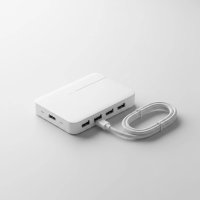
In our increasingly connected world, having enough ports for all your devices feels like a constant battle. Laptops are getting slimmer, and desktops often come with just a handful of USB connections. That’s where a USB hub USB 3.0 comes in, transforming a single port into a multi-device powerhouse. It’s not just about adding more ports; it’s about unlocking faster data transfers and ensuring all your gadgets get the power they need to perform optimally. If you’ve ever found yourself juggling cables or waiting endlessly for large files to transfer, understanding the world of USB 3.0 hubs is your next crucial step.
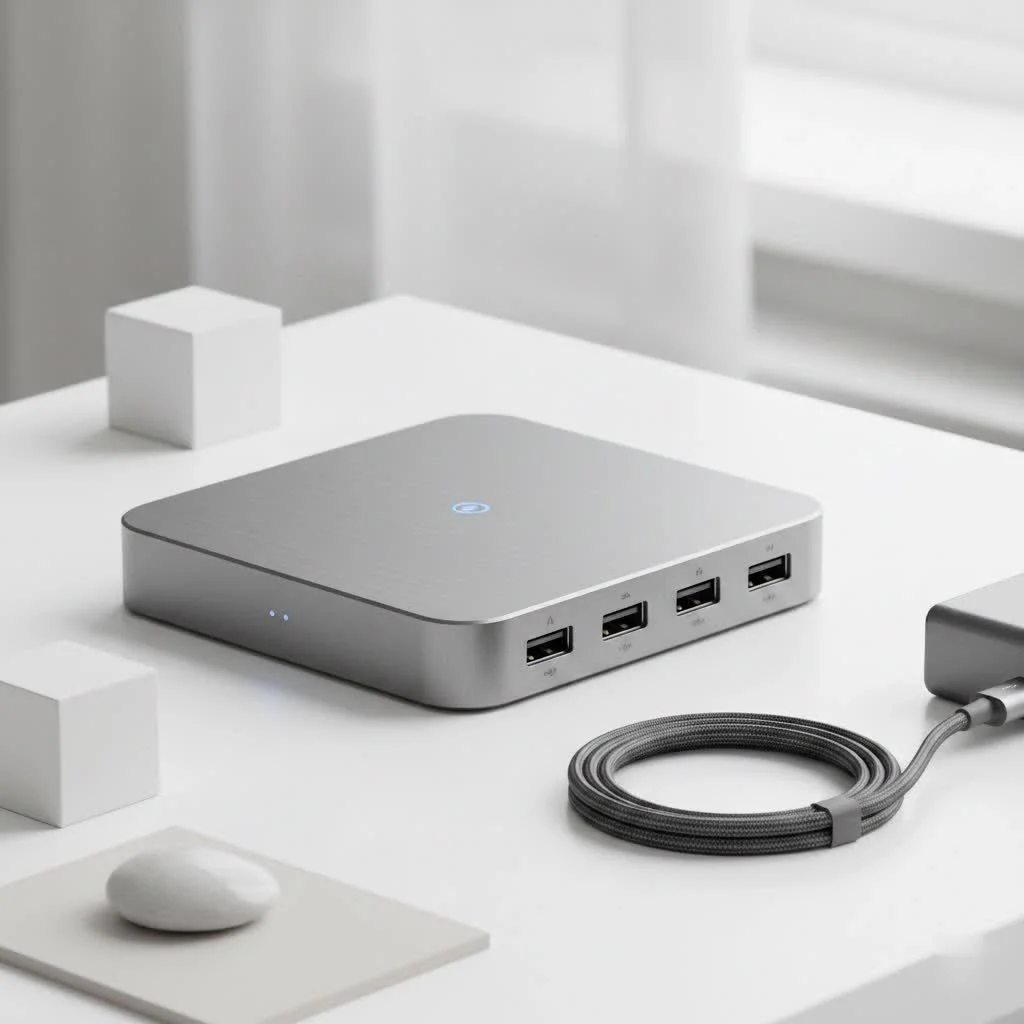
What Exactly is a USB Hub USB 3.0?
At its core, a USB hub is a device that expands the number of USB ports available on your computer. Think of it as a power strip, but for your data and device connections. A USB hub USB 3.0 specifically utilizes the Universal Serial Bus 3.0 standard, which was a monumental leap forward from its predecessor, USB 2.0. This standard isn’t just a number; it represents a significant upgrade in both speed and power delivery, making it indispensable for modern computing needs. It allows you to connect multiple peripherals simultaneously to a single USB port on your host device, whether it’s a laptop, desktop, or even a tablet, vastly increasing your connectivity options. For expert usb hubs reviews on this site.
The Need for Speed: USB 3.0 vs. USB 2.0
The most compelling reason to choose a USB hub USB 3.0 over an older USB 2.0 model lies in its performance capabilities, primarily in data transfer speeds and power delivery.
Blazing-Fast Data Transfer Speeds
USB 3.0, often referred to as SuperSpeed USB, boasts a theoretical maximum data transfer rate of up to 5 Gigabits per second (Gbps). To put that into perspective, USB 2.0 tops out at 480 Megabits per second (Mbps). That’s a difference of roughly ten times! This speed advantage is critical for tasks involving large files, such as transferring high-resolution photos and 4K videos, backing up entire hard drives, or working with high-bandwidth devices like external Solid State Drives (SSDs) and professional webcams. For instance, moving a 10GB file could take minutes with USB 2.0, but mere seconds with USB 3.0.
Enhanced Power Delivery
Beyond speed, USB 3.0 also delivers more power to connected devices. A standard USB 3.0 port can supply up to 900mA (milliamperes) of current, whereas USB 2.0 is limited to 500mA. This increased power output is a game-changer for peripherals that require more juice, such as external hard drives (especially those without their own power adapters), high-powered charging devices, and certain USB-powered monitors. With a USB hub USB 3.0, you’re less likely to encounter “insufficient power” warnings or experience device malfunctions due to lack of power.
Seamless Backward Compatibility
|
Our Picks for the Best USB Hub in 2026
As an Amazon Associate I earn from qualifying purchases.
|
||
| Num | Product | Action |
|---|---|---|
| 1 | Anker USB Hub 4 Ports with 5Gbps Data Transfer, Multiple USB 3.0 Hub, USB Splitter for Laptop, Extender for A Port Laptop, PC, Desktop and More [Charging Not Supported](0.7 ft USB-A) |
 on Amazon](https://meeob.com/wp-content/plugins/amazon-tables/assets/images/buy.png)
|
| 2 | USB Hub 3.0, 7-Port USB Hub Splitter with Individual On/Off Switches and Lights, 3.2ft/1m Long Cable Compatible with MacBook, Laptop, Surface Pro, PS4, PC, Flash Drive, Mobile HDD |
|
| 3 | P9R PRO USB C Hub Ethernet, 10 in 1 USB Docking Station 10Gbps with 4K@60Hz HDMI, USB C and 2 USB A 3.2, LAN, 2 USB A 2.0, PD 100W, SD/TF Ports, USB to Ethernet Adapter for PC, iPhone 16/15, Mac |
|
| 4 | Powered USB Hub 10Gbps, intpw 9-Port USB 3.2 Hub, USB C Hub with USB A/USB C 3.2, 4 USB 3.0, 2 PD 45W Charging Ports, 65W Power Adapter and 3.3FT Cable, Aluminum USB Hub for Laptop, iPhone 17/16/15,PC |
|
| 5 | Anker Laptop Docking Station Dual Monitor, 8-in-1 USB C Hub, 4K Dual Monitor with 2 HDMI, 1 Gbps Ethernet Hub, 85W Power Delivery, SD Card Reader for MacBook Pro, XPS and More (Charger not Included) |
|
| 6 | USB C Docking Station with M.2 NVMe SSD Enclosure 10Gbps, 9 in 1 USB-C Hub, Type C SSD Slot with 4K@60Hz HDMI, USB 3.2 Gen2, PD100W, SD/TF Card Reader, Laptop Docking Station for Dell/HP/Lenovo/Mac |
|
| 7 | 13 in 1 USB C Docking Station - Dual Monitor, Triple Display, 8 USB C/A Ports, Ethernet, Audio - LIONWEI USB C Hub for MacBook,Dell,HP,Lenovo,Surface |
|
| 8 | Powered USB Hub, Wenter 11-Port USB Splitter Hub (10 Faster Data Transfer Ports+ 1 Smart Charging Port) with Individual LED On/Off Switches, USB Hub 3.0 Powered with Power Adapter for Mac, PC |
|
| 9 | UGREEN USB 3.0 Hub, 4 Ports USB A Splitter Ultra-Slim USB Expander for Mouse, Keyboard, Flash Drive, U Disk, Printer Compatible with Laptop, Desktop PC, Xbox, PS5, and More |
|
| 10 | 3-in-1 USB C Splitter, 3 in 1 Type-C Charging Data Cable Data Transmission Decive Charging Adapter Power Charger Equipment for ome Office Use, Fast & Efficient |
|
One of the best aspects of USB 3.0 technology is its backward compatibility. You can confidently plug a USB 3.0 hub or device into a USB 2.0 port, and it will still work, albeit at USB 2.0 speeds. Similarly, older USB 2.0 devices will function perfectly when connected to a USB 3.0 hub, operating at their native USB 2.0 speeds. This flexibility ensures you don’t have to replace all your existing peripherals when upgrading to a USB 3.0 setup, making the transition smooth and cost-effective.
Exploring the Different Types of USB Hub USB 3.0
When diving into the world of USB hub USB 3.0 options, you’ll quickly discover a variety of designs and functionalities tailored for different needs. The main distinction often comes down to how they draw power.
Powered vs. Unpowered Hubs: Which One is Right for You?
The choice between a powered and unpowered USB 3.0 hub is perhaps the most crucial decision you’ll make.
Powered USB Hubs: These hubs come with their own external power adapter that plugs into a wall outlet.
- Pros: They provide a consistent and robust power supply to all connected devices, making them ideal for high-power draw peripherals like external hard drives, printers, and multiple charging devices. This independent power source ensures stable performance, prevents power overloads on your computer’s USB port, and often allows for faster charging of smartphones and tablets.
- Cons: They require an extra power outlet and are generally less portable due to the additional adapter and cable.
Unpowered (Bus-Powered) USB Hubs: These hubs draw all their power directly from the host computer’s USB port.
- Pros: They are typically more compact, lightweight, and highly portable, making them perfect for on-the-go use with laptops. They don’t require an external power brick, reducing cable clutter.
- Cons: The total power available is shared among all connected devices. This means they are best suited for low-power peripherals like keyboards, mice, USB flash drives, and card readers. Connecting multiple power-hungry devices to an unpowered hub can lead to instability, intermittent disconnections, or devices not being recognized.
Form Factors: Desktop vs. Portable
Desktop USB 3.0 Hubs are generally larger, offering more ports (typically 4-7, sometimes more) and often come with additional features like individual port power switches. They are designed to stay in one place, usually on your desk, and almost always require external power to support their higher port count and features.
Portable USB 3.0 Hubs are designed for mobility, usually featuring fewer ports (2-4) and a compact, lightweight build. These are often unpowered, making them ideal companions for laptops, allowing you to expand connectivity easily while traveling or working remotely.
Beyond USB-A: USB-C Hubs with USB 3.0 Ports
With the rise of USB-C, many modern USB hub USB 3.0 options are now integrated into USB-C multiport adapters or docking stations. These versatile hubs often connect via a single USB-C port on your laptop and can include a wide array of other connections:
- Multiple USB-A 3.0 ports for your traditional peripherals.
- HDMI, DisplayPort, or VGA for video output to external monitors.
- Ethernet for a stable wired internet connection.
- SD and microSD card readers for photographers and videographers.
- USB Power Delivery (PD) charging for pass-through charging of your laptop while using the hub.
These all-in-one solutions are perfect for users with newer laptops that primarily feature USB-C ports, effectively consolidating multiple functions into a single, elegant connection.
Real-World Applications: Where a USB Hub USB 3.0 Shines
A USB hub USB 3.0 isn’t just a convenience; it’s a vital tool that enhances productivity and flexibility across various scenarios.
Expanding Your Connectivity Horizon
The most obvious application is port expansion. Modern laptops often come with a minimalist selection of ports. A USB 3.0 hub instantly remedies this, allowing you to connect your mouse, keyboard, external storage, printer, webcam, and other peripherals simultaneously, eliminating the constant need to plug and unplug devices.
Powering Your Gaming and Creative Setups
For gamers, a USB 3.0 hub can be invaluable for connecting multiple controllers, gaming headsets, and external drives for game storage, all while ensuring fast response times. Creative professionals, such as photographers, videographers, and graphic designers, benefit immensely from the high-speed data transfer. Imagine quickly offloading gigabytes of RAW photos or editing large video files directly from an external SSD connected via a USB 3.0 hub, without performance bottlenecks.
Streamlining Your Home Office
In a home office, a USB hub USB 3.0 helps maintain a clean and organized workspace. It can connect your various peripherals—webcam, microphone, external monitor, and keyboard—to your laptop or desktop with minimal cable clutter. If you need to switch between a work laptop and a personal computer, a hub makes it incredibly easy to move your entire setup with just one cable.
Efficient Charging Stations
Many USB 3.0 hubs, especially powered ones, offer dedicated charging ports or enhanced power delivery. This allows you to rapidly charge your smartphone, tablet, or other portable devices directly from the hub, reducing the need for separate wall chargers and freeing up power outlets.
“In my decade of experience, the shift to USB 3.0 hubs fundamentally changed how we approach workstation efficiency. The combination of speed and power delivery isn’t just a technical upgrade; it’s a productivity multiplier for anyone handling large data sets or multiple peripherals,” says Elias Vance, a lead tech architect at Meeob.com.
How to Choose the Perfect USB Hub USB 3.0 for Your Needs
Selecting the ideal USB hub USB 3.0 involves more than just picking the first one you see. Consider these factors to ensure you get a hub that truly meets your specific requirements.
Assess Your Devices and Their Requirements
Before anything else, list the devices you intend to connect to the hub.
- Power Needs: Do you have power-hungry devices like external hard drives (especially 3.5-inch models) or devices that charge slowly? If so, a powered USB 3.0 hub is essential. For low-power items like a mouse, keyboard, or flash drive, an unpowered hub might suffice.
- Speed Needs: Are you transferring large files regularly? If you’re connecting external SSDs, high-resolution cameras, or other data-intensive peripherals, ensure the hub explicitly supports USB 3.0 speeds (5 Gbps) or even higher standards like USB 3.1 Gen 1 (also 5 Gbps), USB 3.1 Gen 2 (10 Gbps), or USB 3.2.
Consider the Number and Type of Ports
How many devices do you plan to connect simultaneously? Choose a hub with enough ports to accommodate your current and future needs.
- Port Count: Most portable hubs offer 2-4 ports, while desktop models can range from 4 to 10 or more.
- Port Variety: Do you need only USB-A ports, or do you also require USB-C, HDMI for video output, an Ethernet port for wired internet, or an SD card reader? Many modern hubs, especially USB-C models, offer a combination of these.
Build Quality and Durability
A hub is an investment, so opt for one made from durable materials like aluminum, which helps with heat dissipation. Check reviews for reports on longevity and reliability. A good quality hub will withstand daily wear and tear and provide a stable connection for years.
Compatibility
Ensure the hub is compatible with your operating system (Windows, macOS, Linux, Chrome OS). While most USB hubs are plug-and-play, verifying compatibility can save you headaches. Also, remember that a USB 3.0 hub will work with older USB 2.0 and even USB 1.1 devices, but they will operate at the speed of the slowest component.
Troubleshooting Common USB Hub USB 3.0 Issues
Even the most reliable USB hub USB 3.0 can occasionally run into hiccups. Here are some common problems and straightforward solutions to get you back on track.
Devices Not Detected or Connected
Issue: You plug in a device, but your computer doesn’t recognize it.
Solution:
- Check Connections: Ensure all cables are securely plugged into the hub, the host computer, and the peripheral device. A loose connection is a frequent culprit.
- Try Different Ports: Test the device in another port on the hub, or directly into a different USB port on your computer.
- Power Cycle the Hub: Disconnect the hub from its power source (if applicable) and your computer, wait a few seconds, then reconnect everything.
- Update Drivers: Outdated or corrupted USB drivers on your computer can cause recognition issues. Go to your computer’s Device Manager and update or reinstall the USB Root Hub and USB Host Controller drivers.
Slow Transfer Speeds
Issue: You’re not getting the expected 5 Gbps transfer speeds.
Solution:
- Verify USB 3.0 End-to-End: Ensure your host computer’s port, the hub itself, the connected device, and the cable are all USB 3.0 compatible. If any component is USB 2.0, the speed will default to 2.0.
- Use Quality Cables: Cheap or damaged USB cables can significantly throttle speeds. Invest in high-quality, certified USB 3.0 cables.
- Reduce Load: If you have many devices connected, especially power-hungry ones, they might be competing for bandwidth. Try disconnecting non-essential devices.
- Check for Interference: Electromagnetic interference from other electronics can sometimes affect data transfer. Move the hub away from potential sources like Wi-Fi routers or power adapters.
Intermittent Disconnections
Issue: Devices randomly disconnect and reconnect.
Solution:
- Consider a Powered Hub: If you’re using an unpowered hub with multiple power-hungry devices, insufficient power is likely the cause. Upgrading to a powered USB hub USB 3.0 can provide the necessary stability.
- Inspect Power Adapter: For powered hubs, ensure the power adapter is functioning correctly and provides sufficient wattage.
- Disable Power Saving: In your computer’s Device Manager, locate the “USB Root Hub” entries, right-click, go to “Properties,” then “Power Management,” and uncheck “Allow the computer to turn off this device to save power.”
Overheating Concerns
Issue: Your USB hub feels excessively hot to the touch.
Solution:
- Ensure Ventilation: Make sure the hub isn’t obstructed and has adequate airflow.
- Avoid Overloading: Connecting too many high-power devices, especially to a compact hub, can generate heat. Consider a hub with more ports or a more robust power supply.
Conclusion
The USB hub USB 3.0 is far more than a simple port expander; it’s a critical component for optimizing your digital life in 2025 and beyond. By understanding its superior speed and power delivery compared to USB 2.0, and by thoughtfully choosing between powered and unpowered models, you can unlock a new level of connectivity and efficiency. From streamlining your workstation to accelerating large file transfers, a well-chosen USB 3.0 hub empowers you to connect all your devices seamlessly and safely. Don’t let limited ports hold you back – embrace the potential of USB 3.0 technology and transform your digital experience. Explore the possibilities and find the perfect USB hub USB 3.0 to elevate your setup today!
Frequently Asked Questions (FAQ)
What’s the main difference between USB 2.0 and USB 3.0 hubs?
The main difference lies in speed and power. USB 3.0 hubs offer data transfer speeds of up to 5 Gbps, which is about ten times faster than USB 2.0’s 480 Mbps. Additionally, USB 3.0 provides more power per port (900mA) compared to USB 2.0 (500mA), better supporting power-hungry devices.
Can I use a USB 3.0 hub with a USB 2.0 port on my computer?
Yes, you can. USB 3.0 hubs are backward compatible with USB 2.0 ports. However, when connected to a USB 2.0 port, the hub and any devices connected to it will operate at the slower USB 2.0 speeds (480 Mbps).
Do USB 3.0 hubs always need an external power source?
No, not always. There are two types: powered and unpowered. Unpowered USB 3.0 hubs draw power directly from your computer’s USB port and are suitable for low-power devices. Powered USB 3.0 hubs have an external power adapter and are recommended for multiple devices or power-hungry peripherals like external hard drives.
How many devices can I connect to a USB 3.0 hub?
The number of devices you can connect depends on the hub’s port count and whether it’s powered or unpowered. While a hub might have 4 or more ports, an unpowered hub may struggle to provide sufficient power for multiple high-demand devices simultaneously. Powered hubs can handle more devices with greater stability.
Why is my USB 3.0 hub slowing down, even with USB 3.0 devices?
Several factors can cause a USB 3.0 hub to slow down. Common reasons include using a USB 2.0 cable or port somewhere in the chain, an overloaded unpowered hub, outdated drivers, or electromagnetic interference from other devices. Ensure all components are USB 3.0 compatible and consider a powered hub if you’re connecting many devices.
Are all USB 3.0 hubs the same speed?
While the USB 3.0 standard specifies a theoretical maximum of 5 Gbps, real-world speeds can vary slightly based on the hub’s internal chipset, the quality of cables, and the host device. Newer standards like USB 3.1 Gen 2 (10 Gbps) and USB 3.2 (20 Gbps) offer even faster speeds, but a basic USB 3.0 hub will be limited to 5 Gbps.
What are the colored ports for on USB hubs?
Often, blue-colored USB ports indicate USB 3.0 or higher compatibility, signifying SuperSpeed capabilities. Older USB 2.0 ports are typically black or white. However, this color coding is a common convention, not a strict rule, so it’s always best to check the product specifications.
Get our weekly buyer guide
Practical specs, not advice. Unsubscribe anytime.