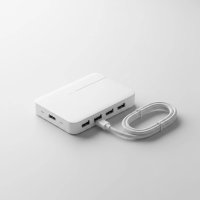
In today’s fast-paced digital world, connectivity is king. With the rise of sleek, ultra-portable laptops, tablets, and smartphones, the ubiquitous rectangular USB-A port has steadily given way to the versatile, compact USB-C. This shift, while forward-thinking, often leaves users with a common dilemma: how do you connect your trusty older USB-A peripherals to your brand-new, USB-C-only device? The answer, my friends, lies in the power and practicality of a hub USB-A to USB-C.
At Meeob.com, we understand that navigating the world of ports and protocols can feel like decoding a secret language. With over a decade of hands-on experience, we’re here to demystify USB hubs, ensuring you make informed choices that enhance your digital life. Let’s dive deep into why a hub USB-A to USB-C isn’t just an accessory, but an essential tool for seamless productivity and expanded possibilities. For browse all usb hubs articles on this site.
Understanding USB-A and USB-C: A Quick Dive into the Basics
Before we talk about bridging the gap, let’s briefly understand the two key players: USB-A and USB-C.
What is USB-A?
USB-A is the classic, rectangular connector that has been a staple in computing for decades. You’ve seen it on almost every computer, charger, and peripheral device since its commercial introduction in 1996. While reliable, USB-A has certain limitations. It’s not reversible, meaning you often try to plug it in the wrong way two or three times before getting it right – a common frustration we’ve all experienced! Historically, USB-A ports typically offered slower data transfer speeds, peaking at 480 Mbps for USB 2.0 and 5 Gbps for USB 3.0, and provided limited power output (up to 2.5 watts at 5 volts). These older standards are perfectly fine for basic peripherals like keyboards, mice, and printers, but they can be bottlenecks for tasks requiring high speed or significant power.
What is USB-C?
USB-C, introduced in 2014 and becoming mainstream in the late 2010s, represents a significant leap forward. Its most immediately noticeable feature is its small, oval, and fully reversible design. No more fumbling around – it plugs in correctly every single time! But the advantages of USB-C go far beyond convenience.
- Lightning-Fast Data Transfer: USB-C ports can support much higher data rates, with standards like USB 3.2 Gen 2 offering up to 10 Gbps, USB 3.2 Gen 2×2 reaching 20 Gbps, and cutting-edge USB4 2.0 pushing a whopping 80 Gbps. This speed is critical for tasks like transferring large files, using external SSDs, or handling 4K webcams.
- Robust Power Delivery (PD): Unlike USB-A, USB-C is designed for high-power delivery, supporting up to 100 watts (and even up to 240W with USB PD 3.1 Extended Power Range) at 20 volts. This means a single USB-C cable can power your laptop, charge your devices, and transfer data simultaneously.
- Versatile “Alt Modes”: USB-C can carry video and audio signals through “Alternate Modes” (Alt Modes) like DisplayPort Alt Mode or HDMI Alt Mode, making it capable of connecting external monitors and even replacing a range of other connectors like HDMI.
- Bi-directional Power: USB-C cables support bi-directional charging, allowing devices to charge each other, offering greater flexibility.
Why the Transition and the Need for a Hub USB-A to USB-C?
|
Our Picks for the Best USB Hub in 2026
As an Amazon Associate I earn from qualifying purchases.
|
||
| Num | Product | Action |
|---|---|---|
| 1 | 3-in-1 USB C Splitter, 3 in 1 Type-C Charging Data Cable Data Transmission Decive Charging Adapter Power Charger Equipment for ome Office Use, Fast & Efficient |

|
| 2 | Anker Laptop Docking Station Dual Monitor, 8-in-1 USB C Hub, 4K Dual Monitor with 2 HDMI, 1 Gbps Ethernet Hub, 85W Power Delivery, SD Card Reader for MacBook Pro, XPS and More (Charger not Included) |
|
| 3 | USB C Docking Station with M.2 NVMe SSD Enclosure 10Gbps, 9 in 1 USB-C Hub, Type C SSD Slot with 4K@60Hz HDMI, USB 3.2 Gen2, PD100W, SD/TF Card Reader, Laptop Docking Station for Dell/HP/Lenovo/Mac |
|
| 4 | P9R PRO USB C Hub Ethernet, 10 in 1 USB Docking Station 10Gbps with 4K@60Hz HDMI, USB C and 2 USB A 3.2, LAN, 2 USB A 2.0, PD 100W, SD/TF Ports, USB to Ethernet Adapter for PC, iPhone 16/15, Mac |
|
| 5 | Powered USB Hub, Wenter 11-Port USB Splitter Hub (10 Faster Data Transfer Ports+ 1 Smart Charging Port) with Individual LED On/Off Switches, USB Hub 3.0 Powered with Power Adapter for Mac, PC |
|
| 6 | UGREEN USB 3.0 Hub, 4 Ports USB A Splitter Ultra-Slim USB Expander for Mouse, Keyboard, Flash Drive, U Disk, Printer Compatible with Laptop, Desktop PC, Xbox, PS5, and More |
|
| 7 | Anker USB Hub 4 Ports with 5Gbps Data Transfer, Multiple USB 3.0 Hub, USB Splitter for Laptop, Extender for A Port Laptop, PC, Desktop and More [Charging Not Supported](0.7 ft USB-A) |
|
| 8 | Powered USB Hub 10Gbps, intpw 9-Port USB 3.2 Hub, USB C Hub with USB A/USB C 3.2, 4 USB 3.0, 2 PD 45W Charging Ports, 65W Power Adapter and 3.3FT Cable, Aluminum USB Hub for Laptop, iPhone 17/16/15,PC |
|
| 9 | 13 in 1 USB C Docking Station - Dual Monitor, Triple Display, 8 USB C/A Ports, Ethernet, Audio - LIONWEI USB C Hub for MacBook,Dell,HP,Lenovo,Surface |
|
| 10 | USB Hub 3.0, 7-Port USB Hub Splitter with Individual On/Off Switches and Lights, 3.2ft/1m Long Cable Compatible with MacBook, Laptop, Surface Pro, PS4, PC, Flash Drive, Mobile HDD |
|
Modern laptops, particularly ultrabooks and MacBooks, prioritize thinness and portability. This often means fewer ports, and those that remain are increasingly USB-C. While USB-C is undeniably superior, the reality is that many users still own a plethora of USB-A peripherals – keyboards, mice, external hard drives, flash drives, and more. This creates a “connectivity gap” where your new device might not speak the same physical language as your older accessories. This is precisely where a hub USB-A to USB-C steps in as your indispensable bridge.
Why a USB-A to USB-C Hub is Your Connectivity Hero
A hub USB-A to USB-C serves as a vital expansion tool, transforming a single USB-C port on your host device into multiple, often diverse, connection options.
- Expanding Limited Ports: Thin laptops often come with just one or two USB-C ports. A hub instantly multiplies your connectivity, allowing you to plug in all your essential devices.
- Connecting Legacy Devices: It’s the simplest way to continue using your existing USB-A keyboards, mice, printers, and external drives with a USB-C-only laptop or tablet.
- Consolidating Cables: Instead of juggling multiple adapters for various peripherals, a good hub USB-A to USB-C can consolidate your connections into one neat solution, reducing cable clutter.
As Clara Jenkins, Meeob.com’s Lead Connectivity Architect, often says, “A well-chosen USB-A to USB-C hub isn’t just about adding ports; it’s about unlocking the full potential of your modern devices while retaining the utility of your trusted gear. It’s the ultimate blend of old-school reliability and new-school versatility.”
Key Features to Consider When Choosing Your USB-A to USB-C Hub
Choosing the right hub USB-A to USB-C involves more than just counting ports. Here’s what you should carefully consider:
Port Variety and Quantity
The most obvious feature, but critically important. What do you really need to connect?
- USB-A Ports: Look for at least two, preferably supporting USB 3.0 (5 Gbps) or higher for faster legacy devices.
- USB-C Ports (Data/PD): Some hubs offer additional USB-C ports for data transfer or for connecting USB-C peripherals. One of these is often a Power Delivery (PD) input.
- Video Output (HDMI/DisplayPort): If you need to connect an external monitor, ensure the hub has the right video output (HDMI 2.0 or DisplayPort 1.2 at a minimum for 4K@60Hz) and that your device’s USB-C port supports DisplayPort Alt Mode or Thunderbolt.
- Ethernet Port: Crucial for stable, wired internet connections, especially where Wi-Fi is unreliable or for professional setups. Gigabit Ethernet (1 Gbps) is standard, but 2.5 GbE offers a performance boost for network-attached storage (NAS) or servers.
- SD/MicroSD Card Readers: Essential for photographers and videographers who frequently transfer files from cameras. Look for UHS-II support for faster speeds.
Power Delivery (PD) Capabilities
This is often overlooked but incredibly vital. If your laptop charges via USB-C, a hub with Power Delivery (PD) pass-through is a game-changer.
- Match Wattage: Ensure the hub’s PD input (and your charger) can supply enough power for your laptop. Ultrabooks typically need 30-65W, while larger laptops like a MacBook Pro require 96-140W. Gaming laptops can demand even more, up to 240W with USB PD 3.1.
- Hub’s Own Consumption: Remember that the hub itself uses some power. A hub rated for 100W PD input will typically pass about 85-96W to your laptop after powering its own functions.
Data Transfer Speeds
Not all ports are created equal.
- USB 2.0 (480 Mbps): Fine for basic peripherals like keyboards and mice.
- USB 3.0 / USB 3.2 Gen 1 (5 Gbps): Good for most everyday accessories and external hard drives.
- USB 3.1 / USB 3.2 Gen 2 (10 Gbps): Ideal for high-speed external SSDs or 4K webcams to avoid bottlenecks.
- Thunderbolt 3/4 / USB4 (40 Gbps+): For professional-grade setups, external GPUs, and ultra-fast NVMe drives.
Video Output Capabilities
If you plan to extend your display, check these specs carefully:
- Resolution and Refresh Rate: Common options include 4K@30Hz or 4K@60Hz. For a smoother experience, especially with higher resolutions, aim for 4K@60Hz or better.
- Multi-Monitor Support: Some hubs can drive multiple external displays, but this often depends on your host device’s capabilities (e.g., M1/M2/M3 Macs may require DisplayLink technology for more than one external monitor).
Build Quality and Portability
Your hub should be as durable and convenient as your devices.
- Material: Aluminum or metal housings are better for heat dissipation, preventing throttling that can occur with cheaper plastic.
- Safety Certifications: Look for USB-IF certification to ensure compliance with safety standards and reduce risks like over-voltage.
- Cable Design: Check for durable, flexible strain relief on integrated cables. If it’s a high-power hub (100W+), ensure the cable is rated for 5A and has an e-marker chip for safe operation.
- Size and Weight: If you’re often on the go, a compact, lightweight design with a stowable or detachable cable is highly beneficial.
Operating System Compatibility
Most modern hubs are plug-and-play with Windows, macOS, and ChromeOS for basic functions. However, for advanced features like multiple external displays on certain Mac models, additional drivers or specific technologies (like DisplayLink) might be required. Always check the manufacturer’s specifications for full compatibility details.
Different Flavors of USB Hubs: What’s the Right Fit for You?
While the term “hub USB-A to USB-C” generally refers to devices that connect to a USB-C port and offer USB-A outputs, it’s helpful to distinguish between a few categories:
Basic USB-A to USB-C Hubs
These are straightforward devices designed primarily to add more USB-A ports to a USB-C host. They’re excellent for connecting keyboards, mice, and flash drives when port scarcity is your main concern. They are typically bus-powered, drawing power directly from your laptop.
Multiport USB-A to USB-C Hubs
These are the workhorses of connectivity, often combining USB-A ports with a variety of other essential connections:
- HDMI or DisplayPort for external monitors.
- Ethernet for wired internet.
- SD/MicroSD card slots for media.
- USB-C Power Delivery (PD) pass-through for charging your laptop.
These hubs are incredibly versatile for users who need a comprehensive solution in a portable form factor.
Hubs vs. Docking Stations
While often used interchangeably, there’s a distinction. A hub USB-A to USB-C is generally smaller, more portable, and focuses on expanding ports. A docking station, on the other hand, is typically larger, designed for a stationary desktop setup, and offers more extensive capabilities, including support for multiple high-resolution displays, more robust power delivery, and a wider array of ports. Docking stations often include their own power supply. If you need a fully-fledged desktop workstation, a docking station might be a better fit, but for portability and essential expansion, a feature-rich USB-C hub is usually sufficient.
Real-World Applications: Where Your USB-A to USB-C Hub Shines
A quality hub USB-A to USB-C can revolutionize your workflow and enhance your digital experience across various scenarios:
- Work-from-Home or Office Setup: Transform your laptop into a desktop workstation by connecting an external monitor, a full-sized keyboard, a mouse, and an external hard drive, all through a single USB-C cable.
- Travel and On-the-Go Productivity: For digital nomads or business travelers, a compact multiport hub ensures you can connect to hotel projectors, access files from a flash drive, and maintain a reliable wired internet connection, even when your laptop has limited ports.
- Creative Professionals: Photographers and videographers can quickly offload large files from SD/microSD cards and connect high-speed external SSDs for editing, making a hub USB-A to USB-C with card readers and fast USB ports invaluable.
- Gaming Setups: While serious gamers might opt for dedicated docking stations or Thunderbolt solutions, a hub can connect essential peripherals like external drives for game storage and fast wired Ethernet for stable online play.
Choosing the Perfect Hub USB-A to USB-C: Meeob’s Expert Advice
Navigating the vast market of USB hubs doesn’t have to be daunting. Here’s Meeob.com’s straightforward guide to picking your ideal hub USB-A to USB-C:
- Assess Your Device’s USB-C Capabilities: Before anything else, understand what your laptop’s USB-C port can truly do. Does it support Power Delivery (PD)? Can it output video (DisplayPort Alt Mode or Thunderbolt)? This dictates the hub’s potential.
- List Your Current and Future Peripheral Needs: Make a concrete list of every device you currently connect, and any you plan to add. This will inform the number and types of ports your hub needs. Don’t buy a hub with features you’ll never use, but also don’t undersell your future needs.
- Prioritize Power and Speed: If you rely on your hub to charge your laptop, ensure it supports sufficient Power Delivery. For large file transfers or high-resolution displays, prioritize faster data transfer speeds and appropriate video outputs.
- Don’t Compromise on Quality: Invest in a hub from a reputable brand with good reviews and proper safety certifications (like USB-IF). A cheap, poorly built hub can lead to frustrating performance issues, overheating, or even damage to your connected devices. Remember, a reliable hub USB-A to USB-C is an investment in your productivity and peace of mind.
Frequently Asked Questions
Are all USB-C ports on hubs the same?
No, not all USB-C ports on hubs are the same. Some are for data transfer only, some support Power Delivery (PD) input to charge your host device, and others might be a combination. The underlying USB specification (e.g., USB 2.0, USB 3.2 Gen 2, Thunderbolt) dictates their speed and capabilities. Always check the product specifications.
Can a USB-A to USB-C hub charge my laptop?
Only if the hub explicitly states it supports Power Delivery (PD) pass-through. This feature allows your laptop’s power adapter to connect to the hub, and the hub then passes power through to your laptop while also powering connected peripherals. Ensure the hub’s PD wattage matches or exceeds your laptop’s charging requirements.
Will a USB-A to USB-C hub work with any operating system?
Most basic hub USB-A to USB-C functions (like USB data ports and card readers) are plug-and-play across Windows, macOS, and ChromeOS. However, more advanced features, especially multi-monitor video output on certain Mac models (M1, M2, M3), might require specific drivers or technologies like DisplayLink. Always verify compatibility with your operating system.
What’s the difference between a USB-A to USB-C hub and a docking station?
A hub USB-A to USB-C is generally a more portable and compact device, focusing on expanding a few essential ports. A docking station is typically larger, more feature-rich, often with its own power supply, and designed for creating a permanent, stationary desktop workstation with multiple high-resolution displays and more diverse connectivity options.
Is it safe to use third-party USB-C hubs?
Yes, using third-party hub USB-A to USB-C is generally safe, provided you choose reputable brands that adhere to USB-IF certification standards. Look for positive reviews, established manufacturers (like Anker or Belkin), and purchase from trusted retailers to ensure product authenticity and quality. Avoid unbranded or extremely cheap options, as they might not meet safety or performance standards.
Conclusion
The evolution of USB-C has brought incredible advancements in speed, power, and versatility. Yet, the legacy of USB-A endures, making the hub USB-A to USB-C an essential tool for modern connectivity. By thoughtfully considering your device’s capabilities and your everyday needs, you can choose a hub that seamlessly integrates your existing peripherals with your new technology, enhancing your productivity and simplifying your digital life. At Meeob.com, we are committed to empowering you with the knowledge to connect confidently. Don’t let a lack of ports limit your potential; embrace the right hub USB-A to USB-C and unlock a world of connectivity.
Get our weekly buyer guide
Practical specs, not advice. Unsubscribe anytime.