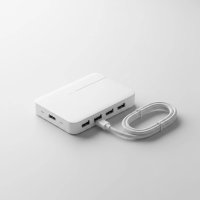
In today’s interconnected world, where our digital lives revolve around a multitude of devices, the sleek, minimalist design of modern Macs often presents a paradox: immense power wrapped in a shell with surprisingly few ports. If you’re a Mac user, whether you wield a MacBook Pro, a MacBook Air, or even a Mac Studio, you’ve likely encountered the “port puzzle.” How do you connect your external hard drive, monitor, keyboard, mouse, and charge your iPhone all at once when your Mac offers only a couple of versatile, yet limited, USB-C or Thunderbolt ports? This is where a trusty mac usb hub steps in, transforming your single port into a command center for all your peripherals. It’s no longer just an accessory; for many, it’s an essential tool to unlock their Mac’s full potential.
Why Your Mac Needs a USB Hub: Bridging the Connectivity Gap
Apple’s design philosophy has led to increasingly streamlined devices, often favoring universal ports like USB-C and Thunderbolt. While these ports offer incredible speed and versatility, their limited number can be a real bottleneck for productivity. Remember the days of multiple USB-A ports, HDMI, and Ethernet built right into your laptop? Those are largely a memory now.
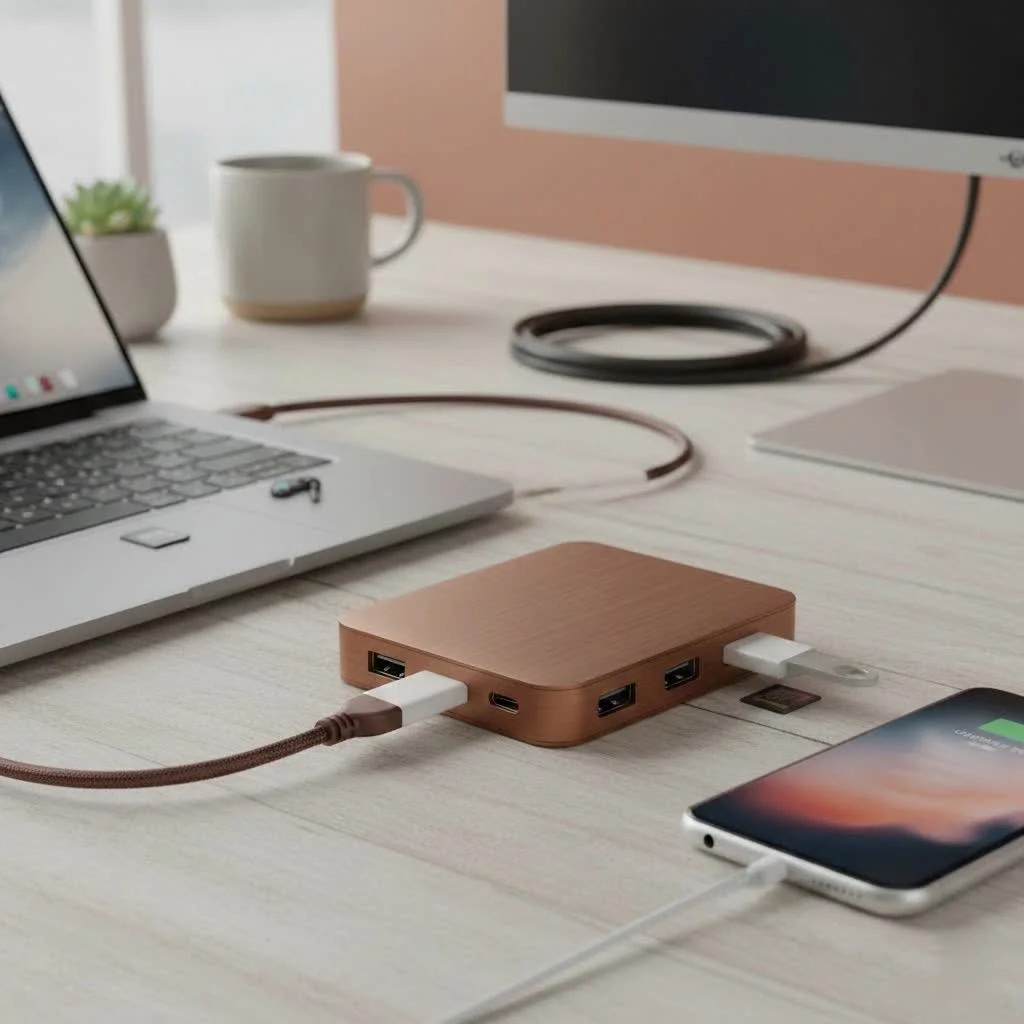
A mac usb hub effectively bridges this connectivity gap. It allows you to transform one of your Mac’s precious ports into a multi-port expansion, accommodating everything from legacy USB-A devices to high-speed external displays and network connections. Without a hub, you might find yourself constantly plugging and unplugging devices, or worse, unable to use essential peripherals simultaneously.
Decoding Mac USB Hubs: Types and Technologies
Navigating the world of USB hubs can feel like deciphering a secret code with terms like USB-C, Thunderbolt, Gen 1, Gen 2, and Power Delivery. Let’s break down the main types you’ll encounter and what they mean for your Mac.
USB-C Hubs: Versatility for Everyday Use
USB-C has become the universal connector shape for most modern devices, including Macs, iPads, and even newer iPhones. A USB-C hub leverages this physical connector to expand your Mac’s capabilities.
What they are:
USB-C hubs are designed to take a single USB-C port on your Mac and branch it out into several different types of connections. They are typically more affordable than Thunderbolt hubs and offer a fantastic balance of features for general use.
Key features:
Most good USB-C hubs will offer a combination of ports, including traditional USB-A ports for older peripherals, additional USB-C ports (often for data or power passthrough), an HDMI or DisplayPort for external monitors, an Ethernet port for wired network access, and SD/MicroSD card readers for photographers and videographers.
When a USB-C hub is your perfect companion:
If your daily workflow involves connecting a few standard peripherals, an external monitor, and maybe an SD card, a well-chosen USB-C hub will serve you exceptionally well. They’re excellent for expanding port options without breaking the bank.
Thunderbolt Hubs: Power and Performance for Professionals
|
Our Picks for the Best USB Hub in 2026
As an Amazon Associate I earn from qualifying purchases.
|
||
| Num | Product | Action |
|---|---|---|
| 1 | USB C Docking Station with M.2 NVMe SSD Enclosure 10Gbps, 9 in 1 USB-C Hub, Type C SSD Slot with 4K@60Hz HDMI, USB 3.2 Gen2, PD100W, SD/TF Card Reader, Laptop Docking Station for Dell/HP/Lenovo/Mac |

|
| 2 | 13 in 1 USB C Docking Station - Dual Monitor, Triple Display, 8 USB C/A Ports, Ethernet, Audio - LIONWEI USB C Hub for MacBook,Dell,HP,Lenovo,Surface |
|
| 3 | Anker USB Hub 4 Ports with 5Gbps Data Transfer, Multiple USB 3.0 Hub, USB Splitter for Laptop, Extender for A Port Laptop, PC, Desktop and More [Charging Not Supported](0.7 ft USB-A) |
|
| 4 | 3-in-1 USB C Splitter, 3 in 1 Type-C Charging Data Cable Data Transmission Decive Charging Adapter Power Charger Equipment for ome Office Use, Fast & Efficient |
|
| 5 | Powered USB Hub, Wenter 11-Port USB Splitter Hub (10 Faster Data Transfer Ports+ 1 Smart Charging Port) with Individual LED On/Off Switches, USB Hub 3.0 Powered with Power Adapter for Mac, PC |
|
| 6 | UGREEN USB 3.0 Hub, 4 Ports USB A Splitter Ultra-Slim USB Expander for Mouse, Keyboard, Flash Drive, U Disk, Printer Compatible with Laptop, Desktop PC, Xbox, PS5, and More |
|
| 7 | Anker Laptop Docking Station Dual Monitor, 8-in-1 USB C Hub, 4K Dual Monitor with 2 HDMI, 1 Gbps Ethernet Hub, 85W Power Delivery, SD Card Reader for MacBook Pro, XPS and More (Charger not Included) |
|
| 8 | P9R PRO USB C Hub Ethernet, 10 in 1 USB Docking Station 10Gbps with 4K@60Hz HDMI, USB C and 2 USB A 3.2, LAN, 2 USB A 2.0, PD 100W, SD/TF Ports, USB to Ethernet Adapter for PC, iPhone 16/15, Mac |
|
| 9 | Powered USB Hub 10Gbps, intpw 9-Port USB 3.2 Hub, USB C Hub with USB A/USB C 3.2, 4 USB 3.0, 2 PD 45W Charging Ports, 65W Power Adapter and 3.3FT Cable, Aluminum USB Hub for Laptop, iPhone 17/16/15,PC |
|
| 10 | USB Hub 3.0, 7-Port USB Hub Splitter with Individual On/Off Switches and Lights, 3.2ft/1m Long Cable Compatible with MacBook, Laptop, Surface Pro, PS4, PC, Flash Drive, Mobile HDD |
|
While Thunderbolt ports also use the USB-C physical connector, they are a completely different beast under the hood. Thunderbolt is a high-performance protocol developed by Intel in collaboration with Apple, offering significantly higher bandwidth and more advanced capabilities.
Beyond USB-C: Understanding Thunderbolt 3, 4, and the emerging Thunderbolt 5:
Thunderbolt 3 and 4 both deliver a staggering 40 Gigabits per second (Gbps) of throughput, four times faster than the fastest USB 3.2 Gen 2. The latest iteration, Thunderbolt 5, pushes this even further to 80 Gbps, doubling the speed. These speeds are crucial for professionals working with massive data files, multiple high-resolution displays, or external graphics processing units (eGPUs).
Advanced capabilities:
Thunderbolt hubs and docks can drive dual 4K displays at 60Hz (Thunderbolt 4) or even single 8K displays, connect to external SSDs that outperform your Mac’s internal storage, and handle complex daisy-chained setups with ease.
Distinguishing hubs from docks: When to invest in a full docking station:
The terms “hub” and “dock” are often used interchangeably, but there’s a subtle distinction. A hub is generally a more compact, portable device designed for basic port expansion. A docking station, on the other hand, is typically larger, often self-powered with its own power adapter, and provides a wider array of ports and capabilities, including significant power delivery to your Mac. If you have a permanent desk setup with multiple monitors and high-speed peripherals, a Thunderbolt docking station offers a superior, single-cable solution for your Mac.
Powering Your World: Understanding Power Delivery (PD) in Mac USB Hubs
One of the most critical, yet often overlooked, aspects of choosing a mac usb hub is Power Delivery (PD). This isn’t just about connecting devices; it’s about safely and efficiently powering your Mac and everything attached to it.
The critical role of PD:
Many modern USB-C hubs feature a “PD Passthrough” port, which allows you to plug your Mac’s charger directly into the hub. The hub then passes power through to your Mac while simultaneously powering all connected peripherals. This is a game-changer, as it means you only need one cable running to your Mac for both data and power.
Wattage matters:
PD is measured in watts (W), and ensuring your hub can deliver enough power to your Mac is paramount. For example, a 13-inch MacBook Air typically requires around 30W, while a 16-inch MacBook Pro might need 96W or even 140W. If your hub’s PD capacity is too low, your Mac will charge slowly, or worse, may continue to drain its battery under heavy load. A good rule of thumb is to choose a hub that offers at least as much, if not more, wattage than your Mac’s original power adapter.
The dangers of underpowered hubs:
An underpowered hub can lead to a host of problems. Devices might randomly disconnect, external hard drives could fail to mount or suffer data corruption, and your Mac’s performance could be throttled. It’s not just an inconvenience; it can damage your peripherals or even your Mac over time if not properly managed. Always invest in a hub with adequate power delivery, especially for power-hungry accessories like external SSDs or multiple displays.
Speed Demons: Demystifying Data Transfer Rates
The speed at which data travels through your mac usb hub directly impacts your workflow, especially when dealing with large files or high-resolution content. Understanding USB standards and Thunderbolt speeds is key to making an informed choice.
Breaking down USB standards:
- USB 2.0: The oldest standard still commonly found, offering a maximum of 480 Megabits per second (Mbps). It’s fine for keyboards, mice, and basic flash drives, but too slow for modern storage or video.
- USB 3.x (USB 3.0/3.1 Gen 1/3.2 Gen 1): Delivers 5 Gigabits per second (Gbps). This is a significant leap and suitable for most external hard drives and many general peripherals.
- USB 3.1 Gen 2/3.2 Gen 2: Doubles the speed to 10 Gbps, ideal for faster external SSDs and more demanding data transfers.
- USB 3.2 Gen 2×2: Offers 20 Gbps, though it’s less common and requires specific hardware.
- USB4: This standard utilizes the Thunderbolt 3 protocol, offering up to 40 Gbps, making it functionally similar to Thunderbolt 3 and 4 in terms of speed.
Thunderbolt speeds:
Thunderbolt 3 and 4 both provide a blistering 40 Gbps, making them the gold standard for high-performance computing. Thunderbolt 5 takes this even further to 80 Gbps. These speeds are essential for professionals who:
- Edit 4K/8K video directly from external drives.
- Run multiple high-resolution external monitors without lag.
- Utilize external graphics cards (eGPUs) for gaming or intensive graphical tasks.
- Connect other Thunderbolt peripherals in a daisy chain.
Practical implications:
If you’re connecting a basic mouse and keyboard, USB 2.0 speeds are sufficient. For external SSDs or frequent large file transfers, aim for at least USB 3.1 Gen 2 (10 Gbps) or, ideally, Thunderbolt (40 Gbps or higher) to avoid bottlenecks and enjoy a smooth, efficient experience. The right speed ensures your peripherals don’t hold your Mac back.
Choosing Your Perfect Mac USB Hub: A Practical Checklist
Ready to dive in and find the best mac usb hub for your setup? Here’s a checklist to guide you through the process, ensuring you pick a hub that perfectly matches your needs.
Ports You Need
First, list all the devices you plan to connect.
- USB-A ports: How many legacy devices (keyboards, mice, older external drives, printers) do you have?
- USB-C ports (data/PD): Do you need extra USB-C ports for newer peripherals or for power passthrough?
- HDMI/DisplayPort: How many external monitors do you use, and what resolution and refresh rate do they support (e.g., 4K@60Hz, 8K@30Hz)? Ensure the hub supports these specifications.
- Ethernet: Do you prefer a wired internet connection for speed and stability? Look for Gigabit (1Gb) or 2.5 Gigabit Ethernet.
- SD/MicroSD card readers: Are you a photographer or videographer? Look for UHS-II card readers if you handle large media files, as they offer significantly faster transfer speeds than UHS-I.
- Audio Jack: Do you need a 3.5mm audio input/output?
Power Requirements
This is crucial for MacBooks.
- Match PD to your Mac’s needs: Check your Mac’s power adapter wattage (e.g., 60W, 96W, 140W) and choose a hub with a PD passthrough port that meets or exceeds this.
- Self-powered vs. bus-powered: If you have many power-hungry devices (multiple external hard drives, high-res monitors), a self-powered hub (with its own power adapter) is often a safer and more reliable choice than a bus-powered hub (which draws all its power from your Mac).
Speed Expectations
Consider your most data-intensive tasks.
- For basic office work and general peripherals, USB 3.0 (5 Gbps) is usually fine.
- For external SSDs, video editing, or large file transfers, aim for USB 3.1 Gen 2 (10 Gbps), USB4, or Thunderbolt (40 Gbps+).
Form Factor
Where will you be using your hub?
- Portable: Compact, lightweight hubs are great for travel or minimalist setups.
- Desktop: Larger docking stations often offer more ports, more robust power, and are designed to stay in one place, creating a more organized workstation.
Compatibility
Always double-check.
- Ensure the hub is compatible with your specific Mac model (especially important for older Macs or those with specific port configurations).
- Verify that it works with your current macOS version, as sometimes updates can affect hub functionality.
Troubleshooting Common Mac USB Hub Issues: Quick Fixes for Frustration
Even the best mac usb hub can sometimes encounter hiccups. Don’t panic! Many common issues have straightforward solutions.
“My Mac USB hub isn’t recognized!”: Restart, Check Connections, Test Other Ports.
If your Mac isn’t detecting your hub or connected devices, start with the basics:
- Restart your Mac: A simple reboot often resolves temporary software glitches.
- Check all connections: Ensure the hub is firmly plugged into your Mac, and all peripherals are securely connected to the hub. Try unplugging and replugging everything.
- Try a different port on your Mac: If your Mac has multiple USB-C/Thunderbolt ports, try plugging the hub into a different one. This helps rule out a faulty port on your Mac.
- Test on another Mac: If possible, test the hub on a different Mac to determine if the issue lies with the hub or your specific computer.
Devices not connecting after macOS update: Adjust “Allow accessories to connect” settings.
This is a known issue with recent macOS versions (like macOS Ventura and Sonoma). If your devices stop working after an update:
- Go to System Settings > Privacy & Security.
- Scroll down to find the “Allow accessories to connect” dropdown menu.
- Change the setting to a different value (e.g., “Always”), then unplug and replug your hub.
- You might then get a prompt to allow the hub to connect. Click “Allow.” You can then set the option back to “Ask for new accessories” if you prefer. This often “wakes up” the system.
Performance issues: Power constraints, cable quality, heat.
- Insufficient Power Delivery: As discussed, if your hub isn’t providing enough power, devices can malfunction or disconnect. Ensure your hub’s PD wattage is adequate.
- Cable Quality: Not all USB-C cables are created equal. Cheap cables can limit speeds or fail to deliver proper power. Invest in high-quality, certified USB-C or Thunderbolt cables.
- Heat: Some hubs, especially those pushing a lot of data or power, can get warm. Excessive heat can sometimes cause instability. Ensure good airflow around your hub.
SMC and PRAM/NVRAM resets.
For stubborn hardware-related issues, resetting your Mac’s System Management Controller (SMC) and Parameter RAM/Non-Volatile RAM (PRAM/NVRAM) can sometimes help. The steps vary depending on your Mac model, so refer to Apple’s official support documentation.
Keeping software and firmware updated.
Ensure your macOS is up to date. Occasionally, hub manufacturers release firmware updates for their devices that can improve compatibility and performance. Check the manufacturer’s website for any available updates.
Expert Insight from Meeob.com’s Lead Innovator, Dr. Evelyn Reed
“In my decade of experience, the biggest mistake Mac users make with hubs is underestimating the importance of Power Delivery and choosing based solely on price,” says Dr. Evelyn Reed, Lead Innovator at Meeob.com. “A quality mac usb hub isn’t just about adding ports; it’s about creating a stable, efficient, and reliable ecosystem for your entire Mac setup. Invest wisely, and you’ll transform your workspace from cluttered to connected, truly unlocking your Mac’s power without compromise.”
Frequently Asked Questions about Mac USB Hubs
Q: Do I really need a Thunderbolt hub, or is USB-C enough?
A: For most everyday users, a high-quality USB-C hub is perfectly sufficient. If you regularly work with massive video files, need to connect multiple 4K displays, or require the absolute fastest external storage speeds, then a Thunderbolt hub or dock will offer superior performance and capabilities.
Q: Can I charge my MacBook Pro with any USB-C hub?
A: No, not every USB-C hub supports Power Delivery (PD) passthrough, and those that do have varying wattage capacities. Always check the hub’s specifications to ensure it provides enough power (e.g., 60W, 96W, 100W, or more) to safely and efficiently charge your specific MacBook Pro model.
Q: What’s the difference between a USB hub and a docking station?
A: While the terms are often used interchangeably, a USB hub is generally a simpler, more portable device designed to expand the number of ports. A docking station is typically a more robust, often self-powered unit with a wider array of ports (including specialized video outputs, multiple high-speed data ports, and robust Ethernet), designed for a permanent desk setup to provide a single-cable connection for all your peripherals and charging.
Q: Why are my external drives disconnecting from my Mac USB hub?
A: This is often a sign of insufficient power delivery. External hard drives, especially traditional spinning drives, require a certain amount of power to operate reliably. If your hub is bus-powered and can’t draw enough power from your Mac, or if its PD passthrough isn’t sufficient for both your Mac and its connected devices, drives may disconnect. Using a self-powered hub or a hub with higher PD capacity usually resolves this. Poor quality cables or a faulty hub can also be culprits.
Q: Does a Mac USB hub affect performance?
A: A well-designed, high-quality mac usb hub should not noticeably affect the performance of your Mac or connected devices, provided it matches the speed requirements of your peripherals and offers adequate power. However, a cheap, poorly designed hub or one with insufficient power delivery can indeed introduce bottlenecks, cause slowdowns, or lead to device instability.
Conclusion: Unlock Your Mac’s Full Potential
The modern Mac, with its sleek design and powerful internals, is an incredible machine. But to truly unlock its full potential and integrate it seamlessly into your digital life, a carefully chosen mac usb hub is an indispensable tool. By understanding the different types of hubs, prioritizing Power Delivery, grasping data transfer speeds, and knowing how to troubleshoot common issues, you can make an informed decision that transforms your connectivity from a frustrating limitation into a powerful advantage. So go ahead, expand your Mac’s capabilities, streamline your workflow, and connect to your world with confidence.
Get our weekly buyer guide
Practical specs, not advice. Unsubscribe anytime.