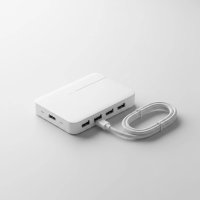
In our increasingly connected world, modern laptops and smart devices often prioritize sleek design and portability, frequently at the expense of traditional ports. This shift has left many users with just a handful of USB-C ports, creating a challenge when trying to connect familiar peripherals like external hard drives, monitors, or even a classic USB mouse. This is precisely where a c to usb hub becomes your indispensable ally, transforming a single USB-C port into a versatile command center for all your gadgets.
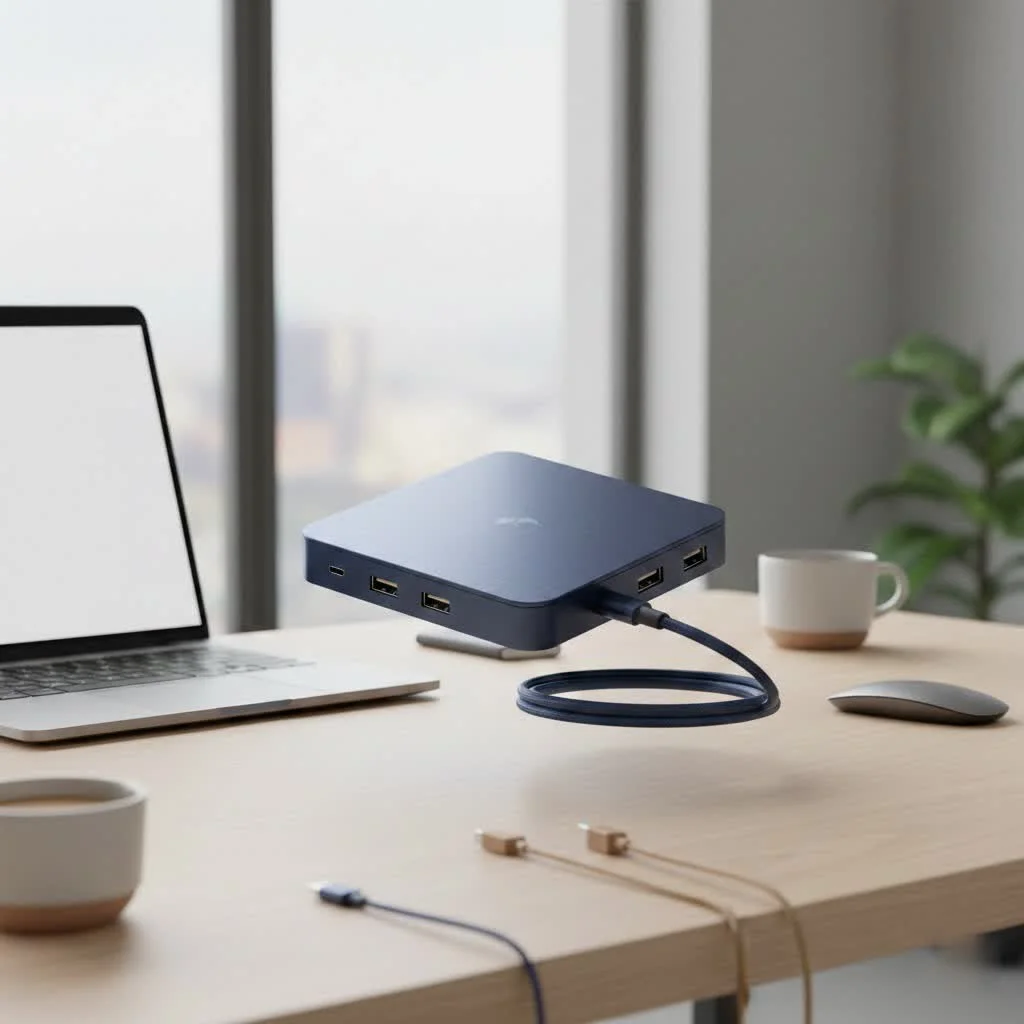
At Meeob.com, we understand the frustration of limited connectivity. We’re here to demystify the world of c to usb hubs, helping you unlock your device’s full potential, maintain productivity, and simplify your digital life with the right tools.
What is a C to USB Hub and Why Do You Need One?
A c to usb hub is essentially a multi-port adapter that plugs into your device’s USB-C port, providing additional connectivity options. Think of it as a digital octopus, extending the reach of your device to multiple peripherals simultaneously. The USB-C standard itself is incredibly versatile, capable of handling power, data, and video signals all through one compact, reversible connector. However, with many slim laptops featuring only one or two such ports, a hub becomes crucial.
You need a c to usb hub if your laptop, tablet, or even smartphone lacks the specific ports you frequently use. For instance, if you have a new MacBook with only USB-C ports but still rely on a USB-A flash drive, an HDMI monitor, or an Ethernet cable for stable internet, a hub is your bridge to these essential connections.
Types of C to USB Hubs: Understanding the Ecosystem
Not all c to usb hubs are created equal. They come in various configurations, each designed to meet different needs and budgets. Understanding these types is the first step to choosing the perfect hub for you.
Simple C to USB-A Hubs
These are the most basic and often the most affordable type of c to usb hub. Their primary function is to convert one USB-C port into several USB-A ports, allowing you to connect older peripherals like keyboards, mice, printers, or legacy flash drives.
- USB 2.0 vs. USB 3.x: While USB 2.0 ports (offering speeds up to 480 Mbps) are adequate for basic accessories, for faster data transfer with external hard drives or SSDs, look for hubs with USB 3.0, USB 3.1, or USB 3.2 Gen 1 ports, which typically offer 5 Gbps. Some advanced hubs even feature USB 3.2 Gen 2 ports for a blistering 10 Gbps. These speeds are crucial when you’re moving large files or working with high-bandwidth devices.
Multiport USB-C Hubs (Dongles)
|
Our Picks for the Best USB Hub in 2026
As an Amazon Associate I earn from qualifying purchases.
|
||
| Num | Product | Action |
|---|---|---|
| 1 | 13 in 1 USB C Docking Station - Dual Monitor, Triple Display, 8 USB C/A Ports, Ethernet, Audio - LIONWEI USB C Hub for MacBook,Dell,HP,Lenovo,Surface |

|
| 2 | Anker Laptop Docking Station Dual Monitor, 8-in-1 USB C Hub, 4K Dual Monitor with 2 HDMI, 1 Gbps Ethernet Hub, 85W Power Delivery, SD Card Reader for MacBook Pro, XPS and More (Charger not Included) |
|
| 3 | 3-in-1 USB C Splitter, 3 in 1 Type-C Charging Data Cable Data Transmission Decive Charging Adapter Power Charger Equipment for ome Office Use, Fast & Efficient |
|
| 4 | Powered USB Hub, Wenter 11-Port USB Splitter Hub (10 Faster Data Transfer Ports+ 1 Smart Charging Port) with Individual LED On/Off Switches, USB Hub 3.0 Powered with Power Adapter for Mac, PC |
|
| 5 | USB C Docking Station with M.2 NVMe SSD Enclosure 10Gbps, 9 in 1 USB-C Hub, Type C SSD Slot with 4K@60Hz HDMI, USB 3.2 Gen2, PD100W, SD/TF Card Reader, Laptop Docking Station for Dell/HP/Lenovo/Mac |
|
| 6 | Anker USB Hub 4 Ports with 5Gbps Data Transfer, Multiple USB 3.0 Hub, USB Splitter for Laptop, Extender for A Port Laptop, PC, Desktop and More [Charging Not Supported](0.7 ft USB-A) |
|
| 7 | USB Hub 3.0, 7-Port USB Hub Splitter with Individual On/Off Switches and Lights, 3.2ft/1m Long Cable Compatible with MacBook, Laptop, Surface Pro, PS4, PC, Flash Drive, Mobile HDD |
|
| 8 | P9R PRO USB C Hub Ethernet, 10 in 1 USB Docking Station 10Gbps with 4K@60Hz HDMI, USB C and 2 USB A 3.2, LAN, 2 USB A 2.0, PD 100W, SD/TF Ports, USB to Ethernet Adapter for PC, iPhone 16/15, Mac |
|
| 9 | Powered USB Hub 10Gbps, intpw 9-Port USB 3.2 Hub, USB C Hub with USB A/USB C 3.2, 4 USB 3.0, 2 PD 45W Charging Ports, 65W Power Adapter and 3.3FT Cable, Aluminum USB Hub for Laptop, iPhone 17/16/15,PC |
|
| 10 | UGREEN USB 3.0 Hub, 4 Ports USB A Splitter Ultra-Slim USB Expander for Mouse, Keyboard, Flash Drive, U Disk, Printer Compatible with Laptop, Desktop PC, Xbox, PS5, and More |
|
These hubs are the real workhorses, expanding beyond just USB-A ports to include a variety of other useful connections. They are often referred to as “dongles” due to their compact, cable-connected design.
- Key Features: Common additions include HDMI or DisplayPort for external monitors, Gigabit Ethernet for a stable wired internet connection, and SD/microSD card readers for photographers and videographers. Many also include additional USB-C ports for data or even another USB-C Power Delivery (PD) port.
- Power Delivery (PD) Explained: One of the most critical features in a multiport c to usb hub is Power Delivery. This allows you to charge your laptop or host device through the hub itself. You plug your laptop’s USB-C charger into the hub, and the hub then passes power through to your laptop while simultaneously powering all connected peripherals. Look for hubs with sufficient wattage (e.g., 60W, 85W, or 100W PD) to ensure your laptop charges efficiently, as some hubs reserve a portion of the incoming power for their own operation.
- Data Transfer Speeds: Beyond USB-A, many multiport hubs also include USB-C data ports, often supporting USB 3.2 Gen 2 (10 Gbps) or, in premium models, even Thunderbolt (up to 40 Gbps), offering incredible speeds for high-performance external storage.
Powered vs. Bus-Powered C to USB Hubs
Understanding the power source is vital for stable and reliable operation.
- Bus-Powered Hubs: These hubs draw all their power directly from the host computer’s USB-C port. They are generally more portable as they don’t require an external power adapter. However, they can be limited in their ability to power multiple high-draw devices simultaneously, potentially leading to intermittent connections or reduced performance.
- Self-Powered (or Externally Powered) Hubs: These hubs come with their own dedicated power adapter. They provide more robust and stable power to all connected devices, making them ideal for high-power peripherals like external SSDs, multiple monitors, or charging several devices at once. “For mission-critical tasks or complex setups, a self-powered hub is always the safer bet,” advises Dr. Elena Petrova, a veteran hardware engineer.
Key Features to Look for in a C to USB Hub
Choosing the best c to usb hub involves more than just picking one off the shelf. Here’s what to consider to ensure it perfectly fits your workflow:
Port Variety & Quantity
Consider what devices you need to connect. Do you primarily use USB-A accessories? Do you need to connect to an external monitor? Do you offload photos from an SD card regularly?
- For basic expansion: A hub with 3-4 USB-A ports might suffice.
- For a mobile workstation: Look for a hub with USB-A, HDMI, and an SD card reader.
- For a power user: Seek hubs that combine USB-A, multiple video outputs (HDMI/DisplayPort), Ethernet, USB-C data ports, and robust Power Delivery.
Power Delivery (PD) Capability
If you plan to charge your laptop through the hub, ensure it supports Power Delivery and provides enough wattage for your device. A hub that supports 100W PD might deliver around 85W-90W to your laptop after accounting for the hub’s own power consumption. Always check your laptop’s charging requirements.
Video Output Options
This is where hubs can vary significantly.
- Resolution and Refresh Rate: Many hubs offer HDMI out, but pay attention to the supported resolution and refresh rate (e.g., 4K@30Hz vs. 4K@60Hz). For smoother visuals, especially for work involving video or fast-paced content, 4K@60Hz is preferred.
- Dual Monitors: If you need to connect two external displays, you’ll need a hub specifically designed for dual monitor support. Note that some macOS devices (like M1/M2/M3 MacBooks) natively support only one external display, requiring specialized DisplayLink technology in the hub for multiple monitors.
Data Transfer Speeds
For external SSDs or large file transfers, prioritize hubs with USB 3.2 Gen 2 (10 Gbps) or Thunderbolt 3/4 (40 Gbps) ports. These speeds dramatically reduce waiting times.
Build Quality & Portability
- Material: Aluminum enclosures are common and help dissipate heat more effectively than plastic.
- Cable Durability: If the cable is built-in, check for robust strain relief where it connects to the hub. Detachable cables offer more flexibility and easier replacement.
- Size and Weight: For travel, a compact, lightweight hub is key. For a fixed desk setup, a larger, more feature-rich hub might be acceptable.
Compatibility
Most modern c to usb hubs are plug-and-play with Windows, macOS, and ChromeOS for basic functions. However, for advanced features like multiple external displays on certain Macs or higher bandwidth, verify compatibility with your specific operating system and device model. Look for certifications like USB-IF for assured quality and safety.
Choosing the Right C to USB Hub for Your Setup
The “best” hub depends entirely on your needs. Let’s look at some common scenarios:
- The Minimalist Student: If you mostly need to connect a mouse, keyboard, and occasionally a flash drive, a simple 3-4 port USB-A hub with 5Gbps speeds will be perfect.
- The Business Traveler: Portability is key here. A compact multiport hub with HDMI, a couple of USB-A ports, and pass-through Power Delivery is ideal for presentations and keeping your laptop charged on the go.
- The Creative Professional: For photographers, videographers, or designers, look for a hub with high-speed SD/microSD card readers, 4K@60Hz HDMI or DisplayPort, Gigabit Ethernet, and multiple high-speed USB 3.2 Gen 2 or Thunderbolt data ports for external storage. Strong Power Delivery is also a must for power-hungry laptops.
- The Home Office Power User: If you’re building a desktop-like experience with your laptop, consider a more robust, often self-powered, multiport hub that can handle dual monitors, a wired keyboard/mouse, multiple external drives, and even an audio jack.
| Hub Type | Primary Use Case | Key Ports (Common) | Power Source | Ideal User |
|---|---|---|---|---|
| Basic USB-A Hub | Expanding USB-A ports | 2-4x USB-A (USB 2.0/3.0) | Bus-powered | Casual user, basic peripherals |
| Multiport Hub | Versatile expansion for mobile/desktop | USB-A, HDMI, SD/microSD, Ethernet, USB-C PD | Bus/Self-powered | Travelers, general productivity |
| Premium/Docking-style | High-performance workstation replacement | Multiple USB-A/C, dual 4K HDMI/DP, Ethernet, high PD | Self-powered | Creative pros, power users, complex setups |
Common Issues with C to USB Hubs and How to Troubleshoot Them
Even the best c to usb hub can encounter a snag or two. Knowing how to troubleshoot common problems can save you a lot of headache.
Intermittent Connectivity
- Issue: Devices randomly disconnect or connect unreliably.
- Solution: First, ensure all cables are firmly seated. A loose connection is a common culprit. Next, invest in high-quality USB-C cables, as inferior cables can cause instability. If the issue persists, try power cycling the hub by disconnecting it from both power and your computer, waiting a minute, and then reconnecting.
Display Problems
- Issue: Monitor not recognized, flickering screen, or incorrect resolution.
- Solution: Verify your system’s display settings match your monitor’s specifications. Update your graphics drivers and your operating system. If your hub has multiple video ports, try a different one. It’s also wise to test with a different HDMI/DisplayPort cable, as cables can sometimes be faulty.
Peripheral Malfunctions
- Issue: Keyboard, mouse, or external drive doesn’t work or performs poorly.
- Solution: Check if the hub is receiving sufficient power, especially if it’s a bus-powered hub with many devices. Avoid overloading the hub with too many high-power devices. Ensure drivers for your connected devices are up-to-date.
Overheating
- Issue: The hub feels excessively hot to the touch.
- Solution: While some heat is normal, excessive heat can indicate an overloaded hub or poor design. Ensure the hub has adequate ventilation and isn’t covered. Disconnect high-power devices that aren’t actively in use. If it consistently overheats with minimal use, it might be a design flaw or faulty unit.
“Many connectivity issues boil down to power delivery or outdated software,” explains Dr. Elena Petrova. “Always check your cables first, then ensure your device’s drivers and the hub’s firmware are the latest versions. It’s surprising how often a simple update solves complex problems.”
Expert’s Corner: Maximizing Your C to USB Hub Experience
To get the most out of your c to usb hub, consider these expert tips:
- Prioritize High-Bandwidth Devices: Connect your fastest devices (e.g., external SSDs) to the highest-speed ports available on your hub, often indicated by “SS 10” for 10 Gbps or a lightning bolt for Thunderbolt (40 Gbps).
- Manage Power Consumption: If using a bus-powered hub, be mindful of how many power-hungry devices are connected. For multiple external drives or charging devices, a self-powered hub is highly recommended.
- Keep it Updated: Regularly check the manufacturer’s website for firmware updates for your hub. These updates can improve compatibility, performance, and resolve known issues.
- Organize Your Workspace: A c to usb hub is meant to simplify, not complicate. Use cable management techniques to keep your desk tidy and prevent accidental disconnections.
FAQ
What is the difference between a USB-C hub and a docking station?
A USB-C hub is generally a more compact, portable device designed to add a few common ports. A docking station, while also using a USB-C or Thunderbolt connection, is typically larger, often self-powered, and offers a more extensive array of ports, including multiple video outputs, more USB ports, and often advanced features for a full desktop replacement experience.
Can a USB-C hub charge my laptop?
Yes, many c to usb hubs support Power Delivery (PD) pass-through. This means you can connect your laptop’s USB-C power adapter to the hub, and the hub will then deliver power to your laptop while also powering its connected peripherals. Always check the hub’s PD wattage to ensure it meets your laptop’s charging requirements.
Why is my USB-C hub getting hot?
Some heat is normal, especially when the hub is actively transferring data, outputting video, or charging devices. High-quality hubs use aluminum to dissipate this heat efficiently. Excessive heat, however, can indicate overloading, poor ventilation, or a faulty unit. Try disconnecting some devices or ensuring it’s in an open space.
Do I need drivers for my C to USB hub?
Most basic c to usb hubs are plug-and-play and do not require specific drivers for common functions on modern operating systems like Windows, macOS, and ChromeOS. However, some advanced features, like DisplayLink for multiple monitors on certain Macs, might require a software installation.
Can I connect two monitors to a c to usb hub?
It depends on the hub and your device. Many advanced multiport hubs support dual monitor setups, but the resolution and refresh rate can vary. For MacBooks with M1, M2, or M3 chips, connecting more than one external monitor typically requires a hub that utilizes DisplayLink technology, along with its specific software.
Conclusion
The c to usb hub has quickly evolved from a niche gadget to an essential component of modern computing. It bridges the gap between the sleek, port-limited designs of today’s devices and the diverse array of peripherals we rely on daily. By carefully considering your connectivity needs, understanding the types of hubs available, and knowing what key features to prioritize, you can confidently choose a hub that streamlines your workflow, boosts your productivity, and keeps all your devices seamlessly connected. Invest in the right c to usb hub, and experience the freedom of expanded connectivity.
Get our weekly buyer guide
Practical specs, not advice. Unsubscribe anytime.