A USB C to USB hub is an essential tool for modern computing, expanding a single USB-C port into multiple possibilities for connecting peripherals. These compact devices restore crucial connectivity lost in the minimalist design of ultra-thin laptops, allowing users to connect mice, external hard drives, monitors, and more simultaneously. Meeob has spent over a decade testing and analyzing USB hubs to help users choose the perfect one for their setup.
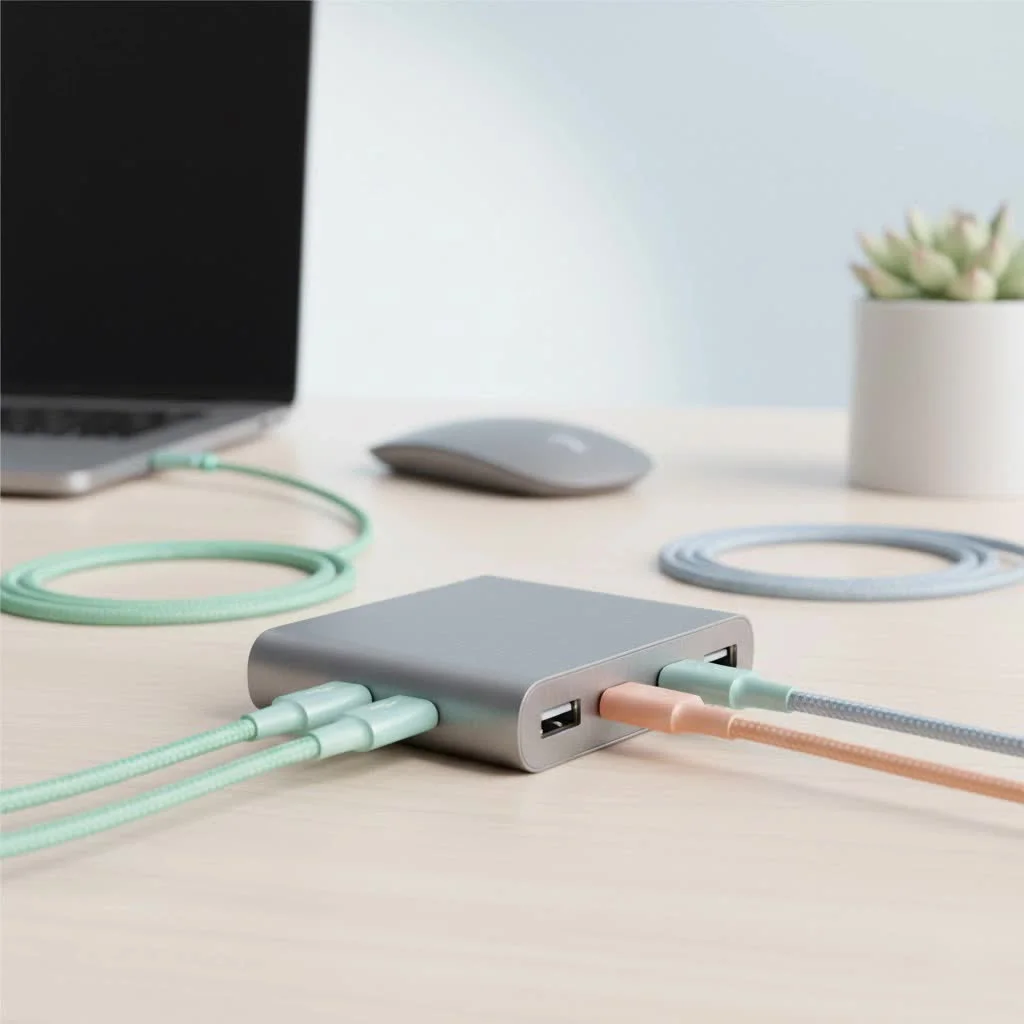
What Exactly Is a USB C to USB Hub?
Think of a USB C to USB hub as a power strip for your data. It’s a compact device that plugs into a single USB-C port on your laptop, tablet, or even smartphone and branches out into multiple ports. This allows you to connect a wide range of peripherals simultaneously, from legacy USB-A devices like keyboards and flash drives to external displays and wired internet connections. For compare top usb hubs on this site.
The beauty of USB-C is its versatility. The port itself is capable of handling data transfer, video output, and power input all at the same time. A good hub leverages this capability to provide a one-plug solution for all your peripherals.
Why You Absolutely Need a USB C Hub
The trend towards minimalism in laptop design, championed by devices like the MacBook Air and Dell XPS, has led to the removal of many traditional ports. While this creates a cleaner aesthetic, it often creates a practical nightmare for users.
A USB C hub solves this “dongle life” dilemma by:
- Expanding Connectivity: Instantly add USB-A, HDMI, Ethernet, and SD card readers back to your workflow.
- Reducing Clutter: Instead of carrying multiple single-port adapters, you only need one device.
- Boosting Productivity: Connect to a full desktop setup—monitor, keyboard, mouse, and stable internet—with a single plug, making it easy to transition from mobile to desk work.
- Ensuring Future-Proofing: As more devices adopt the USB-C standard, a hub ensures your existing peripherals remain useful.
Key Features to Look For in a USB C to USB Hub
Not all hubs are created equal. The right one for you depends entirely on your specific needs. Let’s break down the most important features to consider.
USB Ports (USB-A and USB-C)
The most basic function of a hub is to give you more USB ports. Look for a mix of USB-A ports for your older devices (mice, keyboards, flash drives) and potentially an extra USB-C port. Pay close attention to the data transfer speed, usually denoted by the USB version:
- USB 2.0: An older standard with speeds up to 480Mbps. Suitable for keyboards and mice, but very slow for file transfers.
- USB 3.0 (or USB 3.2 Gen 1): Offers speeds up to 5Gbps. This is the sweet spot for most users, ideal for external hard drives and fast file transfers.
- USB 3.1 (or USB 3.2 Gen 2): Provides speeds up to 10Gbps. This is great for power users who frequently move large files, like video editors.
Video Output (HDMI and DisplayPort)
|
Our Picks for the Best USB Hub in 2026
As an Amazon Associate I earn from qualifying purchases.
|
||
| Num | Product | Action |
|---|---|---|
| 1 | Powered USB Hub 10Gbps, intpw 9-Port USB 3.2 Hub, USB C Hub with USB A/USB C 3.2, 4 USB 3.0, 2 PD 45W Charging Ports, 65W Power Adapter and 3.3FT Cable, Aluminum USB Hub for Laptop, iPhone 17/16/15,PC |

|
| 2 | Anker Laptop Docking Station Dual Monitor, 8-in-1 USB C Hub, 4K Dual Monitor with 2 HDMI, 1 Gbps Ethernet Hub, 85W Power Delivery, SD Card Reader for MacBook Pro, XPS and More (Charger not Included) |
|
| 3 | Powered USB Hub, Wenter 11-Port USB Splitter Hub (10 Faster Data Transfer Ports+ 1 Smart Charging Port) with Individual LED On/Off Switches, USB Hub 3.0 Powered with Power Adapter for Mac, PC |
|
| 4 | USB Hub 3.0, 7-Port USB Hub Splitter with Individual On/Off Switches and Lights, 3.2ft/1m Long Cable Compatible with MacBook, Laptop, Surface Pro, PS4, PC, Flash Drive, Mobile HDD |
|
| 5 | USB C Docking Station with M.2 NVMe SSD Enclosure 10Gbps, 9 in 1 USB-C Hub, Type C SSD Slot with 4K@60Hz HDMI, USB 3.2 Gen2, PD100W, SD/TF Card Reader, Laptop Docking Station for Dell/HP/Lenovo/Mac |
|
| 6 | Anker USB Hub 4 Ports with 5Gbps Data Transfer, Multiple USB 3.0 Hub, USB Splitter for Laptop, Extender for A Port Laptop, PC, Desktop and More [Charging Not Supported](0.7 ft USB-A) |
|
| 7 | 3-in-1 USB C Splitter, 3 in 1 Type-C Charging Data Cable Data Transmission Decive Charging Adapter Power Charger Equipment for ome Office Use, Fast & Efficient |
|
| 8 | UGREEN USB 3.0 Hub, 4 Ports USB A Splitter Ultra-Slim USB Expander for Mouse, Keyboard, Flash Drive, U Disk, Printer Compatible with Laptop, Desktop PC, Xbox, PS5, and More |
|
| 9 | 13 in 1 USB C Docking Station - Dual Monitor, Triple Display, 8 USB C/A Ports, Ethernet, Audio - LIONWEI USB C Hub for MacBook,Dell,HP,Lenovo,Surface |
|
| 10 | P9R PRO USB C Hub Ethernet, 10 in 1 USB Docking Station 10Gbps with 4K@60Hz HDMI, USB C and 2 USB A 3.2, LAN, 2 USB A 2.0, PD 100W, SD/TF Ports, USB to Ethernet Adapter for PC, iPhone 16/15, Mac |
|
If you plan to connect your laptop to an external monitor or TV, a video output port is non-negotiable.
- HDMI: The most common standard. Look for a hub that supports at least 4K resolution at a 30Hz refresh rate (4K@30Hz). For a smoother experience, especially with video or gaming, aim for a hub that supports 4K@60Hz.
- DisplayPort: Another popular video standard, often preferred by creative professionals and gamers for its potential for higher refresh rates.
Power Delivery (PD) Pass-Through Charging
This is one of the most critical features. A USB C to USB hub with Power Delivery allows you to charge your laptop through the hub itself. You plug your laptop’s USB-C charger into the hub’s designated PD port, and the hub passes power to the laptop while simultaneously running all your connected peripherals.
“Without Power Delivery, you have to choose between using your peripherals and charging your laptop,” notes David Chen, a senior hardware analyst at Meeob. “A hub with at least 60W PD is essential for most modern laptops, with 85W or 100W being ideal for more powerful machines like the MacBook Pro.”
Ethernet Port
Wi-Fi is convenient, but for tasks that demand a stable, high-speed connection—like online gaming, video conferencing, or large file downloads—nothing beats a wired Ethernet connection. An RJ45 Ethernet port on your hub provides access to gigabit internet speeds, ensuring a reliable and lag-free connection.
SD and MicroSD Card Readers
For photographers, videographers, and drone pilots, built-in card readers are a massive time-saver. They eliminate the need for a separate card reader dongle, allowing you to transfer photos and videos directly from your memory cards to your computer or external drives.
How to Choose the Right USB C Hub for You
Selecting the perfect hub means matching its features to your daily activities.
For the Everyday User or Student
If you primarily use your laptop for web browsing, document editing, and streaming, a simple and portable hub is all you need.
- Checklist:
- 2-3 USB-A 3.0 ports
- HDMI port (4K@30Hz is usually sufficient)
- USB-C Power Delivery (at least 60W)
For the Creative Professional
Photographers, video editors, and graphic designers have more demanding needs. Speed and specialized ports are crucial for an efficient workflow.
- Checklist:
- Multiple high-speed USB-A and USB-C ports (5Gbps or 10Gbps)
- High-performance HDMI (4K@60Hz) or DisplayPort
- Fast SD and MicroSD card readers (UHS-II if possible)
- Gigabit Ethernet port
- High-wattage Power Delivery (85W-100W)
For the Remote Worker or Business Traveler
Portability, reliability, and versatility are key. You need a single hub that can handle any situation, from a hotel room to a client’s office.
- Checklist:
- A compact and durable aluminum design.
- A good mix of ports: USB-A, HDMI, and Ethernet.
- Reliable Power Delivery to keep you charged on the go.
Frequently Asked Questions (FAQ)
What is the difference between a USB-C hub and a docking station? A USB-C hub is generally smaller, more portable, and bus-powered, drawing power directly from the laptop. In contrast, a docking station is a larger, stationary device with its own power supply, often supporting more ports and multiple external displays.
Will using a USB C to USB hub slow down my internet or peripherals? A quality USB C to USB hub will not noticeably slow down your devices under typical use. While hubs share a total bandwidth across all ports, performance dips are rare unless many high-bandwidth tasks, such as transferring from a fast SSD and streaming 4K video, are performed simultaneously.
Do all USB-C ports work with all hubs? No, not all USB-C ports are compatible with all hubs, especially for video output. The USB-C port on your laptop must support “DisplayPort Alternate Mode” to output video. Always check your device’s specifications to ensure its USB-C port supports video and data transfer, not just charging; ports with a Thunderbolt symbol offer the best compatibility.
Can I use a USB-C hub with an iPad or Android Phone? Yes, many newer mobile devices like the iPad Pro, iPad Air, and high-end Android smartphones support USB-C hubs. This functionality allows users to connect their mobile devices to external monitors, keyboards, and storage, effectively transforming them into portable workstations.
Why does my USB-C hub get warm? It is normal for a USB-C hub to get warm during operation because the internal chipsets managing data, video, and power delivery generate heat. Hubs with metal casings, typically aluminum, are designed to dissipate this heat effectively, so a warm but not uncomfortably hot touch is expected.
Conclusion: Reclaim Your Connectivity
A USB C to USB hub is the bridge between the minimalist design of modern laptops and the practical demands of our digital lives. It restores functionality, reduces clutter, and empowers you to build the productive setup you need, wherever you are. By identifying your primary use case—be it casual browsing, creative work, or professional travel—and focusing on key features like Power Delivery, video output, and port selection, you can confidently choose a hub that will serve you well for years to come. Don’t let a lack of ports limit your potential; expand your possibilities with the right USB-C hub.
Choose the Right USB C Hub for Your Needs
Selecting the perfect USB C hub involves matching its features to your daily activities and specific connectivity requirements.
Determine if you are an everyday user, a creative professional, or a remote worker/business traveler. Each user type has distinct needs regarding port types, speeds, and power requirements.
For everyday users, focus on 2-3 USB-A 3.0 ports, an HDMI port (4K@30Hz), and at least 60W USB-C Power Delivery. Creative professionals need high-speed USB-A/C (5-10Gbps), 4K@60Hz HDMI/DisplayPort, fast SD/MicroSD readers, Gigabit Ethernet, and 85-100W PD.
Remote workers and business travelers should prioritize a compact, durable aluminum design with a good mix of USB-A, HDMI, and Ethernet ports. Reliable Power Delivery is also crucial for charging on the go.
Get our weekly buyer guide
Practical specs, not advice. Unsubscribe anytime.
Finally, a clear explanation of USB C hubs! I’ve been confused about the different types and what to look for. The part about connecting external displays was particularly useful for me. I got a hub that includes an Ethernet port too, which is fantastic for stable internet during video calls. My setup feels so much cleaner now.
This was a really helpful breakdown of USB C hubs. I appreciated the explanation of how they act like a ‘power strip for your data.’ I picked up a basic 4-port USB-A hub for my older flash drives and external hard drive, and it’s been working great. My only minor gripe is that the cable on the hub is a little short, but that’s more about the product itself than the info here.
I’ve been struggling with my new ultrathin laptop only having one USB-C port, and this guide really helped me understand what I needed. I ended up getting a hub that supports HDMI out, and it’s been a game-changer for my home office setup. Now I can connect my monitor, keyboard, and mouse all through one port. Super convenient and works flawlessly.
I was looking for a solution to connect my legacy USB-A devices to my new MacBook, and this post pointed me in the right direction. I got a hub with a few USB-A ports, but I’m a bit disappointed with the transfer speeds when I have multiple things plugged in. It’s fine for my mouse and keyboard, but moving large files to my external drive feels a bit slow. Maybe I needed a more premium option.