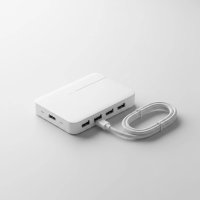
Ever felt like your sleek, modern laptop is playing a cruel joke with its limited ports? In a world increasingly driven by digital demands, a single USB-C port can feel like a bottleneck, stifling your productivity and creativity. Enter the Thunderbolt USB hub, a game-changer designed to supercharge your connectivity and transform your workspace. These aren’t your average USB hubs; they’re powerhouse devices built on advanced Thunderbolt technology, offering unparalleled speed, versatility, and efficiency for both professionals and everyday users.
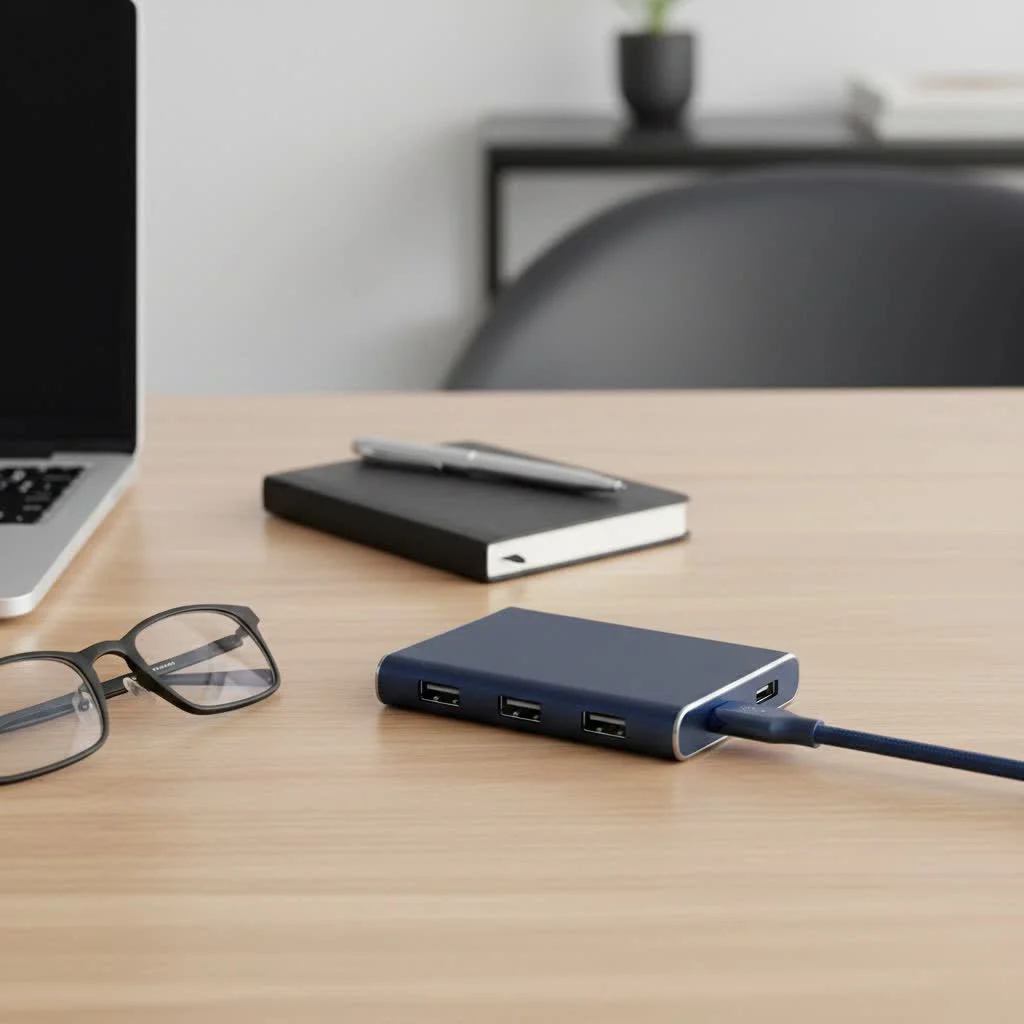
At Meeob, we understand the frustration of tangled cables and compromised performance. That’s why we’re diving deep into the world of Thunderbolt USB hubs, breaking down the jargon, comparing the latest generations, and guiding you through the ins and outs of choosing the perfect hub to unlock your device’s full potential. Whether you’re a video editor juggling massive files, a gamer demanding ultra-low latency, or simply someone seeking a clutter-free desk, understanding Thunderbolt is key to a seamless digital experience. For complete usb hubs library on this site.
What Exactly is a Thunderbolt USB Hub?
Think of a Thunderbolt USB hub as the ultimate expansion for your computer’s capabilities, all through a single, intelligent cable. While it shares the familiar USB-C connector, Thunderbolt technology, a collaboration between Intel and Apple, is a distinct and far more powerful beast. It integrates high-speed data transfer, video output, and power delivery into one unified solution. This means you can connect multiple monitors, external hard drives, network adapters, and more to your laptop, all while charging it, using just one port on your computer.
Unlike generic USB-C hubs that primarily expand standard USB connectivity, Thunderbolt hubs leverage the immense bandwidth of Thunderbolt ports to provide superior performance. Look for the distinctive lightning bolt symbol next to your laptop’s USB-C port to confirm Thunderbolt compatibility. Without this symbol, your port is likely a standard USB-C, which won’t harness the full capabilities of a Thunderbolt hub.
Thunderbolt Generations: Speed, Power, and Possibilities
Thunderbolt technology has evolved significantly, with each generation bringing increased performance and features. Understanding these differences is crucial for selecting a hub that meets your current and future needs.
Thunderbolt 3
Introduced with a focus on unifying connectivity, Thunderbolt 3 was a monumental leap, offering up to 40 Gigabits per second (Gbps) of bandwidth. This meant incredible speeds for external storage and the ability to drive a single 4K display natively. It also ushered in the era of Power Delivery (PD), capable of charging laptops at up to 100W, depending on the hub and host device. Thunderbolt 3 hubs were flexible, allowing for both storage and docking functionalities, often with the ability to daisy-chain one additional Thunderbolt device.
Thunderbolt 4
|
Our Picks for the Best USB Hub in 2026
As an Amazon Associate I earn from qualifying purchases.
|
||
| Num | Product | Action |
|---|---|---|
| 1 | 13 in 1 USB C Docking Station - Dual Monitor, Triple Display, 8 USB C/A Ports, Ethernet, Audio - LIONWEI USB C Hub for MacBook,Dell,HP,Lenovo,Surface |

|
| 2 | Anker USB Hub 4 Ports with 5Gbps Data Transfer, Multiple USB 3.0 Hub, USB Splitter for Laptop, Extender for A Port Laptop, PC, Desktop and More [Charging Not Supported](0.7 ft USB-A) |
|
| 3 | Powered USB Hub 10Gbps, intpw 9-Port USB 3.2 Hub, USB C Hub with USB A/USB C 3.2, 4 USB 3.0, 2 PD 45W Charging Ports, 65W Power Adapter and 3.3FT Cable, Aluminum USB Hub for Laptop, iPhone 17/16/15,PC |
|
| 4 | USB Hub 3.0, 7-Port USB Hub Splitter with Individual On/Off Switches and Lights, 3.2ft/1m Long Cable Compatible with MacBook, Laptop, Surface Pro, PS4, PC, Flash Drive, Mobile HDD |
|
| 5 | Powered USB Hub, Wenter 11-Port USB Splitter Hub (10 Faster Data Transfer Ports+ 1 Smart Charging Port) with Individual LED On/Off Switches, USB Hub 3.0 Powered with Power Adapter for Mac, PC |
|
| 6 | Anker Laptop Docking Station Dual Monitor, 8-in-1 USB C Hub, 4K Dual Monitor with 2 HDMI, 1 Gbps Ethernet Hub, 85W Power Delivery, SD Card Reader for MacBook Pro, XPS and More (Charger not Included) |
|
| 7 | UGREEN USB 3.0 Hub, 4 Ports USB A Splitter Ultra-Slim USB Expander for Mouse, Keyboard, Flash Drive, U Disk, Printer Compatible with Laptop, Desktop PC, Xbox, PS5, and More |
|
| 8 | P9R PRO USB C Hub Ethernet, 10 in 1 USB Docking Station 10Gbps with 4K@60Hz HDMI, USB C and 2 USB A 3.2, LAN, 2 USB A 2.0, PD 100W, SD/TF Ports, USB to Ethernet Adapter for PC, iPhone 16/15, Mac |
|
| 9 | 3-in-1 USB C Splitter, 3 in 1 Type-C Charging Data Cable Data Transmission Decive Charging Adapter Power Charger Equipment for ome Office Use, Fast & Efficient |
|
| 10 | USB C Docking Station with M.2 NVMe SSD Enclosure 10Gbps, 9 in 1 USB-C Hub, Type C SSD Slot with 4K@60Hz HDMI, USB 3.2 Gen2, PD100W, SD/TF Card Reader, Laptop Docking Station for Dell/HP/Lenovo/Mac |
|
While maintaining the 40Gbps bandwidth of its predecessor, Thunderbolt 4 refined and enhanced the standard with stricter minimum requirements and improved reliability. Key upgrades include:
- PCIe Data Transfer: Doubled from 16Gbps to a guaranteed 32Gbps, making it significantly better for external GPUs and high-speed NVMe SSDs.
- Display Support: Natively supports dual 4K displays at 60Hz or a single 8K display, offering smoother multi-monitor performance.
- Power Delivery: Requires at least 15W of power delivery to accessories and typically offers up to 96W for host laptop charging.
- Daisy-Chaining: Enhanced to support up to three additional Thunderbolt devices.
- Security: Mandatory Direct Memory Access (DMA) protection helps prevent physical attacks.
- Wake-from-Sleep: Allows you to wake your computer using a keyboard or mouse connected to the hub.
“Thunderbolt 4 isn’t just about raw speed; it’s about elevating the entire user experience with guaranteed performance and robust security features,” explains Dr. Evelyn Reed, a leading expert in high-speed data protocols and connectivity solutions.
Thunderbolt 5 (and USB4v2)
The latest and most groundbreaking iteration, Thunderbolt 5, pushes the boundaries of performance even further, often referred to as USB4 Version 2.0.
- Blazing Speed: Offers up to 80Gbps bidirectional bandwidth, with a dynamic boost to 120Gbps for display-centric workloads, making it ideal for the most demanding creative professionals and gamers.
- Unrivaled Display Support: Capable of driving dual 8K displays at 60Hz or even triple 4K displays at 144Hz.
- Higher Power Delivery: Supports up to 140W for host laptop charging and up to 36W for connected devices, accommodating power-hungry setups.
While Thunderbolt 5 devices are still emerging and typically carry a premium price tag, they represent the pinnacle of connectivity, offering true future-proofing for high-end systems. USB4, built on the Thunderbolt 3 backbone, also offers similar capabilities, including dual 4K @ 60Hz display support and up to 100W charging, providing a robust solution for many modern devices.
Hub vs. Docking Station: What’s the Difference?
The terms “hub” and “docking station” are often used interchangeably, but there are important distinctions:
- Thunderbolt Hubs: Generally more compact and portable, these devices typically focus on expanding Thunderbolt ports and a few other essential connections (like USB-A). They may be bus-powered (drawing power from the host laptop) or have a smaller external power adapter, often suitable for expanding port variety on the go.
- Thunderbolt Docking Stations: These are larger, more comprehensive peripherals designed for a static desk setup. They always require a dedicated external power source, offering a wider array of ports (e.g., multiple USB-A, HDMI, DisplayPort, Ethernet, SD card readers, audio jacks) and robust power delivery capabilities to charge both the host laptop and numerous connected devices. Docking stations are ideal for creating a full desktop workstation with a single cable connection to your laptop.
While this article primarily focuses on “Thunderbolt USB hubs,” much of the discussion about generations, speed, and display support applies equally to the more feature-rich “Thunderbolt docking stations.”
Why You Need a Thunderbolt USB Hub
Beyond simply adding more ports, a Thunderbolt USB hub offers a multitude of benefits that can significantly enhance your workflow and user experience:
- Unprecedented Speed: With up to 40Gbps (or even 120Gbps with Thunderbolt 5), you can transfer massive files in seconds, run applications directly from external SSDs with virtually no latency, and enjoy a seamless experience even with bandwidth-intensive tasks like 8K video editing or high-resolution gaming.
- Expansive Display Options: Easily connect multiple high-resolution monitors to create an immersive multi-tasking environment. Thunderbolt 4 and 5 hubs support dual 4K or even 8K displays, making them indispensable for graphic designers, video editors, and power users.
- Single-Cable Convenience: Say goodbye to a messy desk full of dongles and adapters. A Thunderbolt hub allows you to connect all your peripherals – monitors, keyboard, mouse, external drives, Ethernet – to your laptop with just one cable, simplifying your setup and decluttering your workspace.
- Power Delivery: Many Thunderbolt hubs can charge your laptop at high wattages (up to 100W or even 140W), meaning you don’t need a separate power adapter. This is particularly useful for newer, thinner laptops that primarily use USB-C for charging.
- Daisy-Chaining Capabilities: Thunderbolt’s unique ability to daisy-chain multiple devices means you can connect several Thunderbolt peripherals to a single port on your computer, expanding your setup without consuming all your available ports.
- Future-Proofing: Investing in a Thunderbolt 4 or 5 hub ensures compatibility with the latest high-performance peripherals and display technologies, keeping your setup relevant for years to come.
Choosing the Right Thunderbolt USB Hub for You
Selecting the perfect Thunderbolt hub can seem daunting, but by considering a few key factors, you can make an informed decision that meets your specific needs.
-
Check Your Host Device’s Compatibility:
- Does your laptop have a Thunderbolt port? Look for the lightning bolt symbol next to the USB-C port. If it’s not present, your port is likely standard USB-C, and while some Thunderbolt hubs offer backward compatibility with USB-C, you won’t get the full Thunderbolt performance.
- Which Thunderbolt generation does your laptop support? Ensure your hub’s generation is compatible with or newer than your laptop’s Thunderbolt port for optimal performance. A Thunderbolt 4 hub will work with a Thunderbolt 3 laptop but at Thunderbolt 3 speeds.
-
Assess Your Port Requirements:
- What devices do you need to connect? List all your peripherals: external hard drives (USB-A, USB-C, Thunderbolt), monitors (HDMI, DisplayPort), Ethernet cable, SD cards, headphones, keyboard, mouse.
- How many of each port do you need? Some hubs prioritize Thunderbolt ports, while others offer a mix of USB-A, video outputs, and card readers.
-
Consider Your Display Needs:
- How many external monitors?
- What resolution and refresh rate do you need? (e.g., dual 4K@60Hz, single 8K@60Hz, triple 4K@144Hz).
- What type of display input do your monitors have? (e.g., HDMI, DisplayPort). Some hubs have dedicated video outputs, while others rely on Thunderbolt ports with adapters.
-
Evaluate Power Delivery:
- What wattage does your laptop require for charging? Ensure the hub’s power delivery capability matches or exceeds your laptop’s requirement.
- Do you need to power other devices? Check if the hub provides sufficient power to charge your phone, tablet, or other USB-powered peripherals.
-
Budget and Brand:
- Thunderbolt hubs are generally more expensive than standard USB-C hubs due to their advanced technology. Prices vary significantly based on features and brand.
- Reputable brands like CalDigit, Kensington, Plugable, and OWC are known for their quality and reliability in the Thunderbolt ecosystem.
-
Portability vs. Desktop Setup:
- If you travel frequently, a compact, bus-powered (or small adapter) Thunderbolt hub might be ideal.
- For a dedicated home or office workstation, a more robust, self-powered Thunderbolt docking station will offer greater versatility and connectivity.
Quick Checklist for Your Thunderbolt Hub:
- Does my computer have a Thunderbolt port (lightning bolt symbol)?
- What Thunderbolt generation does my computer support (3, 4, or 5)?
- How many and what types of USB-A/C ports do I need?
- Do I need Ethernet for a stable network connection?
- Will I be using an SD/microSD card reader?
- How many external monitors will I connect, and at what resolution/refresh rate?
- Does the hub provide enough power to charge my laptop and other devices?
- Is the hub’s form factor suitable for my workspace (portable or desktop)?
Common Questions About Thunderbolt USB Hubs
Q1: Can I use a Thunderbolt hub with a regular USB-C port?
A: Yes, in most cases, a Thunderbolt hub will function as a standard USB-C hub when connected to a non-Thunderbolt USB-C port. However, you will be limited to the speeds and capabilities of that USB-C port, not the full performance of Thunderbolt.
Q2: Is a Thunderbolt hub better than a USB-C hub?
A: For compatible devices, yes, a Thunderbolt hub offers significantly higher data transfer speeds, superior display support (e.g., multiple 4K/8K monitors), and more robust power delivery compared to a standard USB-C hub. It’s a premium solution for high-performance needs.
Q3: Do Thunderbolt hubs support daisy-chaining?
A: Yes, Thunderbolt technology is renowned for its daisy-chaining capabilities. Thunderbolt 3 typically allows one additional device, while Thunderbolt 4 and 5 hubs can often daisy-chain up to three Thunderbolt devices from a single port on your computer, expanding your connectivity further.
Q4: Will a Thunderbolt hub charge my laptop?
A: Many Thunderbolt hubs feature Power Delivery (PD) and can charge your laptop through the same cable that connects your peripherals. Always check the hub’s specifications for its maximum power output to ensure it meets your laptop’s charging requirements.
Q5: What is the main difference between Thunderbolt 3 and Thunderbolt 4?
A: While both offer 40Gbps bandwidth, Thunderbolt 4 has stricter minimum performance requirements, including guaranteed 32Gbps PCIe data transfer (vs. 16Gbps on T3) and native support for dual 4K displays or a single 8K display. Thunderbolt 4 also includes mandatory DMA protection and improved daisy-chaining.
Q6: Do I need a special cable for a Thunderbolt USB hub?
A: Yes, to achieve full Thunderbolt speeds and capabilities, you need a certified Thunderbolt cable. While Thunderbolt uses the USB-C connector, not all USB-C cables are Thunderbolt compatible. Look for the lightning bolt symbol on the cable.
Conclusion
The Thunderbolt USB hub is far more than a simple accessory; it’s an essential tool for maximizing your productivity and enhancing your digital experience. By consolidating multiple connections into a single, high-speed cable, it transforms your laptop into a powerful workstation, capable of handling demanding tasks with ease. From lightning-fast data transfers to supporting multiple high-resolution displays, Thunderbolt technology offers a level of performance and convenience that traditional USB hubs simply can’t match.
As technology continues to evolve, embracing solutions like Thunderbolt 4 and Thunderbolt 5 ensures you’re prepared for the future of computing. Take the time to assess your needs, understand the differences between generations, and choose a hub that empowers you to work, create, and play without compromise. Your future, more efficient self will thank you for making the smart connection.
Get our weekly buyer guide
Practical specs, not advice. Unsubscribe anytime.