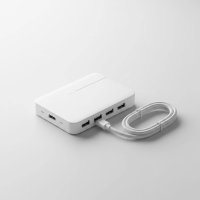
Your MacBook Air is a marvel of modern engineering—sleek, powerful, and incredibly portable. But let’s be honest, those limited USB-C ports can sometimes feel like a digital bottleneck, especially when you’re trying to connect a monitor, an external drive, a keyboard, and maybe even an Ethernet cable. Imagine effortlessly transforming your lightweight laptop into a powerhouse workstation, ready to handle any task you throw at it, all with a single connection. That’s the magic of a high-quality USB C hub, and for your MacBook Air, it’s not just an accessory—it’s an essential upgrade.
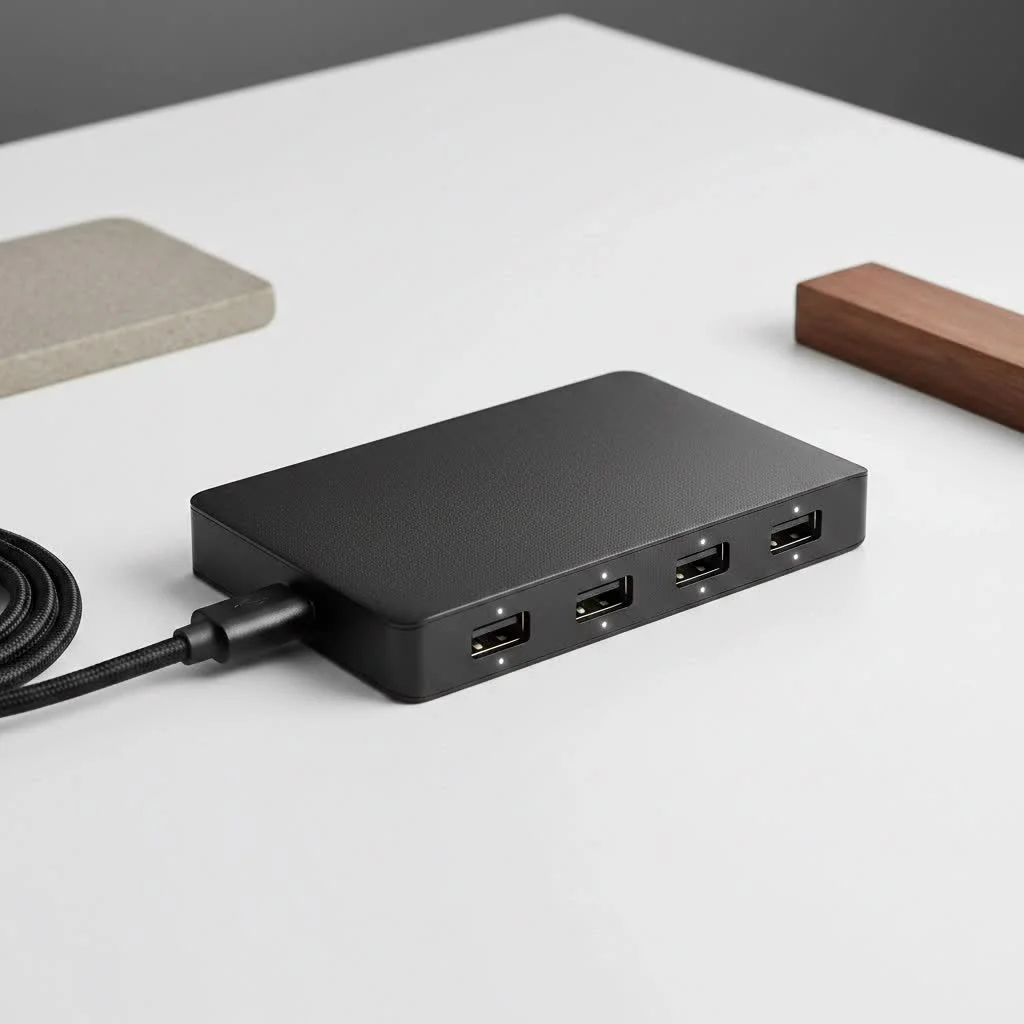
At Meeob.com, we understand the nuances of tech, and with over a decade of hands-on experience in USB Hub technology, we’re here to guide you through the intricate world of connectivity. This comprehensive guide will equip you with the knowledge to confidently choose a USB C hub that perfectly complements your MacBook Air, unlocking its full potential without compromising its minimalist design.
Why a USB-C Hub is Essential for MacBook Air Users
Modern MacBook Air models, including the M1, M2, and M3, are celebrated for their incredible efficiency and compact form factor. However, this minimalist design often means fewer physical ports, typically just two Thunderbolt/USB-C ports. While these ports are incredibly versatile, they quickly become insufficient for users who need to connect multiple peripherals.
A USB-C hub acts as a port expander, leveraging the single powerful USB-C or Thunderbolt port on your MacBook Air to provide a multitude of additional connections. This allows you to simultaneously hook up external displays, traditional USB-A devices, an Ethernet cable for a stable internet connection, and even SD or microSD cards, effectively turning your MacBook Air into a versatile desktop setup whenever you need it. Think of it as your MacBook Air’s best friend, always ready to lend a port.
Key Features to Look For in a MacBook Air USB-C Hub
Choosing the right USB C hub isn’t just about the number of ports; it’s about their quality, speed, and functionality. Here’s what to prioritize:
USB-C Port Types & Speeds
Your MacBook Air’s USB-C ports are typically Thunderbolt 3 or 4, offering lightning-fast data transfer speeds of up to 40Gbps. While most USB-C hubs are compatible with these Thunderbolt ports, the hub itself often operates at slower USB-C speeds (5Gbps or 10Gbps).
- Thunderbolt/USB4 Compatibility: Ensure the hub is compatible with your MacBook Air’s Thunderbolt ports to maximize bandwidth, even if its individual ports run at standard USB-C speeds. Some premium hubs, like the Satechi Pro Hub Max, feature USB4 ports that can reach 40Gbps throughput.
- Downstream USB-C Ports: Pay attention to how many downstream USB-C ports are truly “usable” for data and power. Many hubs include one USB-C port solely for pass-through power delivery, leaving you with fewer options for connecting USB-C peripherals. Ideally, look for hubs that offer at least one or two full-function USB-C data ports in addition to the PD port.
Power Delivery (PD)
|
Our Picks for the Best USB Hub in 2026
As an Amazon Associate I earn from qualifying purchases.
|
||
| Num | Product | Action |
|---|---|---|
| 1 | Powered USB Hub, Wenter 11-Port USB Splitter Hub (10 Faster Data Transfer Ports+ 1 Smart Charging Port) with Individual LED On/Off Switches, USB Hub 3.0 Powered with Power Adapter for Mac, PC |

|
| 2 | Powered USB Hub 10Gbps, intpw 9-Port USB 3.2 Hub, USB C Hub with USB A/USB C 3.2, 4 USB 3.0, 2 PD 45W Charging Ports, 65W Power Adapter and 3.3FT Cable, Aluminum USB Hub for Laptop, iPhone 17/16/15,PC |
|
| 3 | USB C Docking Station with M.2 NVMe SSD Enclosure 10Gbps, 9 in 1 USB-C Hub, Type C SSD Slot with 4K@60Hz HDMI, USB 3.2 Gen2, PD100W, SD/TF Card Reader, Laptop Docking Station for Dell/HP/Lenovo/Mac |
|
| 4 | Anker Laptop Docking Station Dual Monitor, 8-in-1 USB C Hub, 4K Dual Monitor with 2 HDMI, 1 Gbps Ethernet Hub, 85W Power Delivery, SD Card Reader for MacBook Pro, XPS and More (Charger not Included) |
|
| 5 | USB Hub 3.0, 7-Port USB Hub Splitter with Individual On/Off Switches and Lights, 3.2ft/1m Long Cable Compatible with MacBook, Laptop, Surface Pro, PS4, PC, Flash Drive, Mobile HDD |
|
| 6 | Anker USB Hub 4 Ports with 5Gbps Data Transfer, Multiple USB 3.0 Hub, USB Splitter for Laptop, Extender for A Port Laptop, PC, Desktop and More [Charging Not Supported](0.7 ft USB-A) |
|
| 7 | P9R PRO USB C Hub Ethernet, 10 in 1 USB Docking Station 10Gbps with 4K@60Hz HDMI, USB C and 2 USB A 3.2, LAN, 2 USB A 2.0, PD 100W, SD/TF Ports, USB to Ethernet Adapter for PC, iPhone 16/15, Mac |
|
| 8 | UGREEN USB 3.0 Hub, 4 Ports USB A Splitter Ultra-Slim USB Expander for Mouse, Keyboard, Flash Drive, U Disk, Printer Compatible with Laptop, Desktop PC, Xbox, PS5, and More |
|
| 9 | 3-in-1 USB C Splitter, 3 in 1 Type-C Charging Data Cable Data Transmission Decive Charging Adapter Power Charger Equipment for ome Office Use, Fast & Efficient |
|
| 10 | 13 in 1 USB C Docking Station - Dual Monitor, Triple Display, 8 USB C/A Ports, Ethernet, Audio - LIONWEI USB C Hub for MacBook,Dell,HP,Lenovo,Surface |
|
This is perhaps the most critical feature for MacBook Air users. Pass-through charging allows the hub to deliver power to your MacBook Air while simultaneously using its other ports.
- Wattage Match: Ensure the hub’s pass-through charging capability meets or exceeds your MacBook Air’s charging needs. A 13-inch MacBook Air charges at 30W, while a 15-inch model requires 67W. Many hubs support up to 100W PD input, delivering around 80-85W to your laptop after accounting for the hub’s own power consumption.
- Multi-Function Ports: Some USB-C ports on hubs are “multi-function,” capable of delivering both power and data. This is crucial for accessories like portable DVD drives or cameras that require a powered data port to function correctly.
Video Output (HDMI/DisplayPort/USB-C Video)
If you plan to connect an external monitor, these specifications are key.
- Resolution and Refresh Rate: For a smooth visual experience, especially for media consumption or gaming, aim for an HDMI 2.0 port supporting 4K resolution at 60Hz. Many budget hubs might only offer 4K at 30Hz, which can lead to noticeable lag and a less fluid experience.
- Multiple Displays: A standard M1 or M2 MacBook Air natively supports only one external display. If you need multiple extended displays (where each screen shows different content), you’ll likely require a hub that utilizes DisplayLink software. Brands like Plugable offer adapters specifically designed for this purpose, compatible even with M1/M2 MacBooks after a simple software installation.
Connectivity Options (Other Ports)
A good hub provides a balanced array of ports for various needs.
- USB-A Ports: Essential for connecting legacy devices like older keyboards, mice, flash drives, or external hard drives. Look for USB 3.0 (5Gbps) or faster (10Gbps) for efficient data transfer.
- Ethernet Port: For a stable and faster internet connection than Wi-Fi, especially crucial for video calls, large downloads, or online gaming. Gigabit Ethernet (1Gbps) is standard, but some advanced hubs offer 2.5GbE for even quicker speeds.
- SD/MicroSD Card Readers: Ideal for photographers, videographers, or anyone needing to transfer files from cameras. Look for UHS-II (312MBps) for faster transfers compared to UHS-I (104MBps).
- Audio Jack (3.5mm): If your MacBook Air lacks a dedicated headphone jack or you prefer easy front access.
Design and Portability
The physical aspects of the hub also play a role in your user experience.
- Compactness: For MacBook Air users, portability is often a priority. Many hubs are designed to be slim and lightweight, easily fitting into your bag.
- Cable Length: Some hubs have short, tethered cables, while others offer longer or detachable cables. A longer cable provides more flexibility in arranging your workspace, potentially allowing you to tuck the hub out of sight.
- Heat Management: Running multiple peripherals and pass-through charging can generate heat. Reputable brands often design their hubs with anodized aluminum for better heat dissipation.
Different Types of USB-C Hubs for Various Needs
The market offers a wide range of USB-C hubs, each catering to slightly different needs:
- Basic Multiport Adapters: These typically offer HDMI, a couple of USB-A ports, and pass-through power delivery. They are great for simple expansion needs and often come at a budget-friendly price.
- Feature-Rich Hubs: Stepping up, these hubs integrate Ethernet, faster SD card readers, and potentially more high-speed USB-C or USB-A ports. They strike a balance between portability and comprehensive connectivity. The UGreen Revodok Pro 109 is a highly-rated example, offering a robust set of ports including HDMI 2.0 and multiple USB-A options.
- “Docking Station Lite” Hubs: While distinct from full docking stations (which usually have their own dedicated power supply and more ports), some advanced hubs blur the lines. They offer extensive connectivity, sometimes including dual monitor support (with DisplayLink software), without needing a separate power brick, maintaining some portability.
- Specialized Hubs: You’ll find hubs tailored for specific functions, such as those with an abundance of USB-C ports (like the EZQuest Slim Gen 2) or those optimized solely for multiple external displays.
The key distinction between a hub and a docking station is primarily about power and scale. Hubs are generally smaller, draw power from the laptop (though often with pass-through charging), and are more portable. Docking stations are larger, require their own power adapter, and offer a more robust array of ports, often supporting multiple high-resolution displays natively.
Expert Tips for Choosing the Right USB C Hub for Your MacBook Air
Making the final decision can feel overwhelming with so many options. Here are some pro tips from our experts at Meeob:
- Assess Your True Needs: Before you even start looking, list out every peripheral you regularly use or plan to use with your MacBook Air. Do you need an HDMI port? How many USB-A devices do you have? Is a wired internet connection critical? This will narrow down your choices significantly.
- Check MacBook Air Model Specifics: Be aware of any limitations of your specific MacBook Air model, especially concerning external display support. M1/M2 Airs, for example, have a native one-external-display limit.
- Prioritize Power Delivery: Always ensure the hub’s pass-through charging capacity is sufficient for your MacBook Air to avoid slow charging or battery drain, particularly when under heavy load.
- Read User Reviews: Beyond specs, real-world user experiences offer invaluable insights into a hub’s reliability, heat management, and compatibility quirks with MacBook Air models.
- “From Sarah Chen, Senior Tech Analyst at Meeob.com: ‘Always prioritize a hub that offers robust power delivery and HDMI 2.0 or better. It’s not just about more ports, but about ensuring stable and high-performance connectivity for your MacBook Air.'” A well-chosen hub isn’t just about expanding, but about enhancing your entire workflow.
Common Questions About USB C Hubs for MacBook Air
Q: Will a USB-C hub drain my MacBook Air’s battery?
A: Not necessarily. If a USB-C hub supports power delivery (PD) and you connect your MacBook Air’s charger to the hub’s PD port, the hub will pass power through to charge your laptop while also powering connected peripherals. However, a hub without pass-through charging will draw power directly from your MacBook Air, potentially draining its battery faster.
Q: Can I use multiple monitors with my M1/M2/M3 MacBook Air and a USB-C hub?
A: Natively, M1 and M2 MacBook Air models support only one external display. To achieve multiple extended displays (where each screen shows different content) with these models, you will need a USB-C hub that incorporates DisplayLink technology and requires a one-time software installation. M3 MacBook Airs can connect two displays, but only if the laptop lid remains closed. Always check the hub’s specifications and user reviews for specific multi-monitor capabilities.
Q: Do all USB-C ports offer the same speed and functionality?
A: No, this is a common misconception. USB-C refers to the physical connector shape, which is reversible and compact. The underlying technology can vary greatly, from slower USB 2.0 to faster USB 3.0/3.1/3.2, and the high-performance Thunderbolt 3/4 or USB4. Always check the specifications to understand the data transfer speeds, power delivery capabilities, and video output support of each USB-C port on a hub and your MacBook Air.
Q: How much power (wattage) should my USB-C hub provide for my MacBook Air?
A: Your USB-C hub’s pass-through power delivery (PD) should ideally match or exceed the wattage of your MacBook Air’s original power adapter to ensure efficient charging. For a 13-inch MacBook Air, this is typically 30W, while a 15-inch MacBook Air needs 67W. Most capable hubs offer 80W-100W PD passthrough, which is sufficient for most MacBook Air models, even with connected peripherals drawing power.
Conclusion: Unlock Your MacBook Air’s Full Potential
Your MacBook Air is a powerful, portable companion, but its true potential for productivity and connectivity is often hidden behind its limited port selection. A well-chosen USB C hub is more than just an accessory; it’s a gateway to a more versatile and efficient workspace. By understanding the key features like power delivery, video output, and port speeds, you can confidently select a hub that transforms your MacBook Air into a desktop-grade powerhouse.
We at Meeob.com are dedicated to empowering you with precise, practical knowledge, ensuring you make informed decisions for your tech needs. Now, go forth and connect! Explore the possibilities, and share your experiences with the Meeob community. Your MacBook Air is ready to do more—it just needs the right hub to get there.
Get our weekly buyer guide
Practical specs, not advice. Unsubscribe anytime.