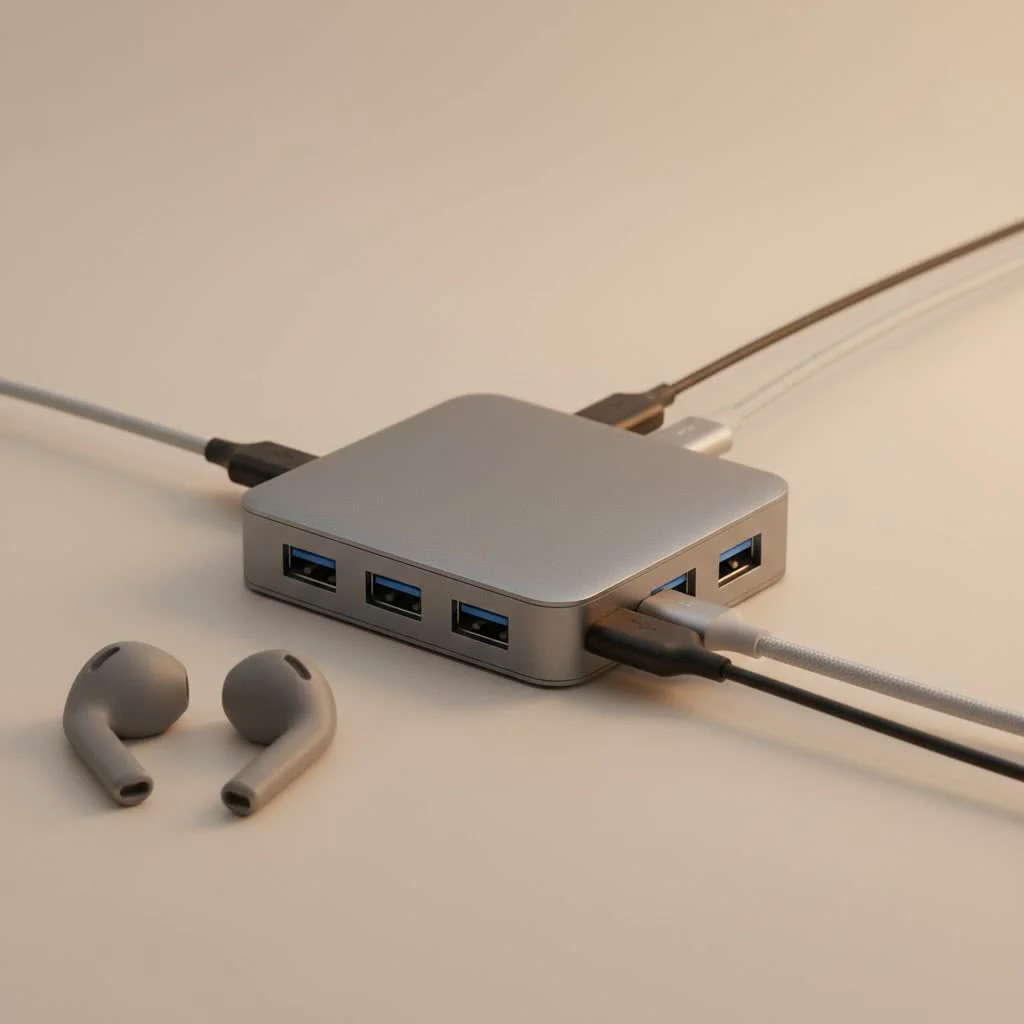
A USB C hub adapter is a single device that plugs into one of your laptop’s USB-C ports, instantly expanding it into multiple connections for peripherals like external monitors, mice, and SD cards. This indispensable tool bridges the gap between minimalist laptop designs and real-world functionality, providing ports for HDMI, standard USB-A, SD cards, and Ethernet. It has become essential for students, professionals, and creatives who need to connect various devices to modern, port-limited laptops.
What is a USB C Hub Adapter, Exactly?
Think of a USB C hub adapter as a power strip for your data and peripherals. It’s a single device that plugs into one of your laptop’s USB-C ports and instantly expands it into a variety of different connections. Instead of having just one or two ports, you suddenly have a workstation-level setup with ports for HDMI, standard USB-A, SD cards, and even a stable Ethernet connection. It’s the Swiss Army knife for the modern computer user, solving the port scarcity problem created by today’s ultra-thin laptops. For best usb hubs roundups on this site.
This single-cable solution simplifies your workspace, reduces cable clutter, and ensures all your essential devices can work together harmoniously. Whether you’re at your desk, in a coffee shop, or in a client meeting, a hub gives you the flexibility to connect and create without limitations.
Why You Need a USB C Hub Adapter
In the pursuit of thinner and lighter designs, laptop manufacturers like Apple, Dell, and HP have increasingly abandoned traditional ports like USB-A, HDMI, and SD card readers in favor of the versatile USB-C. While USB-C is fantastic for its high-speed data transfer and power delivery capabilities, this shift has left many users unable to connect their existing devices.
A USB C hub adapter is the essential bridge. It allows you to:
- Connect Legacy Peripherals: Easily plug in your older mice, keyboards, external hard drives, and printers that use the standard USB-A connector.
- Extend Your Display: Connect to external monitors, TVs, or projectors using HDMI or DisplayPort for presentations, multitasking, or a more immersive entertainment experience.
- Transfer Photos and Videos: Directly import files from your camera’s SD or microSD card without needing a separate card reader.
- Get a Stable Internet Connection: Use the Ethernet port for a faster, more reliable internet connection than Wi-Fi, which is crucial for online gaming, video conferencing, and large file downloads.
- Charge Your Laptop: Many hubs come with USB-C Power Delivery (PD), allowing you to charge your laptop through the hub itself, so you don’t sacrifice your only charging port.
Decoding the Ports: What to Look For
Not all USB C hub adapters are created equal. The best one for you depends entirely on your specific needs. Let’s break down the most common ports you’ll find and what they do.
For Visuals: HDMI and DisplayPort
|
Our Picks for the Best USB Hub in 2026
As an Amazon Associate I earn from qualifying purchases.
|
||
| Num | Product | Action |
|---|---|---|
| 1 | 3-in-1 USB C Splitter, 3 in 1 Type-C Charging Data Cable Data Transmission Decive Charging Adapter Power Charger Equipment for ome Office Use, Fast & Efficient |

|
| 2 | USB C Docking Station with M.2 NVMe SSD Enclosure 10Gbps, 9 in 1 USB-C Hub, Type C SSD Slot with 4K@60Hz HDMI, USB 3.2 Gen2, PD100W, SD/TF Card Reader, Laptop Docking Station for Dell/HP/Lenovo/Mac |
|
| 3 | Powered USB Hub 10Gbps, intpw 9-Port USB 3.2 Hub, USB C Hub with USB A/USB C 3.2, 4 USB 3.0, 2 PD 45W Charging Ports, 65W Power Adapter and 3.3FT Cable, Aluminum USB Hub for Laptop, iPhone 17/16/15,PC |
|
| 4 | P9R PRO USB C Hub Ethernet, 10 in 1 USB Docking Station 10Gbps with 4K@60Hz HDMI, USB C and 2 USB A 3.2, LAN, 2 USB A 2.0, PD 100W, SD/TF Ports, USB to Ethernet Adapter for PC, iPhone 16/15, Mac |
|
| 5 | Anker Laptop Docking Station Dual Monitor, 8-in-1 USB C Hub, 4K Dual Monitor with 2 HDMI, 1 Gbps Ethernet Hub, 85W Power Delivery, SD Card Reader for MacBook Pro, XPS and More (Charger not Included) |
|
| 6 | 13 in 1 USB C Docking Station - Dual Monitor, Triple Display, 8 USB C/A Ports, Ethernet, Audio - LIONWEI USB C Hub for MacBook,Dell,HP,Lenovo,Surface |
|
| 7 | Powered USB Hub, Wenter 11-Port USB Splitter Hub (10 Faster Data Transfer Ports+ 1 Smart Charging Port) with Individual LED On/Off Switches, USB Hub 3.0 Powered with Power Adapter for Mac, PC |
|
| 8 | USB Hub 3.0, 7-Port USB Hub Splitter with Individual On/Off Switches and Lights, 3.2ft/1m Long Cable Compatible with MacBook, Laptop, Surface Pro, PS4, PC, Flash Drive, Mobile HDD |
|
| 9 | UGREEN USB 3.0 Hub, 4 Ports USB A Splitter Ultra-Slim USB Expander for Mouse, Keyboard, Flash Drive, U Disk, Printer Compatible with Laptop, Desktop PC, Xbox, PS5, and More |
|
| 10 | Anker USB Hub 4 Ports with 5Gbps Data Transfer, Multiple USB 3.0 Hub, USB Splitter for Laptop, Extender for A Port Laptop, PC, Desktop and More [Charging Not Supported](0.7 ft USB-A) |
|
If you plan to connect your laptop to an external screen, an HDMI port is a must-have. Most hubs support 4K resolution, but pay close attention to the refresh rate.
- 4K@30Hz: This is fine for watching videos or for static work like spreadsheets and word processing.
- 4K@60Hz: This provides a much smoother, more fluid experience, which is ideal for video editing, graphic design, and gaming.
Some advanced hubs may offer a DisplayPort connection, which is often preferred by professionals for its higher bandwidth capabilities.
For Legacy Devices: USB-A Ports
These are the rectangular USB ports you’re most familiar with. Look for hubs with at least two USB-A ports to connect your mouse, keyboard, flash drive, or external hard drive. It’s important to check the speed:
- USB 2.0: Slower speeds, suitable for mice and keyboards.
- USB 3.0 (or 3.1/3.2): Much faster data transfer rates, essential for external hard drives and fast file transfers. They are often color-coded blue.
For Photographers and Videographers: SD and microSD Card Readers
For anyone working with photos and videos, a built-in SD and microSD card reader is a major upgrade. It eliminates the need to carry a separate dongle, allowing you to transfer files directly from your camera or drone to your laptop quickly and efficiently.
For Stable Internet: The Ethernet Port
Wi-Fi is convenient, but it’s not always reliable. An Ethernet port on your USB C hub adapter provides a direct, wired connection to the internet. This is a critical feature for anyone who needs maximum speed and stability for activities like competitive online gaming, high-quality video calls, or uploading and downloading massive files.
“A stable connection is non-negotiable in a professional setting. Relying solely on Wi-Fi during a critical client presentation or a large data transfer is a risk. An Ethernet port on a USB-C hub is your insurance policy for performance.” – David Chen, Lead Engineer at Meeob
For Powering Up: USB-C Power Delivery (PD)
A USB-C Power Delivery (PD) port is one of the most important features to look for. This “pass-through” charging port allows you to plug your laptop’s USB-C charger into the hub, which then charges your laptop while you use all the other ports. Without it, you’d have to choose between using the hub and charging your device. Look for hubs that support at least 60W of power delivery, though 100W is ideal for more powerful laptops like the MacBook Pro.
How to Choose the Perfect USB C Hub Adapter
With so many options on the market, selecting the right one can feel overwhelming. Follow this simple guide to make the best choice.
1. Assess Your Workflow
Start by thinking about what devices you use every day.
- Are you a creative professional? Prioritize a hub with 4K@60Hz HDMI, fast USB 3.0 ports, and SD/microSD card readers.
- Do you work from a home office? An Ethernet port, multiple USB-A ports, and a high-wattage PD port are essential for a stable desk setup.
- Are you a student or frequent traveler? A compact, lightweight hub with the essential ports (HDMI, USB-A) might be all you need.
2. Consider Portability and Build Quality
If you plan to carry the hub with you, look for a compact and lightweight design. Aluminum casings are not only durable but also help with heat dissipation, as hubs can get warm during heavy use. A braided cable can also add to the device’s longevity.
3. Check for Compatibility
While USB-C is a universal standard, not all laptops are the same. Double-check that the hub is fully compatible with your device, especially for features like 4K@60Hz output, which some laptops may not support. Also, consider the difference between standard USB-C and Thunderbolt ports. A Thunderbolt hub will work with a standard USB-C port, but you won’t get the ultra-high Thunderbolt speeds.
Frequently Asked Questions (FAQ)
What is the difference between a USB-C hub and a USB-C dock?
A USB-C hub is generally smaller, more portable, and bus-powered (drawing power from the laptop). A dock is a larger, stationary unit with its own power supply, often offering more ports and higher performance capabilities.
Can a cheap USB C hub adapter damage my laptop?
It’s possible. A poorly made hub can have inadequate power management or electrical shielding, which could potentially damage your laptop’s ports. It’s always best to invest in a hub from a reputable brand to ensure safety and reliability.
Do all USB-C ports support all hubs?
Most hubs will work with most USB-C ports for basic functions. However, for features like video output (Alternate Mode) or the highest speeds (Thunderbolt), your laptop’s USB-C port must specifically support those standards. Always check your device’s specifications.
Will using a USB C hub adapter slow down my devices?
A hub shares bandwidth among all connected devices. If you connect multiple high-demand peripherals, like an external SSD and a 4K monitor, you might see a slight performance drop. However, for everyday use, a quality hub should manage the load without any noticeable lag.
How much power do I need from the Power Delivery (PD) port?
Check the wattage of the charger that came with your laptop. You should choose a hub with a PD port that can deliver a similar amount of power. For example, if your MacBook Air uses a 30W charger, a 60W PD hub is more than enough. If you have a 16-inch MacBook Pro with a 96W charger, you’ll want a 100W PD hub.
Conclusion: Unlock Your Device’s True Power
The USB C hub adapter has evolved from a simple accessory into an essential component of the modern digital toolkit. It solves the biggest frustration of new laptops—the lack of ports—by offering a simple, elegant, and powerful solution. By understanding your own needs and knowing what features to look for, you can choose the perfect hub to expand your connectivity, streamline your workflow, and unleash the full potential of your technology. Don’t let a limited number of ports hold you back; the right hub is all you need to connect everything.
Frequently Asked Questions
What is the primary difference between a USB-C hub and a USB-C dock?
A USB-C hub is typically smaller, more portable, and draws power directly from the laptop (bus-powered). In contrast, a USB-C dock is a larger, stationary unit that uses its own external power supply and generally offers a greater variety of ports and higher performance capabilities for a more permanent workstation setup.
Can a low-quality USB C hub adapter potentially harm my laptop?
Yes, a poorly manufactured USB C hub adapter can potentially damage your laptop. Issues such as inadequate power management or insufficient electrical shielding in cheap hubs could lead to electrical problems or port damage. It is always recommended to invest in a hub from a reputable brand to ensure safety and reliability for your devices.
Do all USB-C ports on laptops support every type of hub functionality?
While most USB-C ports will support basic hub functions, not all ports support advanced features like video output (Alternate Mode) or the highest data transfer speeds (Thunderbolt). Your laptop's specific USB-C port must explicitly support these standards for the hub's full functionality to work. Always check your device's specifications for compatibility.
Will using a USB C hub adapter noticeably reduce the speed of my connected devices?
A USB C hub adapter shares its available bandwidth among all connected devices. If you connect multiple high-demand peripherals simultaneously, such as an external SSD and a 4K monitor, you might experience a slight performance reduction. However, for typical everyday use with a quality hub, any lag should be minimal and generally unnoticeable.
How do I determine the correct power delivery (PD) wattage needed for a USB C hub?
To determine the correct power delivery (PD) wattage, check the wattage of your laptop's original charger. You should select a hub with a PD port that can deliver an equivalent or higher amount of power. For example, a MacBook Pro requiring a 96W charger would ideally need a 100W PD hub to charge efficiently while in use.
How to Choose the Perfect USB C Hub Adapter
Selecting the right USB C hub adapter involves assessing your daily workflow, considering portability, and verifying compatibility with your devices.
Identify the devices you use daily. Creative professionals might prioritize 4K@60Hz HDMI, fast USB 3.0, and SD/microSD card readers. Home office users need Ethernet, multiple USB-A ports, and high-wattage Power Delivery for a stable setup.
If you travel frequently, opt for a compact and lightweight hub. Aluminum casings enhance durability and aid in heat dissipation, while a braided cable can extend the device's lifespan. These features ensure the hub withstands regular use and transport.
Verify that the hub is fully compatible with your specific laptop, especially for features like 4K@60Hz output, which not all USB-C ports support. Understand the difference between standard USB-C and Thunderbolt ports; a Thunderbolt hub will work with USB-C but won't deliver Thunderbolt speeds without a compatible port.
Get our weekly buyer guide
Practical specs, not advice. Unsubscribe anytime.

As a student, this USB C hub adapter has been a lifesaver for connecting all my peripherals. I can easily plug in my external hard drive and a flash drive at the same time, which is something my slim laptop couldn’t handle before. The Ethernet port is also super handy for stable internet during online classes.
Finally, a solution for my port-limited laptop! I needed to connect an external display and still have room for my webcam and a charging cable. This USB C hub adapter handles it all flawlessly. It’s compact enough to throw in my bag too, making it perfect for when I work from different locations.
I’ve been using a USB C hub adapter for a few weeks now, and it’s been a game-changer for my home office setup. Connecting my external monitor via HDMI and still having ports for my mouse and keyboard is so convenient. My laptop only has two USB-C ports, so this really helped expand its capabilities without needing a docking station.
The USB C hub adapter works pretty well for the most part. I like having the extra USB-A ports for my older devices. My only complaint is that the SD card slot is a bit finicky sometimes; it doesn’t always recognize the card on the first try. It’s not a huge deal, but it can be a little annoying when I’m in a hurry.