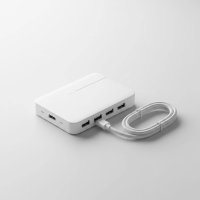
Ever found yourself wrestling with a tangle of cables, desperately searching for an open port on your laptop or desktop? In today’s hyper-connected world, our devices seem to multiply faster than we can find a home for them. That’s where a trusty usb port hub steps in, transforming a single connection into a gateway for all your peripherals. As a seasoned expert at Meeob.com, I’ve seen countless users unlock their productivity and declutter their workspaces with the right hub, and I’m here to guide you through making that perfect choice.
What Exactly is a USB Port Hub and Why Do You Need One?
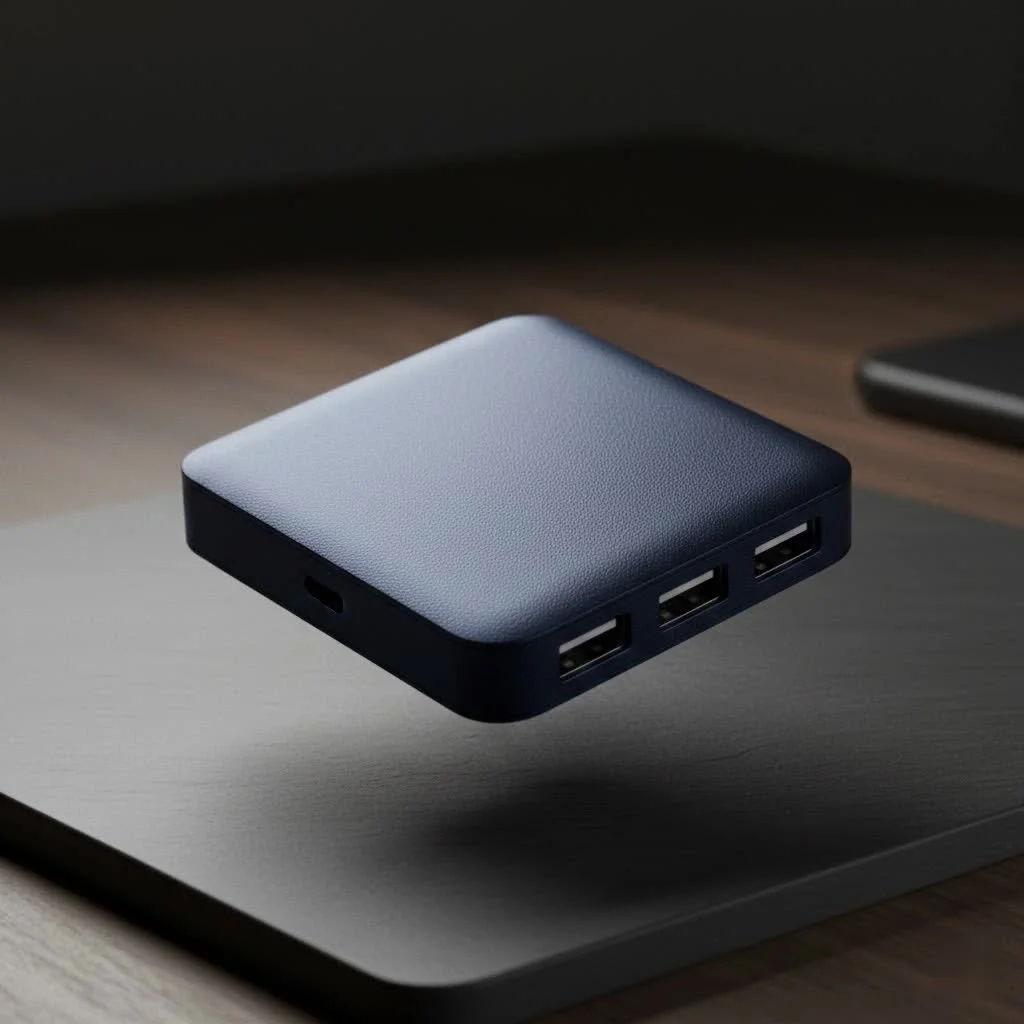
At its core, a usb port hub is a simple yet incredibly powerful device designed to expand the connectivity of your computer. Imagine it as a digital power strip for your USB devices. You plug the hub into one of your computer’s existing USB ports, and suddenly, you have multiple new ports ready to connect everything from your mouse and keyboard to external hard drives, printers, and even your smartphone for charging.
Why is this so crucial? Modern laptops, while sleek and portable, often sacrifice port variety for thinness. Even desktop PCs might not offer enough easily accessible ports for all your gadgets. A hub solves this instantly, making it a lifesaver for anyone who needs to connect multiple peripherals, transfer data, or simply keep their workspace organized.
Understanding the Different Flavors: Types of USB Port Hubs
Not all USB hubs are created equal. They come in various types, primarily categorized by how they get their power and the USB standard they support. Knowing these distinctions is key to choosing the right one.
By Power Source:
The way a usb port hub receives power significantly impacts its performance and the types of devices it can support.
-
Bus-Powered USB Hubs: These hubs draw all their operational power directly from the host computer’s USB port. They are lightweight, highly portable, and don’t require an external power adapter, making them ideal for travel or minimal setups. However, the shared power means they are best suited for low-power devices like a mouse, keyboard, or USB flash drive. If you connect too many power-hungry devices, you might experience performance issues or devices failing to work.
-
Self-Powered (Powered) USB Hubs: Featuring a dedicated external power adapter, these hubs supply their own power. This means they can provide robust, consistent power to each port, making them perfect for devices that need more juice, such as external hard drives, SSDs, or charging multiple smartphones and tablets simultaneously. A self-powered usb port hub ensures stable data transfer and reliable operation even with a full house of demanding peripherals.
By Connectivity Standard:
|
Our Picks for the Best USB Hub in 2026
As an Amazon Associate I earn from qualifying purchases.
|
||
| Num | Product | Action |
|---|---|---|
| 1 | Anker USB Hub 4 Ports with 5Gbps Data Transfer, Multiple USB 3.0 Hub, USB Splitter for Laptop, Extender for A Port Laptop, PC, Desktop and More [Charging Not Supported](0.7 ft USB-A) |
 on Amazon](https://meeob.com/wp-content/plugins/amazon-tables/assets/images/buy.png)
|
| 2 | 13 in 1 USB C Docking Station - Dual Monitor, Triple Display, 8 USB C/A Ports, Ethernet, Audio - LIONWEI USB C Hub for MacBook,Dell,HP,Lenovo,Surface |
|
| 3 | 3-in-1 USB C Splitter, 3 in 1 Type-C Charging Data Cable Data Transmission Decive Charging Adapter Power Charger Equipment for ome Office Use, Fast & Efficient |
|
| 4 | USB Hub 3.0, 7-Port USB Hub Splitter with Individual On/Off Switches and Lights, 3.2ft/1m Long Cable Compatible with MacBook, Laptop, Surface Pro, PS4, PC, Flash Drive, Mobile HDD |
|
| 5 | Powered USB Hub, Wenter 11-Port USB Splitter Hub (10 Faster Data Transfer Ports+ 1 Smart Charging Port) with Individual LED On/Off Switches, USB Hub 3.0 Powered with Power Adapter for Mac, PC |
|
| 6 | P9R PRO USB C Hub Ethernet, 10 in 1 USB Docking Station 10Gbps with 4K@60Hz HDMI, USB C and 2 USB A 3.2, LAN, 2 USB A 2.0, PD 100W, SD/TF Ports, USB to Ethernet Adapter for PC, iPhone 16/15, Mac |
|
| 7 | Powered USB Hub 10Gbps, intpw 9-Port USB 3.2 Hub, USB C Hub with USB A/USB C 3.2, 4 USB 3.0, 2 PD 45W Charging Ports, 65W Power Adapter and 3.3FT Cable, Aluminum USB Hub for Laptop, iPhone 17/16/15,PC |
|
| 8 | USB C Docking Station with M.2 NVMe SSD Enclosure 10Gbps, 9 in 1 USB-C Hub, Type C SSD Slot with 4K@60Hz HDMI, USB 3.2 Gen2, PD100W, SD/TF Card Reader, Laptop Docking Station for Dell/HP/Lenovo/Mac |
|
| 9 | Anker Laptop Docking Station Dual Monitor, 8-in-1 USB C Hub, 4K Dual Monitor with 2 HDMI, 1 Gbps Ethernet Hub, 85W Power Delivery, SD Card Reader for MacBook Pro, XPS and More (Charger not Included) |
|
| 10 | UGREEN USB 3.0 Hub, 4 Ports USB A Splitter Ultra-Slim USB Expander for Mouse, Keyboard, Flash Drive, U Disk, Printer Compatible with Laptop, Desktop PC, Xbox, PS5, and More |
|
The USB standard dictates the data transfer speeds and power capabilities of your hub.
-
USB 2.0 Hubs: These are the veterans, offering speeds up to 480 Mbps. While perfectly adequate for basic peripherals like keyboards, mice, and printers, they can be a bottleneck for large file transfers or high-bandwidth devices. They’re usually the most affordable option.
-
USB 3.x Hubs (3.0, 3.1, 3.2): This category represents a significant leap in performance.
- USB 3.0 (also known as USB 3.1 Gen 1 or USB 3.2 Gen 1): Offers speeds up to 5 Gbps, which is roughly ten times faster than USB 2.0. This makes it suitable for external hard drives and many modern peripherals.
- USB 3.1 Gen 2 (also known as USB 3.2 Gen 2): Doubles the speed to 10 Gbps, ideal for faster external SSDs and more demanding data tasks.
- USB 3.2 Gen 2×2: Pushes the envelope further with 20 Gbps by utilizing more data lanes, though it’s less common.
-
USB-C Hubs: These hubs utilize the reversible USB-C connector, which has become standard on newer laptops and devices. Beyond data transfer, USB-C hubs often integrate additional functionalities like video output (HDMI, DisplayPort), Ethernet ports, and SD card readers, turning a single USB-C port into a versatile docking solution. They also frequently support Power Delivery (PD) for charging your host laptop.
-
Thunderbolt Hubs: For those seeking the absolute pinnacle of performance and versatility, Thunderbolt (often seen with USB-C connectors) offers blistering speeds up to 40 Gbps. Thunderbolt hubs can handle multiple 4K displays, external GPUs, and incredibly fast external storage, making them a premium choice for creative professionals and power users.
Decoding Speed and Power: USB Standards Explained
Navigating the various USB standards and their capabilities can feel like deciphering a secret code. Here’s a quick breakdown to help you understand what those numbers really mean for your usb port hub:
| USB Standard | Maximum Data Transfer Speed | Typical Power Output (Standard Port) | Best For |
|---|---|---|---|
| USB 1.0 | 12 Mbps | 5V/0.5A | Legacy devices, very basic peripherals |
| USB 2.0 | 480 Mbps | 5V/0.5A | Keyboards, mice, printers, webcams (non-HD), USB sticks |
| USB 3.0 (Gen 1) | 5 Gbps | 5V/0.9A | External HDDs, moderately fast flash drives, most peripherals |
| USB 3.1 Gen 2 | 10 Gbps | 5V/0.9A (or higher with PD) | External SSDs, high-resolution webcams, fast data transfer |
| USB 3.2 Gen 2×2 | 20 Gbps | 5V/0.9A (or higher with PD) | Ultra-fast external storage, specific high-bandwidth needs |
| USB4 / Thunderbolt 3/4 | 20-40 Gbps | Up to 100W with PD | Multiple 4K displays, external GPUs, professional storage |
Power Delivery (PD): This isn’t just about data; it’s also about keeping your devices charged. Many modern USB-C hubs come with Power Delivery, allowing them to pass significant power through to your laptop while simultaneously connecting other peripherals. This means you can charge your laptop through the hub, simplifying your cable setup dramatically.
“In my decade of experience, I’ve seen countless advancements in USB technology,” shares Johnathan Reed, a Lead Product Engineer at Meeob.com. “The jump from USB 2.0 to 3.0 was revolutionary for external storage, and now with USB-C and Thunderbolt, a single usb port hub can power a sophisticated workstation with multiple monitors and high-speed devices. It’s all about matching the hub’s capabilities to your workflow.”
Applications: How a USB Port Hub Transforms Your Workspace
A usb port hub isn’t just a simple gadget; it’s a versatile tool that can drastically improve your computing experience across various scenarios:
- For the Everyday User: Easily connect your wireless mouse and keyboard dongle, a printer, a USB microphone, and still have ports left for your phone charger or a flash drive. Say goodbye to constantly plugging and unplugging devices!
- For Creative Professionals and Gamers: High-speed USB 3.x or Thunderbolt hubs are essential. They ensure your external SSDs transfer massive video files in seconds, your gaming peripherals respond without lag, and your 4K webcam streams flawlessly. Powered hubs are crucial here to prevent power drops that can interrupt critical tasks.
- For Mobile Setups and Traveling: Compact, bus-powered USB-C hubs are perfect for those on the go. They can add essential USB-A ports back to slim laptops, provide an HDMI output for presentations, and even include an SD card reader for photographers, all while remaining highly portable.
How to Choose the Perfect USB Port Hub for Your Needs
Selecting the ideal usb port hub can seem daunting with so many options. Here’s a quick checklist to guide your decision:
- Matching Your Ports: USB-A vs. USB-C Upstream
- Check your computer: Does your laptop or PC primarily have USB-A or USB-C ports? Your hub’s connection cable (the “upstream” port) needs to match. If you have a newer laptop with only USB-C, a USB-C hub is a no-brainer.
- Counting Your Connections: Number and Type of Downstream Ports
- Assess your peripherals: How many USB-A, USB-C, HDMI, Ethernet, or SD card slots do you actually need? Consider your current devices and any you might add in the future. It’s always wise to pick a hub with one or two more ports than you currently require.
- Power Requirements: Don’t Get Caught Short
- High-power devices? If you plan to connect external hard drives, charge multiple phones, or use other power-hungry gadgets, a self-powered (powered) usb port hub with an external power adapter is non-negotiable.
- Speed Matters: Matching Your Devices
- Data-intensive tasks? For transferring large files, using external SSDs, or connecting high-resolution monitors, opt for a USB 3.0 (5Gbps) hub or higher. If your devices are mostly basic, a USB 2.0 hub might suffice, but faster is generally better for future-proofing.
- Beyond the Basics: Extra Features
- All-in-one convenience: Do you need an HDMI port for an external monitor, an Ethernet port for a stable wired internet connection, or an SD card reader for your camera? Many modern USB-C hubs offer a multitude of these “multiport adapter” features, essentially acting as mini-docking stations.
- Port Layout and Portability
- Physical design: Consider the spacing between ports. Some hubs have cramped layouts that make it hard to use bulky USB devices simultaneously. Also, think about where you’ll use it: a compact, integrated-cable design is great for travel, while a larger, desktop-oriented hub might offer more stability and ports.
Addressing Common Concerns: Tips for Optimal USB Hub Usage
Even with the perfect usb port hub, a few practices can ensure you get the best performance:
- Bandwidth Sharing: Remember that all devices connected to a single hub share the bandwidth of the single port it’s plugged into on your computer. If you’re running multiple high-speed devices (like two external SSDs) through one hub, their combined speed might be limited to the hub’s maximum. For maximum performance, connect the most demanding devices directly to your computer if possible, or use a high-speed hub with a robust controller.
- Cable Quality: Don’t underestimate the importance of good cables. A low-quality USB cable can negate the speed benefits of a high-end usb port hub. Especially for USB 3.x and USB-C connections, investing in certified, good-quality cables can prevent data transfer bottlenecks and connection issues.
FAQs about USB Port Hubs
Can I connect multiple hubs together?
Yes, you can connect multiple hubs, creating a “daisy chain” of devices. However, it’s generally recommended to use self-powered hubs when connecting them in series to ensure adequate power distribution to all connected devices. Avoid chaining bus-powered hubs, as this often leads to insufficient power.
Will a USB hub slow down my devices?
A properly chosen usb port hub generally won’t slow down your devices significantly for everyday tasks. However, if you connect multiple high-bandwidth devices (like external SSDs or 4K webcams) to a hub that connects to a single lower-speed port on your computer, all devices will share that port’s bandwidth, potentially leading to slower speeds for each. Always match your hub’s speed to your most demanding devices.
Do I need drivers for a USB hub?
Most usb port hub devices are plug-and-play and do not require special drivers. Your operating system (Windows, macOS, Linux) will typically recognize them automatically. If the hub includes advanced features like Ethernet or specific video outputs, it might require a one-time driver installation, but this is less common for basic port expansion.
Can a USB hub charge my laptop?
Some advanced USB-C hubs that support Power Delivery (PD) can indeed charge your laptop. These hubs often feature a dedicated USB-C input port where you plug in your laptop’s power adapter. The hub then passes that power through to your laptop while also providing data and other peripheral connections.
What’s the difference between a USB hub and a docking station?
While a usb port hub primarily expands the number of USB ports, a docking station typically offers a much broader range of connectivity options and functionalities. Docking stations often include multiple video outputs (HDMI, DisplayPort), Ethernet, audio jacks, and more robust Power Delivery capabilities, essentially transforming your laptop into a full-fledged desktop workstation with a single connection. A USB-C hub can often bridge the gap between a basic hub and a full docking station due to the versatility of the USB-C standard.
Conclusion
A usb port hub is far more than just a simple accessory; it’s an essential tool for navigating the modern digital landscape. By understanding the different types, speeds, and power requirements, you can confidently choose a hub that not only expands your connectivity but also enhances your productivity and declutters your digital life. Whether you’re a casual user looking to plug in a few extra devices or a professional demanding peak performance, there’s a perfect hub out there for you. Take control of your connections, simplify your setup, and experience the seamless flow of a well-organized workspace. Dive into the world of enhanced connectivity and share your newfound efficiency with the Meeob community!
Get our weekly buyer guide
Practical specs, not advice. Unsubscribe anytime.