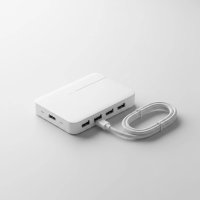
Ever felt like your sleek, modern laptop or tablet is playing hard to get when it comes to connecting all your favorite gadgets? You’re not alone. Many of today’s ultra-portable devices sacrifice traditional ports for a slim profile, leaving you with just one or two versatile USB-C ports. That’s where a C type USB hub swoops in as your digital hero, transforming a single port into a command center for all your peripherals. Think of it as a crucial upgrade, extending your device’s capabilities far beyond its factory limitations.
What Exactly is a C Type USB Hub?
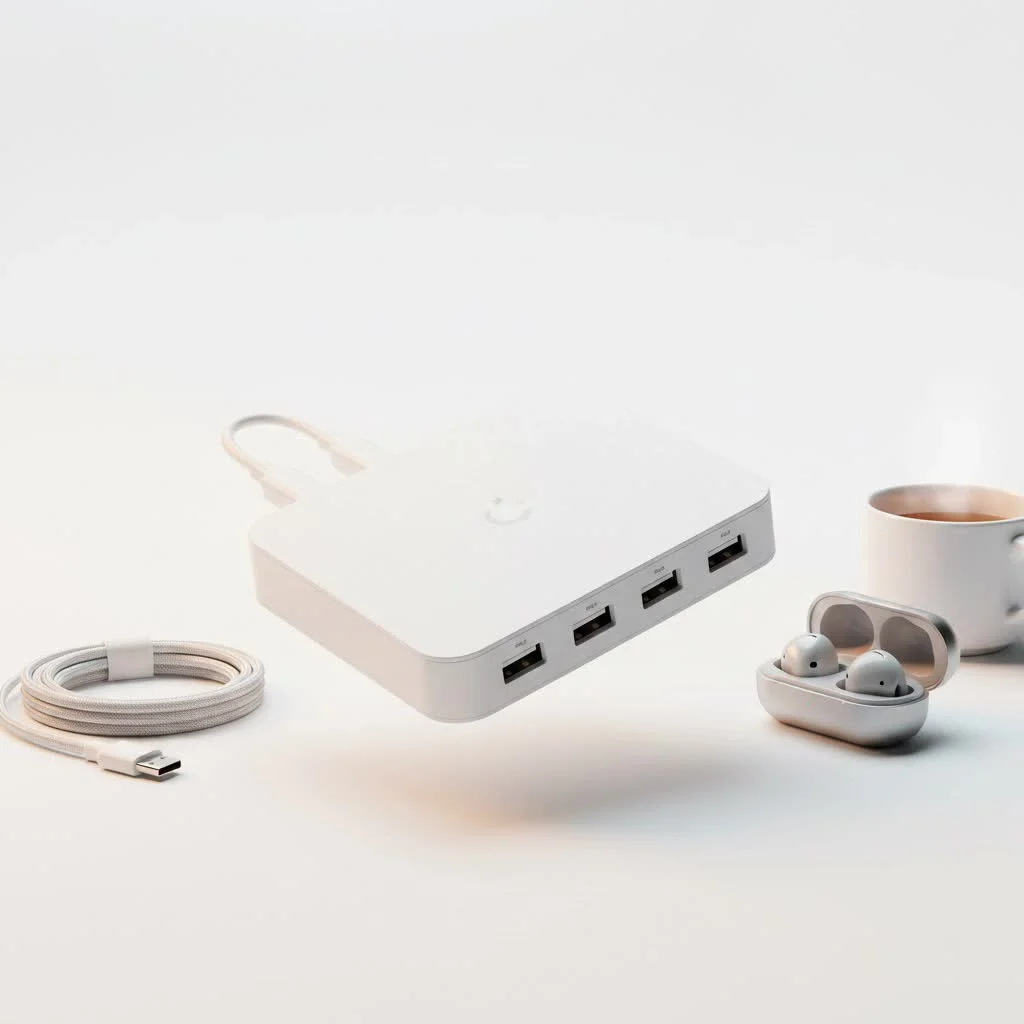
At its core, a C type USB hub is an adapter that takes one USB-C port on your device and expands it into multiple different ports. While the “USB-C” part refers to the reversible, oval-shaped connector, the “hub” part signifies its ability to multiply connectivity. These aren’t just simple port expanders; modern C type USB hubs are sophisticated devices that can offer a combination of traditional USB-A ports, additional USB-C ports, HDMI or DisplayPort outputs for external monitors, Ethernet for stable internet, and even SD card readers for quick photo transfers. They are the versatile “multiport adapters” or “dongles” that bridge the gap between your device’s minimalist design and your everyday connectivity needs. For best usb hubs roundups on this site.
Why You Absolutely Need a C Type USB Hub in Today’s Digital World
The shift towards thinner, lighter devices has brought undeniable elegance but also a notable challenge: a severe lack of traditional ports. If your laptop has embraced this “less is more” philosophy, you’ve likely encountered moments of connectivity frustration. A C type USB hub provides the perfect solution, allowing you to:
- Connect Legacy Devices: Most of us still use mice, keyboards, printers, or external hard drives that rely on the familiar, rectangular USB-A connector. A hub brings these essential tools back into play.
- Power Up and Transfer Data Simultaneously: Many hubs feature USB Power Delivery (PD) pass-through, meaning you can charge your laptop through the hub while also using its other ports. No more choosing between power and peripherals!
- Build an Expanded Workstation: With ports for HDMI, DisplayPort, or even Gigabit Ethernet, a C type USB hub can turn your portable device into a powerful desktop setup, supporting external monitors, wired internet, and more.
- Streamline Your Workflow: Quickly transfer photos from an SD card, connect a webcam for video calls, or plug in a high-speed external SSD – all from a single, convenient connection.
Understanding the Core Technologies: More Than Just “USB-C”
The term “USB-C” often gets conflated with specific capabilities, but it’s important to remember that it primarily describes the physical connector. The true power of a C type USB hub lies in the underlying technologies it supports:
USB Power Delivery (PD): Keeping Your Devices Charged
|
Our Picks for the Best USB Hub in 2026
As an Amazon Associate I earn from qualifying purchases.
|
||
| Num | Product | Action |
|---|---|---|
| 1 | UGREEN USB 3.0 Hub, 4 Ports USB A Splitter Ultra-Slim USB Expander for Mouse, Keyboard, Flash Drive, U Disk, Printer Compatible with Laptop, Desktop PC, Xbox, PS5, and More |

|
| 2 | Anker Laptop Docking Station Dual Monitor, 8-in-1 USB C Hub, 4K Dual Monitor with 2 HDMI, 1 Gbps Ethernet Hub, 85W Power Delivery, SD Card Reader for MacBook Pro, XPS and More (Charger not Included) |
|
| 3 | USB Hub 3.0, 7-Port USB Hub Splitter with Individual On/Off Switches and Lights, 3.2ft/1m Long Cable Compatible with MacBook, Laptop, Surface Pro, PS4, PC, Flash Drive, Mobile HDD |
|
| 4 | P9R PRO USB C Hub Ethernet, 10 in 1 USB Docking Station 10Gbps with 4K@60Hz HDMI, USB C and 2 USB A 3.2, LAN, 2 USB A 2.0, PD 100W, SD/TF Ports, USB to Ethernet Adapter for PC, iPhone 16/15, Mac |
|
| 5 | 13 in 1 USB C Docking Station - Dual Monitor, Triple Display, 8 USB C/A Ports, Ethernet, Audio - LIONWEI USB C Hub for MacBook,Dell,HP,Lenovo,Surface |
|
| 6 | Powered USB Hub, Wenter 11-Port USB Splitter Hub (10 Faster Data Transfer Ports+ 1 Smart Charging Port) with Individual LED On/Off Switches, USB Hub 3.0 Powered with Power Adapter for Mac, PC |
|
| 7 | Anker USB Hub 4 Ports with 5Gbps Data Transfer, Multiple USB 3.0 Hub, USB Splitter for Laptop, Extender for A Port Laptop, PC, Desktop and More [Charging Not Supported](0.7 ft USB-A) |
|
| 8 | 3-in-1 USB C Splitter, 3 in 1 Type-C Charging Data Cable Data Transmission Decive Charging Adapter Power Charger Equipment for ome Office Use, Fast & Efficient |
|
| 9 | USB C Docking Station with M.2 NVMe SSD Enclosure 10Gbps, 9 in 1 USB-C Hub, Type C SSD Slot with 4K@60Hz HDMI, USB 3.2 Gen2, PD100W, SD/TF Card Reader, Laptop Docking Station for Dell/HP/Lenovo/Mac |
|
| 10 | Powered USB Hub 10Gbps, intpw 9-Port USB 3.2 Hub, USB C Hub with USB A/USB C 3.2, 4 USB 3.0, 2 PD 45W Charging Ports, 65W Power Adapter and 3.3FT Cable, Aluminum USB Hub for Laptop, iPhone 17/16/15,PC |
|
USB Power Delivery is a game-changer, allowing C type USB hubs to deliver significant power—up to 100W, and even higher with newer PD 3.1 Extended Power Range (EPR)—through the same cable that handles data. This means you can power your laptop or tablet while simultaneously using the hub’s other functions. When choosing a hub, verify its PD wattage matches or exceeds your device’s charging requirements for optimal performance.
DisplayPort Alt Mode & Video Output: From 4K@30Hz to Crystal-Clear 4K@60Hz and Beyond
Many C type USB hubs utilize DisplayPort Alternate Mode (Alt Mode), a feature that allows the USB-C port to transmit video signals directly to an external display. This is how hubs provide HDMI or DisplayPort outputs. Key considerations include:
- Resolution and Refresh Rate: Look for hubs supporting 4K resolution at 60Hz for the smoothest visuals, especially if you work with video or gaming. Cheaper hubs might only offer 4K@30Hz, which can appear choppy.
- Dual Monitor Support: If you have an Apple MacBook with an M1, M2, or M3 chip, natively supporting multiple external displays via a hub often requires DisplayLink technology and its associated drivers. For Windows and ChromeOS, dual monitor support via Alt Mode is generally more straightforward.
Data Transfer Speeds: USB 3.0, 3.1 Gen 2, Thunderbolt – What They Mean for You
Not all USB ports are created equal in terms of speed. Understanding these standards is crucial for efficient data transfer:
- USB 3.0 (also called USB 3.1 Gen 1 or USB 3.2 Gen 1): Offers speeds up to 5 Gigabits per second (Gbps). This is fast enough for most external hard drives and everyday peripherals.
- USB 3.1 Gen 2 (also called USB 3.2 Gen 2): Boosts speeds to 10 Gbps, ideal for high-speed external SSDs or professional-grade capture cards.
- Thunderbolt 3/4 and USB4: These premium technologies, often found in higher-end C type USB hubs, offer blistering speeds of 40 Gbps or even 80 Gbps (for USB4 2.0/Thunderbolt 5), providing unmatched bandwidth for multiple high-resolution displays, external GPUs, and extremely fast storage.
Types of C Type USB Hubs: Finding Your Perfect Match
The market offers a wide array of C type USB hubs, each designed with different user needs in mind.
Simple Port Expanders
These hubs primarily focus on adding more USB-A and sometimes additional USB-C data ports. They are perfect if your main goal is to connect a mouse, keyboard, or a couple of flash drives to a device with limited USB-A slots. They are typically compact and bus-powered, drawing power directly from your device.
Multiport Adapters (The Jack-of-All-Trades)
This is the most common and versatile type of C type USB hub. They usually include a mix of ports such as:
- USB-A (often both 5Gbps and 10Gbps)
- USB-C for data and/or Power Delivery pass-through
- HDMI (and sometimes DisplayPort) for external displays
- Ethernet for a stable wired internet connection
- SD and microSD card readers for photographers and content creators
These hubs are fantastic for creating a mobile workstation or expanding a laptop’s connectivity for various tasks.
Specialized Hubs
Some hubs are designed for specific use cases:
- Gaming Hubs: May prioritize high refresh rate video output and low-latency USB ports for controllers.
- MacBook-Specific Hubs: Often designed to perfectly match the aesthetic and dual USB-C port configuration of MacBook Pro/Air models, sometimes featuring Thunderbolt compatibility for enhanced performance.
- Travel-Friendly Hubs: Emphasize extreme portability, durable build, and perhaps a detachable or stowable cable.
As Dr. Eleanor Vance, a seasoned Tech Connectivity Architect at Meeob.com, wisely notes, “A C Type USB hub isn’t just an accessory; it’s an extension of your device’s capabilities. Understanding your needs first is key to unlocking its full potential.”
How to Choose the Right C Type USB Hub for Your Needs
Selecting the ideal C type USB hub can seem daunting, but by following a systematic approach, you can pinpoint the perfect match for your digital life.
Step 1: Assess Your Device’s USB-C Port Capabilities
Before you even start shopping, understand what your device’s USB-C port can actually do. A plain USB trident symbol might mean basic data transfer (USB 2.0 or 3.0). Look for symbols like a lightning bolt (Thunderbolt) or a “D” (DisplayPort Alt Mode) next to the port, or check your device’s manual. This will tell you if your port supports video output, high-speed data, or Power Delivery.
Step 2: Identify Your Connectivity Needs
Make a list of all the peripherals and accessories you want to connect. Do you need:
- Multiple USB-A ports for a mouse, keyboard, and external hard drive?
- HDMI for an external monitor? What resolution and refresh rate?
- An Ethernet port for a stable wired internet connection?
- SD or microSD card slots for camera transfers?
- An audio jack?
- Another USB-C port for a newer peripheral or fast data transfer?
Step 3: Consider Power Delivery Requirements
If you plan to charge your laptop through the hub, ensure the hub’s Power Delivery (PD) input wattage meets or exceeds your device’s charging needs. For example, a MacBook Pro might require 96W, while a lightweight ultrabook could be happy with 65W. An underpowered hub won’t charge your device effectively or might charge it very slowly.
Step 4: Evaluate Video Output Needs
This is a critical factor for many users.
- Single vs. Dual Monitors: Do you need one or two external displays? As mentioned, Apple M1/M2/M3 Macs may require DisplayLink for multiple displays.
- Resolution and Refresh Rate: Aim for 4K@60Hz for smooth, high-quality video. If a hub only offers 4K@30Hz, it might be acceptable for static work but noticeable for dynamic content.
Step 5: Prioritize Data Transfer Speeds
If you frequently transfer large files to external SSDs or use high-bandwidth devices, look for hubs that offer USB 3.1 Gen 2 (10Gbps) or Thunderbolt (40Gbps) ports. For basic peripherals like mice and keyboards, USB 2.0 (480Mbps) or USB 3.0 (5Gbps) ports are perfectly adequate. Remember that bandwidth is often shared among all ports on a hub.
Step 6: Don’t Overlook Build Quality and Portability
- Material: Aluminum enclosures are excellent for heat dissipation, preventing the hub from overheating during intensive use. Plastic hubs might be cheaper but can trap heat.
- Cable: A sturdy, flexible cable with good strain relief is essential, especially if the cable is built-in. Some hubs offer detachable cables, which can be convenient for portability and replacement.
- Portability: If you travel frequently, a compact, lightweight hub that easily slips into your bag is crucial.
Step 7: Check OS Compatibility
Most basic C type USB hubs are plug-and-play with Windows, macOS, and ChromeOS for standard functions like data transfer and basic video. However, for advanced features like specific dual-monitor setups or certain firmware updates, it’s always wise to check the manufacturer’s compatibility list for your specific operating system and device model.
C Type USB Hub vs. Docking Station: What’s the Difference?
While often confused, C type USB hubs and docking stations serve distinct purposes:
- C Type USB Hubs: These are generally more compact, portable, and often bus-powered (drawing power from your laptop). They’re designed to add a few essential ports and are great for users on the go or those with minimalist setups. They typically cost between $30 and $150.
- Docking Stations: These are usually larger, less portable, and almost always require a dedicated external power supply. Docking stations offer a significantly wider array of ports and features, including support for multiple high-resolution displays, more power delivery, and often proprietary features. They are designed to create a full desktop workstation around your laptop, typically remaining stationary on your desk.
Maximizing Your C Type USB Hub Experience: Tips & Tricks
Getting the most out of your C type USB hub involves a few best practices:
- Manage Heat: If your hub feels warm, especially under heavy load (like charging and driving a 4K monitor), ensure it has adequate airflow. An aluminum hub is usually better at dissipating heat.
- Quality Cables Matter: For high-speed data transfer or 4K@60Hz video, always use high-quality, certified USB-C cables, especially if your hub has a detachable one. Cheap cables can bottleneck performance.
- Firmware Updates: Occasionally, manufacturers release firmware updates for their hubs to improve compatibility or performance. Check the manufacturer’s website periodically.
- Don’t Overload: While hubs are fantastic, remember that the bandwidth from your single USB-C port is shared. Running multiple high-bandwidth devices simultaneously (e.g., a 4K monitor, external SSD, and Gigabit Ethernet) can sometimes strain the hub’s capabilities.
Frequently Asked Questions (FAQ)
Q: Can a C Type USB hub charge my laptop?
A: Yes, many C type USB hubs support USB Power Delivery (PD) pass-through, allowing you to plug your laptop’s USB-C charger into the hub, which then powers your laptop while simultaneously expanding your port options. Ensure the hub’s PD rating matches your laptop’s charging requirements.
Q: Do C Type USB hubs need drivers?
A: Most basic C type USB hubs are “plug-and-play” and do not require special drivers for functions like USB data transfer or SD card reading. However, hubs with advanced features, such as those supporting DisplayLink for multiple external monitors on specific operating systems (like macOS), may require a driver installation.
Q: Will a C Type USB hub slow down my devices?
A: A high-quality C type USB hub should not noticeably slow down your devices for everyday tasks. However, the bandwidth of the single USB-C port on your computer is shared among all connected devices. If you simultaneously run multiple high-bandwidth peripherals (e.g., a 4K monitor, an external NVMe SSD, and a Gigabit Ethernet connection), you might experience a slight reduction in peak performance compared to direct connections.
Q: What’s the difference between USB 3.0, 3.1, and 3.2 on a hub?
A: These terms often cause confusion as they’ve been renamed over time. Essentially:
- USB 3.0 is now officially USB 3.2 Gen 1 (5 Gbps).
- USB 3.1 Gen 2 is now officially USB 3.2 Gen 2 (10 Gbps).
These numbers refer to data transfer speeds. Always look for the actual speed (e.g., 5Gbps, 10Gbps) to avoid confusion.
Q: Can I connect two monitors to a C Type USB hub?
A: It depends on the hub and your computer. Some advanced C type USB hubs offer dual video outputs, but support varies. For Apple M1, M2, or M3 MacBooks, connecting more than one external monitor typically requires a hub with DisplayLink technology and its drivers. For Windows and ChromeOS devices that support DisplayPort Alt Mode over USB-C, dual monitor setups are often possible with a compatible hub.
Conclusion
In a world increasingly dominated by sleek, port-limited devices, a C type USB hub is no longer a luxury but an indispensable tool. It empowers you to maximize your device’s potential, transforming a single port into a versatile gateway for all your essential peripherals, external displays, and storage solutions. By understanding your device’s capabilities and your personal connectivity needs, you can confidently choose a hub that seamlessly integrates into your workflow, enhancing productivity and convenience. So go ahead, embrace the power of the C type USB hub, and unlock a new realm of possibilities for your tech setup!
Get our weekly buyer guide
Practical specs, not advice. Unsubscribe anytime.