You’ve unboxed your sleek, powerful new MacBook. It’s a design marvel, thin, light, and incredibly fast. But then you notice it—the distinct lack of ports. That single USB-C or Thunderbolt port is minimalist, but it’s a headache when you need to connect a monitor, a mouse, or even just a standard USB drive. This is where a high-quality USB C hub for MacBook transforms from a simple accessory into an essential tool, unlocking the full potential of your machine.
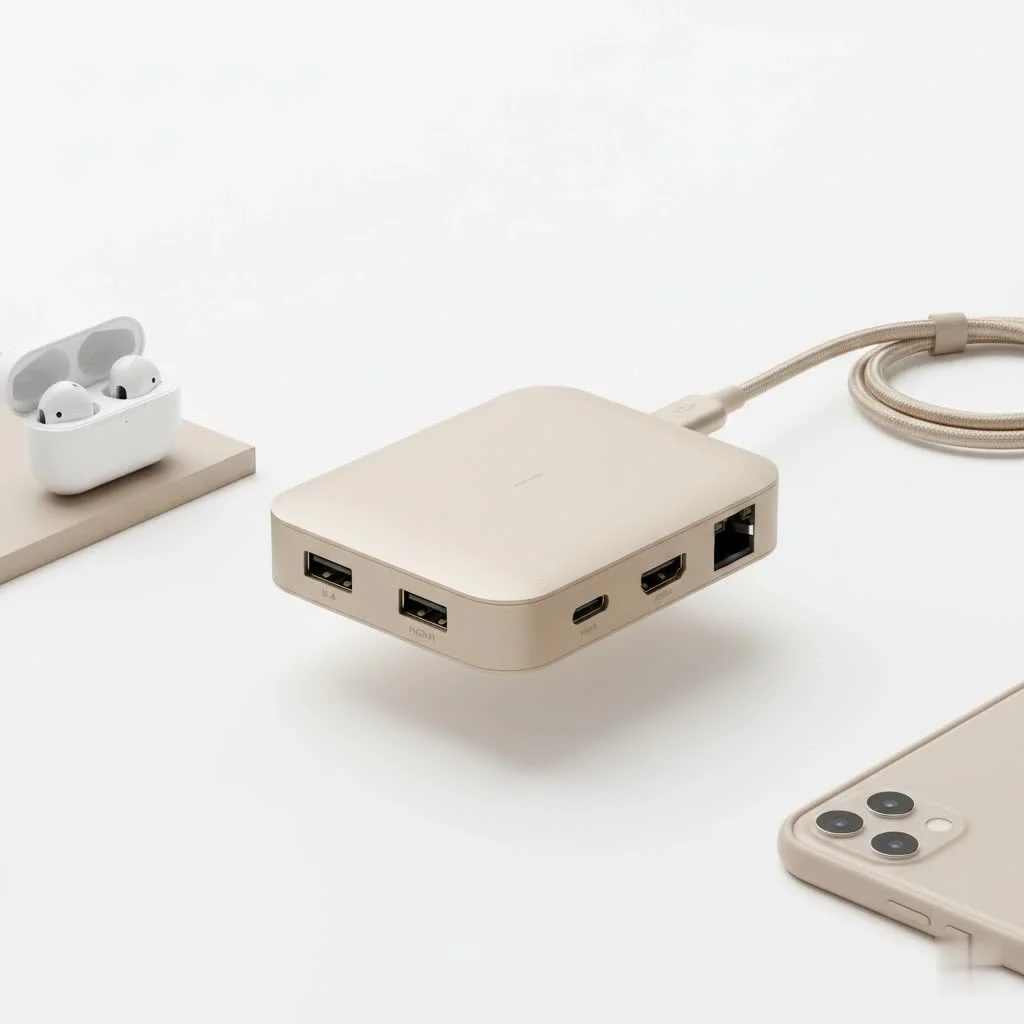
At Meeob, we’ve spent over a decade helping users navigate the often-confusing world of computer peripherals. We understand that finding the right hub isn’t just about adding more ports; it’s about restoring the functionality you need to be productive, creative, and efficient. This guide will walk you through everything you need to know to make an informed choice. For explore our usb hubs reviews on this site.
Why Do You Even Need a USB C Hub for Your MacBook?
In the quest for thinner and lighter laptops, Apple has embraced the USB-C standard, a powerful, versatile port that handles data, video, and power. However, this transition left behind a legacy of devices that use older connections like USB-A, HDMI, and SD cards.
A USB-C hub acts as a bridge, a central station that expands one of your MacBook’s USB-C ports into a multitude of different connections. It’s the simple solution to a common problem: how to connect all your existing gear to your new laptop without buying a dozen different adapters.
As our in-house hardware specialist, David Chen, often says, “A MacBook without the right hub is like a sports car stuck in city traffic. It has all the power, but it can’t use it effectively. The right hub opens up the highway.”
How to Choose the Perfect USB C Hub for Your MacBook
Not all hubs are created equal. A cheap, poorly made hub can cause more problems than it solves, from unreliable connections to potentially damaging your MacBook. Here’s what to look for to ensure you get a reliable and functional device.
First, Identify Your Port Needs
The most important factor is what you plan to connect. Take a minute to list the devices you use daily.
- USB-A Ports: These are the classic rectangular USB ports for connecting things like keyboards, mice, flash drives, and external hard drives. Look for a hub with at least two USB-A ports. Pay attention to the speed—USB 3.0 (often colored blue) is significantly faster than USB 2.0.
- HDMI or DisplayPort: If you want to connect your MacBook to an external monitor or TV, you’ll need a hub with a video output. HDMI is the most common, supporting 4K resolution. For higher refresh rates or multiple monitors, look for hubs with DisplayPort 1.4 or multiple HDMI ports.
- SD and/or microSD Card Reader: For photographers, videographers, and content creators, this is non-negotiable. It allows you to transfer files from your camera directly without needing a separate reader.
- Ethernet Port: While Wi-Fi is convenient, a wired Ethernet connection provides a faster, more stable, and more secure internet connection. This is crucial for online gaming, large file transfers, and stable video conferencing.
- Audio Jack (3.5mm): Newer MacBooks have removed the headphone jack. If you rely on wired headphones or microphones, a hub with an audio jack can be a lifesaver.
Power Delivery (PD) is a Must-Have Feature
|
Our Picks for the Best USB Hub in 2026
As an Amazon Associate I earn from qualifying purchases.
|
||
| Num | Product | Action |
|---|---|---|
| 1 | USB Hub 3.0, 7-Port USB Hub Splitter with Individual On/Off Switches and Lights, 3.2ft/1m Long Cable Compatible with MacBook, Laptop, Surface Pro, PS4, PC, Flash Drive, Mobile HDD |

|
| 2 | P9R PRO USB C Hub Ethernet, 10 in 1 USB Docking Station 10Gbps with 4K@60Hz HDMI, USB C and 2 USB A 3.2, LAN, 2 USB A 2.0, PD 100W, SD/TF Ports, USB to Ethernet Adapter for PC, iPhone 16/15, Mac |
|
| 3 | Anker Laptop Docking Station Dual Monitor, 8-in-1 USB C Hub, 4K Dual Monitor with 2 HDMI, 1 Gbps Ethernet Hub, 85W Power Delivery, SD Card Reader for MacBook Pro, XPS and More (Charger not Included) |
|
| 4 | 13 in 1 USB C Docking Station - Dual Monitor, Triple Display, 8 USB C/A Ports, Ethernet, Audio - LIONWEI USB C Hub for MacBook,Dell,HP,Lenovo,Surface |
|
| 5 | Powered USB Hub 10Gbps, intpw 9-Port USB 3.2 Hub, USB C Hub with USB A/USB C 3.2, 4 USB 3.0, 2 PD 45W Charging Ports, 65W Power Adapter and 3.3FT Cable, Aluminum USB Hub for Laptop, iPhone 17/16/15,PC |
|
| 6 | UGREEN USB 3.0 Hub, 4 Ports USB A Splitter Ultra-Slim USB Expander for Mouse, Keyboard, Flash Drive, U Disk, Printer Compatible with Laptop, Desktop PC, Xbox, PS5, and More |
|
| 7 | 3-in-1 USB C Splitter, 3 in 1 Type-C Charging Data Cable Data Transmission Decive Charging Adapter Power Charger Equipment for ome Office Use, Fast & Efficient |
|
| 8 | Anker USB Hub 4 Ports with 5Gbps Data Transfer, Multiple USB 3.0 Hub, USB Splitter for Laptop, Extender for A Port Laptop, PC, Desktop and More [Charging Not Supported](0.7 ft USB-A) |
|
| 9 | USB C Docking Station with M.2 NVMe SSD Enclosure 10Gbps, 9 in 1 USB-C Hub, Type C SSD Slot with 4K@60Hz HDMI, USB 3.2 Gen2, PD100W, SD/TF Card Reader, Laptop Docking Station for Dell/HP/Lenovo/Mac |
|
| 10 | Powered USB Hub, Wenter 11-Port USB Splitter Hub (10 Faster Data Transfer Ports+ 1 Smart Charging Port) with Individual LED On/Off Switches, USB Hub 3.0 Powered with Power Adapter for Mac, PC |
|
This is one of the most critical and often overlooked features. A USB C hub for MacBook with Power Delivery allows you to charge your MacBook through the hub itself.
Here’s how it works: You plug your MacBook’s power adapter into the hub’s designated USB-C PD port, and then plug the hub into your MacBook. The hub will then pass power through to your laptop while simultaneously running all the other connected devices. Without PD, you’d have to choose between charging your MacBook and using your hub.
Look for a hub that supports at least 60W of power delivery. For MacBook Pro models, 85W or 100W is ideal to ensure you can charge at full speed, even under heavy load.
Don’t Overlook Data Transfer Speeds
The speed of the ports on your hub determines how quickly you can transfer files.
- USB 3.0/3.1/3.2: These offer speeds of 5 Gbps to 10 Gbps, which is great for most everyday tasks like transferring documents and photos.
- Thunderbolt 3 / 4: If your MacBook has Thunderbolt ports (most modern ones do), a Thunderbolt-compatible hub offers the fastest possible speeds—up to 40 Gbps. This is ideal for professionals who work with massive files, such as 4K video editors or music producers using external SSDs.
Build Quality and Design Matter
Since this hub will be a constant companion to your premium MacBook, its build and design are important.
- Material: Aluminum hubs are a popular choice. They are durable, lightweight, and dissipate heat more effectively than plastic models. They also tend to match the aesthetic of a MacBook.
- Cable vs. Direct Connect: Some hubs connect via a short, flexible cable, while others plug directly into the side of your MacBook. Cable-based hubs offer more flexibility and put less physical stress on your MacBook’s ports. Direct-connect models are more compact but can block adjacent ports or be less stable.
- Portability: If you travel frequently, look for a compact, lightweight hub that can easily slip into your laptop bag.
Frequently Asked Questions (FAQ)
Can a cheap USB-C hub damage my MacBook?
Yes, it’s possible. Poorly made hubs can have inadequate power management circuits, which could potentially lead to over-voltage and damage your MacBook’s ports or logic board. It’s always best to invest in a hub from a reputable brand that has safety certifications.
Will a USB-C hub make my MacBook overheat?
Hubs, especially those with Power Delivery, generate heat as a normal part of their operation. This is why well-designed hubs use aluminum casings to help dissipate that heat. The hub might feel warm to the touch, but it should not cause your MacBook itself to overheat.
What’s the difference between a USB-C hub and a Thunderbolt dock?
While they can look similar, the main difference is speed and capability. A USB-C hub typically operates at speeds of 5-10 Gbps. A Thunderbolt dock uses the full 40 Gbps bandwidth of the Thunderbolt port, allowing it to support more high-performance devices, such as multiple 4K monitors at 60Hz and ultra-fast external storage, all at once. For most users, a quality USB-C hub is sufficient.
Do I need to install any drivers for a USB-C hub?
For the vast majority of USB-C hubs on macOS, no drivers are needed. They are plug-and-play. You simply connect the hub, and it should work instantly. The only exception might be for some very specialized hubs with unique functionalities, but this is rare.
Can I use a USB-C hub with my iPad Pro or iPad Air?
Absolutely. Since modern iPads also use USB-C, most hubs designed for MacBooks will work perfectly with them. This allows you to connect your iPad to an external monitor, keyboard, mouse, and SD cards, effectively turning it into a more capable workstation.
Your MacBook’s Best Friend
Choosing the right USB C hub for your MacBook is a crucial step in creating a truly functional and versatile setup. By focusing on your specific needs—the ports you use, the importance of power delivery, and the required speed—you can find a device that seamlessly integrates into your workflow. Don’t let a lack of ports limit your productivity. Invest in a quality hub and unlock the full, uncompromised power of your MacBook.
Get our weekly buyer guide
Practical specs, not advice. Unsubscribe anytime.

I got a hub based on some of the advice here, specifically looking for one with an SD card reader. While it works for connecting my mouse and a flash drive, the SD card slot is a bit slow for transferring large video files. It’s okay for casual use, but I was hoping for something a bit faster. Still, it’s better than nothing for my MacBook Pro.
I was so frustrated with my new MacBook’s single port. This guide really helped me understand what to look for in a USB-C hub. I ended up getting one with an HDMI port for my external monitor and a couple of standard USB-A ports for my old peripherals. It’s truly transformed my setup and made my workflow so much smoother. Highly recommend doing your research like this before buying!
This guide was exactly what I needed! My MacBook Air only has two USB-C ports, and I constantly needed to swap out my external drive and charger. Finding a hub that could handle both power delivery and multiple data connections was crucial. Now I can connect everything I need without any hassle. It’s definitely an essential tool for anyone with a newer MacBook.
Great breakdown of why a USB-C hub is essential for MacBooks. I appreciated the emphasis on restoring functionality. I picked up a hub that supports Thunderbolt 3 passthrough charging, which was a game-changer for keeping my desk tidy. The only thing I’d add is to double-check compatibility with older accessories, as some can be a bit finicky.