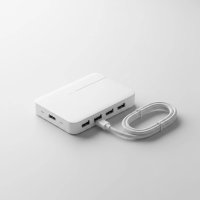
Modern laptops, with their sleek designs and impressive portability, often come with a trade-off: a limited number of built-in ports. This is where a USB C hub for laptop becomes an indispensable accessory, transforming a single USB-C port into a versatile gateway for all your peripherals, external displays, and charging needs. At Meeob, we understand the frustration of juggling adapters and the desire for a streamlined workspace. This guide will walk you through everything you need to know, from understanding different hub types to choosing the perfect one that enhances your productivity and digital life.
Why Your Laptop Needs a USB-C Hub
Today’s laptops prioritize thinness and aesthetic appeal, often at the expense of traditional connectivity options like USB-A, HDMI, and Ethernet ports. While this minimalist design is elegant, it can severely restrict your ability to connect essential accessories. A USB-C hub for your laptop is the immediate and most effective solution, restoring crucial connectivity and transforming your single USB-C port into a versatile powerhouse for peripherals, displays, and power. It’s like unlocking hidden potential, allowing you to seamlessly integrate your mouse, keyboard, external hard drives, monitors, and more without a hitch.
Understanding USB-C Hub Types and Capabilities
USB-C might look uniform on the outside, but the technology it carries can vary significantly. This means that not all USB-C hubs are created equal, and understanding their different types and capabilities is key to making an informed choice. USB-C hubs vary widely in their underlying technology (USB 3.0, 3.1, 3.2, Thunderbolt) and the types of ports they offer, impacting data speed, power delivery, and display support.
What are the different types of USB-C Hubs?
Generally, USB-C hubs can be categorized by their primary function and features:
- Simple Data Hubs: These are the most basic, primarily offering additional USB-A and sometimes a USB-C data port for connecting everyday peripherals like mice, keyboards, and flash drives. They are usually bus-powered, drawing power directly from your laptop.
- Multimedia Hubs: Expanding beyond data, these hubs typically include video output ports (like HDMI or DisplayPort), alongside USB-A ports and often SD/microSD card readers and an Ethernet port. They are designed for users who need to connect to external displays or transfer media files.
- Power Delivery (PD) Hubs: These hubs are designed with a dedicated USB-C input port that allows you to connect your laptop’s charger directly to the hub. This enables pass-through charging, meaning your laptop stays powered while simultaneously running all connected devices through the hub.
- Docking Stations & Thunderbolt Docks: While technically distinct from simple hubs, these are often considered alongside them. Docking stations offer a more extensive array of ports, often require external power, and can support multiple high-resolution displays. Thunderbolt docks represent the pinnacle of connectivity, leveraging Thunderbolt 3 or 4 technology for blazing-fast data transfer (up to 40Gbps), advanced multi-display support, and powerful charging capabilities. They are typically more expensive and geared towards professional workstations.
How fast are USB-C Hubs and their ports?
|
Our Picks for the Best USB Hub in 2026
As an Amazon Associate I earn from qualifying purchases.
|
||
| Num | Product | Action |
|---|---|---|
| 1 | USB C Docking Station with M.2 NVMe SSD Enclosure 10Gbps, 9 in 1 USB-C Hub, Type C SSD Slot with 4K@60Hz HDMI, USB 3.2 Gen2, PD100W, SD/TF Card Reader, Laptop Docking Station for Dell/HP/Lenovo/Mac |

|
| 2 | USB Hub 3.0, 7-Port USB Hub Splitter with Individual On/Off Switches and Lights, 3.2ft/1m Long Cable Compatible with MacBook, Laptop, Surface Pro, PS4, PC, Flash Drive, Mobile HDD |
|
| 3 | Anker USB Hub 4 Ports with 5Gbps Data Transfer, Multiple USB 3.0 Hub, USB Splitter for Laptop, Extender for A Port Laptop, PC, Desktop and More [Charging Not Supported](0.7 ft USB-A) |
|
| 4 | Anker Laptop Docking Station Dual Monitor, 8-in-1 USB C Hub, 4K Dual Monitor with 2 HDMI, 1 Gbps Ethernet Hub, 85W Power Delivery, SD Card Reader for MacBook Pro, XPS and More (Charger not Included) |
|
| 5 | 3-in-1 USB C Splitter, 3 in 1 Type-C Charging Data Cable Data Transmission Decive Charging Adapter Power Charger Equipment for ome Office Use, Fast & Efficient |
|
| 6 | Powered USB Hub, Wenter 11-Port USB Splitter Hub (10 Faster Data Transfer Ports+ 1 Smart Charging Port) with Individual LED On/Off Switches, USB Hub 3.0 Powered with Power Adapter for Mac, PC |
|
| 7 | Powered USB Hub 10Gbps, intpw 9-Port USB 3.2 Hub, USB C Hub with USB A/USB C 3.2, 4 USB 3.0, 2 PD 45W Charging Ports, 65W Power Adapter and 3.3FT Cable, Aluminum USB Hub for Laptop, iPhone 17/16/15,PC |
|
| 8 | P9R PRO USB C Hub Ethernet, 10 in 1 USB Docking Station 10Gbps with 4K@60Hz HDMI, USB C and 2 USB A 3.2, LAN, 2 USB A 2.0, PD 100W, SD/TF Ports, USB to Ethernet Adapter for PC, iPhone 16/15, Mac |
|
| 9 | 13 in 1 USB C Docking Station - Dual Monitor, Triple Display, 8 USB C/A Ports, Ethernet, Audio - LIONWEI USB C Hub for MacBook,Dell,HP,Lenovo,Surface |
|
| 10 | UGREEN USB 3.0 Hub, 4 Ports USB A Splitter Ultra-Slim USB Expander for Mouse, Keyboard, Flash Drive, U Disk, Printer Compatible with Laptop, Desktop PC, Xbox, PS5, and More |
|
The speed of a USB-C hub and its individual ports is paramount, especially when dealing with large file transfers or high-resolution external displays. Here’s a quick breakdown:
- USB 3.0 / USB 3.2 Gen 1: Offers data transfer speeds of up to 5 Gigabits per second (Gbps). This is sufficient for most everyday peripherals and external hard drives.
- USB 3.2 Gen 2: Doubles the speed to 10 Gbps, ideal for faster external SSDs and demanding data transfers.
- Thunderbolt 3 / Thunderbolt 4: The powerhouse, delivering up to 40 Gbps. These are crucial for connecting multiple 4K displays, high-speed external GPUs, or ultra-fast storage devices without bottlenecks.
It’s important to remember that the actual speed you achieve is limited by the slowest component in the chain – your laptop’s USB-C port, the hub’s capabilities, and the connected peripheral.
Essential Ports to Look for in a USB-C Hub
When choosing a USB C hub for laptop, the array of available ports is a primary consideration. The “essential” ports depend on your specific needs, but commonly include USB-A for legacy devices, HDMI/DisplayPort for external monitors, Ethernet for stable internet, and SD/microSD card slots for media.
USB-A Ports
Most of us still rely on older devices with standard USB-A connectors. Look for at least two to three USB-A ports (preferably USB 3.0 or higher for 5Gbps speeds) to connect your mouse, keyboard, printer, or external hard drives. If you frequently use high-speed external SSDs, consider hubs with USB-A 3.2 Gen 2 ports (10Gbps).
HDMI/DisplayPort
For extending your display or connecting to a projector, video output ports are critical.
- HDMI: The most common video port. Ensure the hub supports your desired resolution and refresh rate. While many budget hubs offer 4K@30Hz, for a smoother experience, especially with detailed work or video playback, aim for 4K@60Hz. Achieving 4K@60Hz requires your laptop’s USB-C port, the hub, and your monitor to all support it.
- DisplayPort: Less common but often preferred by gamers and professionals for its higher bandwidth and advanced features.
Ethernet Port
Wi-Fi is convenient, but a stable wired internet connection via a Gigabit Ethernet port is invaluable for fast downloads, online gaming, and uninterrupted video conferences. Many modern laptops omit this port, making it a crucial addition via a hub.
SD/microSD Card Readers
For photographers, videographers, or anyone dealing with camera footage, integrated SD and microSD card slots are a huge time-saver. Look for high-speed readers to minimize transfer times.
USB-C Data Port
Beyond the port connecting the hub to your laptop, some hubs include an additional USB-C port purely for data transfer. This is useful for connecting other USB-C peripherals or external drives.
Audio Jack (3.5mm)
If you still prefer wired headphones or speakers, a 3.5mm audio jack on your hub can be a convenient addition, especially if your laptop lacks one.
The Power of Power Delivery (PD) in Your USB-C Hub
One of the most transformative features of a USB C hub for laptop is its ability to integrate Power Delivery (PD). Power Delivery (PD) in a USB-C hub allows your laptop to receive charging power through the hub, simultaneously powering connected peripherals and streamlining your setup with a single cable connection for data, video, and power. This significantly declutters your workspace and simplifies connectivity.
Why is Power Delivery crucial for your laptop?
- Simultaneous Charging and Peripheral Use: With PD, you can connect your laptop’s charger to the hub, and the hub will pass that power through to your laptop while also providing power to all connected devices. This means you don’t have to choose between charging your laptop and using your peripherals.
- Ensures Stable Power for Power-Hungry Devices: External hard drives, high-resolution monitors, and certain webcams require more power than your laptop’s single USB-C port might deliver on its own. A PD-enabled hub ensures these devices receive consistent, adequate power, preventing performance drops or disconnections.
- Prevents Battery Drain from Peripherals: Without a powered hub, your laptop’s battery would shoulder the entire load of powering all connected devices, leading to faster battery drain. A PD hub offloads this power demand, helping to extend your laptop’s battery life during use.
- Wattage Matters: The PD wattage supported by the hub is crucial. Ultrabooks typically need 30-65W, while larger laptops like MacBook Pros might require 96-140W, and some gaming laptops can demand up to 240W. Always choose a hub that supports at least the charging wattage recommended for your laptop.
Can a USB-C Hub charge my laptop?
Yes, a USB-C hub can indeed charge your laptop, but only if it supports Power Delivery (PD) and you connect your laptop’s charger to the hub’s dedicated PD input port. The hub then acts as a pass-through for power, delivering it to your laptop while managing power for other connected devices. If a hub doesn’t specify PD support, it’s a data-only hub and will not charge your laptop.
Choosing the Right USB-C Hub for Your Laptop: A Step-by-Step Guide
Navigating the market for a USB C hub for laptop can feel daunting, but a systematic approach will ensure you find the perfect match for your needs.
Step 1: Assess Your Laptop’s USB-C Capabilities
Before you buy, know your laptop’s USB-C port inside and out. Does it support Thunderbolt (3 or 4)? Does it offer DisplayPort Alt Mode for video output? Is Power Delivery supported for charging? “As Dr. Elara Vance, lead engineer at Meeob Labs, always advises, ‘Understanding your laptop’s native USB-C port is the foundational step. It’s like knowing your car’s engine size before buying a trailer; the hub can only deliver what your port can support.'” Check your laptop’s manual or manufacturer’s website for these specifications.
Step 2: List Your Peripheral Needs
Take stock of all the devices you regularly connect or plan to connect. Do you need USB-A ports for a mouse and keyboard? An HDMI port for an external monitor? SD card readers for your camera? An Ethernet port for a stable internet connection? Create a comprehensive list to ensure your chosen hub has all the necessary ports.
Step 3: Consider Power Requirements
Determine your laptop’s charging wattage (e.g., 60W, 100W). If you want the hub to charge your laptop, ensure the hub’s Power Delivery input matches or exceeds this requirement. Also, consider the power needs of your connected peripherals; a powered hub is always better for power-hungry devices to prevent draining your laptop’s battery.
Step 4: Evaluate Portability and Build Quality
If you travel frequently, a compact, bus-powered hub might be ideal. For a stationary desktop setup, a more robust, externally powered docking station offers greater connectivity and stability. Look for hubs made with durable materials like aluminum, which helps with heat dissipation. Also, consider the port layout – well-spaced ports prevent larger connectors from blocking adjacent ones.
Step 5: Check Compatibility and Reviews
Always verify that the hub is compatible with your operating system (Windows, macOS, ChromeOS). Read user reviews to gauge real-world performance, common issues, and how well the hub manages heat under load. This can provide invaluable insights beyond product specifications.
Common Myths and Misconceptions About USB-C Hubs
Despite their utility, USB-C hubs are often surrounded by confusion. Let’s clear up some common myths.
Do USB-C Hubs cause overheating?
While electronic components naturally generate heat, a well-designed USB-C hub, especially those with aluminum casings, is built to dissipate heat effectively. Excessive heat usually indicates a low-quality hub or that it’s being overloaded beyond its specifications. Choosing reputable brands and hubs with good heat management features can mitigate this concern.
Are all USB-C ports the same?
Absolutely not. This is one of the biggest misconceptions. USB-C refers only to the physical connector shape. The underlying technology can vary greatly, from basic USB 2.0 (480 Mbps) to USB 3.x (5Gbps or 10Gbps), and even Thunderbolt 3 or 4 (40Gbps). The capabilities of your laptop’s USB-C port dictate what a hub can achieve, including data speed, video output (DisplayPort Alt Mode), and Power Delivery. Always check your laptop’s specifications.
Expert Pick: Recommended Features for a Versatile USB-C Hub for Laptop
For a truly versatile and future-proof USB C hub for laptop that caters to most users, we at Meeob recommend looking for a hub with the following features:
- 100W Power Delivery (PD) Pass-Through: Ensures your laptop gets ample charging power.
- 4K@60Hz HDMI or DisplayPort Output: For smooth, high-resolution external display support.
- At least two 10Gbps USB-A Ports: For high-speed external drives and fast peripherals.
- One 10Gbps USB-C Data Port: For connecting newer USB-C devices.
- Gigabit Ethernet Port: For reliable wired internet.
- SD and microSD Card Readers: For media transfer.
- Durable Aluminum Casing: For effective heat dissipation and longevity.
Frequently Asked Questions (FAQ)
What is the main purpose of a USB-C hub for laptop users?
The main purpose of a USB-C hub is to expand the connectivity options of modern laptops that have limited built-in ports. It allows users to connect multiple peripherals, external displays, and charge their device all through a single USB-C port.
Can a USB-C hub damage my laptop?
A high-quality, properly used USB-C hub from a reputable brand will not damage your laptop. Issues typically arise from using cheap, non-certified hubs, or from overloading a hub with too many power-hungry devices without sufficient power input.
How much power (watts) should a USB-C hub provide for my laptop?
The hub should provide at least the same wattage as your laptop’s original charger. For most Ultrabooks, 60W is sufficient, while larger laptops or MacBook Pros might require 85W to 100W or even more. Always check your laptop’s power requirements.
What’s the difference between a USB-C hub and a docking station?
A USB-C hub is generally a more compact, portable device designed to add a few essential ports. A docking station, on the other hand, is typically larger, requires external power, and offers a wider array of ports for a full desktop workstation setup, often supporting multiple high-resolution displays.
Do I need a powered USB-C hub?
If you plan to connect power-hungry devices like external hard drives or monitors, or if you want the hub to charge your laptop, then a powered USB-C hub (with Power Delivery) is highly recommended for stable performance and to prevent battery drain from your laptop.
Can I connect two external monitors with a USB-C hub?
Some advanced USB-C hubs, especially those that leverage DisplayLink technology or specific Thunderbolt capabilities, can support two external monitors. However, many standard USB-C hubs typically support only one external display. Always check the hub’s specifications for multi-display support.
Why does my USB-C hub get hot?
It’s normal for USB-C hubs to get warm, as electronic components generate heat during operation, especially when transferring data or power. If the hub becomes excessively hot to the touch, it could indicate poor design, overloading, or a manufacturing defect, and it might be worth checking with the manufacturer.
Conclusion
A USB C hub for laptop is no longer just an accessory; it’s a vital tool for maximizing the potential of your modern computing setup. By understanding the different types, essential ports, and the critical role of Power Delivery, you are now equipped to make a choice that perfectly aligns with your needs. Don’t let limited ports hinder your productivity or creativity. Choose wisely, streamline your connections, and transform your laptop into the versatile workstation it was meant to be. For more in-depth insights and product reviews, keep exploring Meeob.com – your trusted source for all things tech.
Get our weekly buyer guide
Practical specs, not advice. Unsubscribe anytime.