The best buy USB hub for most users is a powered USB 3.0 hub offering a mix of USB-A and USB-C ports, providing a balance of performance, versatility, and value. These hubs expand a single USB port into several, allowing simultaneous connection of multiple devices to your computer, tablet, or laptop. For modern laptops with limited ports, a multi-port USB-C adapter is often an indispensable tool.
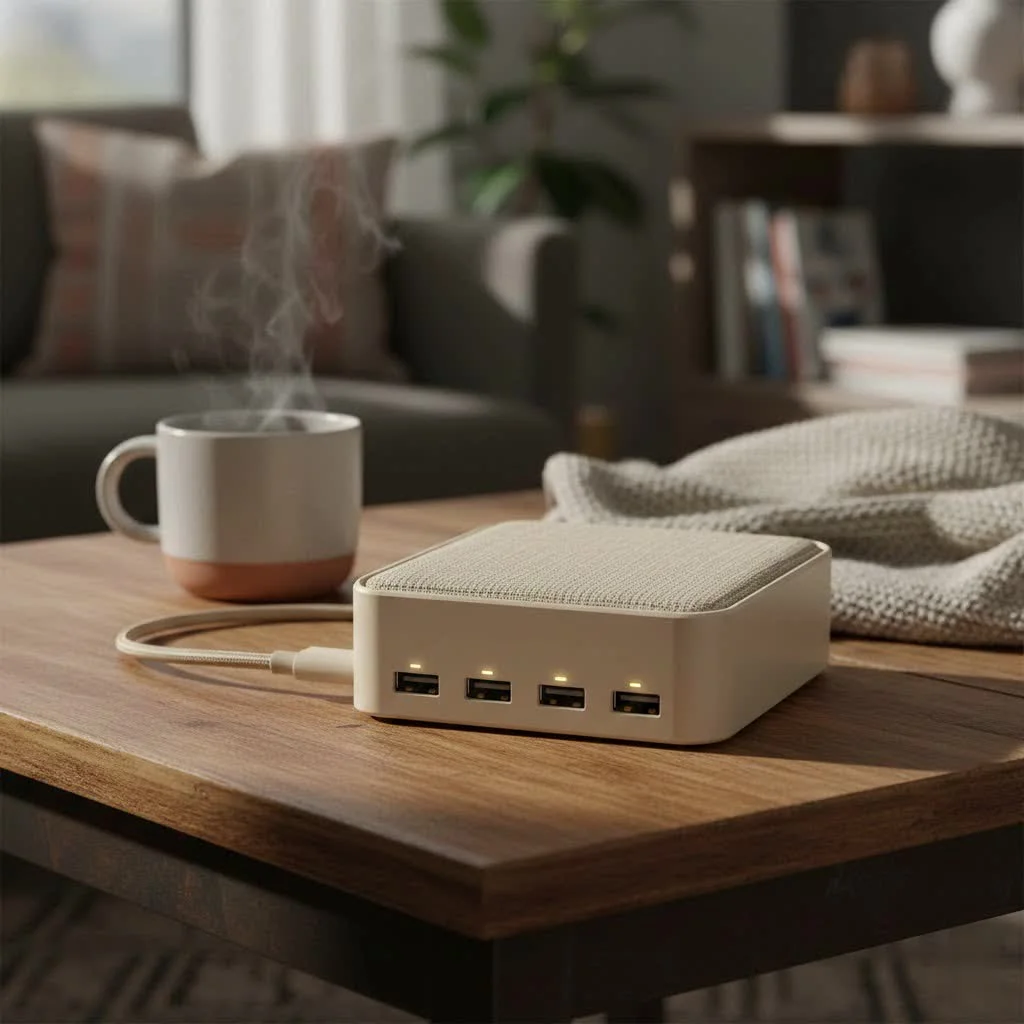
A USB hub is a device that expands a single Universal Serial Bus (USB) port into several, allowing you to connect more devices to your computer, tablet, or laptop simultaneously. Think of it as a power strip for your data. With numerous options available, from simple port expanders to complex multi-functional docks, selecting the right one can be challenging. This guide will help you understand technical specifications and identify the features most relevant to your needs.
Understanding the Different Types of USB Hubs
To make an informed purchase, it’s crucial to understand the primary differences among USB hubs, which include their power source, port types, and additional functionalities.
Powered vs. Unpowered (Bus-Powered) Hubs
This distinction is critical as it directly affects the types of devices you can reliably connect.
- Unpowered (Bus-Powered) Hubs: These hubs draw power directly from the host device (your computer). They are typically smaller, more portable, and less expensive. They are suitable for low-power devices like flash drives, mice, keyboards, and dongles. However, they struggle with devices requiring more power, such as external hard drives, webcams, or phone charging.
- Powered Hubs: A powered hub includes its own AC adapter that plugs into a wall outlet. This external power source ensures that every port on the hub can deliver its maximum power wattage. This is essential for connecting multiple high-power devices or for charging. As Meeob expert Johnathan Carter advises, “When in doubt, go with a powered hub. It provides the stability and reliability needed for a professional setup and prevents frustrating device dropouts.”
Key Port Types: USB-A vs. USB-C
The physical connector type is another significant factor. Modern hubs primarily use two standards.
- USB-A Hubs (USB 3.0/3.1): These hubs use the traditional rectangular USB-A connector and are widely compatible with older and many current devices. Most now utilize the USB 3.0 standard (often colored blue), offering speeds up to 5Gbps, a substantial improvement over older USB 2.0. They are an excellent, affordable choice for expanding connectivity on desktops and older laptops.
- USB-C Hubs: The small, reversible USB-C connector is the modern standard. These hubs are essential for newer laptops like MacBook Pros, Dell XPS, and Chromebooks that may only feature USB-C ports. The best USB-C hubs often provide more than just USB-A ports; they can include HDMI/DisplayPort for external monitors, SD card readers, Ethernet ports, and support Power Delivery (PD) to charge your laptop through the hub itself.
How to Choose the Best USB Hub for Your Needs
Finding the “best” hub is subjective and depends entirely on your specific use case. Here’s what to consider to make the right choice.
1. Identify Your Primary Devices
|
Our Picks for the Best USB Hub in 2026
As an Amazon Associate I earn from qualifying purchases.
|
||
| Num | Product | Action |
|---|---|---|
| 1 | 3-in-1 USB C Splitter, 3 in 1 Type-C Charging Data Cable Data Transmission Decive Charging Adapter Power Charger Equipment for ome Office Use, Fast & Efficient |

|
| 2 | Anker USB Hub 4 Ports with 5Gbps Data Transfer, Multiple USB 3.0 Hub, USB Splitter for Laptop, Extender for A Port Laptop, PC, Desktop and More [Charging Not Supported](0.7 ft USB-A) |
|
| 3 | Anker Laptop Docking Station Dual Monitor, 8-in-1 USB C Hub, 4K Dual Monitor with 2 HDMI, 1 Gbps Ethernet Hub, 85W Power Delivery, SD Card Reader for MacBook Pro, XPS and More (Charger not Included) |
|
| 4 | Powered USB Hub, Wenter 11-Port USB Splitter Hub (10 Faster Data Transfer Ports+ 1 Smart Charging Port) with Individual LED On/Off Switches, USB Hub 3.0 Powered with Power Adapter for Mac, PC |
|
| 5 | USB Hub 3.0, 7-Port USB Hub Splitter with Individual On/Off Switches and Lights, 3.2ft/1m Long Cable Compatible with MacBook, Laptop, Surface Pro, PS4, PC, Flash Drive, Mobile HDD |
|
| 6 | Powered USB Hub 10Gbps, intpw 9-Port USB 3.2 Hub, USB C Hub with USB A/USB C 3.2, 4 USB 3.0, 2 PD 45W Charging Ports, 65W Power Adapter and 3.3FT Cable, Aluminum USB Hub for Laptop, iPhone 17/16/15,PC |
|
| 7 | P9R PRO USB C Hub Ethernet, 10 in 1 USB Docking Station 10Gbps with 4K@60Hz HDMI, USB C and 2 USB A 3.2, LAN, 2 USB A 2.0, PD 100W, SD/TF Ports, USB to Ethernet Adapter for PC, iPhone 16/15, Mac |
|
| 8 | 13 in 1 USB C Docking Station - Dual Monitor, Triple Display, 8 USB C/A Ports, Ethernet, Audio - LIONWEI USB C Hub for MacBook,Dell,HP,Lenovo,Surface |
|
| 9 | USB C Docking Station with M.2 NVMe SSD Enclosure 10Gbps, 9 in 1 USB-C Hub, Type C SSD Slot with 4K@60Hz HDMI, USB 3.2 Gen2, PD100W, SD/TF Card Reader, Laptop Docking Station for Dell/HP/Lenovo/Mac |
|
| 10 | UGREEN USB 3.0 Hub, 4 Ports USB A Splitter Ultra-Slim USB Expander for Mouse, Keyboard, Flash Drive, U Disk, Printer Compatible with Laptop, Desktop PC, Xbox, PS5, and More |
|
List all the peripherals you intend to connect simultaneously.
- Basic Peripherals: For a mouse, keyboard, or flash drive, an unpowered, simple USB-A hub will likely suffice.
- Power-Hungry Devices: External HDDs, high-resolution webcams, or audio interfaces require a powered hub.
- Laptop Users: If you need to connect to an external monitor, wired internet, and charge your laptop with a single cable, look for a multi-port USB-C hub with video output (HDMI/DisplayPort), an Ethernet port, and USB-C Power Delivery.
2. Consider Your Port Requirements
Think about both the number and type of ports you need.
- Number of Ports: A 4-port hub is a common starting point, but 7 or 10-port models are available for more demanding setups. It’s advisable to choose a hub with one or two more ports than you currently need for future expansion.
- Mix of Ports: Determine if you primarily need USB-A ports for legacy devices or if you are transitioning to USB-C. Many hubs now offer a mix of both. An SD or microSD card reader is also a significant benefit for photographers and content creators.
3. Don’t Overlook Data Transfer Speed
The USB standard supported by the hub dictates its speed.
- USB 2.0: Offers speeds up to 480Mbps. This is adequate for keyboards and mice but too slow for file transfers. Avoid these for anything beyond very basic, low-speed needs.
- USB 3.0/3.1 Gen 1: Delivers speeds up to 5Gbps. This is the optimal choice for most users, providing fast transfers for external drives and other modern peripherals.
- USB 3.1 Gen 2 / USB 3.2: Increases speed to 10Gbps. This is ideal for power users who frequently transfer large files, such as video editors.
- Thunderbolt 3 / 4 / USB4: Found on high-end USB-C docks, these offer speeds up to 40Gbps, can drive multiple 4K displays, and support other high-bandwidth connections. They are the most powerful but also the most expensive.
4. Evaluate Build Quality and Design
A USB hub is a daily-use item, so it should be durable.
- Material: Aluminum-cased hubs are generally more durable and dissipate heat better than plastic models.
- Port Spacing: Look for hubs with ample space between ports to prevent larger USB connectors or flash drives from blocking adjacent ports.
- Cable Length: For a desktop setup, a hub with a longer cord offers more flexibility in placement. For travel, a shorter, integrated cable is more convenient.
Frequently Asked Questions (FAQ)
What is the best brand for USB hubs?
Brands such as Anker, UGREEN, Satechi, and CalDigit are consistently highly rated for their reliability, build quality, and customer support. These companies offer a diverse range of hubs to suit various needs and budgets.
Do USB hubs slow down data transfer?
A quality USB hub should not noticeably slow down your devices. All ports on a hub share the total bandwidth of the single port it’s connected to on your computer. However, for typical use with devices like mice, keyboards, and even a single external drive, you are unlikely to experience any performance degradation with a modern USB 3.0 hub.
Can I plug a USB hub into another USB hub?
Yes, this practice is known as “daisy-chaining.” While technically possible, it is generally not recommended because it can lead to power instability and performance issues, especially when using unpowered hubs. It is always better to acquire a single hub with sufficient ports for your requirements.
Will a USB-C hub work with a Thunderbolt port?
Yes, a USB-C hub will function perfectly when connected to a Thunderbolt 3 or Thunderbolt 4 port on your computer. Thunderbolt ports are designed to be backward-compatible with USB-C devices. However, you will be limited to the speeds and features of the USB-C hub, not the full capabilities of Thunderbolt.
Do I need a powered USB hub for charging my phone?
If you aim to charge your phone at a reasonable speed, a powered hub is strongly recommended. While an unpowered hub might provide a slow trickle charge, a powered hub with dedicated charging ports (often indicated by a battery symbol) will deliver more power for a much faster and more reliable charge.
Conclusion: Making Your Final Choice
Choosing the best buy USB hub depends on a clear understanding of your personal tech ecosystem. Begin by assessing your daily devices, anticipating future needs, and setting a budget. For most users, a powered USB 3.0 hub with a mix of USB-A and USB-C ports offers the best balance of performance, versatility, and value. For owners of modern, port-limited laptops, a multi-port USB-C adapter is an indispensable tool for unlocking your device’s full potential.
By investing in the right hub, you are not just acquiring more ports; you are creating a more efficient, organized, and powerful workstation. Armed with this knowledge, you can confidently select a hub that will serve you reliably for years to come.
Frequently Asked Questions
What are the top brands for reliable USB hubs?
Top brands for reliable USB hubs include Anker, UGREEN, Satechi, and CalDigit. These companies are consistently well-regarded for their build quality, customer support, and wide range of products catering to different needs and budgets.
Will a USB hub reduce my data transfer speeds?
A quality USB hub should not noticeably slow down your devices for everyday use. All ports on a hub share the total bandwidth of the single port it connects to on your computer. However, for demanding tasks with multiple high-bandwidth devices, a modern USB 3.0 hub typically maintains performance.
Is it advisable to connect one USB hub to another?
Connecting one USB hub into another, known as daisy-chaining, is generally not recommended. This practice can lead to power instability and performance issues, particularly with unpowered hubs. It is more effective to use a single hub that provides enough ports for all your devices.
Can a USB-C hub be used with a Thunderbolt port?
Yes, a USB-C hub will work perfectly when plugged into a Thunderbolt 3 or Thunderbolt 4 port on your computer. Thunderbolt ports are backward-compatible with USB-C devices. However, the hub will operate at USB-C speeds and features, not the full capabilities of Thunderbolt, which can reach up to 40Gbps.
Do I need a powered USB hub to charge my smartphone effectively?
Yes, a powered USB hub is highly recommended for effectively charging your smartphone. While an unpowered hub might offer a slow trickle charge, a powered hub, especially those with dedicated charging ports, delivers more power for a much faster and more reliable charge.
How to Choose the Best USB Hub
Choosing the best USB hub involves assessing your devices, port needs, data transfer speed requirements, and desired build quality.
List all the peripherals you plan to connect simultaneously. For basic items like a mouse or keyboard, an unpowered USB-A hub may suffice. Power-hungry devices such as external hard drives require a powered hub.
Determine both the number and type of ports needed. A 4-port hub is a common starting point, but consider models with 7 or 10 ports for more demanding setups. Decide if you need mostly USB-A, USB-C, or a mix, and if features like an SD card reader are beneficial.
Evaluate the USB standard the hub supports. USB 3.0/3.1 Gen 1 (5Gbps) is ideal for most users, while USB 3.1 Gen 2 / USB 3.2 (10Gbps) suits power users. For the highest speeds (up to 40Gbps) and advanced display capabilities, consider Thunderbolt 3/4/USB4 docks.
Choose a durable hub, preferably with an aluminum casing for better heat dissipation. Look for ample port spacing to prevent blockages. Consider cable length: longer for desktops, shorter for travel.
Get our weekly buyer guide
Practical specs, not advice. Unsubscribe anytime.
This guide really helped me understand the difference between a simple port expander and a more complex multi-functional dock. I ended up getting a hub with a mix of USB-A and USB-C ports, which is perfect for my setup. It’s great to have all my devices connected through one central point, decluttering my desk significantly. The value for the features is excellent.
I bought a simple port expander to connect my mouse and keyboard to my work laptop. It does the job, but I wish I had paid more attention to the USB 3.0 vs. 2.0 speeds. Transferring files to my flash drive through this hub is noticeably slower than plugging it directly into the computer. For basic use, it’s fine, but for data transfer, I’d look for something faster.
My new laptop only has USB-C ports, so a multi-port USB-C adapter was essential. This one from Best Buy works great for connecting my older USB-A devices and even has an HDMI port for my monitor. It’s super compact and easy to travel with. The only minor thing is that it gets a little warm with everything plugged in, but it hasn’t affected performance.
I picked up a powered USB 3.0 hub from Best Buy after reading about the benefits of having dedicated power for all my peripherals. It’s been a game-changer for my home office setup. I can now connect my external hard drive, webcam, and keyboard without any lag or power issues. Definitely recommend going for a powered option if you have multiple high-demand devices.