A usb to usb hub expands a single Universal Serial Bus (USB) port into several, allowing you to connect multiple devices to your computer simultaneously. This small device acts as a digital power strip for data, instantly decluttering your workspace and boosting productivity by providing additional ports for peripherals like keyboards, mice, external hard drives, and smartphones.
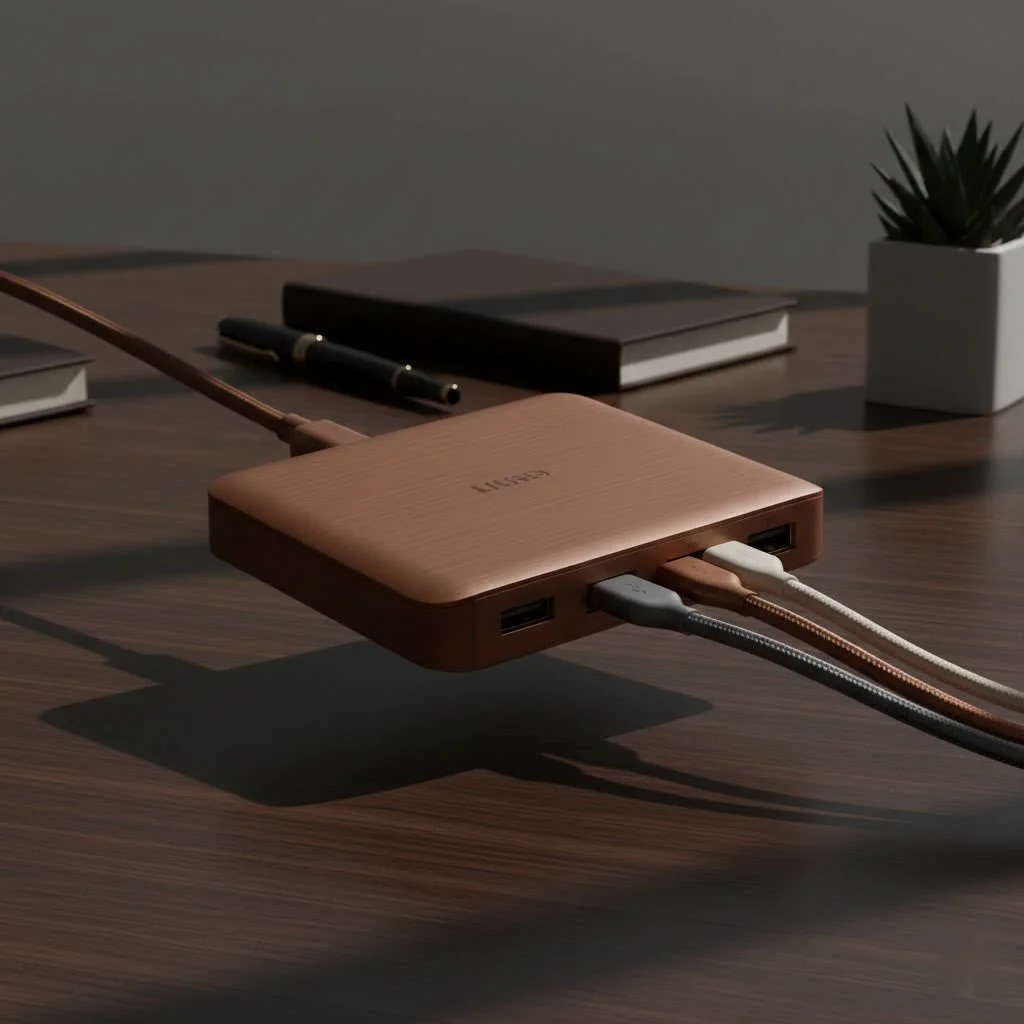
This guide from Meeob will explain everything you need to know about USB hubs, including different types, key features, and how to choose the perfect hub for your specific needs. For complete usb hubs library on this site.
What Exactly is a USB to USB Hub?
At its core, a usb to usb hub is a device that expands a single USB port into several, allowing you to connect more devices to your computer or host device than it has physical ports. It functions like an extension cord for electronics, transforming one outlet into many. The hub connects to a host computer (such as a laptop or desktop) and provides a series of new USB ports for plugging in peripherals.
This process is straightforward: the hub manages data flow and power distribution between connected devices and the computer, ensuring harmonious operation. Whether you need to connect a mouse, keyboard, printer, and external drive all at once, a hub makes it possible without constant cable swapping.
The Most Important Choice: Powered vs. Unpowered Hubs
When shopping for a USB hub, the primary distinction is between powered and unpowered models. Understanding this difference is crucial for ensuring devices work correctly and safely.
Unpowered (Passive) Hubs
An unpowered hub, also known as a passive hub, draws all its electricity directly from the host computer’s USB port. It then splits this limited power among the devices connected to it.
- Best for: Low-power devices like a standard mouse, keyboard, flash drives, or a game controller.
- Pros: Highly portable, compact, and generally less expensive. They are perfect for travel or light use.
- Cons: Not suitable for high-power devices. Connecting too many devices or a single power-hungry one (like an external hard drive or a high-resolution webcam) may cause disconnects or performance issues due to insufficient power from the host.
Powered (Active) Hubs
A powered hub, or active hub, includes its own external AC adapter that plugs into a wall outlet. This provides an independent power source, rather than relying solely on the computer. Each port on a powered hub can deliver the maximum power allowed by the USB standard.
- Best for: High-power devices such as external hard drives, SSDs, printers, scanners, and for charging smartphones or tablets.
- Pros: Provides stable and consistent power to all connected devices, ensuring reliable performance. You can run multiple high-drain peripherals without issues.
- Cons: Less portable due to the extra power adapter and cable. They are also typically larger and more expensive than their unpowered counterparts.
As our Senior Tech Analyst, Alex Carter, often says, “Choosing between a powered and unpowered hub comes down to one question: What are you plugging in? For simple accessories, an unpowered hub is fine. For anything that spins, scans, or charges, a powered usb to usb hub isn’t just a recommendation—it’s a requirement for reliability.”
Understanding USB Standards and Speeds
The type of USB port on a hub determines its data transfer speed. USB standards have evolved, offering significant performance improvements with each generation.
USB 2.0
|
Our Picks for the Best USB Hub in 2026
As an Amazon Associate I earn from qualifying purchases.
|
||
| Num | Product | Action |
|---|---|---|
| 1 | P9R PRO USB C Hub Ethernet, 10 in 1 USB Docking Station 10Gbps with 4K@60Hz HDMI, USB C and 2 USB A 3.2, LAN, 2 USB A 2.0, PD 100W, SD/TF Ports, USB to Ethernet Adapter for PC, iPhone 16/15, Mac |

|
| 2 | 3-in-1 USB C Splitter, 3 in 1 Type-C Charging Data Cable Data Transmission Decive Charging Adapter Power Charger Equipment for ome Office Use, Fast & Efficient |
|
| 3 | Powered USB Hub, Wenter 11-Port USB Splitter Hub (10 Faster Data Transfer Ports+ 1 Smart Charging Port) with Individual LED On/Off Switches, USB Hub 3.0 Powered with Power Adapter for Mac, PC |
|
| 4 | USB Hub 3.0, 7-Port USB Hub Splitter with Individual On/Off Switches and Lights, 3.2ft/1m Long Cable Compatible with MacBook, Laptop, Surface Pro, PS4, PC, Flash Drive, Mobile HDD |
|
| 5 | UGREEN USB 3.0 Hub, 4 Ports USB A Splitter Ultra-Slim USB Expander for Mouse, Keyboard, Flash Drive, U Disk, Printer Compatible with Laptop, Desktop PC, Xbox, PS5, and More |
|
| 6 | Anker USB Hub 4 Ports with 5Gbps Data Transfer, Multiple USB 3.0 Hub, USB Splitter for Laptop, Extender for A Port Laptop, PC, Desktop and More [Charging Not Supported](0.7 ft USB-A) |
|
| 7 | Anker Laptop Docking Station Dual Monitor, 8-in-1 USB C Hub, 4K Dual Monitor with 2 HDMI, 1 Gbps Ethernet Hub, 85W Power Delivery, SD Card Reader for MacBook Pro, XPS and More (Charger not Included) |
|
| 8 | 13 in 1 USB C Docking Station - Dual Monitor, Triple Display, 8 USB C/A Ports, Ethernet, Audio - LIONWEI USB C Hub for MacBook,Dell,HP,Lenovo,Surface |
|
| 9 | USB C Docking Station with M.2 NVMe SSD Enclosure 10Gbps, 9 in 1 USB-C Hub, Type C SSD Slot with 4K@60Hz HDMI, USB 3.2 Gen2, PD100W, SD/TF Card Reader, Laptop Docking Station for Dell/HP/Lenovo/Mac |
|
| 10 | Powered USB Hub 10Gbps, intpw 9-Port USB 3.2 Hub, USB C Hub with USB A/USB C 3.2, 4 USB 3.0, 2 PD 45W Charging Ports, 65W Power Adapter and 3.3FT Cable, Aluminum USB Hub for Laptop, iPhone 17/16/15,PC |
|
This older standard offers a maximum data transfer speed of 480 Megabits per second (Mbps). While largely superseded, it remains sufficient for basic peripherals like mice and keyboards where speed is not a primary concern. USB 2.0 hubs are inexpensive but should be avoided for file transfers.
USB 3.0 / USB 3.1 Gen 1
Now often referred to as USB 5Gbps, this standard was a significant advancement, offering speeds up to 5 Gigabits per second (Gbps), over ten times faster than USB 2.0. These ports are typically identified by their blue interior color. This is an ideal standard for most users, providing fast file transfers for external hard drives, SSDs, and flash drives.
USB 3.1 Gen 2 / USB 10Gbps
This standard doubles the speed of its predecessor, reaching up to 10 Gbps. It is excellent for creative professionals and power users who frequently move large files, such as 4K video footage or extensive photo libraries.
USB-C and Thunderbolt
USB-C is a newer, reversible connector type, not a speed standard itself. A USB-C port can support various speeds, from USB 2.0 up to USB4 and Thunderbolt 4 (up to 40 Gbps). A usb to usb hub with a USB-C connector can offer not only blazing-fast data transfer but also video output (DisplayPort) and high-wattage power delivery for charging your laptop.
How to Choose the Perfect USB to USB Hub
Selecting the right hub is straightforward. Follow this simple checklist to find the one that best fits your workflow.
Checklist for Buying a USB Hub
- 1. Count Your Ports: Determine how many devices you need to connect simultaneously. Always choose a hub with one or two more ports than you currently need to accommodate future devices.
- 2. Assess Your Power Needs: Review the devices you’ll be connecting. If they include external hard drives, webcams, or anything you intend to charge, a powered hub is the safest bet. For simple accessories on the go, an unpowered hub will suffice.
- 3. Match Your Connectors: Check the ports on your host computer. If you have a newer laptop with only USB-C ports, you’ll need a hub that connects via USB-C. If you have older USB-A ports, a hub with a USB-A connector is appropriate. Many hubs also offer a mix of port types (e.g., USB-A and USB-C ports, SD card readers, HDMI).
- 4. Consider Data Speed: For everyday use, a USB 3.0 (5Gbps) hub is a fantastic all-rounder. If you’re a video editor, photographer, or data analyst regularly transferring large files, investing in a 10Gbps or Thunderbolt hub will save significant time.
- 5. Think About Portability: If you’re constantly moving between a home office and other locations, a compact, unpowered hub might be more convenient. For a permanent desktop setup, a larger, powered hub is more practical and powerful.
Frequently Asked Questions (FAQ)
Will a usb to usb hub slow down my devices?
A hub introduces a tiny amount of latency, which is typically unnoticeable for most devices. The primary factor is bandwidth: a hub shares the total bandwidth of the single port it’s connected to. If you connect multiple high-speed drives to a USB 3.0 hub and transfer files from all simultaneously, you might experience a slowdown as they share the same 5Gbps “pipe” to the computer.
Can I charge my phone through any USB hub?
Yes, you can charge your phone through a USB hub, but charging speed will vary significantly. Unpowered hubs offer very slow charging. Powered hubs are better, but for fast charging, look for a hub with a dedicated “charging port” or one that supports the Power Delivery (PD) standard, which is common on USB-C hubs.
Are all USB-C hubs the same?
No, USB-C hubs are not all the same. The USB-C connector is highly versatile, and hubs built around it offer a wide range of features. Some are simple port expanders, while others are comprehensive “docks” with HDMI/DisplayPort outputs, Ethernet jacks, SD card readers, and high-wattage Power Delivery passthrough to charge your laptop. Always check the specifications carefully before purchasing.
How many USB hubs can you connect to each other?
You can connect hubs to other hubs in a process called “daisy-chaining,” with the official USB specification allowing up to 5 hubs in a chain. However, doing so can lead to performance and power instability. For optimal results and reliability, it is always recommended to connect your primary hub directly to the computer.
Do I need to install drivers for a USB hub?
No, nearly all modern USB hubs are “plug and play.” This means you can simply connect them to your computer (Windows, macOS, or Linux), and they will function automatically without requiring any special software installation or drivers.
Your Gateway to a More Connected Setup
A usb to usb hub is more than just an accessory; it’s a fundamental tool for unlocking your computer’s full potential. By expanding connectivity, it streamlines your workflow, eliminates port shortages, and helps create a more organized and efficient workspace.
Whether you’re a student with a laptop, a professional building a powerful workstation, or a creative on the move, there is a hub designed for you. By considering your power needs, speed requirements, and the types of devices you use, you can confidently select a hub that will serve you reliably for years to come. Stop swapping cables and start connecting everything at once.
How to Choose the Perfect USB to USB Hub
Selecting the right USB hub doesn't have to be complicated. Follow this simple checklist to find the one that best fits your workflow and device needs.
Determine how many devices you need to connect simultaneously. Always choose a hub with one or two more ports than you currently need to accommodate future devices.
Review the devices you'll be connecting. If they include external hard drives, webcams, or anything you intend to charge, a powered hub is the safest bet. For simple accessories on the go, an unpowered hub will suffice.
Check the ports on your host computer. If you have a newer laptop with only USB-C ports, you'll need a hub that connects via USB-C. If you have older USB-A ports, a hub with a USB-A connector is appropriate. Many hubs also offer a mix of port types (e.g., USB-A and USB-C ports, SD card readers, HDMI).
For everyday use, a USB 3.0 (5Gbps) hub is a fantastic all-rounder. If you're a video editor, photographer, or data analyst regularly transferring large files, investing in a 10Gbps or Thunderbolt hub will save significant time.
If you're constantly moving between a home office and other locations, a compact, unpowered hub might be more convenient. For a permanent desktop setup, a larger, powered hub is more practical and powerful.
Get our weekly buyer guide
Practical specs, not advice. Unsubscribe anytime.

I was looking for a way to connect multiple devices to my computer simultaneously, and this hub does the trick. It’s super convenient to have all my accessories plugged into one spot. I appreciate the different types of hubs mentioned, as it helped me choose a compact, unpowered one that fits perfectly in my travel bag.
The USB hub I bought works okay for my basic peripherals like my printer and a flash drive. However, when I try to connect my external SSD, the transfer speeds seem a bit slower than when it’s plugged directly into my computer. It’s not terrible, but something to keep in mind if you need maximum speed for data-intensive tasks.
I finally got one of these USB hubs after constantly juggling my mouse, keyboard, and external drive on my laptop. It’s a game-changer for decluttering my desk! I picked up a powered hub, and it handles everything without a hitch, even charging my phone. Definitely recommend for anyone with limited ports.