An Anker USB hub expands a laptop’s connectivity by converting a single USB-C port into multiple ports for peripherals, data transfer, and video output. These hubs are essential for modern, minimalist laptops that often lack sufficient built-in ports for common accessories like external monitors, mice, keyboards, and external drives. Anker is a leading brand known for its reliability, modern technology, and user-centric design in connectivity solutions.
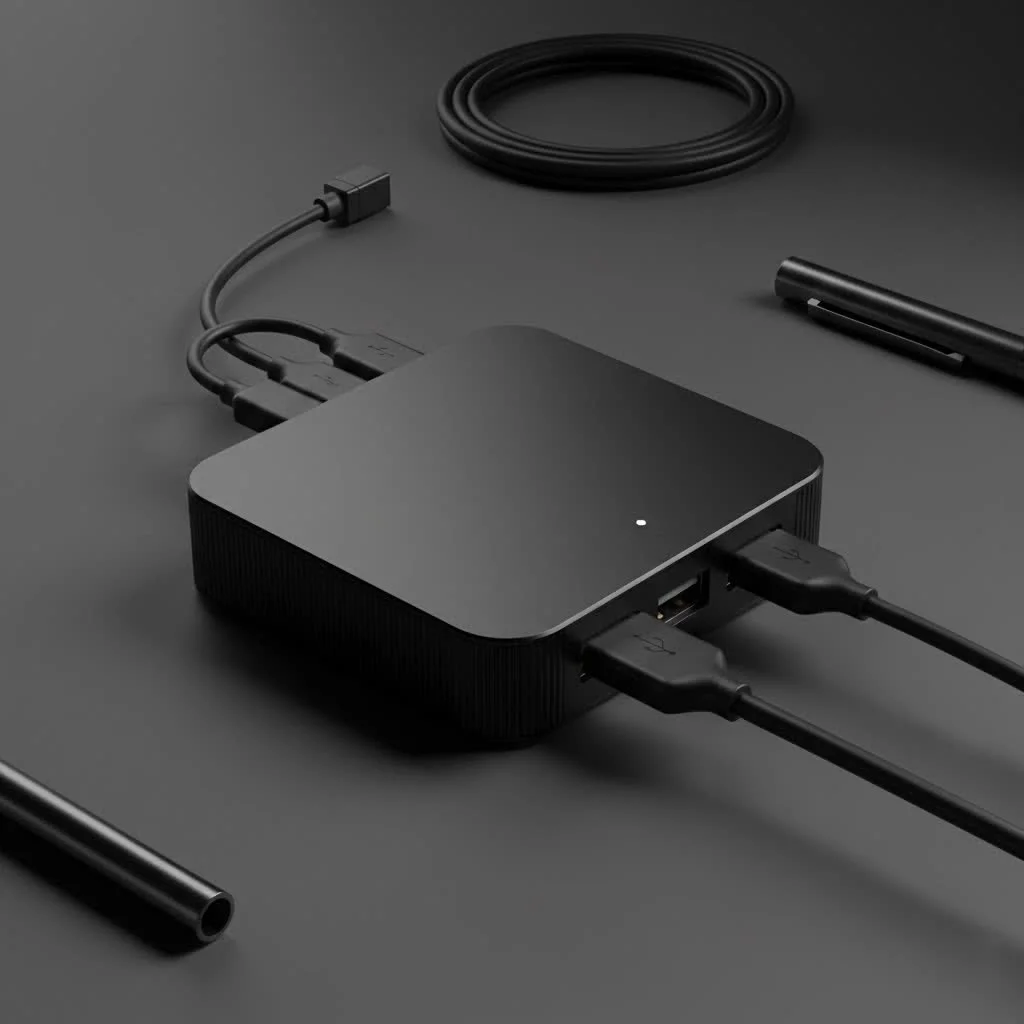
This guide demystifies Anker’s USB hub lineup, explaining key models and technical specifications in simple terms. It provides a step-by-step process to select the ideal hub that matches your workflow, devices, and ambitions, ultimately expanding your connectivity and unlocking your device’s true potential. For complete usb hubs library on this site.
Why Do You Need an Anker USB Hub?
Modern laptops, especially Ultrabooks and MacBooks, prioritize a slim profile, often at the expense of integrated ports. This design choice creates a practical bottleneck, as users might have only one or two USB-C ports for all functions, including charging, data transfer, and video output. An Anker USB hub resolves this by transforming a single port into a versatile docking station for all your peripherals.
Anker is a preferred brand due to its decade-long reputation for three core strengths:
- Reliability: Anker products are known for durable construction and consistent performance, minimizing common issues like overheating or signal drops.
- modern Technology: Anker frequently integrates the latest standards, such as high-wattage Power Delivery (PD) for pass-through charging and high-speed data transfer ports.
- User-Centric Design: Their hubs are compact, lightweight, and thoughtfully designed to complement modern devices, making them suitable for both home office and travel setups.
Decoding Anker’s USB Hub Lineup: Key Models Explained
Anker categorizes its hubs into different series, but understanding them by their function and target user is often more straightforward. Here are a few popular models representing various use cases.
For the Everyday User: The Anker 341 (7-in-1) USB-C Hub
The Anker 341 is a popular, versatile hub suitable for students, office workers, and general home users. It effectively bridges the gap between a USB-C laptop and legacy peripherals.
- Key Ports: This model typically includes a 4K HDMI port, two USB-A 3.0 ports, SD and microSD card slots, a USB-C data port, and a USB-C Power Delivery input port.
- Best For: Connecting an external monitor, transferring photos from a camera, using a wireless mouse dongle, and simultaneously charging your laptop. It covers essential needs for a standard desk setup.
For the Power User & Creative Pro: The Anker 555 (8-in-1) USB-C Hub
For workflows involving large file transfers, high-resolution video, or a stable wired internet connection, the Anker 555 offers enhanced performance.
- Key Ports: It includes all the features of the 7-in-1 model, plus a crucial Gigabit Ethernet port. Its ports are upgraded, providing faster data transfer speeds (up to 10Gbps) and improved video output (4K@60Hz).
- Best For: Video editors, photographers, programmers, and anyone requiring a lag-free, high-bandwidth connection. The Ethernet port is beneficial for online gaming or downloading large files, and the higher refresh rate on the HDMI port ensures a smoother visual experience.
For Ultimate Portability: The Anker 332 USB-C Hub (5-in-1)
Our Picks for the Best USB Hub in 2026As an Amazon Associate I earn from qualifying purchases.Num Product Action 1 USB Hub 3.0, 7-Port USB Hub Splitter with Individual On/Off Switches and Lights, 3.2ft/1m Long Cable Compatible with MacBook, Laptop, Surface Pro, PS4, PC, Flash Drive, Mobile HDD 
2 Powered USB Hub 10Gbps, intpw 9-Port USB 3.2 Hub, USB C Hub with USB A/USB C 3.2, 4 USB 3.0, 2 PD 45W Charging Ports, 65W Power Adapter and 3.3FT Cable, Aluminum USB Hub for Laptop, iPhone 17/16/15,PC
3 Powered USB Hub, Wenter 11-Port USB Splitter Hub (10 Faster Data Transfer Ports+ 1 Smart Charging Port) with Individual LED On/Off Switches, USB Hub 3.0 Powered with Power Adapter for Mac, PC
4 Anker Laptop Docking Station Dual Monitor, 8-in-1 USB C Hub, 4K Dual Monitor with 2 HDMI, 1 Gbps Ethernet Hub, 85W Power Delivery, SD Card Reader for MacBook Pro, XPS and More (Charger not Included)
5 UGREEN USB 3.0 Hub, 4 Ports USB A Splitter Ultra-Slim USB Expander for Mouse, Keyboard, Flash Drive, U Disk, Printer Compatible with Laptop, Desktop PC, Xbox, PS5, and More
6 13 in 1 USB C Docking Station - Dual Monitor, Triple Display, 8 USB C/A Ports, Ethernet, Audio - LIONWEI USB C Hub for MacBook,Dell,HP,Lenovo,Surface
7 3-in-1 USB C Splitter, 3 in 1 Type-C Charging Data Cable Data Transmission Decive Charging Adapter Power Charger Equipment for ome Office Use, Fast & Efficient
8 Anker USB Hub 4 Ports with 5Gbps Data Transfer, Multiple USB 3.0 Hub, USB Splitter for Laptop, Extender for A Port Laptop, PC, Desktop and More [Charging Not Supported](0.7 ft USB-A)
9 P9R PRO USB C Hub Ethernet, 10 in 1 USB Docking Station 10Gbps with 4K@60Hz HDMI, USB C and 2 USB A 3.2, LAN, 2 USB A 2.0, PD 100W, SD/TF Ports, USB to Ethernet Adapter for PC, iPhone 16/15, Mac
10 USB C Docking Station with M.2 NVMe SSD Enclosure 10Gbps, 9 in 1 USB-C Hub, Type C SSD Slot with 4K@60Hz HDMI, USB 3.2 Gen2, PD100W, SD/TF Card Reader, Laptop Docking Station for Dell/HP/Lenovo/Mac
Designed for digital nomads and frequent travelers, the Anker 332 prioritizes portability with a slim, lightweight design and essential ports.
- Key Ports: This compact hub typically offers a 4K HDMI port, two USB-A ports, and USB-C Power Delivery. It omits features like an SD card reader or Ethernet to save space.
- Best For: Easy transport in a laptop bag for presentations, working remotely, or simply connecting a monitor and a USB drive on the go.
How to Choose the Perfect Anker USB Hub for Your Needs
Selecting the right Anker USB hub involves answering a few simple questions about your usage habits and hardware. Use this checklist to identify your ideal match.
1. What Ports Do You Actually Need?
Inventory the devices you use daily.
- External Monitor: An HDMI port is necessary. Verify if your monitor supports 4K and its refresh rate; for a smoother experience, seek a hub offering 4K@60Hz.
- Mouse, Keyboard, Webcam: These typically use USB-A ports. Count the number of such devices you need to connect simultaneously.
- External Hard Drives: For rapid file transfers, ensure the hub has USB-A or USB-C ports rated for at least 5Gbps (USB 3.0). For faster SSDs, look for 10Gbps ports.
- Photography/Videography: Integrated SD and microSD card slots are essential.
- Wired Internet: A Gigabit Ethernet port is crucial for the most stable and fast connection.
2. Will You Charge Your Laptop Through the Hub?
This feature is known as Power Delivery (PD). It enables you to connect your laptop’s USB-C charger to the hub, which then passes power to your laptop while simultaneously operating all other connected devices.
“Pay close attention to the Power Delivery wattage,” advises Alex Carter, a senior tech analyst. “The hub itself consumes some power, usually around 15W. Therefore, if you have a 65W laptop charger, you should look for a hub that supports at least 85W PD input to ensure your laptop receives its full required power.”
3. How Important is Data Transfer Speed?
USB ports vary significantly in speed.
- USB 2.0 (480Mbps): Adequate for a mouse or keyboard, but too slow for file transfers. Most Anker hubs now offer faster standards.
- USB 3.0/3.1 Gen 1 (5Gbps): This is the common standard on most modern hubs, excellent for external hard drives and quick data backups. A 10GB file transfers in under 30 seconds.
- USB 3.1 Gen 2 (10Gbps): Found on premium hubs, this speed is ideal for professionals handling large files, such as 4K video footage from an external SSD.
4. What Device Are You Using?
While most Anker USB-C hubs offer broad compatibility, always verify the product page for specific device compatibility, whether it’s a MacBook Pro, Dell XPS, HP Spectre, or iPad Pro. This check is particularly important for video output and charging functionalities.
Frequently Asked Questions about Anker USB Hubs
Will an Anker USB hub slow down my internet speed?
An Anker USB hub equipped with an Ethernet port will provide a faster and more stable internet connection compared to Wi-Fi. While early USB 3.0 devices sometimes caused Wi-Fi interference, reputable brands like Anker design their hubs with proper shielding to prevent such issues.
Can I use an Anker USB hub for gaming?
Yes, an Anker USB hub can be used for gaming. For optimal performance, select a hub with a Gigabit Ethernet port for a low-latency connection and an HDMI port that supports 4K@60Hz or 1080p@120Hz to ensure a smooth frame rate and best peripheral performance.
Does the Anker USB hub get hot?
It is normal for a USB hub to become warm during operation, especially when utilizing Power Delivery charging and multiple ports simultaneously. Anker hubs incorporate thermal management systems designed to safely dissipate heat. However, if a hub ever becomes too hot to touch, it should be disconnected immediately.
What’s the difference between an Anker USB hub and a docking station?
Generally, an Anker USB hub is a smaller, more portable device that connects via an integrated cable, offering essential port expansion. A docking station is typically a larger, stationary unit, often with its own power supply, providing a wider array of ports and advanced features like support for multiple external monitors.
How much power does an Anker USB hub consume?
An Anker USB hub typically consumes around 15W of power for its own operation. When using Power Delivery, this consumption must be factored in; for example, a 65W laptop charger requires a hub supporting at least 85W PD input to deliver full power to the laptop.
Conclusion: Expand Your Connectivity with Confidence
Choosing the right Anker USB hub is a straightforward process of aligning your daily needs with the appropriate features. By evaluating the ports you require, your power needs, and your primary use case—be it for travel, general productivity, or a high-performance creative workstation—you can confidently select a device that will reliably serve you for years. Eliminate adapter clutter and unlock your laptop’s full potential with a single, elegant solution.
Frequently Asked Questions
Will an Anker USB hub slow down my internet speed?
An Anker USB hub with an Ethernet port will provide a faster and more stable internet connection than Wi-Fi. While early USB 3.0 devices sometimes caused Wi-Fi interference, reputable brands like Anker design their hubs with proper shielding to prevent such issues.
Can I use an Anker USB hub for gaming?
Yes, an Anker USB hub can be used for gaming. For optimal performance, select a hub with a Gigabit Ethernet port for a low-latency connection and an HDMI port that supports 4K@60Hz or 1080p@120Hz to ensure a smooth frame rate and best peripheral performance.
Does the Anker USB hub get hot?
It is normal for a USB hub to become warm during operation, especially when utilizing Power Delivery charging and multiple ports simultaneously. Anker hubs incorporate thermal management systems designed to safely dissipate heat. However, if a hub ever becomes too hot to touch, it should be disconnected immediately.
What's the difference between an Anker USB hub and a docking station?
Generally, an Anker USB hub is a smaller, more portable device that connects via an integrated cable, offering essential port expansion. A docking station is typically a larger, stationary unit, often with its own power supply, providing a wider array of ports and advanced features like support for multiple external monitors.
How much power does an Anker USB hub consume?
An Anker USB hub typically consumes around 15W of power for its own operation. When using Power Delivery, this consumption must be factored in; for example, a 65W laptop charger requires a hub supporting at least 85W PD input to deliver full power to the laptop.
How to Choose the Perfect Anker USB Hub
Choosing the right Anker USB hub involves evaluating your daily needs, required ports, power delivery requirements, and data transfer speed preferences to match the ideal model to your devices and workflow.
1Identify Required PortsList all the devices you use daily, such as external monitors (checking for 4K@60Hz support), mice, keyboards, webcams (USB-A), external hard drives (5Gbps or 10Gbps USB), and SD/microSD cards. Determine if you need a Gigabit Ethernet port for wired internet.
2Assess Power Delivery NeedsDetermine if you need to charge your laptop through the hub using Power Delivery (PD). Remember that the hub itself consumes about 15W; if your laptop charger is 65W, look for a hub supporting at least 85W PD input to ensure adequate power delivery.
3Consider Data Transfer SpeedEvaluate your need for data transfer speed. USB 2.0 (480Mbps) is suitable for basic peripherals, USB 3.0/3.1 Gen 1 (5Gbps) is good for external hard drives, and USB 3.1 Gen 2 (10Gbps) is ideal for professionals working with large files like 4K video from SSDs.
4Check Device CompatibilityAlways verify the Anker product page for compatibility with your specific device, such as a MacBook Pro, Dell XPS, HP Spectre, or iPad Pro. This is crucial for ensuring proper video output and charging functionalities.
Get our weekly buyer guide
Practical specs, not advice. Unsubscribe anytime.
This Anker hub is pretty good for the price. I got one of the models with HDMI output and it works perfectly for extending my display to a second monitor. Data transfer speeds for my external drive are also decent. My only minor complaint is that the cable is a little short, which can be awkward depending on where your laptop’s USB-C port is located. Still, it’s a reliable piece of kit.
I bought an Anker hub specifically for connecting my older USB-A peripherals to my new Dell XPS. While it generally works, I’ve noticed that sometimes my wireless mouse dongle gets a bit finicky if I have too many things plugged in at once. It’s not a deal-breaker, but it’s a bit annoying to have to unplug and replug things occasionally. Maybe I should have gone for a more expensive model with more power delivery.
I’ve been using the Anker PowerExpand+ 7-in-1 USB-C Hub for a few weeks now, and it’s been a game-changer for my MacBook Air. I can finally connect my external monitor, charge my phone, and use a wired keyboard all at once without any issues. The build quality feels really solid, and it stays cool even when I’m running multiple peripherals. Definitely recommend it for anyone with a modern laptop lacking ports.
As someone who travels a lot for work, having a reliable and compact USB hub is crucial. The Anker hub I picked up (one of the smaller, travel-friendly models) has been fantastic. It handles my external SSD, a USB mic, and a charging cable for my phone without breaking a sweat. It’s truly expanded the potential of my ultrabook, which only has two USB-C ports. Great product from a trusted brand.