A j5create USB hub expands a single USB-C or USB-A port into multiple connections, providing a versatile solution for connecting various peripherals like keyboards, mice, webcams, and external hard drives. These hubs are known for their reliability, robust functionality, and user-friendly plug-and-play operation, making them an essential accessory for managing modern device connectivity.
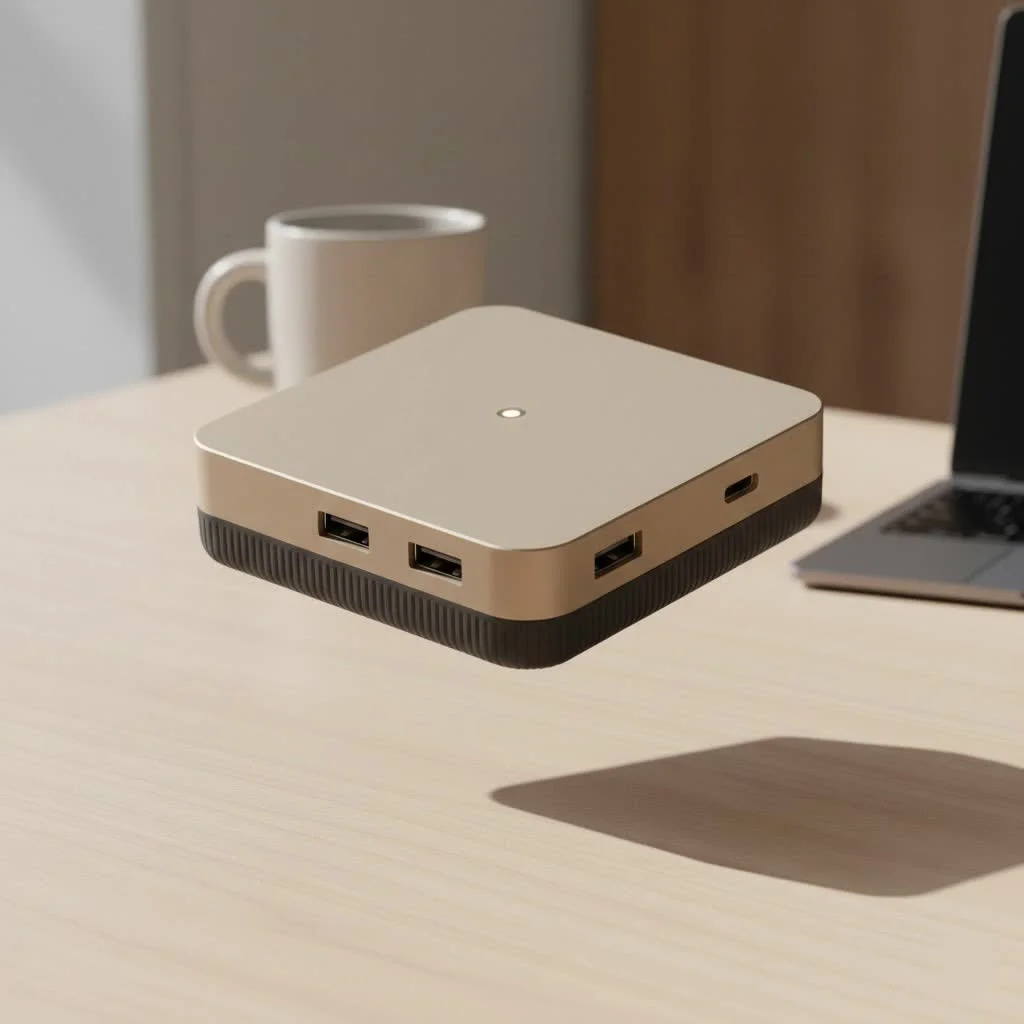
Modern laptops often prioritize thin designs, leading to a reduction in available ports. j5create USB hubs effectively bridge this gap, transforming one port into a comprehensive docking station. Whether you are a creative professional managing numerous peripherals, a student organizing research across different drives, or a remote worker optimizing a home office, these hubs are engineered to streamline your workflow and reduce desk clutter. For shop curated usb hubs on this site.
What Makes a j5create USB Hub Stand Out?
j5create has established a strong reputation for producing dependable, high-performance computer accessories that combine elegant design with powerful functionality. Their USB hubs are particularly valued for their sturdy construction, diverse port selection, and simple plug-and-play setup. Unlike generic hubs that can be unreliable or potentially harm devices, j5create products are recognized for their stability, especially when powering demanding peripherals.
Many j5create hubs, including popular 7-port models, feature an external power adapter. This critical component ensures that all connected devices, from external SSDs to charging tablets, receive consistent and adequate power. This prevents common issues like frustrating disconnections and data transfer errors often associated with unpowered hubs. With features such as dedicated fast-charging ports and durable aluminum housings, a j5create USB hub is designed to be a dependable central component of your workstation.
The Power of Choice: Types of j5create Hubs
j5create recognizes that user needs vary significantly. The requirements of a traveling presenter differ greatly from those of a desk-bound video editor. Consequently, they offer a wide array of hubs specifically designed for various applications.
For the Everyday User: The Essentials
For users who only need to connect a few additional devices, such as a wireless mouse dongle, a flash drive, and a keyboard, a simple and compact j5create USB hub is ideal. Models like the JCH342EW Eco-Friendly 4-Port Hub are excellent choices. These hubs are bus-powered, drawing electricity directly from the laptop, highly portable, and offer a combination of USB-A and USB-C ports to support both older and newer devices. They are highly regarded for their seamless connectivity, resolving common problems like frequent disconnections often experienced with less expensive dongles.
For the Power User: Multi-Port Docking Stations
For individuals requiring a comprehensive workstation, j5create’s multi-port hubs and docking stations are transformative. These devices function as more than just port expanders; they serve as central command units for your desk. They frequently include:
- Multiple Display Outputs: Connect one, two, or even three external monitors using HDMI, DisplayPort, and sometimes older VGA ports.
- Power Delivery (PD): Charge your laptop directly through the hub with up to 100W of pass-through power, freeing up your laptop’s dedicated charging port.
- Gigabit Ethernet: Obtain a stable, wired internet connection for uninterrupted video calls and rapid downloads.
- SD/microSD Card Readers: An essential feature for photographers and videographers for efficient file transfers.
- A Mix of USB-A and USB-C Ports: Ensures broad compatibility with all your peripherals, both new and existing.
These advanced hubs are perfect for transforming a minimalist laptop, such as a MacBook, into a fully functional desktop powerhouse.
For the Traveler: Compact and Portable
When traveling, minimizing bulk is crucial. j5create provides a selection of slim, lightweight travel docks that offer essential ports without adding significant weight. These mini-docks often integrate HDMI, USB-A, and Power Delivery into a small form factor, making them perfect for presentations or working remotely from a coffee shop. Their compact design and robust construction ensure they can withstand the demands of travel.
How to Choose the Right j5create USB Hub
Given the numerous options available, selecting the ideal hub can seem challenging. Here’s a straightforward guide to assist your decision-making process.
Step 1: Check Your Computer’s Ports
|
Our Picks for the Best USB Hub in 2026
As an Amazon Associate I earn from qualifying purchases.
|
||
| Num | Product | Action |
|---|---|---|
| 1 | UGREEN USB 3.0 Hub, 4 Ports USB A Splitter Ultra-Slim USB Expander for Mouse, Keyboard, Flash Drive, U Disk, Printer Compatible with Laptop, Desktop PC, Xbox, PS5, and More |

|
| 2 | Anker Laptop Docking Station Dual Monitor, 8-in-1 USB C Hub, 4K Dual Monitor with 2 HDMI, 1 Gbps Ethernet Hub, 85W Power Delivery, SD Card Reader for MacBook Pro, XPS and More (Charger not Included) |
|
| 3 | P9R PRO USB C Hub Ethernet, 10 in 1 USB Docking Station 10Gbps with 4K@60Hz HDMI, USB C and 2 USB A 3.2, LAN, 2 USB A 2.0, PD 100W, SD/TF Ports, USB to Ethernet Adapter for PC, iPhone 16/15, Mac |
|
| 4 | Powered USB Hub, Wenter 11-Port USB Splitter Hub (10 Faster Data Transfer Ports+ 1 Smart Charging Port) with Individual LED On/Off Switches, USB Hub 3.0 Powered with Power Adapter for Mac, PC |
|
| 5 | Powered USB Hub 10Gbps, intpw 9-Port USB 3.2 Hub, USB C Hub with USB A/USB C 3.2, 4 USB 3.0, 2 PD 45W Charging Ports, 65W Power Adapter and 3.3FT Cable, Aluminum USB Hub for Laptop, iPhone 17/16/15,PC |
|
| 6 | 3-in-1 USB C Splitter, 3 in 1 Type-C Charging Data Cable Data Transmission Decive Charging Adapter Power Charger Equipment for ome Office Use, Fast & Efficient |
|
| 7 | 13 in 1 USB C Docking Station - Dual Monitor, Triple Display, 8 USB C/A Ports, Ethernet, Audio - LIONWEI USB C Hub for MacBook,Dell,HP,Lenovo,Surface |
|
| 8 | USB C Docking Station with M.2 NVMe SSD Enclosure 10Gbps, 9 in 1 USB-C Hub, Type C SSD Slot with 4K@60Hz HDMI, USB 3.2 Gen2, PD100W, SD/TF Card Reader, Laptop Docking Station for Dell/HP/Lenovo/Mac |
|
| 9 | USB Hub 3.0, 7-Port USB Hub Splitter with Individual On/Off Switches and Lights, 3.2ft/1m Long Cable Compatible with MacBook, Laptop, Surface Pro, PS4, PC, Flash Drive, Mobile HDD |
|
| 10 | Anker USB Hub 4 Ports with 5Gbps Data Transfer, Multiple USB 3.0 Hub, USB Splitter for Laptop, Extender for A Port Laptop, PC, Desktop and More [Charging Not Supported](0.7 ft USB-A) |
|
First, identify the primary port on your computer that you will use to connect the hub. Is it a modern, oval-shaped USB-C (or Thunderbolt) port, or a traditional, rectangular USB-A port? This will determine the type of connector your hub requires. Most newer laptops utilize USB-C, which offers faster speeds and features like Power Delivery.
Step 2: List Your Peripherals
Create a comprehensive list of all devices you intend to connect simultaneously.
- Basic Peripherals: Keyboard, mouse, webcam.
- Storage: External hard drives (HDDs), solid-state drives (SSDs), flash drives.
- Displays: Determine how many monitors you need and their connection types (HDMI, DisplayPort). Also, consider the required resolution and refresh rate (e.g., 4K at 60Hz).
- Other Devices: SD card readers, Ethernet cable, smartphone for charging.
As our tech expert, David Chen, often states, “Don’t just count your devices; consider their power needs. A powered j5create USB hub is a smart investment for anyone connecting an external hard drive or multiple high-draw devices. It ensures stability and protects your hardware in the long run.”
Step 3: Consider Power Needs
If your list includes power-intensive devices like external HDDs, a DVD writer, or if you plan to charge your phone, a hub with its own dedicated AC power adapter is the most reliable choice. For simpler setups involving only a keyboard and mouse, a bus-powered hub (without an external adapter) will suffice. If you intend to charge your laptop through the hub, ensure it supports USB-C Power Delivery (PD).
Step 4: Think About Your Workspace
Are you establishing a permanent desk setup, or do you require a hub for travel? For a desktop environment, a larger docking station with more ports might be ideal. For portability, a smaller, lighter hub is a better fit. Also, pay attention to the hub’s cable length—a shorter cable is suitable for laptop use, but a longer one might be necessary for a desktop PC.
The Verdict: Are j5create Hubs Worth It?
Absolutely. In a market saturated with numerous options, j5create distinguishes itself through its dedication to quality, performance, and design. Customer feedback consistently commends their products for being reliable, user-friendly, and well-constructed. While they may carry a slightly higher price point compared to generic brands, this cost reflects superior engineering and durability. Investing in a high-quality j5create USB hub results in fewer connectivity issues, a more organized workspace, and the assurance that your valuable devices are connected to a secure and stable peripheral. It is a modest investment that yields significant returns in productivity and convenience.
Frequently Asked Questions (FAQ)
Q: Do I need to install any drivers for a j5create USB hub?A: No, the vast majority of j5create hubs are plug-and-play. This means they work right out of the box with Windows, macOS, and Chrome OS without requiring any additional software or driver installation.
Q: Can I charge my laptop through a j5create USB hub?A: Yes, if you choose a model that supports USB-C Power Delivery (PD). These hubs have a dedicated USB-C port for connecting your laptop’s charger, allowing it to pass power through to your computer while you use the other ports.
Q: Will a j5create hub work with my gaming console, like a PS5 or Xbox?A: Yes, basic j5create USB hubs can be used with gaming consoles to connect accessories like controllers, headsets, and external storage drives, provided the console supports those devices.
Q: What is the difference between a powered and an unpowered (bus-powered) hub?A: An unpowered or bus-powered hub draws all its electricity from the computer it’s plugged into. This is fine for low-power devices like mice and keyboards. A powered hub comes with its own AC adapter that plugs into a wall outlet, providing dedicated power to each port. This is essential for reliably running power-hungry devices like external hard drives and webcams.
Q: Can I connect a 4K monitor to a j5create hub?A: Many j5create hubs and docking stations include an HDMI or DisplayPort output that supports 4K resolutions. Always check the product specifications to confirm the maximum supported resolution and refresh rate (e.g., 4K@30Hz or 4K@60Hz) to ensure it meets your monitor’s capabilities.
Frequently Asked Questions
Do j5create USB hubs require any special driver installation?
No, the vast majority of j5create hubs are plug-and-play devices. They function immediately with Windows, macOS, and Chrome OS without the need for additional software or driver installations.
Can a j5create USB hub charge my laptop while in use?
Yes, if you select a j5create model that supports USB-C Power Delivery (PD). These specific hubs feature a dedicated USB-C port designed to connect your laptop's charger, allowing power to pass through to your computer while other ports are utilized.
Are j5create hubs compatible with gaming consoles like PS5 or Xbox?
Yes, basic j5create USB hubs can be used with gaming consoles to connect various accessories such as controllers, headsets, and external storage drives. Compatibility depends on the console's support for these specific devices.
What is the key difference between a powered and an unpowered USB hub?
An unpowered or bus-powered hub draws all its electricity directly from the computer it is connected to, suitable for low-power devices like mice. A powered hub includes its own AC adapter that plugs into a wall outlet, providing dedicated and stable power to each port, which is essential for reliably operating power-hungry devices such as external hard drives and webcams.
Is it possible to connect a 4K monitor to a j5create USB hub?
Many j5create hubs and docking stations are equipped with HDMI or DisplayPort outputs that support 4K resolutions. Always consult the product specifications to verify the maximum supported resolution and refresh rate, such as 4K@30Hz or 4K@60Hz, to ensure it matches your monitor's capabilities.
How to Choose the Right j5create USB Hub
Selecting the perfect j5create USB hub involves assessing your computer's ports, listing your peripherals, considering power requirements, and evaluating your workspace needs.
Identify the primary port on your computer for connecting the hub, whether it's a USB-C (Thunderbolt) or a traditional USB-A port. This determines the necessary connector type for your hub, with newer laptops typically using USB-C for faster speeds and Power Delivery.
Compile a comprehensive list of all devices you intend to connect simultaneously, including basic peripherals like keyboards and mice, storage devices such as external hard drives, and display requirements like the number and type of monitors (e.g., 4K at 60Hz).
Determine if your devices are power-hungry; if so, a j5create hub with a dedicated AC power adapter is recommended for stability. For simpler setups, a bus-powered hub suffices, but for laptop charging through the hub, ensure it supports USB-C Power Delivery (PD).
Decide if the hub is for a permanent desktop setup or for travel. A larger docking station with more ports suits a desktop, while a smaller, lighter hub is better for portability. Also, consider the hub's cable length for optimal placement.
Get our weekly buyer guide
Practical specs, not advice. Unsubscribe anytime.

I picked up a j5create hub to expand my laptop’s ports, mainly for connecting a couple of flash drives and my phone. It works, but I noticed that when I have too many things plugged in, especially my external hard drive, the data transfer speeds seem to slow down a bit. It’s not a deal-breaker for light use, but something to keep in mind if you’re a creative professional needing maximum speed for large files.
As a student constantly juggling research across different drives and needing to connect various devices, the j5create hub has been a lifesaver. It’s super reliable and the user-friendly plug-and-play operation means I don’t waste time troubleshooting. It really does streamline my workflow and keeps all my essential accessories connected without any fuss.
The j5create USB-A hub I got is pretty solid. I needed something to connect my older peripherals to my desktop, especially my webcam and an external hard drive for backups. It handles everything well and I haven’t noticed any lag. I appreciate the robust functionality and it feels really well-built, not flimsy like some other brands I’ve tried.
I’ve been using the j5create USB-C hub for a few weeks now, and it’s been a game-changer for my home office setup. My new laptop only had two USB-C ports, which was a nightmare with my external monitor, keyboard, and mouse. This hub truly transformed one port into a comprehensive docking station, just like it said. Everything is plug-and-play, no drivers needed, and it keeps my desk so much tidier.