Are you tired of the tangled mess of cables cluttering your desk? In a world where everything from our internet to our headphones has gone wireless, the stubborn persistence of USB cables can feel like a relic from a bygone era. You’ve likely wondered if there’s a better way, which leads to the all-important question: what is a wireless USB hub? As experts in connectivity at Meeob, we’re here to untangle this topic, explain the technology, and help you decide if it’s the right solution for your setup.
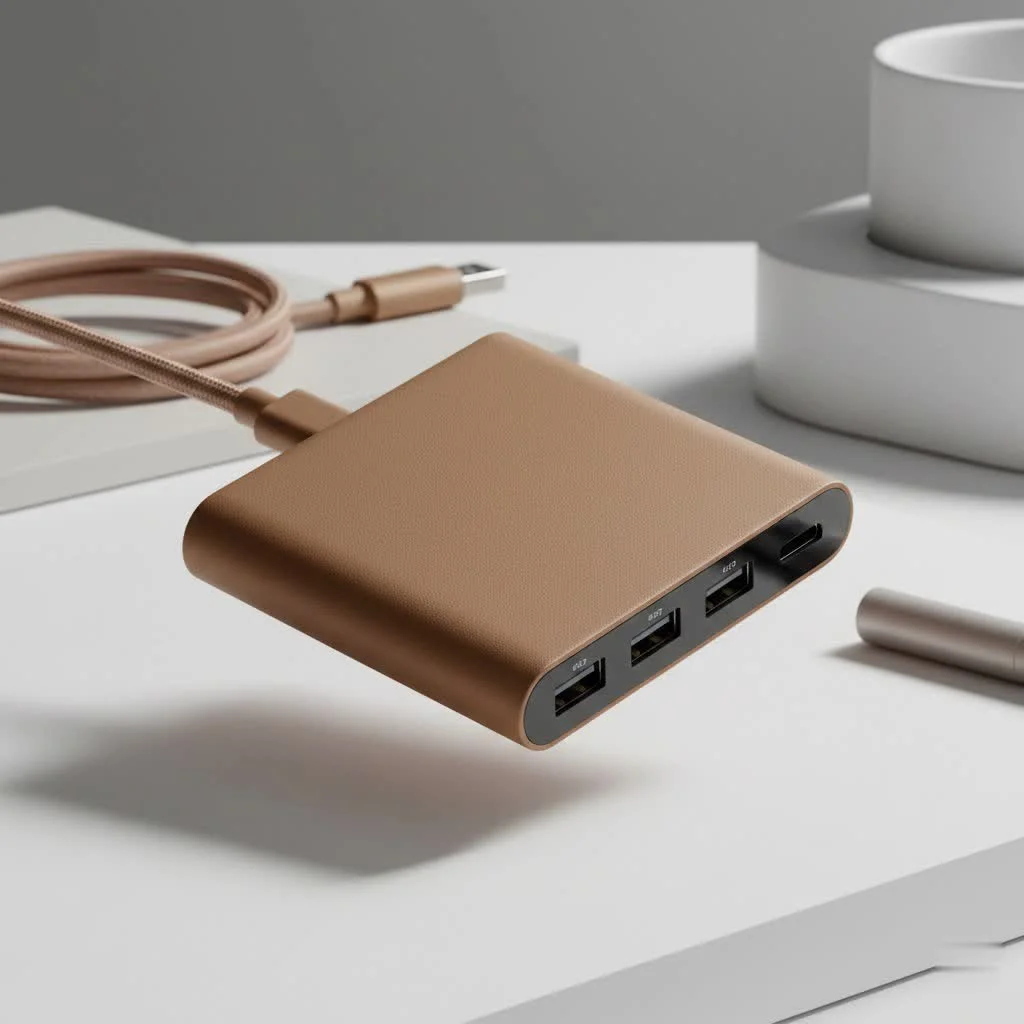
The idea is simple and elegant: a single device that connects to your computer wirelessly and allows you to plug in all your peripherals—keyboards, mice, printers, and drives—without a physical tether. It promises the ultimate clean desk setup. But how does this technology actually work, and does it live up to the hype?
What Exactly Is a Wireless USB Hub?
A wireless USB hub isn’t typically a single, simple device you buy off the shelf like its wired counterpart. Instead, the term often refers to technology known as “USB over IP” or a “Network USB Hub.” This device connects your USB peripherals to a box, which then uses your existing Wi-Fi network to make those devices available to your computer.
Think of it less as a direct wireless replacement for a USB cable and more as a server for your USB devices. Your computer installs special software that “tricks” it into thinking the USB devices connected to the hub across the network are physically plugged in. This is a more complex and powerful solution than a simple cable replacement, designed for sharing devices among multiple computers or accessing them from a distance.
How Do These Hubs Actually Work?
The magic behind a wireless USB hub lies in its ability to encapsulate USB data into network packets. Here’s a simplified breakdown of the process:
- Connection: You plug your USB devices (like a printer or scanner) into the ports on the wireless hub.
- Network Link: The hub itself is connected to your local network, usually via Wi-Fi or an Ethernet cable for stability.
- Software Bridge: You install driver software on your computer. This software detects the hub on the network.
- Virtual Connection: When you want to use a device, the software creates a virtual USB connection between your computer and the peripheral. All the data that would normally travel through a USB cable is instead sent over your Wi-Fi network.
This method is robust but introduces factors not present with a simple cable, namely network latency and bandwidth limitations.
The Pros and Cons of Going Wireless
While the dream of a completely wireless desk is alluring, wireless USB hubs come with a specific set of trade-offs. It’s crucial to understand both the benefits and the drawbacks before investing in this technology.
Advantages of a Wireless USB Hub
|
Our Picks for the Best USB Hub in 2026
As an Amazon Associate I earn from qualifying purchases.
|
||
| Num | Product | Action |
|---|---|---|
| 1 | Powered USB Hub, Wenter 11-Port USB Splitter Hub (10 Faster Data Transfer Ports+ 1 Smart Charging Port) with Individual LED On/Off Switches, USB Hub 3.0 Powered with Power Adapter for Mac, PC |

|
| 2 | Anker USB Hub 4 Ports with 5Gbps Data Transfer, Multiple USB 3.0 Hub, USB Splitter for Laptop, Extender for A Port Laptop, PC, Desktop and More [Charging Not Supported](0.7 ft USB-A) |
|
| 3 | Anker Laptop Docking Station Dual Monitor, 8-in-1 USB C Hub, 4K Dual Monitor with 2 HDMI, 1 Gbps Ethernet Hub, 85W Power Delivery, SD Card Reader for MacBook Pro, XPS and More (Charger not Included) |
|
| 4 | UGREEN USB 3.0 Hub, 4 Ports USB A Splitter Ultra-Slim USB Expander for Mouse, Keyboard, Flash Drive, U Disk, Printer Compatible with Laptop, Desktop PC, Xbox, PS5, and More |
|
| 5 | 3-in-1 USB C Splitter, 3 in 1 Type-C Charging Data Cable Data Transmission Decive Charging Adapter Power Charger Equipment for ome Office Use, Fast & Efficient |
|
| 6 | USB Hub 3.0, 7-Port USB Hub Splitter with Individual On/Off Switches and Lights, 3.2ft/1m Long Cable Compatible with MacBook, Laptop, Surface Pro, PS4, PC, Flash Drive, Mobile HDD |
|
| 7 | P9R PRO USB C Hub Ethernet, 10 in 1 USB Docking Station 10Gbps with 4K@60Hz HDMI, USB C and 2 USB A 3.2, LAN, 2 USB A 2.0, PD 100W, SD/TF Ports, USB to Ethernet Adapter for PC, iPhone 16/15, Mac |
|
| 8 | USB C Docking Station with M.2 NVMe SSD Enclosure 10Gbps, 9 in 1 USB-C Hub, Type C SSD Slot with 4K@60Hz HDMI, USB 3.2 Gen2, PD100W, SD/TF Card Reader, Laptop Docking Station for Dell/HP/Lenovo/Mac |
|
| 9 | Powered USB Hub 10Gbps, intpw 9-Port USB 3.2 Hub, USB C Hub with USB A/USB C 3.2, 4 USB 3.0, 2 PD 45W Charging Ports, 65W Power Adapter and 3.3FT Cable, Aluminum USB Hub for Laptop, iPhone 17/16/15,PC |
|
| 10 | 13 in 1 USB C Docking Station - Dual Monitor, Triple Display, 8 USB C/A Ports, Ethernet, Audio - LIONWEI USB C Hub for MacBook,Dell,HP,Lenovo,Surface |
|
- Unmatched Flexibility and Reduced Clutter: The most obvious benefit is the elimination of the USB cable connecting the hub to your computer. This allows you to place your peripherals anywhere within your Wi-Fi range, creating a cleaner and more organized workspace.
- Remote Device Access: You can access a USB device from across the room or even from another room entirely. This is incredibly useful for sharing a single printer or scanner among multiple family members or office colleagues without physically moving it.
- Centralized Device Management: In an office setting, a single network USB hub can serve multiple users, providing access to specialized equipment like plotters, scanners, or security dongles without needing to equip every workstation.
Disadvantages to Consider
- Latency and Speed: Transmitting USB data over a wireless network will always be slower than a direct wired connection. This added delay, or latency, makes wireless hubs unsuitable for devices that require real-time data transfer, such as high-resolution webcams, audio interfaces, or gaming peripherals.
- Bandwidth Limitations: Your Wi-Fi network has a finite amount of bandwidth. High-data devices like external SSDs will see a significant performance drop when connected through a wireless hub. Transferring large files will be noticeably slower compared to a direct USB 3.0 or USB-C connection.
- Power Requirements: Don’t forget that the hub itself and any connected devices that aren’t self-powered will still need to be plugged into a wall outlet. The “wireless” aspect only applies to the data connection to your computer.
- Complexity and Cost: Setting up a USB over IP system is more complicated than plugging in a standard hub. It requires software installation and network configuration. Furthermore, these devices are generally more expensive than their wired equivalents.
As our lead hardware engineer, David Chen, often notes, “The goal of a wireless USB hub is convenience, but not at the cost of performance. For high-speed data or zero-latency input, a wire is still the undefeated champion. For sharing a printer in an office? Wireless is a game-changer.”
Do You Actually Need a Wireless USB Hub?
Given the limitations, the ideal user for a wireless USB hub is not the average home user looking to connect a mouse and keyboard. Instead, this technology excels in specific scenarios.
Ideal Use Cases:
- Office Environments: Sharing non-critical peripherals like printers, scanners, and label makers among a team.
- Industrial and Technical Settings: Remotely controlling machinery, scientific instruments, or monitoring equipment that uses a USB interface.
- Specialty Home Setups: Accessing a 3D printer or a CNC machine in a workshop from a computer inside the house.
For most everyday users, the performance compromises often outweigh the convenience. If your primary goal is simply to reduce desk clutter, there are often better alternatives available.
Better Alternatives for a Cleaner Desk
If the limitations of a wireless USB hub have you reconsidering, don’t worry. There are several excellent technologies that can help you achieve a more organized, wireless-like setup without the performance penalties.
Bluetooth
For peripherals like mice, keyboards, and headphones, Bluetooth is the undisputed king. It’s a technology designed specifically for low-latency, short-range wireless connections. Nearly every modern laptop and computer has Bluetooth built-in, making it a seamless and cost-effective solution.
Docking Stations
For laptop users, a docking station is often the best of both worlds. It allows you to connect all your peripherals—monitors, keyboard, mouse, external drives, and Ethernet—to the dock. You then connect your laptop with a single USB-C or Thunderbolt cable that handles data, video, and power. It provides the tidiness of a single connection with the full speed of a wired setup.
Cloud Storage and Network-Attached Storage (NAS)
If your main goal is sharing files from an external hard drive, using cloud services like Google Drive or Dropbox is a simple wireless solution. For more advanced home users, a NAS device connects directly to your router and provides centralized, high-speed file access to all your devices on the network.
Frequently Asked Questions (FAQ)
Q: Can I use a wireless USB hub for a webcam or for streaming?
A: It is not recommended. High-resolution video streaming requires high bandwidth and very low latency. A wireless USB hub will likely introduce lag, stutter, and a significant drop in quality. A direct wired connection is best for webcams and streaming equipment.
Q: Are wireless USB hubs good for external hard drives or SSDs?
A: While they will work, your file transfer speeds will be much slower than a direct connection. A wireless hub is fine for occasional access to small files, but for large transfers or running applications from the drive, a wired connection via USB 3.0, USB 4, or Thunderbolt is far superior.
Q: Do wireless USB hubs need their own power source?
A: Yes. The hub itself needs to be plugged into a wall outlet to power its internal electronics and to provide power to any bus-powered USB devices you connect to it.
Q: What is the difference between a wireless USB hub and Bluetooth?
A: Bluetooth is a specific wireless standard designed for connecting peripherals like keyboards and mice directly to a computer over short distances. A wireless USB hub is a broader solution that uses a Wi-Fi network to make any standard USB device accessible to a computer remotely, but with more latency and setup complexity.
Q: Does Apple make a wireless USB hub?
A: No, Apple does not manufacture or sell a wireless USB hub. Their ecosystem heavily favors solutions like Bluetooth for peripherals, AirDrop for file transfers, and AirPrint for printing to achieve a wireless experience.
The Final Verdict
The concept of a wireless USB hub is incredibly appealing, promising a future free from the tyranny of cables. However, the reality of the technology today is that it serves a niche but important purpose. For industrial applications and office device-sharing, it’s an invaluable tool.
For the average user looking to declutter their desk, the performance trade-offs in speed and latency are often too great. In most cases, a combination of Bluetooth peripherals and a well-managed docking station will provide a far better and more reliable experience. By understanding the technology and its alternatives, you can make the smart choice to build a workspace that is both clean and powerful.
Get our weekly buyer guide
Practical specs, not advice. Unsubscribe anytime.
I was so tired of the cable clutter on my desk, and this guide really helped me understand the wireless USB hub concept. I picked up the recommended model for my home office, and it’s been a game-changer. My keyboard, mouse, and even my printer are all connected without a single wire to my laptop. It truly delivers on the promise of a clean desk setup.
I got a wireless hub hoping to connect my older printer, but the range isn’t quite what I expected. It works fine if the hub is right next to my computer, but if I move it even a few feet away, the connection gets a bit spotty. It’s good for my keyboard and mouse, but I was hoping for more flexibility with other peripherals.
This is exactly what I needed to hear about! My desk was a nightmare of tangled USB cables, and I honestly thought I was stuck with it. The idea of connecting all my peripherals like my keyboard and mouse wirelessly to a single device sounded too good to be true, but it totally works. My workspace looks so much better now.
I’ve been looking into these for a while, and the explanation of how the technology actually works was super helpful. I’m using one now for my external hard drives and a webcam, and the performance is surprisingly solid. I still keep a wired connection for my gaming mouse just in case, but for everything else, it’s fantastic for reducing the mess.