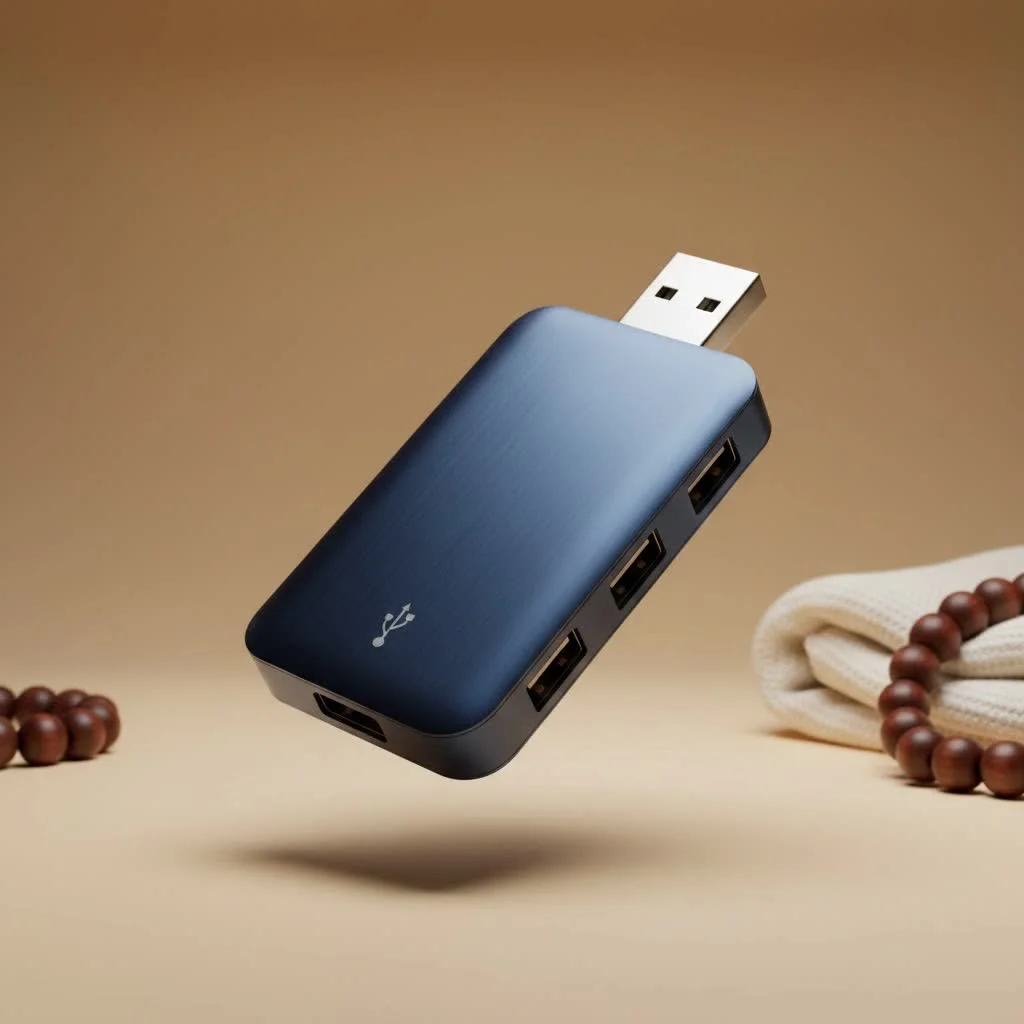
A USB-A hub is a device that expands a single USB-A port on your computer into multiple additional ports, allowing you to connect several peripherals simultaneously. Despite the emergence of newer standards like USB-C, USB-A hubs remain essential in 2025 because the vast majority of existing computer peripherals, such as keyboards, mice, and flash drives, still utilize the USB-A connector.
At Meeob, we’ve spent over a decade helping users navigate the world of connectivity. Let’s break down everything you need to know about USB-A hubs, from how they work to choosing the one that will make your digital life easier. For explore our usb hubs reviews on this site.
Understanding the Basics: What Exactly is a USB-A Hub?
Think of a USB-A hub as a power strip for your data. It’s a small device that plugs into a single USB-A port on your computer (the “upstream” connection) and instantly multiplies it into several additional USB-A ports (“downstream” ports). This allows you to connect multiple peripherals—like your keyboard, mouse, printer, webcam, and external storage—to your computer simultaneously, all through that one original port.
It acts as a central point, managing both data transfer and power distribution between your computer and all the connected gadgets. This simple expansion is a major upgrade for productivity and convenience, especially for laptop users or those with desktops tucked away under a desk.
The Great Debate: Powered vs. Unpowered USB-A Hubs
One of the most critical decisions when choosing a hub is whether to get a powered or unpowered model. They serve different needs, and picking the right one is key to avoiding connection headaches.
Unpowered (Passive) Hubs: The Simple Solution
An unpowered hub, also known as a bus-powered hub, draws all its electricity directly from the computer’s USB port it’s plugged into. This single port has to power the hub itself and every device you connect to it.
- Best for: Low-power devices like a mouse, keyboard, or flash drives.
- Pros: Highly portable, lightweight, and generally less expensive. They are perfect for travel or light, on-the-go use.
- Cons: The limited power supply can be a major issue. If you connect too many devices, or even one power-hungry device like an external hard drive, you might experience random disconnects or the device may not work at all.
Powered (Active) Hubs: The Powerhouse
A powered hub comes with its own external AC adapter that plugs into a wall outlet. This means it provides its own consistent, stable power to each connected port, rather than relying on your computer.
- Best for: High-power devices such as external hard drives, SSDs, printers, scanners, webcams, or for charging smartphones and tablets.
- Pros: Delivers stable and sufficient power to all ports simultaneously, ensuring reliable performance for demanding peripherals. You’ll never have to worry about a device disconnecting due to a lack of power.
- Cons: They are less portable due to the extra power brick and cable. They also tend to be slightly more expensive.
“I always recommend a powered hub for a primary desktop setup,” advises our lead hardware analyst, Johnathan Carter. “It eliminates guesswork. You can plug in anything from a simple mouse to a high-capacity external drive and know it will work flawlessly every time. The stability is worth the extra cable.”
Speed Matters: Navigating USB Standards (USB 2.0 vs. USB 3.0)
Not all USB-A hubs are created equal when it comes to speed. The USB standard it supports determines how quickly it can transfer data.
- USB 2.0: An older standard with a maximum data transfer speed of 480 Megabits per second (Mbps). While functional for a basic mouse or keyboard, it is painfully slow for file transfers. Transferring a large video file could take several minutes.
- USB 3.0 (also known as USB 3.2 Gen 1): The modern standard. It offers speeds of up to 5 Gigabits per second (Gbps)—more than 10 times faster than USB 2.0. That same large video file would transfer in seconds. These ports are often, but not always, colored blue to distinguish them.
Our recommendation is simple: always choose a USB-A hub that supports USB 3.0. Even if some of your devices are older USB 2.0 models, the hub is backward-compatible. Investing in a USB 3.0 hub is a future-proof choice that ensures you get the best performance from your modern devices.
How to Choose the Perfect USB-A Hub for Your Needs
Ready to pick one out? Keep these key factors in mind to find the perfect match for your setup.
1. Number of Ports
|
Our Picks for the Best USB Hub in 2026
As an Amazon Associate I earn from qualifying purchases.
|
||
| Num | Product | Action |
|---|---|---|
| 1 | Anker Laptop Docking Station Dual Monitor, 8-in-1 USB C Hub, 4K Dual Monitor with 2 HDMI, 1 Gbps Ethernet Hub, 85W Power Delivery, SD Card Reader for MacBook Pro, XPS and More (Charger not Included) |

|
| 2 | USB C Docking Station with M.2 NVMe SSD Enclosure 10Gbps, 9 in 1 USB-C Hub, Type C SSD Slot with 4K@60Hz HDMI, USB 3.2 Gen2, PD100W, SD/TF Card Reader, Laptop Docking Station for Dell/HP/Lenovo/Mac |
|
| 3 | Powered USB Hub, Wenter 11-Port USB Splitter Hub (10 Faster Data Transfer Ports+ 1 Smart Charging Port) with Individual LED On/Off Switches, USB Hub 3.0 Powered with Power Adapter for Mac, PC |
|
| 4 | 13 in 1 USB C Docking Station - Dual Monitor, Triple Display, 8 USB C/A Ports, Ethernet, Audio - LIONWEI USB C Hub for MacBook,Dell,HP,Lenovo,Surface |
|
| 5 | Powered USB Hub 10Gbps, intpw 9-Port USB 3.2 Hub, USB C Hub with USB A/USB C 3.2, 4 USB 3.0, 2 PD 45W Charging Ports, 65W Power Adapter and 3.3FT Cable, Aluminum USB Hub for Laptop, iPhone 17/16/15,PC |
|
| 6 | 3-in-1 USB C Splitter, 3 in 1 Type-C Charging Data Cable Data Transmission Decive Charging Adapter Power Charger Equipment for ome Office Use, Fast & Efficient |
|
| 7 | Anker USB Hub 4 Ports with 5Gbps Data Transfer, Multiple USB 3.0 Hub, USB Splitter for Laptop, Extender for A Port Laptop, PC, Desktop and More [Charging Not Supported](0.7 ft USB-A) |
|
| 8 | P9R PRO USB C Hub Ethernet, 10 in 1 USB Docking Station 10Gbps with 4K@60Hz HDMI, USB C and 2 USB A 3.2, LAN, 2 USB A 2.0, PD 100W, SD/TF Ports, USB to Ethernet Adapter for PC, iPhone 16/15, Mac |
|
| 9 | UGREEN USB 3.0 Hub, 4 Ports USB A Splitter Ultra-Slim USB Expander for Mouse, Keyboard, Flash Drive, U Disk, Printer Compatible with Laptop, Desktop PC, Xbox, PS5, and More |
|
| 10 | USB Hub 3.0, 7-Port USB Hub Splitter with Individual On/Off Switches and Lights, 3.2ft/1m Long Cable Compatible with MacBook, Laptop, Surface Pro, PS4, PC, Flash Drive, Mobile HDD |
|
First, consider how many devices you need to connect right now, and then add one or two more for the future. Hubs typically come with 4 to 7 ports, which is ample for most users. Avoid buying a hub with too few ports only to run out of space later.
2. Powered or Unpowered?
Refer back to our debate above. Assess your devices. If you plan to use anything that draws significant power (anything with a motor, a heating element, or a high-speed drive), a powered hub is the only reliable choice. For travel with just a mouse and a flash drive, an unpowered hub is fine.
3. Cable Length
This is a surprisingly important detail.
- For laptops: A hub with a short, attached cable (around 6 inches) is often ideal for portability and reducing clutter.
- For desktops: If your computer tower is on the floor, you’ll need a hub with a much longer cable (3 feet or more) to comfortably position it on your desk for easy access.
4. Build Quality and Material
Hubs are typically made of plastic or aluminum. While plastic hubs are cheaper, aluminum-cased hubs offer superior durability and, more importantly, better heat dissipation. A hub that gets warm during heavy use will perform more reliably if it’s in a metal casing.
5. Extra Features
Some hubs come with convenient quality-of-life features:
- Individual Port Switches: These allow you to turn off specific ports without unplugging the device, which is useful for power cycling a gadget that’s acting up.
- LED Indicators: Lights that show which ports are active and receiving power can be helpful for troubleshooting.
Is the USB-A Hub Becoming Obsolete?
With the rise of the sleek, reversible USB-C connector, it’s fair to ask if the classic USB-A hub is on its way out. The answer is a resounding no. While USB-C is the future, USB-A is the present and the past. The vast majority of computer peripherals in the world—from billions of flash drives to keyboards, mice, printers, and legacy devices—still use the USB-A connector.
A USB-A hub acts as the essential bridge, allowing your modern laptop with limited ports to connect with the massive ecosystem of devices you already own. Until the entire world transitions to USB-C, a reliable USB-A hub will remain a vital and practical accessory.
Frequently Asked Questions (FAQ)
Do USB-A hubs reduce transfer speed?
A high-quality USB 3.0 hub should not create any noticeable bottleneck or reduce speed for your devices. The total bandwidth is shared among the ports, but for most everyday uses, you won’t experience a slowdown compared to plugging a device directly into your computer.
Can I charge my phone through a USB-A hub?
Yes, but how well it charges depends on the hub. A powered hub will charge a phone much more effectively than an unpowered one. However, it may not charge as quickly as a dedicated wall charger unless the hub specifically supports a fast-charging protocol.
Will a USB 3.0 hub work in a USB 2.0 port?
Yes, it will. USB 3.0 is fully backward-compatible. However, if you plug a USB 3.0 hub into a USB 2.0 port on your computer, the entire hub and all devices connected to it will be limited to the slower USB 2.0 speed (480 Mbps).
How many USB hubs can you connect together?
While you can technically “daisy-chain” hubs by plugging one into another, it’s generally not recommended. Doing so can cause issues with power delivery and data stability. It’s always better to buy a single hub with the number of ports you need.
Are all USB-A hubs the same?
No. They differ significantly in speed (USB 2.0 vs. 3.0), power source (powered vs. unpowered), build quality, port count, and features. Choosing the right one depends on understanding your specific needs and devices.
The Final Word
In a world of shrinking port availability, the USB-A hub stands out as an indispensable tool for expanding your connectivity and boosting your productivity. By understanding the critical differences between powered and unpowered models and insisting on the USB 3.0 standard, you can easily find a hub that will seamlessly connect your digital world. It’s a small investment that pays huge dividends in convenience and efficiency.
Frequently Asked Questions
Do USB-A hubs reduce data transfer speed for connected devices?
A high-quality USB 3.0 hub should not create any noticeable bottleneck or reduce speed for your devices. While total bandwidth is shared, for most everyday uses, you won't experience a slowdown compared to plugging a device directly into your computer.
Can I charge my smartphone or tablet using a USB-A hub?
Yes, you can charge a phone through a USB-A hub, but effectiveness depends on the hub. A powered hub will charge a phone much more effectively than an unpowered one, though it may not be as fast as a dedicated wall charger unless the hub supports a fast-charging protocol.
Will a USB 3.0 hub function correctly when plugged into a USB 2.0 port?
Yes, a USB 3.0 hub will work in a USB 2.0 port because USB 3.0 is fully backward-compatible. However, the entire hub and all connected devices will be limited to the slower USB 2.0 speed, which is 480 Mbps.
How many USB hubs can be connected together in a daisy-chain configuration?
While technically possible to daisy-chain hubs, it is generally not recommended. Connecting multiple hubs can lead to issues with power delivery and data stability, making it better to use a single hub with the required number of ports.
Are there significant differences between various USB-A hub models?
Yes, USB-A hubs differ significantly in several aspects. Key distinctions include speed (USB 2.0 vs. USB 3.0), power source (powered vs. unpowered), overall build quality, the number of available ports, and additional features like individual port switches.
How to Choose the Perfect USB-A Hub
Selecting the right USB-A hub involves considering several factors to ensure it meets your connectivity and power needs for various devices.
Assess how many devices you currently need to connect and add one or two extra ports for future expansion. Most hubs offer between 4 to 7 ports, which is sufficient for the majority of users.
Evaluate your devices' power requirements. For power-hungry peripherals like external hard drives or scanners, a powered hub with an external AC adapter is essential for stable performance. For low-power devices like a mouse or flash drive, an unpowered hub is suitable.
Consider where the hub will be used. Laptops benefit from short, attached cables (around 6 inches) for portability, while desktops often require longer cables (3 feet or more) to position the hub conveniently on a desk.
Opt for hubs made of aluminum over plastic for superior durability and better heat dissipation. A metal casing helps maintain reliable performance, especially during heavy use when the hub may generate warmth.
Consider features like individual port switches, which allow you to power cycle specific devices without unplugging them. LED indicators can also be helpful for quickly identifying active ports and troubleshooting connection issues.
Get our weekly buyer guide
Practical specs, not advice. Unsubscribe anytime.

As someone who still uses a lot of older peripherals, this was super helpful. I didn’t realize how many existing devices still rely on USB-A. My new hub has made connecting my webcam, microphone, and even an old scanner so much simpler. No more reaching behind my tower to find an empty port!
Good breakdown on why USB-A hubs are still relevant. I picked up a 7-port hub after reading about the different types, and it’s working great for my desktop setup. I appreciate the advice on checking for USB 3.0 compatibility for faster data transfer, which was a key factor in my decision. My flash drives are flying now.
I was really struggling with only two USB-A ports on my laptop, especially with my external hard drive and wireless mouse dongle always plugged in. This post convinced me to finally get a powered USB-A hub, and it’s been a game-changer. Now I can connect my keyboard, printer, and even charge my fitness tracker without constantly swapping things out. Definitely makes my digital life easier!
I got a basic 4-port unpowered hub for my older PC, mostly for my keyboard and mouse. It works fine for those low-power devices, but when I tried to plug in my external SSD, it was a bit flaky. I guess I should have gone for a powered one as suggested for anything that needs more juice. It’s okay for what I use it for, but not perfect.