Running out of USB ports on your PC is a modern-day dilemma we’ve all faced. With an ever-growing collection of devices—keyboards, mice, webcams, external hard drives, smartphones, and more—the built-in ports on a desktop or laptop often fall short. This is where a hub USB PC comes to the rescue. It’s a simple yet powerful accessory that expands a single USB port into multiple, allowing you to connect all your peripherals simultaneously. But not all USB hubs are created equal. Choosing the right one is crucial for maintaining performance, ensuring device safety, and creating an organized, efficient workspace.
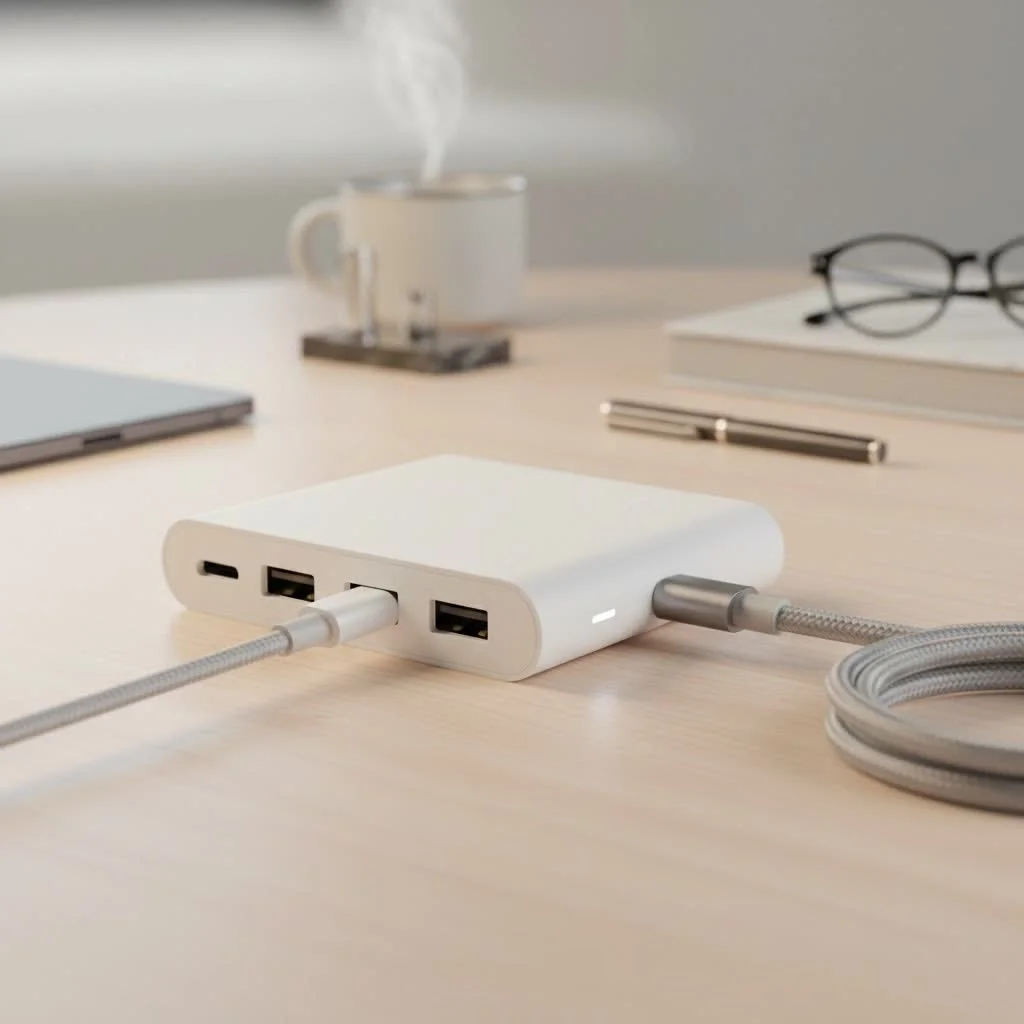
This comprehensive guide, brought to you by the experts at Meeob, will walk you through everything you need to know. We’ll explore the different types of hubs, their key features, and how to select the perfect one to meet your specific needs, ensuring you make a smart and informed purchase.
What Exactly is a USB Hub for a PC?
Think of a USB hub as a power strip for your data devices. It’s a small, external device that plugs into one of your computer’s USB ports and offers several additional ports to connect more peripherals. A hub USB PC is an essential tool for anyone looking to declutter their desk, improve connectivity, and streamline their workflow. Whether you’re a gamer with multiple accessories, a professional with a complex workstation, or a casual user who just needs a few extra ports, the right hub can make a world of difference.
Powered vs. Non-Powered USB Hubs: Which One Do You Need?
One of the first and most important decisions you’ll make is choosing between a powered and a non-powered (or bus-powered) hub. The choice directly impacts what kind of devices you can connect reliably.
Non-Powered (Bus-Powered) Hubs
A non-powered hub draws all its electricity directly from the host computer through the USB port it’s connected to. This means it has a limited power budget to share among all the connected devices.
- Best For: Low-power devices like mice, keyboards, flash drives, and game controllers.
- Pros: Highly portable, compact, and requires no extra power adapter or wall outlet.
- Cons: Not suitable for high-power devices. Connecting too many peripherals, or even one power-hungry one, can lead to disconnections or malfunctions.
Powered (Self-Powered) Hubs
A powered USB hub comes with its own external AC adapter that plugs into a wall outlet. This provides dedicated power to the hub and its ports, ensuring each connected device gets the electricity it needs to function correctly without draining your PC’s resources.
- Best For: High-power devices like external hard drives (HDDs), SSDs, webcams, printers, and for charging smartphones or tablets.
- Pros: Provides stable power for all connected devices, prevents performance issues, and allows you to use all ports simultaneously with any type of peripheral.
- Cons: Less portable due to the extra power brick and requires a nearby wall outlet.
As a general rule, a powered hub is almost always the safer and more versatile choice. “When in doubt, go with a powered hub,” advises tech expert David Chen. “It eliminates power-related instability, which is the most common point of failure for peripherals connected through a hub. It’s a small investment for peace of mind and reliable performance.”
Understanding USB Standards: USB 2.0, 3.0, and USB-C
The USB standard of the hub determines its data transfer speed. Using the wrong one can create a significant bottleneck, slowing down your devices.
USB 2.0 Hubs
|
Our Picks for the Best USB Hub in 2026
As an Amazon Associate I earn from qualifying purchases.
|
||
| Num | Product | Action |
|---|---|---|
| 1 | P9R PRO USB C Hub Ethernet, 10 in 1 USB Docking Station 10Gbps with 4K@60Hz HDMI, USB C and 2 USB A 3.2, LAN, 2 USB A 2.0, PD 100W, SD/TF Ports, USB to Ethernet Adapter for PC, iPhone 16/15, Mac |

|
| 2 | USB C Docking Station with M.2 NVMe SSD Enclosure 10Gbps, 9 in 1 USB-C Hub, Type C SSD Slot with 4K@60Hz HDMI, USB 3.2 Gen2, PD100W, SD/TF Card Reader, Laptop Docking Station for Dell/HP/Lenovo/Mac |
|
| 3 | Anker USB Hub 4 Ports with 5Gbps Data Transfer, Multiple USB 3.0 Hub, USB Splitter for Laptop, Extender for A Port Laptop, PC, Desktop and More [Charging Not Supported](0.7 ft USB-A) |
|
| 4 | Anker Laptop Docking Station Dual Monitor, 8-in-1 USB C Hub, 4K Dual Monitor with 2 HDMI, 1 Gbps Ethernet Hub, 85W Power Delivery, SD Card Reader for MacBook Pro, XPS and More (Charger not Included) |
|
| 5 | USB Hub 3.0, 7-Port USB Hub Splitter with Individual On/Off Switches and Lights, 3.2ft/1m Long Cable Compatible with MacBook, Laptop, Surface Pro, PS4, PC, Flash Drive, Mobile HDD |
|
| 6 | 3-in-1 USB C Splitter, 3 in 1 Type-C Charging Data Cable Data Transmission Decive Charging Adapter Power Charger Equipment for ome Office Use, Fast & Efficient |
|
| 7 | Powered USB Hub 10Gbps, intpw 9-Port USB 3.2 Hub, USB C Hub with USB A/USB C 3.2, 4 USB 3.0, 2 PD 45W Charging Ports, 65W Power Adapter and 3.3FT Cable, Aluminum USB Hub for Laptop, iPhone 17/16/15,PC |
|
| 8 | 13 in 1 USB C Docking Station - Dual Monitor, Triple Display, 8 USB C/A Ports, Ethernet, Audio - LIONWEI USB C Hub for MacBook,Dell,HP,Lenovo,Surface |
|
| 9 | Powered USB Hub, Wenter 11-Port USB Splitter Hub (10 Faster Data Transfer Ports+ 1 Smart Charging Port) with Individual LED On/Off Switches, USB Hub 3.0 Powered with Power Adapter for Mac, PC |
|
| 10 | UGREEN USB 3.0 Hub, 4 Ports USB A Splitter Ultra-Slim USB Expander for Mouse, Keyboard, Flash Drive, U Disk, Printer Compatible with Laptop, Desktop PC, Xbox, PS5, and More |
|
This is an older standard offering a maximum data transfer speed of 480 Mbps (megabits per second). While largely obsolete for data-heavy tasks, it’s still perfectly adequate for basic peripherals.
- Use Case: Connecting simple devices like a mouse, keyboard, or a printer where speed is not a critical factor.
- Recommendation: Generally, avoid buying a new USB 2.0 hub unless you have a very specific, low-demand need.
USB 3.0 / 3.1 / 3.2 Hubs
Often referred to by their marketing names like SuperSpeed USB 5Gbps or 10Gbps, these hubs are the modern standard. USB 3.0 offers speeds up to 5 Gbps (gigabits per second), which is over ten times faster than USB 2.0.
- Use Case: Ideal for connecting external hard drives, SSDs, high-resolution webcams, and for fast data transfers.
- Recommendation: This should be the minimum standard for any hub USB PC you purchase today. They are backward compatible, so your older USB 2.0 devices will work perfectly fine.
USB-C Hubs
USB-C refers to the physical connector type, not the speed itself. It’s the modern, oval-shaped, reversible connector found on most new laptops and many desktops. USB-C hubs can support various protocols, including USB 3.1/3.2, Thunderbolt, DisplayPort, and Power Delivery (PD).
- Use Case: Essential for modern laptops with limited ports. Many USB-C hubs are multi-port adapters that include HDMI, Ethernet, and SD card reader slots in addition to USB-A ports.
- Recommendation: If your PC has a USB-C or Thunderbolt port, a USB-C hub is the most future-proof and versatile option available.
How to Choose the Right USB Hub for Your PC
Selecting the perfect hub involves assessing your specific needs. Here’s a step-by-step guide to help you decide.
Step 1: Count Your Devices
Make a list of all the USB peripherals you use regularly and any you plan to add in the future. This will help you determine the number of ports you need. It’s always wise to choose a hub with one or two more ports than you currently require to accommodate future growth.
Step 2: Identify Your Device Power Needs
Look at your list of devices and identify which ones are high-power. Do you use an external HDD? Do you charge your phone at your desk? If you have even one high-power device, a powered USB hub is the best choice.
Step 3: Check Your PC’s Ports
Identify the type of USB ports on your computer. If you have traditional rectangular USB-A ports, you’ll need a USB-A hub. If you have the newer oval USB-C ports, a USB-C hub is the way to go.
Step 4: Consider Data Transfer Speeds
For anything other than basic keyboards and mice, a USB 3.0 hub (or higher) is essential. If you frequently transfer large files from external drives, the speed difference between USB 2.0 and USB 3.0 will be immediately noticeable and save you a significant amount of time.
Step 5: Think About Additional Features
Do you need more than just extra USB ports? Many modern hubs, especially USB-C models, are multi-function devices. Consider if you could benefit from:
- HDMI or DisplayPort: To connect an external monitor.
- Ethernet Port: For a stable, wired internet connection.
- SD/MicroSD Card Reader: For transferring photos and videos from cameras.
- Power Delivery (PD): A feature on USB-C hubs that allows you to charge your laptop through the hub itself.
Frequently Asked Questions (FAQ)
Will a USB hub slow down my PC or peripherals?
A high-quality, powered USB 3.0 hub will not noticeably slow down your devices for everyday use. All devices on the hub share the bandwidth of the single host port it’s connected to, but for most peripherals like keyboards, mice, and webcams, this is more than sufficient. You might see a slight speed decrease if you are running multiple high-speed external drives simultaneously.
Can I plug a USB hub into another USB hub?
This is called “daisy-chaining.” While technically possible, it is generally not recommended. Doing so can cause power instability and significant performance degradation. It’s always better to connect your hub directly to a port on your computer.
How many ports should my USB hub have?
This depends on your needs, but a 4-port or 7-port hub is a great starting point for most users. It provides a good balance between size and functionality. Always opt for a hub with at least one or two more ports than you think you need right now.
Are all USB-C hubs the same?
No. USB-C is just the connector shape. The capabilities of the hub, such as its data speed (e.g., 5Gbps vs 10Gbps), video output support (HDMI 4K@30Hz vs 4K@60Hz), and Power Delivery wattage, can vary significantly. Always check the technical specifications before buying.
Does the cable length of the hub matter?
Yes, it can. For desktop PCs, a hub with a longer cable (3 ft or more) provides more flexibility for placement on your desk. For laptops, a shorter, more integrated cable is often more convenient for travel and a clean setup.
Conclusion: Expand Your Connectivity with Confidence
A hub USB PC is no longer just a convenience; it’s an essential component of a modern computer setup. By understanding the key differences between powered and non-powered models, recognizing the importance of USB standards, and carefully assessing your own device ecosystem, you can choose a hub that not only adds ports but also enhances your productivity.
From basic expansion for a simple desktop to a complex multi-function dock for a power-user laptop, the right hub will simplify your cable management and ensure all your peripherals perform reliably. Take the time to invest in a quality hub from a reputable brand—it’s a small price to pay for a more organized, efficient, and powerful workstation.
Get our weekly buyer guide
Practical specs, not advice. Unsubscribe anytime.
I never realized how much of a mess my desk was until I read about cable management with USB hubs. I used to have cables everywhere! I picked up a hub with individual power switches for each port, and it’s fantastic. Not only does it keep things tidy, but I can also easily turn off power to devices I’m not using without unplugging them. Highly recommend for an organized workspace.
I was constantly juggling my external hard drive and webcam because my laptop only has two USB ports. This guide really helped me understand the difference between powered and unpowered hubs. I ended up getting a powered USB 3.0 hub, and it’s been a game-changer for my home office setup. Everything connects seamlessly now, and I don’t have to worry about devices disconnecting.
My biggest issue was always slow data transfer when I had multiple devices plugged into a cheap hub. The section on USB 3.0 vs. USB 2.0 speeds was super helpful. I invested in a higher-quality USB 3.0 hub, and the difference is noticeable, especially when transferring large files from my external SSD. It’s definitely worth spending a little more for the speed.
I got a hub based on the recommendations for connecting multiple peripherals like a keyboard and mouse. While it works fine for those, I found that when I tried to charge my phone through it, the charging was really slow. It’s okay for basic connections, but I was hoping for a bit more power delivery for charging devices. Still, it solved my port shortage.