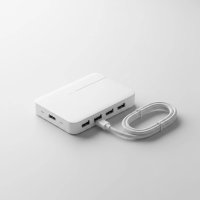
Are you juggling a modern laptop with a frustrating lack of ports? You have a presentation to give, but your sleek ultrabook has no HDMI port. You want to transfer photos, but there’s no SD card reader. This is a common problem in an era of minimalist design, but the solution is simple and powerful: an HDMI hub USB adapter. This small device is the key to unlocking your laptop’s full potential, transforming a single USB-C port into a versatile workstation.
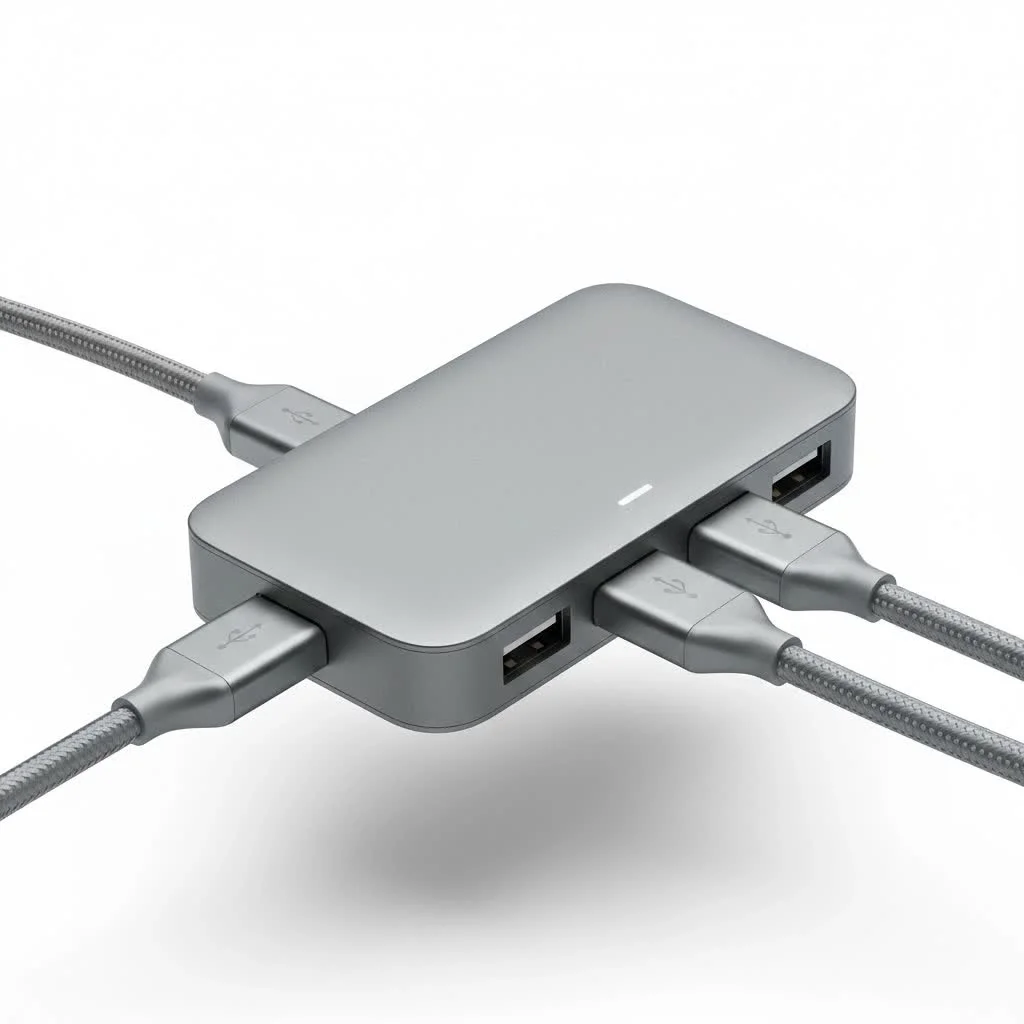
At Meeob, we’ve spent years testing and analyzing these essential accessories. This guide will walk you through everything you need to know, from understanding the technology to choosing the perfect hub for your setup.
What Exactly Is an HDMI USB Hub?
An HDMI USB hub, often called a multiport adapter or a mini docking station, is a device that expands the connectivity of your computer. It plugs into a single port—typically USB-C or Thunderbolt—and provides a variety of other ports. The defining feature, of course, is the inclusion of at least one HDMI port, allowing you to connect your laptop to an external monitor, TV, or projector.
Beyond HDMI, these hubs commonly include:
- USB-A ports: For connecting legacy devices like keyboards, mice, and flash drives.
- USB-C ports: Often one for data transfer and another for Power Delivery (PD), which lets you charge your laptop through the hub itself.
- SD and microSD card readers: A must-have for photographers and videographers.
- Ethernet port: For a stable, wired internet connection when Wi-Fi is unreliable.
- 3.5mm audio jack: For connecting headphones or speakers.
Think of it as a Swiss Army knife for your computer, consolidating all your connection needs into one compact, portable gadget.
Key Features to Look for in an HDMI USB Hub
Not all hubs are created equal. The market is flooded with options, and the technical specifications on the box can be confusing. To make an informed decision, you need to focus on the features that matter most for your specific needs.
HDMI Port: Resolution and Refresh Rate are Crucial
The performance of the HDMI port is arguably the most important factor. You need to look at two key numbers: resolution and refresh rate.
- Resolution: This determines the clarity and detail of the image. 4K (3840 x 2160 pixels) is the standard for modern displays. While some older or cheaper hubs may only support 1080p, investing in a 4K-capable hub is wise for future-proofing.
- Refresh Rate (Hz): This indicates how many times per second the image on the screen is updated. A higher refresh rate results in smoother motion. The most common options are 30Hz and 60Hz.
4K at 30Hz vs. 4K at 60Hz: Why it Matters
A hub that supports 4K at 30Hz is fine for watching movies or static presentations, but you’ll notice a significant lag or “choppiness” when moving your mouse cursor or scrolling through web pages. For general productivity, video editing, or casual gaming, 4K at 60Hz is the gold standard. It provides a fluid, responsive experience that’s much easier on the eyes.
As our Senior Tech Analyst, Alex Porter, often says, “Choosing a 4K@30Hz hub is like buying a sports car and only driving it in first gear. You’re not getting the performance you paid for. Always opt for 60Hz if you plan on using your external monitor for more than an hour a day.”
USB-C Power Delivery (PD): Charge While You Work
|
Our Picks for the Best USB Hub in 2026
As an Amazon Associate I earn from qualifying purchases.
|
||
| Num | Product | Action |
|---|---|---|
| 1 | Powered USB Hub, Wenter 11-Port USB Splitter Hub (10 Faster Data Transfer Ports+ 1 Smart Charging Port) with Individual LED On/Off Switches, USB Hub 3.0 Powered with Power Adapter for Mac, PC |

|
| 2 | Anker Laptop Docking Station Dual Monitor, 8-in-1 USB C Hub, 4K Dual Monitor with 2 HDMI, 1 Gbps Ethernet Hub, 85W Power Delivery, SD Card Reader for MacBook Pro, XPS and More (Charger not Included) |
|
| 3 | UGREEN USB 3.0 Hub, 4 Ports USB A Splitter Ultra-Slim USB Expander for Mouse, Keyboard, Flash Drive, U Disk, Printer Compatible with Laptop, Desktop PC, Xbox, PS5, and More |
|
| 4 | P9R PRO USB C Hub Ethernet, 10 in 1 USB Docking Station 10Gbps with 4K@60Hz HDMI, USB C and 2 USB A 3.2, LAN, 2 USB A 2.0, PD 100W, SD/TF Ports, USB to Ethernet Adapter for PC, iPhone 16/15, Mac |
|
| 5 | 3-in-1 USB C Splitter, 3 in 1 Type-C Charging Data Cable Data Transmission Decive Charging Adapter Power Charger Equipment for ome Office Use, Fast & Efficient |
|
| 6 | USB Hub 3.0, 7-Port USB Hub Splitter with Individual On/Off Switches and Lights, 3.2ft/1m Long Cable Compatible with MacBook, Laptop, Surface Pro, PS4, PC, Flash Drive, Mobile HDD |
|
| 7 | 13 in 1 USB C Docking Station - Dual Monitor, Triple Display, 8 USB C/A Ports, Ethernet, Audio - LIONWEI USB C Hub for MacBook,Dell,HP,Lenovo,Surface |
|
| 8 | Powered USB Hub 10Gbps, intpw 9-Port USB 3.2 Hub, USB C Hub with USB A/USB C 3.2, 4 USB 3.0, 2 PD 45W Charging Ports, 65W Power Adapter and 3.3FT Cable, Aluminum USB Hub for Laptop, iPhone 17/16/15,PC |
|
| 9 | Anker USB Hub 4 Ports with 5Gbps Data Transfer, Multiple USB 3.0 Hub, USB Splitter for Laptop, Extender for A Port Laptop, PC, Desktop and More [Charging Not Supported](0.7 ft USB-A) |
|
| 10 | USB C Docking Station with M.2 NVMe SSD Enclosure 10Gbps, 9 in 1 USB-C Hub, Type C SSD Slot with 4K@60Hz HDMI, USB 3.2 Gen2, PD100W, SD/TF Card Reader, Laptop Docking Station for Dell/HP/Lenovo/Mac |
|
Many modern laptops, especially MacBooks and ultrabooks, use a USB-C port for charging. An HDMI hub USB with Power Delivery passthrough allows you to plug your laptop’s charger into the hub, which then charges the laptop while still powering the hub and all connected devices. This is a critical feature, as it means you don’t lose your only charging port just to connect a display. Look for hubs that support at least 60W of power delivery, with 100W being ideal for more powerful laptops like the MacBook Pro.
Data Transfer Speeds
The speed of the USB-A and USB-C data ports determines how quickly you can transfer files. Look for hubs that specify USB 3.0, USB 3.1, or USB 3.2, which offer speeds of 5 Gigabits per second (Gbps) or 10 Gbps. This is significantly faster than the older USB 2.0 standard (480 Mbps) and makes a huge difference when transferring large files like videos or photo libraries from an external hard drive.
Build Quality and Portability
Since you’ll likely be carrying your hub with you, build quality is important. Aluminum casings are a popular choice as they are durable and help dissipate heat, which these hubs can generate under heavy load. Also, consider the length and flexibility of the built-in cable. A short, stiff cable can be awkward and put stress on your laptop’s port.
Choosing the Right HDMI USB Hub for You
The best hub depends entirely on your workflow. Here’s a quick breakdown to help you decide.
| User Profile | Must-Have Features | Nice-to-Have Features |
|---|---|---|
| The Remote Worker | HDMI (4K@60Hz), USB-C PD (60W+), multiple USB-A ports | Ethernet port, SD card reader |
| The Content Creator | HDMI (4K@60Hz), SD/microSD card reader (UHS-II), USB 3.1 (10Gbps) | Multiple display outputs, 3.5mm audio jack |
| The Student | HDMI (1080p or 4K@30Hz), USB-A, USB-C PD | Compact size, lightweight design |
| The Gamer | HDMI 2.1 (for 4K@120Hz), Ethernet port, USB 3.1 | High-wattage Power Delivery |
Common Problems and Quick Fixes
Even the best HDMI hub USB can sometimes act up. Before you panic, try these simple troubleshooting steps:
- Check Your Laptop’s USB-C Port: Not all USB-C ports are created equal. To output video, the port must support DisplayPort Alternate Mode (DP Alt Mode) or be a Thunderbolt 3/4 port. Check your laptop’s specifications or look for a small DisplayPort (D) or Thunderbolt (lightning bolt) symbol next to the port.
- Reconnect Everything: The classic “turn it off and on again” method works wonders. Unplug the hub from your laptop, unplug all peripherals from the hub, and then plug everything back in, starting with the hub itself.
- Update Your Drivers: Ensure your computer’s graphics drivers and operating system are up to date. Sometimes a simple software update can resolve compatibility issues.
- Try a Different HDMI Cable: The cable itself can be the point of failure. Test with a known-good HDMI cable that supports the resolution and refresh rate you’re aiming for.
Frequently Asked Questions (FAQ)
Can a USB hub have an HDMI port?
Yes, absolutely. These devices are specifically designed for this purpose and are commonly known as USB-C multiport adapters or HDMI hubs. They use the technology built into modern USB-C and Thunderbolt ports to transmit video signals.
Do all USB-C ports support HDMI output?
No, and this is a critical point. A USB-C port must support DisplayPort Alternate Mode (DP Alt Mode) to output a video signal to an HDMI display. Always check your device’s specifications before purchasing a hub.
Will a USB hub reduce HDMI quality?
A well-made hub will not reduce video quality. It simply acts as a converter for the video signal your laptop is already outputting. However, a low-quality hub or cable could cause issues like flickering, signal drops, or an inability to achieve the advertised resolution and refresh rate.
How many monitors can I connect with an HDMI hub?
Most standard HDMI USB hubs have a single HDMI port for one external monitor. More advanced docking stations, particularly those using Thunderbolt technology, can support two or even three external displays, but they are larger and more expensive.
Do I need to install drivers for an HDMI USB hub?
The vast majority of modern hubs are “plug and play.” They use standard drivers already built into Windows, macOS, and ChromeOS. You should be able to plug it in and have it work within seconds without needing to install any additional software.
Conclusion: Expand Your Horizons
An HDMI hub USB is no longer a niche accessory; it’s an essential tool for anyone using a modern laptop. It bridges the gap between portability and productivity, allowing you to connect to a world of peripherals with a single, simple connection. By understanding the key features like 4K@60Hz support, Power Delivery, and high-speed data transfer, you can choose a hub that not only meets your current needs but also prepares you for the technology of tomorrow. Don’t let a lack of ports limit your potential—unleash your laptop’s true power and expand your digital workspace.
Get our weekly buyer guide
Practical specs, not advice. Unsubscribe anytime.