The best USB hub for your setup is a small device that transforms a single computer port into multiple ports, allowing you to connect various peripherals simultaneously. It expands connectivity, bridges the gap between older USB-A devices and newer USB-C laptops, improves organization by consolidating cables, and adds functionality like Ethernet or HDMI ports. For example, a powered USB 3.0 hub with a mix of USB-A and USB-C ports offers a balance of performance and versatility for most users.
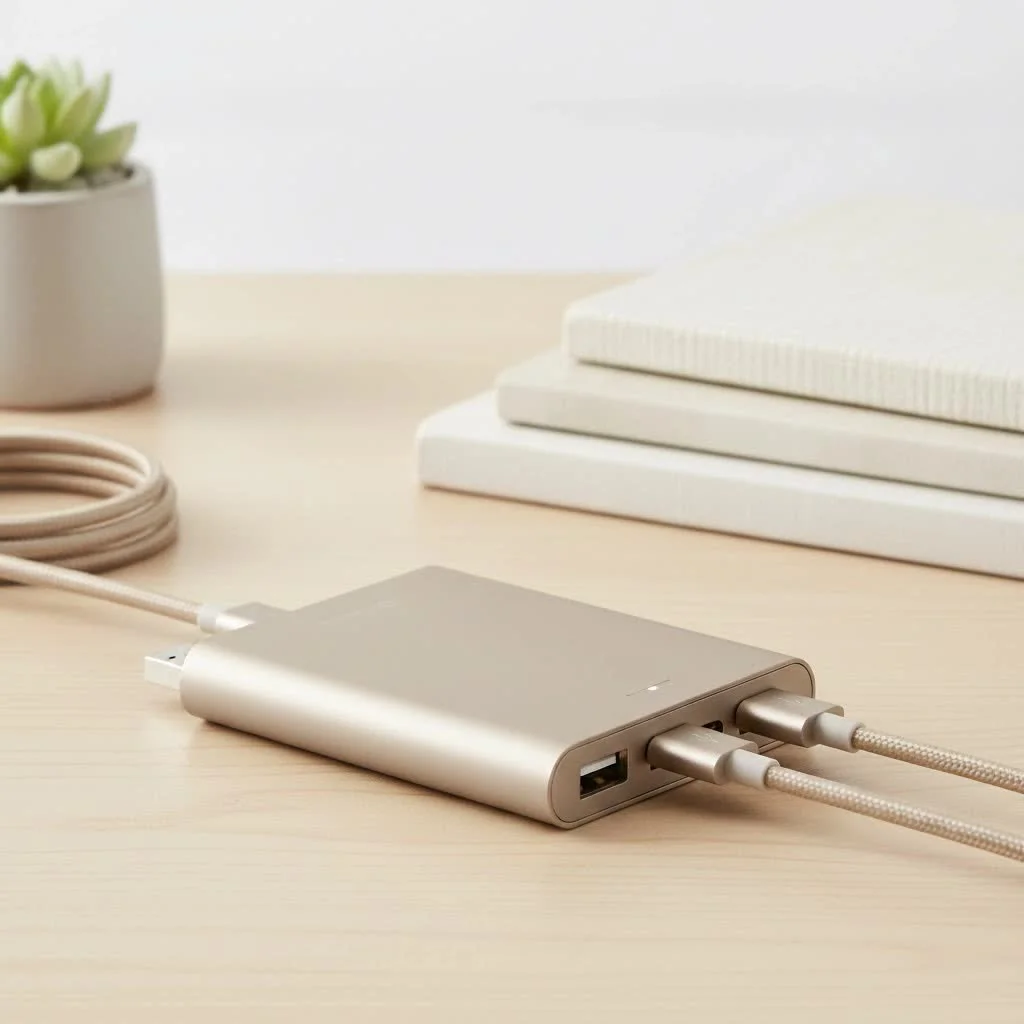
As the team behind Meeob.com, we’ve spent over a decade testing and analyzing every type of USB hub imaginable. This guide distills that experience into a straightforward, no-nonsense resource to help you expand your connectivity, declutter your workspace, and boost your productivity.
Why Do You Even Need a USB Hub?
Modern laptops, especially models like the MacBook Air or Dell XPS, prioritize portability, often at the expense of connectivity. You might get one or two USB-C ports, and that’s it. A USB hub solves this problem instantly. It acts as a splitter, turning one USB port on your computer into multiple ports, allowing you to connect everything you need simultaneously—from legacy USB-A devices to 4K monitors and SD cards.
The core benefits are clear:
- Expand Connectivity: Connect more devices than your computer allows natively.
- Bridge the Gap: Use older USB-A peripherals with new USB-C-only laptops.
- Improve Organization: Consolidate all your cables into one central hub for a cleaner desk.
- Add Functionality: Gain ports your laptop lacks, such as Ethernet, HDMI, or SD card readers.
Key Factors When Choosing the Best USB Hub
Navigating the world of USB hubs can feel overwhelming with all the technical jargon. Let’s break down the most important features to consider so you can make an informed decision.
Powered vs. Non-Powered: The Power Question
One of the first decisions you’ll face is whether to get a powered or non-powered (also called “bus-powered”) hub.
- Non-Powered Hubs: These draw all their power directly from the host computer’s USB port. They are perfect for low-power devices like a mouse, keyboard, or flash drive. They are typically smaller, cheaper, and more portable. However, they can struggle if you connect too many devices or a single high-draw peripheral.
- Powered Hubs: These come with their own AC adapter that plugs into a wall outlet. This external power source ensures that every port delivers its maximum, stable power. A powered hub is essential if you plan to connect devices that require significant power, such as external hard drives, webcams, printers, or if you want to charge your smartphone.
“Think of it this way,” advises David Chen, Lead Hardware Analyst at Meeob.com. “A non-powered hub is like a power strip for small lamps, while a powered hub is what you need to run a refrigerator and a microwave. For anything that stores data or requires stable performance, always go with a powered hub.”
USB Standards: Decoding the Speeds
|
Our Picks for the Best USB Hub in 2026
As an Amazon Associate I earn from qualifying purchases.
|
||
| Num | Product | Action |
|---|---|---|
| 1 | Anker USB Hub 4 Ports with 5Gbps Data Transfer, Multiple USB 3.0 Hub, USB Splitter for Laptop, Extender for A Port Laptop, PC, Desktop and More [Charging Not Supported](0.7 ft USB-A) |
 on Amazon](https://meeob.com/wp-content/plugins/amazon-tables/assets/images/buy.png)
|
| 2 | Anker Laptop Docking Station Dual Monitor, 8-in-1 USB C Hub, 4K Dual Monitor with 2 HDMI, 1 Gbps Ethernet Hub, 85W Power Delivery, SD Card Reader for MacBook Pro, XPS and More (Charger not Included) |
|
| 3 | USB C Docking Station with M.2 NVMe SSD Enclosure 10Gbps, 9 in 1 USB-C Hub, Type C SSD Slot with 4K@60Hz HDMI, USB 3.2 Gen2, PD100W, SD/TF Card Reader, Laptop Docking Station for Dell/HP/Lenovo/Mac |
|
| 4 | Powered USB Hub 10Gbps, intpw 9-Port USB 3.2 Hub, USB C Hub with USB A/USB C 3.2, 4 USB 3.0, 2 PD 45W Charging Ports, 65W Power Adapter and 3.3FT Cable, Aluminum USB Hub for Laptop, iPhone 17/16/15,PC |
|
| 5 | Powered USB Hub, Wenter 11-Port USB Splitter Hub (10 Faster Data Transfer Ports+ 1 Smart Charging Port) with Individual LED On/Off Switches, USB Hub 3.0 Powered with Power Adapter for Mac, PC |
|
| 6 | 13 in 1 USB C Docking Station - Dual Monitor, Triple Display, 8 USB C/A Ports, Ethernet, Audio - LIONWEI USB C Hub for MacBook,Dell,HP,Lenovo,Surface |
|
| 7 | P9R PRO USB C Hub Ethernet, 10 in 1 USB Docking Station 10Gbps with 4K@60Hz HDMI, USB C and 2 USB A 3.2, LAN, 2 USB A 2.0, PD 100W, SD/TF Ports, USB to Ethernet Adapter for PC, iPhone 16/15, Mac |
|
| 8 | UGREEN USB 3.0 Hub, 4 Ports USB A Splitter Ultra-Slim USB Expander for Mouse, Keyboard, Flash Drive, U Disk, Printer Compatible with Laptop, Desktop PC, Xbox, PS5, and More |
|
| 9 | USB Hub 3.0, 7-Port USB Hub Splitter with Individual On/Off Switches and Lights, 3.2ft/1m Long Cable Compatible with MacBook, Laptop, Surface Pro, PS4, PC, Flash Drive, Mobile HDD |
|
| 10 | 3-in-1 USB C Splitter, 3 in 1 Type-C Charging Data Cable Data Transmission Decive Charging Adapter Power Charger Equipment for ome Office Use, Fast & Efficient |
|
You’ll see terms like USB 2.0, USB 3.0, and USB 3.2. These standards refer to the data transfer speed the hub’s ports can support.
- USB 2.0: An older standard with a maximum speed of 480 Mbps. It’s fine for keyboards and mice but will be a significant bottleneck for transferring files. Avoid this unless your needs are extremely basic.
- USB 3.0 (also known as USB 3.1 Gen 1 or USB 3.2 Gen 1): This is the modern standard, offering speeds up to 5 Gbps. It’s about ten times faster than USB 2.0 and is ideal for speedy file transfers from external drives and flash drives.
- USB 3.1 Gen 2 (or USB 3.2 Gen 2): This version doubles the speed to 10 Gbps, which is fantastic for professionals working with large video files or running operating systems from an external SSD.
- USB4 & Thunderbolt: These are the latest and fastest standards, often found on premium USB-C hubs. They offer speeds up to 40 Gbps and can support multiple high-resolution displays and other high-bandwidth devices.
Port Selection: What Do You Need to Connect?
The best usb hub for you is the one that has the ports you actually need. Take inventory of your peripherals before you buy.
- USB-A: The classic rectangular port. Essential for connecting most keyboards, mice, flash drives, and older devices.
- USB-C: The newer, smaller, reversible port. Many modern hubs use this to connect to the computer and may also offer additional USB-C ports for data or power delivery.
- HDMI/DisplayPort: Crucial if you want to connect one or more external monitors. Check the hub’s specifications for supported resolutions and refresh rates (e.g., 4K at 60Hz).
- Ethernet: A must-have for gamers, streamers, or anyone who needs a more stable and faster internet connection than Wi-Fi can provide.
- SD/microSD Card Readers: Indispensable for photographers, videographers, and drone pilots who need to transfer files from their cameras quickly.
- Power Delivery (PD): A feature found in many USB-C hubs that allows the hub to pass power through to your laptop, charging it while the hub is in use. Check the wattage (e.g., 60W, 100W) to ensure it’s sufficient for your laptop.
Build Quality and Cable Length
Don’t overlook the physical design. A hub made of aluminum will dissipate heat better and be more durable than a cheap plastic one. The length of the built-in cable is also important. A short cable might be fine for laptop use, but if you have a desktop computer, you might need a hub with a longer cable to reach your tower.
Frequently Asked Questions (FAQ)
What is the difference between a USB hub and a docking station?
A USB hub primarily focuses on expanding the number of USB ports you have. A docking station is a more robust solution that aims to turn a laptop into a full desktop setup, often including a wider variety of video outputs, more power, and sometimes even proprietary connectors.
Can a USB hub slow down my devices?
A hub itself doesn’t inherently slow things down, but it does share the bandwidth of the single port it’s connected to. If you connect multiple high-speed devices (like two external SSDs) to a hub and use them simultaneously, you might see a reduction in speed compared to plugging them directly into separate ports on your computer.
Do all USB hubs need to be plugged into a wall outlet?
No, only powered USB hubs need to be plugged in. Non-powered (bus-powered) hubs draw their energy directly from the computer they are connected to.
Will any USB-C hub charge my laptop?
No. For a hub to charge your laptop, it must support USB Power Delivery (PD). You will also need to connect your laptop’s original USB-C charger to the hub’s designated PD input port.
How many devices can I connect to a USB hub?
Theoretically, the USB standard supports up to 127 devices, but in practice, you are limited by the number of ports on the hub and the total power and bandwidth available from the host computer’s port.
The Final Word on Your Perfect Hub
Choosing the best usb hub isn’t about finding the one with the most ports or the highest price tag; it’s about identifying your specific needs and finding a reliable device that meets them. For most users, a powered USB 3.0 hub with a mix of USB-A and USB-C ports offers the perfect balance of performance and versatility. If you’re a creative professional or a power user, investing in a hub with 10 Gbps speeds, 4K video output, and Power Delivery will be a major upgrade for your workflow.
Take a moment to assess the devices you use every day, consider the connections you’ll need in the future, and use this guide to select a hub that will serve you well for years to come.
Frequently Asked Questions
What is the primary difference between a USB hub and a docking station?
A USB hub primarily expands the number of USB ports available, while a docking station is a more comprehensive solution designed to transform a laptop into a full desktop setup. Docking stations typically offer a wider variety of video outputs, more power, and sometimes proprietary connectors beyond just USB ports.
Can using a USB hub negatively impact the speed of my connected devices?
A USB hub itself does not inherently slow down devices, but it shares the bandwidth of the single port it connects to on your computer. If you connect multiple high-speed devices, such as two external SSDs, and use them simultaneously through the hub, you might observe a reduction in speed compared to plugging them directly into separate ports on your computer.
Is it always necessary for a USB hub to be plugged into a wall outlet?
No, not all USB hubs require a wall outlet connection. Only powered USB hubs need to be plugged into an external AC adapter for power. Non-powered, or bus-powered, hubs draw all their necessary energy directly from the USB port of the host computer they are connected to.
Will any USB-C hub provide charging capabilities for my laptop?
No, not every USB-C hub can charge your laptop. For a USB-C hub to charge your laptop, it must specifically support USB Power Delivery (PD). Additionally, you will need to connect your laptop's original USB-C charger to the hub's designated PD input port to enable charging functionality.
What is the maximum number of devices I can connect to a single USB hub?
Theoretically, the USB standard supports connecting up to 127 devices in a chain. However, in practical use, the actual limit is determined by the number of physical ports on the hub itself and the total power and bandwidth available from the single host computer port to which the hub is connected.
Get our weekly buyer guide
Practical specs, not advice. Unsubscribe anytime.

I bought a basic USB-C hub to connect my older USB-A devices to my new Dell XPS. It works for the most part, but I’ve noticed some occasional lag when I have my external monitor and a couple of flash drives plugged in at the same time. It’s not terrible, but it’s not as seamless as I hoped. Maybe I should have gone for a more premium brand.
This guide really helped me understand the difference between all the options out there. I ended up getting a hub with an Ethernet port, which has been fantastic for my gaming setup. My Wi-Fi can be a bit spotty, so having that direct connection makes a huge difference. The only minor thing is the cable length is a bit short for my desk, but nothing a small extension couldn’t fix.
My workspace was a mess of cables before I got a good USB hub. I love how it consolidates everything into one neat spot. I specifically looked for one with a mix of USB-A and USB-C ports, and it’s perfect for bridging the gap between my older peripherals and my new laptop. It really does boost productivity when you’re not constantly swapping cables.
I finally caved and got a powered USB 3.0 hub, and it’s been a game-changer for my home office. My MacBook Air only has two USB-C ports, so connecting my external hard drive, keyboard, and mouse was always a juggle. Now everything is plugged in and ready to go, and I even have an extra port for my phone charger. Highly recommend for anyone with a newer laptop!