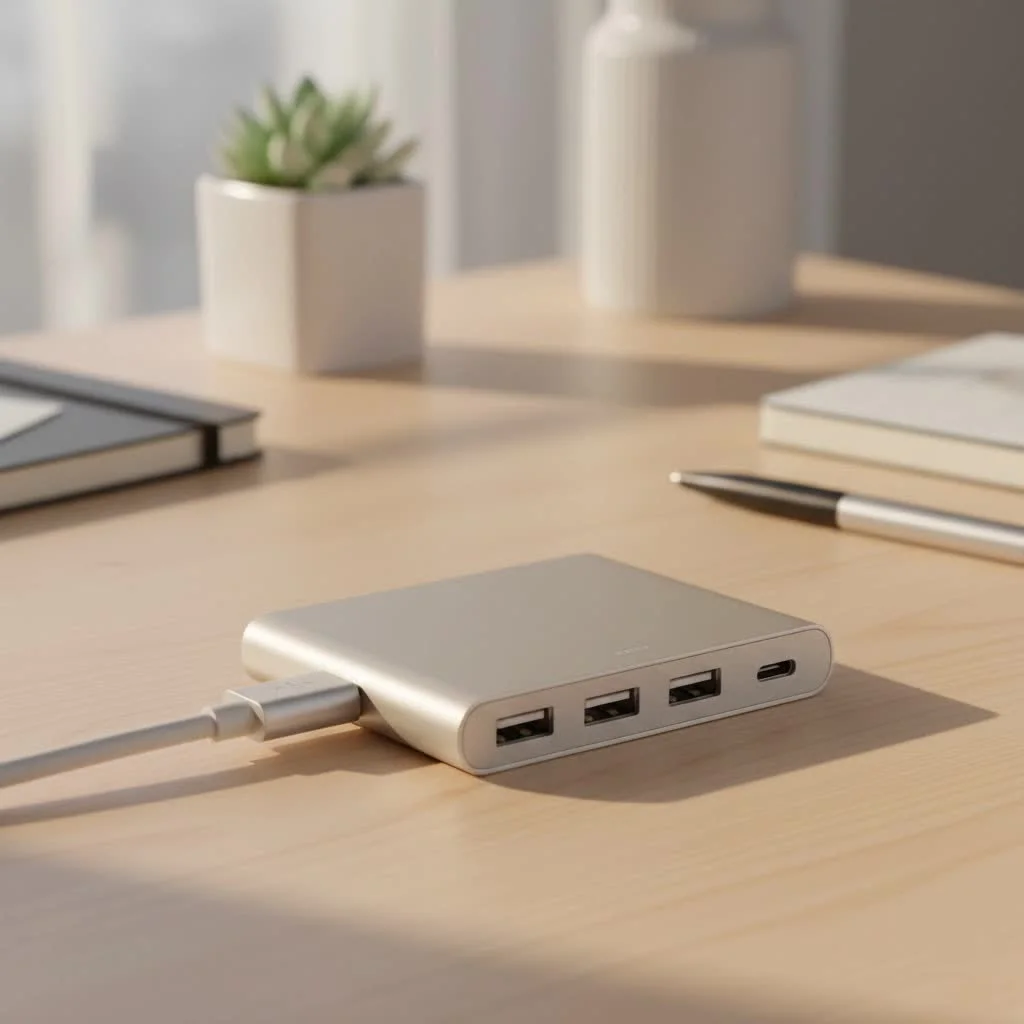
A hub HDMI USB, also known as a USB-C hub or multiport adapter, is a device that expands a single USB-C port on a computer into multiple different ports, allowing simultaneous connection of an external display via HDMI, standard USB-A devices, and often other peripherals. This accessory transforms limited laptop connectivity into a full workstation, addressing the port scarcity common in modern laptops, tablets, and smartphones. For optimal performance, prioritize hubs with 4K@60Hz HDMI, USB 3.0/3.1/3.2 ports, and Power Delivery (PD) passthrough charging.
What is a Hub HDMI USB?
At its core, a hub HDMI USB is a device that expands a single USB-C port on your computer into multiple different ports. It acts as a central connection point, allowing you to simultaneously connect an external display via HDMI, standard USB-A devices like keyboards and external hard drives, and often much more. It’s the Swiss Army knife for modern electronics, solving the port scarcity problem that plagues many contemporary laptops, tablets, and even some smartphones.
Why Do You Need a Hub with HDMI and USB Ports?
The primary benefit is convenience and expanded capability. Modern laptops prioritize a thin and light design, which often means sacrificing ports that were once standard. A hub brings that functionality back, and then some.
- Connect to a Bigger Screen: The HDMI port is the star of the show. It lets you extend or mirror your laptop’s display to a larger monitor, a TV, or a projector. This is a major upgrade for productivity, allowing for a multi-monitor setup, and for entertainment, letting you stream content on a big screen.
- Use Your Existing Devices: Don’t throw away your reliable peripherals. The USB-A ports on the hub ensure your existing keyboards, mice, webcams, printers, and flash drives can still be used with your new USB-C-only machine.
- Simplify Your Workspace: Instead of juggling multiple individual adapters (a dongle for HDMI, another for USB-A), a single hub consolidates everything. It cleans up cable clutter and creates a more organized and efficient desk setup.
Key Features to Look for in a Hub HDMI USB
Not all hubs are created equal. The specs and features can vary wildly, and choosing the wrong one can lead to frustration. Here’s a breakdown of the most important things to consider.
The HDMI Port: 4K@60Hz vs. 4K@30Hz
This is one of the most critical details. Both 30Hz and 60Hz can output a 4K resolution, but the refresh rate (Hz) makes a huge difference in the user experience.
- 4K@30Hz: This means the screen refreshes 30 times per second. For static work like spreadsheets or presentations, this is generally acceptable. However, when you move your mouse cursor or scroll through web pages, the motion will feel choppy and laggy. Video playback may also appear less smooth.
- 4K@60Hz: The screen refreshes 60 times per second, resulting in a buttery-smooth, fluid experience. Mouse movements are responsive, animations are crisp, and video looks much more natural. For daily use, and especially for video editing or light gaming, 60Hz is highly recommended.
“Many consumers focus only on the ‘4K’ part of the label and overlook the refresh rate,” warns David Chen, a senior hardware engineer at Meeob. “Always check for 60Hz support if you value a smooth visual experience. It’s the difference between a functional setup and a genuinely enjoyable one.”
USB-A Ports: Speed is Everything
|
Our Picks for the Best USB Hub in 2026
As an Amazon Associate I earn from qualifying purchases.
|
||
| Num | Product | Action |
|---|---|---|
| 1 | Anker Laptop Docking Station Dual Monitor, 8-in-1 USB C Hub, 4K Dual Monitor with 2 HDMI, 1 Gbps Ethernet Hub, 85W Power Delivery, SD Card Reader for MacBook Pro, XPS and More (Charger not Included) |

|
| 2 | 13 in 1 USB C Docking Station - Dual Monitor, Triple Display, 8 USB C/A Ports, Ethernet, Audio - LIONWEI USB C Hub for MacBook,Dell,HP,Lenovo,Surface |
|
| 3 | 3-in-1 USB C Splitter, 3 in 1 Type-C Charging Data Cable Data Transmission Decive Charging Adapter Power Charger Equipment for ome Office Use, Fast & Efficient |
|
| 4 | P9R PRO USB C Hub Ethernet, 10 in 1 USB Docking Station 10Gbps with 4K@60Hz HDMI, USB C and 2 USB A 3.2, LAN, 2 USB A 2.0, PD 100W, SD/TF Ports, USB to Ethernet Adapter for PC, iPhone 16/15, Mac |
|
| 5 | Powered USB Hub 10Gbps, intpw 9-Port USB 3.2 Hub, USB C Hub with USB A/USB C 3.2, 4 USB 3.0, 2 PD 45W Charging Ports, 65W Power Adapter and 3.3FT Cable, Aluminum USB Hub for Laptop, iPhone 17/16/15,PC |
|
| 6 | Powered USB Hub, Wenter 11-Port USB Splitter Hub (10 Faster Data Transfer Ports+ 1 Smart Charging Port) with Individual LED On/Off Switches, USB Hub 3.0 Powered with Power Adapter for Mac, PC |
|
| 7 | UGREEN USB 3.0 Hub, 4 Ports USB A Splitter Ultra-Slim USB Expander for Mouse, Keyboard, Flash Drive, U Disk, Printer Compatible with Laptop, Desktop PC, Xbox, PS5, and More |
|
| 8 | Anker USB Hub 4 Ports with 5Gbps Data Transfer, Multiple USB 3.0 Hub, USB Splitter for Laptop, Extender for A Port Laptop, PC, Desktop and More [Charging Not Supported](0.7 ft USB-A) |
|
| 9 | USB C Docking Station with M.2 NVMe SSD Enclosure 10Gbps, 9 in 1 USB-C Hub, Type C SSD Slot with 4K@60Hz HDMI, USB 3.2 Gen2, PD100W, SD/TF Card Reader, Laptop Docking Station for Dell/HP/Lenovo/Mac |
|
| 10 | USB Hub 3.0, 7-Port USB Hub Splitter with Individual On/Off Switches and Lights, 3.2ft/1m Long Cable Compatible with MacBook, Laptop, Surface Pro, PS4, PC, Flash Drive, Mobile HDD |
|
The USB-A ports are for connecting your legacy devices. Pay close attention to their version, as this dictates the data transfer speed.
- USB 2.0: An older standard with a maximum speed of 480 Mbps. This is fine for connecting a mouse or keyboard, but it will be painfully slow for transferring large files to or from an external hard drive.
- USB 3.0/3.1/3.2: Often identified by a blue-colored port, these offer much faster speeds, typically starting at 5 Gbps. This is essential for transferring files quickly and ensures your high-speed external drives operate at their full potential.
Power Delivery (PD) Passthrough Charging
Power Delivery is a feature that allows a USB-C hub to pass power from your laptop’s charger through to the laptop itself. This is incredibly important. Without it, you would have to choose between using your hub or charging your laptop, as they both need the same USB-C port. A hub with PD will have a dedicated USB-C input port for your charger, so you can connect all your peripherals and charge your device simultaneously through a single connection. Look for hubs that support at least 60W of power delivery, though 100W is ideal for more powerful laptops like a MacBook Pro.
Other Ports and Features to Consider
- Ethernet Port: While Wi-Fi is convenient, a wired Ethernet connection provides a faster, more stable, and more secure internet connection. This is a must-have for online gamers, streamers, and anyone who needs a rock-solid connection for video conferencing.
- SD/MicroSD Card Readers: If you’re a photographer, videographer, or drone operator, a built-in card reader is a massive convenience, saving you from carrying yet another adapter.
- 3.5mm Audio Jack: Many modern laptops have removed the headphone jack. A hub with an audio port can bring back that simple, universal connectivity for your wired headphones or speakers.
How to Choose the Right Hub for You
Your ideal hub depends entirely on your workflow.
| User Profile | Key Features to Prioritize |
|---|---|
| The Office Professional | 4K@60Hz HDMI, multiple USB 3.0 ports, Ethernet, 100W PD |
| The Content Creator | 4K@60Hz HDMI, high-speed SD/MicroSD card reader, USB 3.0 |
| The Casual User/Student | 4K@30Hz (acceptable), a few USB 3.0 ports, compact design |
| The Gamer | 4K@60Hz HDMI, Ethernet, high-speed USB for peripherals |
Frequently Asked Questions (FAQ)
Q: Will a hub HDMI USB slow down my computer or internet?A: A well-made hub should not noticeably slow down your computer. However, all the devices connected to the hub share the bandwidth of a single USB-C port. Using multiple high-bandwidth devices simultaneously (like an external SSD and a 4K monitor) can potentially saturate the connection. An Ethernet port on a hub will not slow down your internet; in fact, it will likely provide a faster connection than Wi-Fi.
Q: Do I need to install drivers for a USB-C hub?A: For the vast majority of modern hubs and operating systems (like Windows, macOS, and ChromeOS), you do not. They are “plug-and-play,” meaning they work as soon as you connect them. Some highly specialized hubs with unique features might require drivers, but this is rare.
Q: Can I use a hub to connect my phone to a TV?A: Yes, if your smartphone supports video output over its USB-C port (technologies like DisplayPort Alternate Mode or MHL). Many flagship Android phones from Samsung (with DeX), Google, and others support this feature, allowing you to mirror your screen or use a desktop-like interface on a TV via a hub’s HDMI port.
Q: Why is my hub getting hot?A: It is normal for a hub to become warm during operation, especially when multiple ports are in use and it’s handling power delivery. The internal chipsets are working to manage data and power, which generates heat. However, if it becomes excessively hot to the touch, it could be a sign of a faulty unit or being pushed beyond its capacity.
Q: Will any hub HDMI USB work with my MacBook/Windows laptop/Chromebook?A: Generally, yes. The USB-C standard is designed to be universal. As long as your laptop’s USB-C port supports DisplayPort Alternate Mode (for video) and Power Delivery (for charging through the port), it should be compatible with most hubs on the market. Always check your device’s specifications to be sure.
Conclusion
A hub HDMI USB is no longer just an accessory; it’s an essential tool for anyone using a modern laptop. It bridges the gap between portability and productivity, restoring the connectivity we need to work, play, and create effectively. By paying close attention to key features like HDMI refresh rates, USB port speeds, and the inclusion of Power Delivery, you can select a hub that not only meets your needs today but will continue to be a reliable part of your tech setup for years to come. Don’t let a lack of ports hold you back—invest in the right hub and unleash the full power of your machine.
Get our weekly buyer guide
Practical specs, not advice. Unsubscribe anytime.
This hub is decent for the price, and I appreciate having the extra USB-A ports for my keyboard and mouse. However, I’ve noticed a slight lag when I have my external hard drive connected and am trying to stream video through the HDMI at the same time. It’s not a dealbreaker, but it’s a bit annoying. Maybe I just need to find a hub with better USB 3.2 ports.
I finally upgraded my old hub to one with 4K@60Hz HDMI, and the difference is night and day! My external monitor looks so much sharper now, especially when I’m editing photos. The Power Delivery passthrough charging is also a lifesaver, keeping my MacBook Pro juiced up while I have everything else connected. Definitely worth investing in a good quality multiport adapter.
I was constantly running out of ports on my new ultrabook, and this USB-C hub has been a game-changer. I can now connect my monitor, an external SSD, and even charge my phone all through one port. It really does transform limited laptop connectivity into a full workstation, just like the post mentioned. My only minor complaint is that it gets a little warm with heavy use.
As someone who travels a lot for work, having a reliable hub HDMI USB is essential. This one has been fantastic for connecting to hotel TVs and projectors, and the multiple USB 3.0 ports are perfect for my flash drives and external webcam. It’s compact enough to throw in my bag without adding bulk. Highly recommend for anyone dealing with port scarcity on modern laptops.