The best USB Type-C hub for your needs expands a single USB-C port into multiple connections, such as USB-A, HDMI, Ethernet, and SD card readers, effectively transforming a minimalist laptop into a full-fledged workstation. Modern laptops like the MacBook Pro and Dell XPS series often feature limited ports, making a USB-C hub essential for connecting peripherals, external displays, and wired internet. These hubs bridge the gap between new USB-C-only designs and legacy devices, restoring crucial connectivity options.
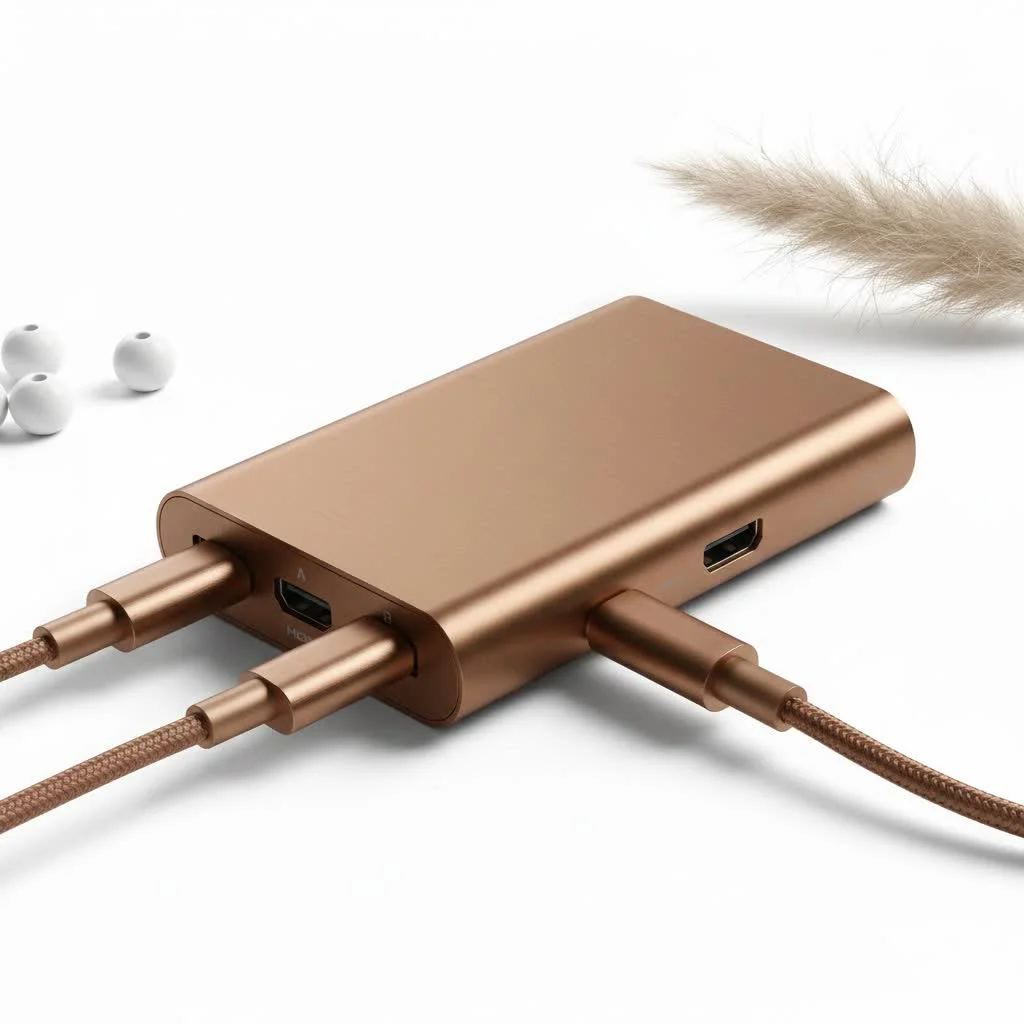
As the creators behind Meeob, we’ve spent over a decade testing and analyzing every type of USB hub imaginable. We understand that choosing the right one can feel overwhelming. That’s why we’ve created this comprehensive guide to demystify the process, helping you select a hub that not only works but enhances your productivity. For shop curated usb hubs on this site.
What Exactly is a USB-C Hub and Why Do You Need One?
Think of a USB-C hub as a power strip for your data and peripherals. It plugs into a single USB-C port on your laptop or tablet and expands it into a variety of different ports. Modern devices, like Apple’s MacBook Pro and Dell’s XPS series, have embraced USB-C for its speed and versatility in handling data, video, and power. However, this minimalism comes at a cost: the legacy ports we still rely on (like USB-A, HDMI, and Ethernet) have disappeared.
A USB-C hub bridges this gap. It’s a central station that allows you to:
- Connect older devices like keyboards, mice, and external hard drives.
- Display your screen on an external monitor or projector.
- Access a stable, wired internet connection.
- Transfer photos and videos from your camera’s memory card.
- Charge your laptop and other devices simultaneously.
A good hub transforms your minimalist laptop into a full-fledged, no-compromise workstation.
How to Choose the Best USB Type C Hub for Your Needs
Not all hubs are created equal. The “best” one is entirely dependent on your unique workflow. Before you buy, let’s break down the key features to consider, ensuring you invest in a device that perfectly matches your requirements.
Step 1: Audit Your Port Requirements
The first step is to take inventory of the devices you use daily. There’s no point in paying for a hub with ports you’ll never use.
- USB-A (USB 3.0/2.0): These are the traditional rectangular USB ports. You’ll need them for keyboards, mice, webcams, flash drives, and older external hard drives. Look for at least two or three of these.
- HDMI/DisplayPort: Essential for connecting to external monitors, TVs, or projectors. For the sharpest image, ensure the hub supports 4K resolution, preferably at a 60Hz refresh rate for smoother video playback and mouse movement.
- Ethernet (RJ45): While Wi-Fi is convenient, a wired Ethernet connection provides faster, more stable, and more secure internet. This is a must-have for online gamers, streamers, and professionals who handle large file transfers.
- SD & microSD Card Readers: A non-negotiable for photographers, videographers, and drone pilots. It eliminates the need for a separate card reader, streamlining your creative workflow.
- Audio Jack (3.5mm): Many modern laptops have also removed the headphone jack. If you prefer wired headphones or microphones, this port is crucial.
Step 2: Understand Power Delivery (PD)
|
Our Picks for the Best USB Hub in 2026
As an Amazon Associate I earn from qualifying purchases.
|
||
| Num | Product | Action |
|---|---|---|
| 1 | Powered USB Hub, Wenter 11-Port USB Splitter Hub (10 Faster Data Transfer Ports+ 1 Smart Charging Port) with Individual LED On/Off Switches, USB Hub 3.0 Powered with Power Adapter for Mac, PC |

|
| 2 | Anker USB Hub 4 Ports with 5Gbps Data Transfer, Multiple USB 3.0 Hub, USB Splitter for Laptop, Extender for A Port Laptop, PC, Desktop and More [Charging Not Supported](0.7 ft USB-A) |
|
| 3 | USB C Docking Station with M.2 NVMe SSD Enclosure 10Gbps, 9 in 1 USB-C Hub, Type C SSD Slot with 4K@60Hz HDMI, USB 3.2 Gen2, PD100W, SD/TF Card Reader, Laptop Docking Station for Dell/HP/Lenovo/Mac |
|
| 4 | 13 in 1 USB C Docking Station - Dual Monitor, Triple Display, 8 USB C/A Ports, Ethernet, Audio - LIONWEI USB C Hub for MacBook,Dell,HP,Lenovo,Surface |
|
| 5 | Powered USB Hub 10Gbps, intpw 9-Port USB 3.2 Hub, USB C Hub with USB A/USB C 3.2, 4 USB 3.0, 2 PD 45W Charging Ports, 65W Power Adapter and 3.3FT Cable, Aluminum USB Hub for Laptop, iPhone 17/16/15,PC |
|
| 6 | P9R PRO USB C Hub Ethernet, 10 in 1 USB Docking Station 10Gbps with 4K@60Hz HDMI, USB C and 2 USB A 3.2, LAN, 2 USB A 2.0, PD 100W, SD/TF Ports, USB to Ethernet Adapter for PC, iPhone 16/15, Mac |
|
| 7 | Anker Laptop Docking Station Dual Monitor, 8-in-1 USB C Hub, 4K Dual Monitor with 2 HDMI, 1 Gbps Ethernet Hub, 85W Power Delivery, SD Card Reader for MacBook Pro, XPS and More (Charger not Included) |
|
| 8 | 3-in-1 USB C Splitter, 3 in 1 Type-C Charging Data Cable Data Transmission Decive Charging Adapter Power Charger Equipment for ome Office Use, Fast & Efficient |
|
| 9 | USB Hub 3.0, 7-Port USB Hub Splitter with Individual On/Off Switches and Lights, 3.2ft/1m Long Cable Compatible with MacBook, Laptop, Surface Pro, PS4, PC, Flash Drive, Mobile HDD |
|
| 10 | UGREEN USB 3.0 Hub, 4 Ports USB A Splitter Ultra-Slim USB Expander for Mouse, Keyboard, Flash Drive, U Disk, Printer Compatible with Laptop, Desktop PC, Xbox, PS5, and More |
|
Power Delivery is one of the most critical features of a USB-C hub, yet it’s often misunderstood.
A USB-C hub with Power Delivery pass-through charging allows you to charge your laptop through the hub itself. You plug your laptop’s USB-C charger into the hub, and the hub then passes power to the laptop while simultaneously running all the connected peripherals.
Pay close attention to the wattage. The hub itself consumes a small amount of power (typically 10-15W) to operate. So, if you have a 100W laptop charger and plug it into a hub, only about 85-90W will reach your laptop. For high-performance laptops like a 16-inch MacBook Pro, look for a hub that supports 100W PD to ensure you get a full-speed charge.
Step 3: Check Data and Video Specifications
The devil is in the details when it comes to performance.
- Data Transfer Speed: Look for hubs with USB 3.0 ports (often colored blue or labeled “SS” for SuperSpeed), which offer speeds up to 5Gbps. This is significantly faster than the older USB 2.0 standard and is ideal for transferring files from external drives. Some premium hubs offer USB 3.1 Gen 2 ports for even faster 10Gbps speeds.
- Video Output: As mentioned, 4K at 60Hz provides a much better viewing experience than 4K at 30Hz. A 30Hz refresh rate can make mouse movements appear laggy and choppy. Achieving 4K@60Hz often requires a laptop with a port that supports DisplayPort 1.4 Alternate Mode, so be sure to check your device’s specifications.
As digital hardware specialist Dr. Alistair Finch notes, “Users often blame their hub for a choppy external display, but the bottleneck is frequently the laptop’s own USB-C port capability. Always verify your device supports DP 1.4 for the best possible video output through a hub.”
Step 4: Consider Build Quality and Portability
A hub is an extension of your expensive laptop, so it should be built to last.
- Material: Aluminum casings are a popular choice as they are durable and help dissipate heat more effectively than plastic.
- Cable: Consider the length and durability of the built-in USB-C cable. A short cable is great for portability, but a slightly longer one can offer more flexibility in how you position the hub on your desk.
- Size and Weight: If you travel frequently, a compact, lightweight hub is essential. If it’s primarily for a desktop setup, a larger, more robust hub (sometimes called a docking station) might be more suitable.
Common Problems and How to Avoid Them
Even the best USB Type-C hub can present issues if not used correctly. Here are a few common pitfalls:
- Overheating: Hubs can get warm, especially when multiple high-power devices and a 4K display are connected. This is normal to an extent. To minimize this, ensure good airflow around the hub and avoid covering it.
- Wi-Fi Interference: Some poorly shielded hubs can interfere with the 2.4GHz Wi-Fi signal. If you notice your internet connection dropping when the hub is plugged in, try switching your Wi-Fi network to the 5GHz band.
- Not All USB-C Ports Are Equal: that a USB-C port on your laptop might not support all functions. Some are for charging only, while others support data, video, and charging (like Thunderbolt 3/4 or USB4). Check your laptop’s manual to confirm your port’s capabilities.
Frequently Asked Questions (FAQ)
What is the difference between a USB-C hub and a Thunderbolt hub?
A Thunderbolt hub uses the more advanced Thunderbolt 3 or 4 protocol, offering much higher bandwidth (40Gbps) than standard USB-C (5-10Gbps). This allows them to support more demanding setups, like dual 4K@60Hz monitors and faster external SSD speeds. All Thunderbolt hubs will work as standard USB-C hubs, but not vice-versa.
Can a USB-C hub damage my laptop?
A well-made hub from a reputable brand will not damage your laptop. These devices are designed with built-in protections against overcurrent and overheating. However, it’s wise to avoid extremely cheap, unbranded hubs, as they may lack proper safety certifications and could potentially cause issues.
Do I need to install drivers for a USB-C hub?
For the vast majority of USB-C hubs, no drivers are needed. They are “plug-and-play” devices that work instantly with modern operating systems like Windows, macOS, and ChromeOS. Certain specialized hubs with unique display drivers might be an exception, but this is rare.
Why isn’t my external monitor working through the hub?
First, ensure your laptop’s USB-C port supports video output (DisplayPort Alternate Mode). Second, check that your HDMI or DisplayPort cable is functioning correctly. Finally, try a different port on the hub and monitor to rule out a faulty connection.
Conclusion: The Hub That Unlocks Your Potential
Choosing the best USB Type-C hub is about empowering your workflow and removing limitations. It’s the key to unlocking the full potential of your sleek, modern laptop. By carefully assessing your port needs, understanding Power Delivery, and paying attention to data specifications, you can find the perfect central connection point for your digital life.
Don’t let a lack of ports slow you down. Invest in a quality hub, and improve your single USB-C port into a gateway of productivity, creativity, and seamless connectivity.
How to Choose the Best USB Type-C Hub
Selecting the ideal USB Type-C hub involves assessing your specific connectivity needs, understanding power delivery capabilities, and checking data and video specifications to ensure compatibility and performance.
Identify all the devices you regularly connect, such as USB-A peripherals, external monitors (HDMI/DisplayPort), Ethernet cables, and SD/microSD cards. Choose a hub that provides the exact ports you need, avoiding unnecessary features that increase cost. For example, if you use wired headphones, ensure a 3.5mm audio jack is included.
Check the Power Delivery (PD) wattage supported by the hub. A hub with PD pass-through charging allows your laptop to charge through the hub itself. Ensure the hub's PD rating is sufficient for your laptop, considering the hub consumes 10-15W; a 100W PD hub is recommended for high-performance laptops like a 16-inch MacBook Pro.
Verify the data transfer speeds of the USB ports (e.g., USB 3.0 at 5Gbps or USB 3.1 Gen 2 at 10Gbps) and the video output capabilities. For external monitors, prioritize hubs that support 4K resolution at a 60Hz refresh rate for smoother visuals. Confirm your laptop's USB-C port supports DisplayPort 1.4 Alternate Mode for optimal video performance.
Evaluate the hub's construction material, such as durable aluminum for better heat dissipation. Assess the length and robustness of the built-in USB-C cable for flexibility and longevity. For frequent travelers, a compact and lightweight design is crucial, while a more robust docking station might suit a permanent desktop setup.
Get our weekly buyer guide
Practical specs, not advice. Unsubscribe anytime.
I’ve been using the Anker PowerExpand+ 7-in-1 hub for my MacBook Pro, and it’s been a game-changer. I love how it brings back all the essential ports like HDMI for my external monitor and multiple USB-A slots for my older peripherals. It really does transform my minimalist laptop into a full-fledged workstation, just like the guide mentioned. Super happy with this purchase!
Finally found a hub that works perfectly with my iPad Pro! I needed something to connect my keyboard, mouse, and an external hard drive, and the one I chose based on the recommendations here handles it all without a hitch. It’s so convenient to have all those crucial connectivity options restored. My productivity has definitely gone up.
This guide helped me pick out a great USB-C hub for my Dell XPS. I needed something that could handle both an external display and an Ethernet connection, and the one I got does exactly that. The only minor thing is that it gets a little warm when I have everything plugged in, but it hasn’t affected performance. Definitely a solid upgrade for my setup.
I bought a budget-friendly hub from a brand I hadn’t heard of, hoping to save some money. While it does connect my SD card and a USB drive, the HDMI port is a bit finicky and sometimes disconnects my monitor for a second or two. I guess you get what you pay for. Next time, I’ll probably invest in one of the more recommended brands for better reliability.