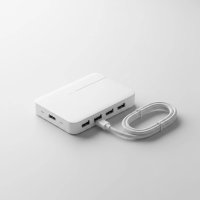
If you’re a MacBook user, you know the feeling. You admire the sleek, minimalist design, the buttery-smooth performance, and the seamless integration with your Apple ecosystem. But then you try to connect your external monitor, an old USB-A hard drive, an SD card from your camera, and your charger all at once, and reality hits: the dreaded “dongle madness.” Your MacBook, with its limited number of USB-C/Thunderbolt ports, simply can’t do it all on its own. This is precisely where a high-quality USB hub MacBook becomes not just a convenience, but an absolute necessity.
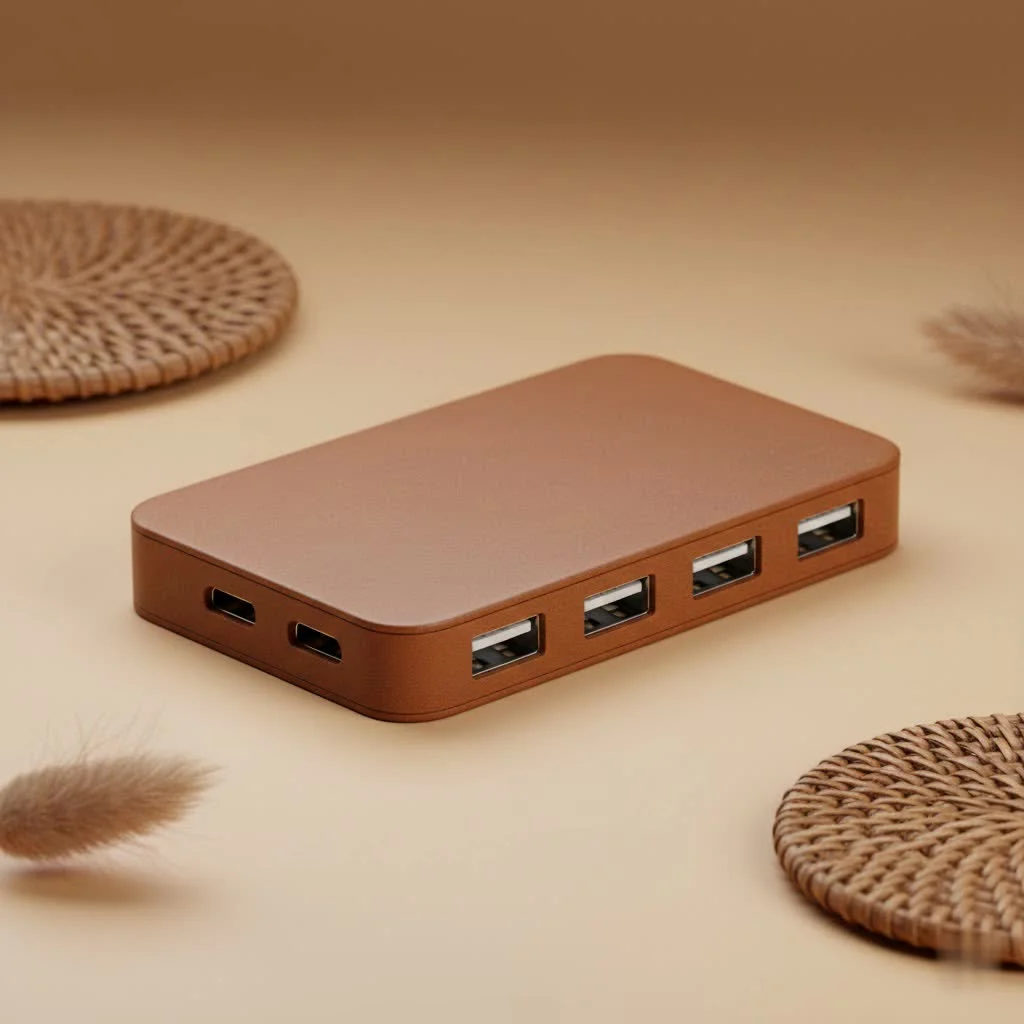
A USB hub for your MacBook transforms a single port into a multi-functional powerhouse, expanding your connectivity options and streamlining your workspace. It’s like giving your MacBook a superpower, allowing you to connect all your essential peripherals without the constant plug-and-unplug dance. But with a myriad of options available, from basic USB-C adapters to sophisticated Thunderbolt docks, choosing the right one can feel overwhelming. Don’t worry, we’re here to demystify the world of MacBook USB hubs, helping you make an informed decision that perfectly matches your needs.
Understanding the “Hub USB MacBook” Ecosystem
Before diving into specific features, it’s crucial to grasp the fundamental differences in connectivity standards that often lead to confusion.
What Exactly is a USB Hub? (And Why Your MacBook Craves One)
At its core, a USB hub is a device that expands the number of USB ports available on your computer. For MacBooks, this typically means taking one of your precious USB-C or Thunderbolt 3/4 ports and turning it into several, offering a variety of connection types like traditional USB-A, HDMI for external displays, Ethernet for stable internet, and SD card readers for photographers. Modern Macs, especially the sleek MacBook Air and MacBook Pro models, have embraced USB-C and Thunderbolt for their versatility and speed, but often at the expense of quantity and diverse port types. A hub bridges this gap, allowing you to connect legacy devices and multiple peripherals simultaneously, all while keeping your MacBook charged if it supports Power Delivery.
USB-C vs. Thunderbolt: The Core Distinction
This is perhaps the most common point of confusion. While all Thunderbolt ports on a modern MacBook use the USB-C physical connector, not all USB-C ports are Thunderbolt. Think of USB-C as the shape of the doorway, and Thunderbolt (or USB 3.x, USB4) as the technology or protocol governing what can pass through that doorway and how fast.
USB-C: The Connector Shape
USB-C is a reversible, symmetrical connector standard. It’s designed to be universally compatible, meaning you can plug it in either way, and it’s increasingly found on everything from smartphones to external monitors. Many USB-C hubs offer essential port expansion, supporting data transfer speeds ranging from 5 Gigabits per second (Gbps) for USB 3.0 (also known as USB 3.1 Gen 1 or USB 3.2 Gen 1) up to 10 Gbps for USB 3.1 Gen 2 (or USB 3.2 Gen 2). These speeds are perfectly adequate for most everyday tasks like connecting a mouse, keyboard, or even an external SSD for casual use.
Thunderbolt: The Powerhouse Protocol
Developed by Intel with significant input from Apple, Thunderbolt is a much more advanced technology that leverages the USB-C connector. Thunderbolt 3 and Thunderbolt 4 offer a blistering 40 Gbps bandwidth, making them significantly faster than most standard USB-C connections. This immense speed translates to superior capabilities:
- Higher Data Transfer: Ideal for creative professionals who frequently transfer massive files (think 4K video footage or large design projects) to external SSDs.
- Advanced Display Support: Thunderbolt 4, for example, can support two 4K displays at a smooth 60Hz or a single 8K display, a feat most standard USB-C hubs cannot achieve.
- PCIe Access: This allows for connecting high-performance external graphics cards (eGPUs) or other specialized peripherals that require direct access to your MacBook’s internal architecture.
While Thunderbolt hubs and docks offer unparalleled performance, they come with a higher price tag. They are often distinguished by a small lightning bolt symbol next to the port on your MacBook or the hub itself.
USB4: Blurring the Lines
The latest iteration, USB4, is largely based on the Thunderbolt protocol. It aims to unify USB-C, offering up to 40 Gbps bandwidth and support for multiple display protocols. As USB4 becomes more prevalent, the line between high-end USB-C hubs and Thunderbolt docks will continue to blur, offering more affordable high-performance options.
Key Features to Look for in a MacBook USB Hub
When selecting your ideal USB hub MacBook, it’s not just about the number of ports, but the quality and types of ports, as well as critical features like power delivery and form factor.
Port Variety: Connecting All Your Peripherals
|
Our Picks for the Best USB Hub in 2026
As an Amazon Associate I earn from qualifying purchases.
|
||
| Num | Product | Action |
|---|---|---|
| 1 | Powered USB Hub 10Gbps, intpw 9-Port USB 3.2 Hub, USB C Hub with USB A/USB C 3.2, 4 USB 3.0, 2 PD 45W Charging Ports, 65W Power Adapter and 3.3FT Cable, Aluminum USB Hub for Laptop, iPhone 17/16/15,PC |

|
| 2 | Anker USB Hub 4 Ports with 5Gbps Data Transfer, Multiple USB 3.0 Hub, USB Splitter for Laptop, Extender for A Port Laptop, PC, Desktop and More [Charging Not Supported](0.7 ft USB-A) |
|
| 3 | USB Hub 3.0, 7-Port USB Hub Splitter with Individual On/Off Switches and Lights, 3.2ft/1m Long Cable Compatible with MacBook, Laptop, Surface Pro, PS4, PC, Flash Drive, Mobile HDD |
|
| 4 | USB C Docking Station with M.2 NVMe SSD Enclosure 10Gbps, 9 in 1 USB-C Hub, Type C SSD Slot with 4K@60Hz HDMI, USB 3.2 Gen2, PD100W, SD/TF Card Reader, Laptop Docking Station for Dell/HP/Lenovo/Mac |
|
| 5 | 13 in 1 USB C Docking Station - Dual Monitor, Triple Display, 8 USB C/A Ports, Ethernet, Audio - LIONWEI USB C Hub for MacBook,Dell,HP,Lenovo,Surface |
|
| 6 | UGREEN USB 3.0 Hub, 4 Ports USB A Splitter Ultra-Slim USB Expander for Mouse, Keyboard, Flash Drive, U Disk, Printer Compatible with Laptop, Desktop PC, Xbox, PS5, and More |
|
| 7 | Powered USB Hub, Wenter 11-Port USB Splitter Hub (10 Faster Data Transfer Ports+ 1 Smart Charging Port) with Individual LED On/Off Switches, USB Hub 3.0 Powered with Power Adapter for Mac, PC |
|
| 8 | Anker Laptop Docking Station Dual Monitor, 8-in-1 USB C Hub, 4K Dual Monitor with 2 HDMI, 1 Gbps Ethernet Hub, 85W Power Delivery, SD Card Reader for MacBook Pro, XPS and More (Charger not Included) |
|
| 9 | P9R PRO USB C Hub Ethernet, 10 in 1 USB Docking Station 10Gbps with 4K@60Hz HDMI, USB C and 2 USB A 3.2, LAN, 2 USB A 2.0, PD 100W, SD/TF Ports, USB to Ethernet Adapter for PC, iPhone 16/15, Mac |
|
| 10 | 3-in-1 USB C Splitter, 3 in 1 Type-C Charging Data Cable Data Transmission Decive Charging Adapter Power Charger Equipment for ome Office Use, Fast & Efficient |
|
The core function of a hub is to provide the ports your MacBook lacks.
- USB-A Ports: Essential for connecting older peripherals like external hard drives, keyboards, mice, flash drives, and printers. Look for USB 3.0 (5Gbps) or faster USB 3.1 Gen 2 (10Gbps) ports for decent speeds.
- HDMI/DisplayPort: For connecting external monitors or projectors. If you plan to connect a 4K monitor, ensure the hub supports 4K at 60Hz for a smooth visual experience. Many cheaper hubs only offer 4K at 30Hz, which can result in choppy video and scrolling. Be mindful of your MacBook’s chip; some M1 MacBooks are limited to a single external display regardless of the hub.
- Ethernet Port: A Gigabit Ethernet port provides a stable, fast wired internet connection, crucial for video conferencing, large downloads, or maintaining a reliable connection when Wi-Fi is unreliable. Some advanced hubs even offer 2.5 Gigabit Ethernet for even faster speeds.
- SD/microSD Card Readers: A godsend for photographers and videographers, allowing quick transfer of files directly from camera memory cards. Look for UHS-II compatibility for maximum speed if your cards support it.
- Audio Jack: A 3.5mm audio jack can be useful if your MacBook lacks one or if you prefer a wired headset connection through the hub.
Power Delivery (PD): Keeping Your MacBook Charged
Most MacBooks are charged via USB-C or Thunderbolt. A crucial feature in a USB hub MacBook is Power Delivery (PD) pass-through. This allows you to connect your MacBook’s power adapter to the hub, and the hub will then charge your MacBook while also powering all connected peripherals. Look for hubs offering at least 60W, 85W, or even 100W PD to ensure efficient charging, especially for larger MacBook Pro models. Keep in mind that a small portion of the charger’s output will be diverted to power the hub itself, so your MacBook might charge slightly slower than if directly connected to the charger.
Data Transfer Speeds: How Fast Do You Need to Go?
Understanding USB versions and their speeds is key to avoiding bottlenecks:
- USB 2.0: Max 480 Megabits per second (Mbps) or 60 Megabytes per second (MB/s). Generally too slow for anything beyond basic peripherals.
- USB 3.0 (aka USB 3.1 Gen 1, USB 3.2 Gen 1): Max 5 Gigabits per second (Gbps) or 625 MB/s. Good for most external drives and general-purpose connections.
- USB 3.1 Gen 2 (aka USB 3.2 Gen 2): Max 10 Gbps or 1.25 Gigabytes per second (GB/s). Significantly faster, ideal for performance-focused external SSDs.
- USB4 / Thunderbolt 3/4: Max 40 Gbps or 5 GB/s. The fastest option, indispensable for professional workflows involving large file transfers or multiple high-bandwidth devices.
Wired vs. Wire-Free Hubs: Portability Meets Functionality
USB hubs typically come in two main form factors:
- Wired Hubs: These have a short cable that plugs into your MacBook. They offer more flexibility in terms of placement on your desk and can be tucked away more easily.
- Wire-Free (Direct Plug-in) Hubs: These attach directly to the side of your MacBook, often designed to match the MacBook’s aesthetic. They are highly portable and integrate seamlessly, but they might block adjacent ports or feel less secure if bumped.
Choosing the Right USB Hub for Your Specific MacBook Needs
Your ideal USB hub MacBook depends entirely on your usage patterns and professional requirements.
For the Everyday User: Essential Connectivity
If your main goal is to connect a few USB-A devices, an HDMI monitor, and perhaps charge your iPhone, a standard USB-C hub with 5Gbps USB-A ports, 4K 60Hz HDMI, and 60-85W Power Delivery will likely suffice. These are generally more affordable and compact, perfect for portability.
For Creative Professionals: Speed and Advanced Displays
For those who regularly work with large files (video editing, graphic design), need multiple high-resolution external monitors, or require high-speed external storage, a Thunderbolt dock or a high-end USB4 hub is the way to go. These offer 40 Gbps bandwidth, robust power delivery, and support for dual 4K or single 8K displays. Brands like CalDigit, OWC, and Anker (with their Thunderbolt series) are popular choices in this segment.
For the Desktop Setup: Docking Station vs. Hub
While the terms are often used interchangeably, docking stations are typically larger, more robust, and often come with their own external power supply. They offer more ports, higher power output, and advanced features like multi-screen support (even for M1 Macs with certain DisplayLink docks, though direct Thunderbolt display support remains limited for M1), making them ideal for a permanent desk setup where you simply plug in one cable to your MacBook and instantly connect to everything. USB-C hubs are generally more portable and bus-powered.
Compatibility Check: Your MacBook Model Matters
Always double-check the compatibility of a hub with your specific MacBook model, especially concerning external display support. Newer MacBooks with M1/M2/M3 chips, particularly the base models, may have inherent limitations on the number of external displays they can natively support, regardless of the hub’s capabilities.
Maximizing Your Hub USB MacBook Experience: Tips & Troubleshooting
To ensure a smooth experience with your USB hub MacBook, keep these practical tips in mind.
Power Management: When an External Supply is a Must
If you plan to connect several power-hungry devices (e.g., multiple external hard drives, a high-power monitor, or charging several devices simultaneously) to your hub, consider one with an external power brick. While bus-powered hubs (those drawing power solely from your MacBook) are convenient for portability, they can lead to insufficient power distribution, causing device disconnections, reduced performance, or slower MacBook charging. An externally powered dock or hub ensures all connected devices receive stable power, maximizing their performance.
Heat Concerns
Some compact, metal-bodied USB-C hubs can get warm during heavy use, especially when handling power delivery or high data transfers. This is often normal as the metal helps dissipate heat. However, excessive heat might indicate a poorly designed hub or an overloaded connection. Ensure proper ventilation around your hub.
SuperDrive and Other Niche Devices
Be aware that some USB hubs are not fully compatible with Apple’s SuperDrive CD/DVD drive due to specific power requirements. If you still use a SuperDrive, research specific hubs known to support it.
Expert Insights: What the Pros Say
“When choosing a MacBook hub, prioritize your workflow,” advises Dr. Anya Sharma, a seasoned expert in digital connectivity. “For casual use, a standard USB-C hub is fantastic. But if you’re a creative pro handling massive files or multiple high-resolution displays, investing in a Thunderbolt dock isn’t a luxury; it’s a productivity imperative. It’s about optimizing your efficiency, not just adding ports.”
Frequently Asked Questions (FAQ)
Can a USB-C hub damage my MacBook?
No, a reputable USB-C hub from a trusted brand will not damage your MacBook. However, using a low-quality, uncertified hub could potentially lead to unstable connections or inefficient power delivery. Always choose well-known brands.
Do I need a Thunderbolt hub if my MacBook has USB-C ports?
Not necessarily. If your tasks are primarily basic (mouse, keyboard, single monitor, light data transfer), a standard USB-C hub is sufficient and more cost-effective. A Thunderbolt hub is only essential if you require higher bandwidth for multiple high-resolution displays, extremely fast external storage, or specific Thunderbolt-only peripherals.
How much power does a MacBook USB hub use?
The power consumption of a USB hub varies. Bus-powered hubs draw a small amount of power (typically 5-15W) from your MacBook. Hubs with Power Delivery (PD) pass-through use some power internally and then pass the rest to your MacBook for charging, often supporting up to 100W or more for your laptop.
Can I use a USB hub to connect two external monitors to my M1 MacBook?
Generally, base model M1 MacBooks natively support only one external display. While some specialized hubs use DisplayLink technology to bypass this limitation and enable multiple displays, they require installing drivers and may not offer the same performance as native display support. M1 Pro/Max/Ultra MacBooks and newer M2/M3 models typically support multiple external displays natively through Thunderbolt.
Are all USB-C cables the same for hubs?
No. While they look identical, USB-C cables have different capabilities regarding data transfer speed and power delivery. For optimal performance with a USB hub, especially a Thunderbolt one, always use the cable provided with the hub or a certified high-quality cable that supports the required speeds and power. Using an inadequate cable can limit the hub’s performance.
Conclusion: Empower Your MacBook with the Perfect Hub
The modern MacBook is a marvel of engineering, but its minimalist design often leaves users craving more connectivity. A well-chosen USB hub MacBook is the ultimate solution, transforming your portable workstation into a versatile powerhouse. By understanding the distinctions between USB-C and Thunderbolt, prioritizing the ports and features that align with your workflow, and considering power management, you can confidently select a hub that not only solves your port dilemmas but genuinely enhances your productivity and digital experience. Invest wisely, and let your MacBook truly shine, unburdened by connectivity limitations.
Get our weekly buyer guide
Practical specs, not advice. Unsubscribe anytime.