A USB 2.0 hub expands a single USB port into multiple ports, providing a cost-effective and reliable solution for connecting everyday computer peripherals. Introduced in 2000, this standard offers a theoretical maximum speed of 480 Megabits per second (Mbps), which is more than sufficient for devices like keyboards, mice, printers, and standard webcams, making it a smart choice for many common tasks despite newer, faster USB standards.
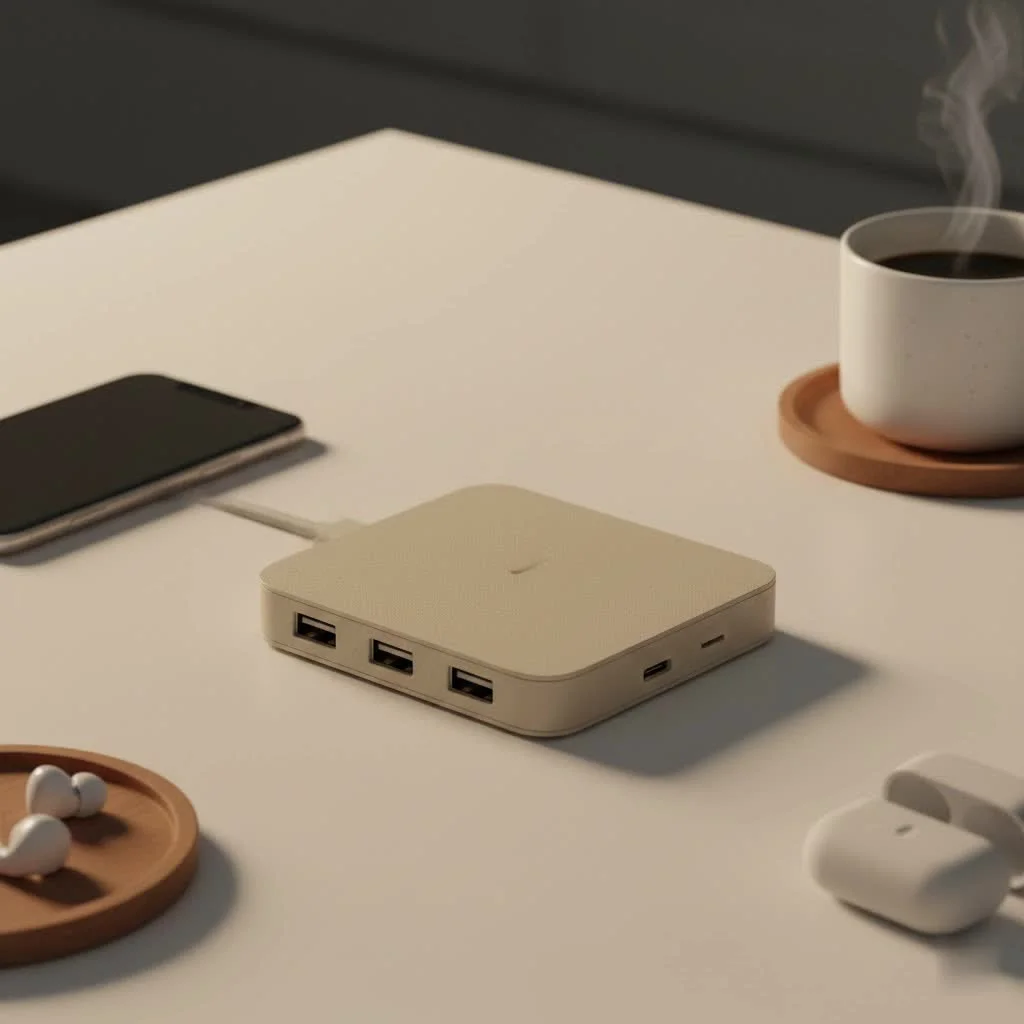
Understanding this essential piece of technology is key, whether you’re managing desktop cable clutter or adding ports to a laptop. This guide will cover everything from its speed and best uses to when to consider a more modern alternativeLet’s explore why this dependable workhorse still deserves a place on your desk. For best usb hubs roundups on this site.
What Exactly Is a USB 2.0 Hub?
At its core, a USB hub functions like a power strip for your data ports. It takes one Universal Serial Bus (USB) port on your computer and multiplies it, providing several additional ports for connecting more devices. A USB 2.0 hub specifically adheres to the USB 2.0 standard, often marketed as “Hi-Speed USB,” which was introduced in the year 2000 and served as the industry standard for over a decade.
Consider it a simple traffic roundabout. Your computer has one road leading to it (the single USB port). The hub acts as the roundabout, allowing traffic from multiple other roads (your keyboard, mouse, printer, etc.) to merge and communicate with the computer through that one main road. It efficiently manages this data traffic, enabling your peripherals to work simultaneously.
Understanding USB 2.0 Speed: How Fast Is It Really?
The most significant characteristic of the USB 2.0 standard is its data transfer rate. A USB 2.0 hub has a theoretical maximum speed of 480 Megabits per second (Mbps).
But what does 480 Mbps actually mean in practical terms?
- It is more than fast enough for most computer peripherals. Devices like your keyboard, mouse, and even your printer send tiny packets of data that do not come close to saturating this bandwidth.
- It is sufficient for standard 720p webcams and most USB headsets or microphones, which require a steady but not exceptionally fast data stream.
- It represents a massive leap from its predecessor, USB 1.1, which operated at a mere 12 Mbps.
However, it’s crucial to understand that this 480 Mbps is a shared pool of bandwidth among all devices connected to the hub. If you plug in multiple devices that are all trying to send or receive data simultaneously, they all draw from that same 480 Mbps capacity. For most common uses, this is perfectly fine. But it is a critical limitation for high-performance tasks, where newer standards like USB 3.0 (at 5,000 Mbps) excel.
When a USB 2.0 Hub is the Perfect Choice
Despite its age, a USB 2.0 hub excels in many common scenarios. Its reliability and affordability make it an ideal solution when speed isn’t the primary concern.
Perfect for Your Everyday Peripherals
|
Our Picks for the Best USB Hub in 2026
As an Amazon Associate I earn from qualifying purchases.
|
||
| Num | Product | Action |
|---|---|---|
| 1 | UGREEN USB 3.0 Hub, 4 Ports USB A Splitter Ultra-Slim USB Expander for Mouse, Keyboard, Flash Drive, U Disk, Printer Compatible with Laptop, Desktop PC, Xbox, PS5, and More |

|
| 2 | Powered USB Hub, Wenter 11-Port USB Splitter Hub (10 Faster Data Transfer Ports+ 1 Smart Charging Port) with Individual LED On/Off Switches, USB Hub 3.0 Powered with Power Adapter for Mac, PC |
|
| 3 | P9R PRO USB C Hub Ethernet, 10 in 1 USB Docking Station 10Gbps with 4K@60Hz HDMI, USB C and 2 USB A 3.2, LAN, 2 USB A 2.0, PD 100W, SD/TF Ports, USB to Ethernet Adapter for PC, iPhone 16/15, Mac |
|
| 4 | 13 in 1 USB C Docking Station - Dual Monitor, Triple Display, 8 USB C/A Ports, Ethernet, Audio - LIONWEI USB C Hub for MacBook,Dell,HP,Lenovo,Surface |
|
| 5 | USB Hub 3.0, 7-Port USB Hub Splitter with Individual On/Off Switches and Lights, 3.2ft/1m Long Cable Compatible with MacBook, Laptop, Surface Pro, PS4, PC, Flash Drive, Mobile HDD |
|
| 6 | Powered USB Hub 10Gbps, intpw 9-Port USB 3.2 Hub, USB C Hub with USB A/USB C 3.2, 4 USB 3.0, 2 PD 45W Charging Ports, 65W Power Adapter and 3.3FT Cable, Aluminum USB Hub for Laptop, iPhone 17/16/15,PC |
|
| 7 | Anker USB Hub 4 Ports with 5Gbps Data Transfer, Multiple USB 3.0 Hub, USB Splitter for Laptop, Extender for A Port Laptop, PC, Desktop and More [Charging Not Supported](0.7 ft USB-A) |
|
| 8 | USB C Docking Station with M.2 NVMe SSD Enclosure 10Gbps, 9 in 1 USB-C Hub, Type C SSD Slot with 4K@60Hz HDMI, USB 3.2 Gen2, PD100W, SD/TF Card Reader, Laptop Docking Station for Dell/HP/Lenovo/Mac |
|
| 9 | Anker Laptop Docking Station Dual Monitor, 8-in-1 USB C Hub, 4K Dual Monitor with 2 HDMI, 1 Gbps Ethernet Hub, 85W Power Delivery, SD Card Reader for MacBook Pro, XPS and More (Charger not Included) |
|
| 10 | 3-in-1 USB C Splitter, 3 in 1 Type-C Charging Data Cable Data Transmission Decive Charging Adapter Power Charger Equipment for ome Office Use, Fast & Efficient |
|
This is the primary reason to own a USB 2.0 hub. It serves as the perfect central station for all your desktop essentials:
- Keyboards and Mice: These devices use a negligible amount of bandwidth.
- Printers and Scanners: Most home printing and scanning jobs are not limited by USB 2.0 speed.
- Game Controllers: A wired gamepad for your PC will work flawlessly through a USB 2.0 port.
- USB Microphones and Headsets: Standard audio equipment does not require massive data throughput.
For these devices, using a faster and more expensive USB 3.0 hub would be like using a firetruck to water a houseplant—it works, but it’s complete overkill.
Charging Low-Power Accessories
A USB 2.0 hub can serve as a convenient charging station for your smaller gadgets. It’s great for topping up the battery on:
- Wireless headphones or earbuds
- Smartwatches and fitness trackers
- E-readers
that the power output is limited (typically 500mA per port on an unpowered hub), so it won’t charge your smartphone or tablet quickly, but it’s perfect for overnight charging of smaller items.
A Budget-Friendly Expansion
One of the biggest advantages is the price. A reliable USB 2.0 hub is significantly cheaper than its USB 3.0 or USB-C counterparts. If you simply need more ports for basic devices and want to save money, it is the undisputed champion of value.
When to Avoid a USB 2.0 Hub
While versatile, this hub is not the right tool for every job. Using it in the wrong situation can lead to frustrating bottlenecks and poor performance.
High-Speed Data Transfers
This is the most important limitation. If you regularly move large files, a USB 2.0 hub will become a major source of frustration.
- External Hard Drives (HDDs) and SSDs: Connecting a modern external drive through USB 2.0 is like forcing a sports car to drive through a school zone. A file that would take 10 seconds to transfer over USB 3.0 could take several minutes over USB 2.0.
- Large USB Flash Drives: The same principle applies. For transferring gigabytes of photos, videos, or documents, you need a faster connection.
High-Resolution Streaming
Bandwidth-hungry video devices will struggle on a shared 480 Mbps connection.
- 1080p or 4K Webcams: High-definition webcams require a significant and stable amount of bandwidth to deliver a clear, smooth picture. A USB 2.0 hub can cause stuttering, lag, or a drop in resolution.
- Video Capture Cards: If you’re a streamer or content creator using a capture card to record gameplay, a USB 2.0 connection is simply not fast enough.
As our in-house hardware analyst, Sarah Jenkins, often notes:
“Think of USB bandwidth like plumbing. USB 2.0 is a steady pipe, perfect for a faucet or a shower head. USB 3.0 is a fire hose. You wouldn’t use a fire hose to fill a glass of water, but you’d never try to fight a fire with a garden hose. Choose the right pipe for the job.”
Powered vs. Unpowered: Which USB 2.0 Hub Do You Need?
When shopping for a hub, you’ll encounter two main types: powered and unpowered (or “bus-powered”). The choice is critical for stability.
| Feature | Powered USB Hub | Unpowered (Bus-Powered) Hub |
|---|---|---|
| Power Source | External AC power adapter | Draws power directly from the host computer’s USB port |
| Best For | Stationary setups (desktops), power-hungry devices | Laptops, travel, and low-power peripherals |
| Typical Devices | Printers, scanners, external hard drives, multiple devices at once | Keyboards, mice, flash drives, game controllers |
| Stability | Very stable power delivery to all ports | Performance can degrade if too many devices are connected |
An unpowered hub is convenient for portability, but it shares the limited power (usually 500mA) from the single computer port it’s plugged into. If you connect too many devices, or one that’s too power-hungry, you might experience disconnects or malfunctions.
A powered hub is the most reliable choice for a permanent desktop setup. Since it has its own power source, it can provide full power to every single port simultaneously, ensuring all your connected gadgets run smoothly.
Frequently Asked Questions (FAQ)
Can I plug a USB 3.0 device into a USB 2.0 hub?
Yes, you can. USB standards are backward-compatible, meaning a USB 3.0 device will function when plugged into a USB 2.0 hub. However, the high-speed USB 3.0 device will be limited to the hub’s maximum speed of 480 Mbps.
Will a USB 2.0 hub work in a USB 3.0 port?
Absolutely. Plugging a USB 2.0 hub into a faster USB 3.0 port on your computer works perfectly. The hub and all devices connected to it will still operate at USB 2.0 speeds, as the hub itself dictates the speed.
Is a USB 2.0 hub good enough for gaming?
For gaming peripherals such as a mouse, keyboard, headset, or controller, a USB 2.0 hub is perfectly adequate. These devices do not require high bandwidth, and a quality hub will not introduce any noticeable input lag during gameplay.
How many devices can I connect to a USB 2.0 hub?
While a hub might have 4, 7, or even 10 ports, the practical limit depends on the power requirements of the connected devices. For low-power devices like mice and keyboards, you can typically use all the ports. If connecting power-hungry devices to an unpowered hub, you might only be able to use a few before encountering issues like disconnects or malfunctions.
The Final Verdict: Still a Smart Buy
In the relentless march of technology, it’s rare for a 20-year-old standard to remain so incredibly useful. The USB 2.0 hub is a shows practical design and “if it ain’t broke, don’t fix it” engineering. It may not have the thrilling speeds of its modern successors, but it offers a reliable, simple, and incredibly affordable solution to a common problem: not having enough ports.
If you need to connect high-speed storage or stream high-definition video, you should absolutely invest in a USB 3.0 or USB-C hub. But for expanding your connectivity for keyboards, mice, printers, and other essential peripherals, the trusty USB 2.0 hub is not just a viable option—it’s often the smartest one.
Frequently Asked Questions
Can I plug a USB 3.0 device into a USB 2.0 hub?
Yes, you can. USB standards are backward-compatible, meaning a USB 3.0 device will function when plugged into a USB 2.0 hub. However, the high-speed USB 3.0 device will be limited to the hub's maximum speed of 480 Mbps.
Will a USB 2.0 hub work in a USB 3.0 port?
Absolutely. Plugging a USB 2.0 hub into a faster USB 3.0 port on your computer works perfectly. The hub and all devices connected to it will still operate at USB 2.0 speeds, as the hub itself dictates the speed.
Is a USB 2.0 hub good enough for gaming peripherals?
For gaming peripherals such as a mouse, keyboard, headset, or controller, a USB 2.0 hub is perfectly adequate. These devices do not require high bandwidth, and a quality hub will not introduce any noticeable input lag during gameplay.
How many devices can I connect to a USB 2.0 hub?
While a hub might have 4, 7, or even 10 ports, the practical limit depends on the power requirements of the connected devices. For low-power devices like mice and keyboards, you can typically use all the ports. If connecting power-hungry devices to an unpowered hub, you might only be able to use a few before encountering issues like disconnects or malfunctions.
What is the main difference between a powered and unpowered USB 2.0 hub?
The main difference lies in their power source. A powered USB 2.0 hub uses an external AC adapter to provide stable power to all ports, making it ideal for stationary setups and power-hungry devices. An unpowered hub draws power directly from the host computer's USB port, making it more portable but potentially less stable with multiple devices.
Get our weekly buyer guide
Practical specs, not advice. Unsubscribe anytime.

I got a USB 2.0 hub for my laptop, mainly for my external hard drive and a webcam. While it works perfectly for the webcam, I did notice that transferring large files to my hard drive felt a bit slow. I guess the 480 Megabits per second is just enough for some things, but maybe not for heavy data transfers. It’s still good for basic connections though.
I’ve been using a USB 2.0 hub for my home office setup, and it’s been a lifesaver for managing all my peripherals. My keyboard, mouse, and printer are all connected through it, and I haven’t noticed any lag or issues. It’s definitely a cost-effective solution, and the 480 Mbps speed is totally fine for these everyday devices. Highly recommend for anyone looking to expand their port options without breaking the bank.
This guide really helped me understand why a USB 2.0 hub is still relevant. I picked one up to deal with my desktop cable clutter, and it’s made a huge difference. I appreciate that it’s a reliable solution for older devices and doesn’t require me to upgrade everything to USB 3.0 or higher. It just works, which is exactly what I needed.
I was skeptical about using an older standard like USB 2.0, but this hub proved me wrong. It’s perfect for connecting my standard webcam and a couple of other low-bandwidth devices. The fact that it expands a single USB port into multiple ports is incredibly convenient, especially with newer laptops having fewer built-in ports. It’s a dependable workhorse for sure.