A USB-C HDMI USB hub is an essential productivity tool that expands a single USB-C port on a laptop, tablet, or smartphone into multiple connections, including an HDMI port for external displays. This single-cable solution allows users to connect peripherals, output video to a monitor, and charge their device simultaneously. Meeob’s experts have tested these devices for over a decade, confirming their role in bridging the gap between portable devices and full desktop setups.
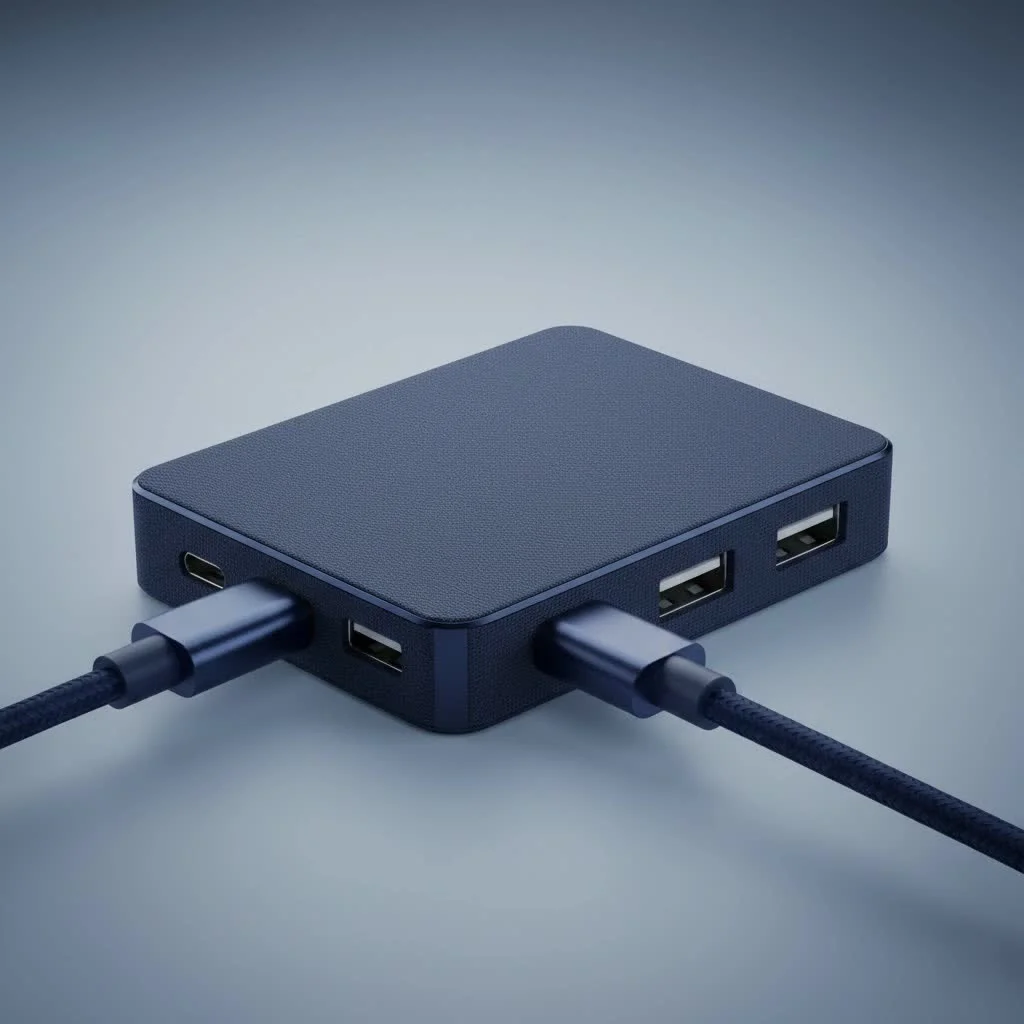
What Exactly is a USB-C HDMI USB Hub?
Think of a USB-C HDMI USB hub as a multiport adapter that acts like a central station for all your peripherals. It plugs into a single USB-C port on your laptop, tablet, or even smartphone and instantly expands it into a variety of different connections. While designs vary, most hubs include a combination of essential ports.
The core function is to provide an HDMI port, allowing you to output your device’s display to a larger screen like a monitor, TV, or projector. Alongside this, you’ll typically find:
- USB-A ports: For connecting legacy devices like keyboards, mice, flash drives, and external hard drives.
- USB-C Power Delivery (PD) port: This allows you to charge your laptop through the hub, so you don’t lose your only USB-C port while the hub is connected.
- SD and microSD card readers: A lifesaver for photographers and videographers who need to transfer files quickly.
- Ethernet port: For a faster, more stable wired internet connection than Wi-Fi.
Decoding the Specs: What Really Matters When Choosing a Hub
The market is flooded with options, and the technical jargon on product pages can be confusing. Let’s break down the most critical features you need to examine to ensure you get a hub that performs as expected.
HDMI Port: The 4K@60Hz vs. 4K@30Hz Showdown
This is arguably the most important specification for a USB-C HDMI USB hub. It determines the quality and smoothness of the video output to your external display.
- 4K@30Hz: This means the hub can send a 4K resolution signal to your monitor, but it will only refresh the image 30 times per second. For static work like writing documents or browsing the web, this is acceptable. However, when you move your mouse, scroll, or watch a video, it will appear choppy and laggy.
- 4K@60Hz: This is the gold standard. Refreshing the image 60 times per second results in a buttery-smooth experience. Mouse movements are fluid, videos play seamlessly, and it’s much easier on the eyes for extended work sessions.
Expert Take by Alex Carter, Lead Hardware Analyst at Meeob: “We almost always recommend a hub capable of 4K@60Hz. The difference in user experience is night and day. Once you’ve worked on a 60Hz display, going back to 30Hz feels like a significant downgrade. It’s worth the small extra investment for a smoother, more professional setup.”
To achieve 4K@60Hz, you need a hub that supports at least the HDMI 2.0 standard. Always check this detail in the product specifications.
USB Ports: It’s All About Speed
|
Our Picks for the Best USB Hub in 2026
As an Amazon Associate I earn from qualifying purchases.
|
||
| Num | Product | Action |
|---|---|---|
| 1 | USB C Docking Station with M.2 NVMe SSD Enclosure 10Gbps, 9 in 1 USB-C Hub, Type C SSD Slot with 4K@60Hz HDMI, USB 3.2 Gen2, PD100W, SD/TF Card Reader, Laptop Docking Station for Dell/HP/Lenovo/Mac |

|
| 2 | Powered USB Hub 10Gbps, intpw 9-Port USB 3.2 Hub, USB C Hub with USB A/USB C 3.2, 4 USB 3.0, 2 PD 45W Charging Ports, 65W Power Adapter and 3.3FT Cable, Aluminum USB Hub for Laptop, iPhone 17/16/15,PC |
|
| 3 | Powered USB Hub, Wenter 11-Port USB Splitter Hub (10 Faster Data Transfer Ports+ 1 Smart Charging Port) with Individual LED On/Off Switches, USB Hub 3.0 Powered with Power Adapter for Mac, PC |
|
| 4 | Anker Laptop Docking Station Dual Monitor, 8-in-1 USB C Hub, 4K Dual Monitor with 2 HDMI, 1 Gbps Ethernet Hub, 85W Power Delivery, SD Card Reader for MacBook Pro, XPS and More (Charger not Included) |
|
| 5 | 3-in-1 USB C Splitter, 3 in 1 Type-C Charging Data Cable Data Transmission Decive Charging Adapter Power Charger Equipment for ome Office Use, Fast & Efficient |
|
| 6 | UGREEN USB 3.0 Hub, 4 Ports USB A Splitter Ultra-Slim USB Expander for Mouse, Keyboard, Flash Drive, U Disk, Printer Compatible with Laptop, Desktop PC, Xbox, PS5, and More |
|
| 7 | 13 in 1 USB C Docking Station - Dual Monitor, Triple Display, 8 USB C/A Ports, Ethernet, Audio - LIONWEI USB C Hub for MacBook,Dell,HP,Lenovo,Surface |
|
| 8 | Anker USB Hub 4 Ports with 5Gbps Data Transfer, Multiple USB 3.0 Hub, USB Splitter for Laptop, Extender for A Port Laptop, PC, Desktop and More [Charging Not Supported](0.7 ft USB-A) |
|
| 9 | P9R PRO USB C Hub Ethernet, 10 in 1 USB Docking Station 10Gbps with 4K@60Hz HDMI, USB C and 2 USB A 3.2, LAN, 2 USB A 2.0, PD 100W, SD/TF Ports, USB to Ethernet Adapter for PC, iPhone 16/15, Mac |
|
| 10 | USB Hub 3.0, 7-Port USB Hub Splitter with Individual On/Off Switches and Lights, 3.2ft/1m Long Cable Compatible with MacBook, Laptop, Surface Pro, PS4, PC, Flash Drive, Mobile HDD |
|
Not all USB ports are created equal. The USB-A ports on your hub will likely be either USB 2.0 or USB 3.0.
- USB 2.0: Offers a maximum data transfer speed of 480Mbps. This is fine for connecting a mouse or keyboard, but it will be incredibly slow for transferring large files. A 10GB file could take several minutes.
- USB 3.0 (or USB 3.1 Gen 1 / USB 3.2 Gen 1): These all refer to the same speed of 5Gbps. This is over ten times faster than USB 2.0 and is ideal for connecting external SSDs or flash drives for quick file transfers.
Look for hubs that offer at least one USB 3.0 port for your high-speed data needs.
Power Delivery (PD): Charge Your Laptop Through the Hub
Power Delivery is a non-negotiable feature. A hub with a PD passthrough charging port allows you to connect your laptop’s USB-C charger to the hub, which then passes power through to your laptop. This means you can run an external monitor, use your peripherals, and charge your device all through a single port.
Pay attention to the wattage. Most hubs support up to 100W of power delivery, but some of that power (usually 5-15W) is used to operate the hub itself. For a 16-inch MacBook Pro or a powerful Windows laptop, a 100W PD port is recommended to ensure full-speed charging.
Compatibility Check: Will It Work With Your Device?
This is a crucial step that many people overlook. For a USB-C HDMI USB hub to output video, the USB-C port on your host device (your laptop or tablet) must support DisplayPort Alternate Mode (DP Alt Mode).
DP Alt Mode is a feature that allows a USB-C port to transmit a video signal. Unfortunately, not all USB-C ports have it. Some are for data transfer and charging only.
How to check for compatibility:
- Look for a symbol: Many laptops with video-enabled USB-C ports have a small DisplayPort logo (a ‘D’ with a ‘P’ inside) or a Thunderbolt logo (a lightning bolt) next to the port.
- Check your device’s specifications: The surest way is to check the manufacturer’s website for your specific model. Look for terms like “USB-C with DisplayPort Alt Mode” or “Thunderbolt 3 / 4.”
- General rule of thumb: Most modern high-end and mid-range laptops from brands like Apple (MacBook Pro/Air), Dell (XPS), HP (Spectre, Envy), and Lenovo (ThinkPad) have this feature. Budget laptops are less likely to include it.
How to Choose the Right USB-C HDMI USB Hub for You
To simplify your decision, we’ve broken down user needs into a few common profiles. Find the one that best describes you.
| User Profile | Key Needs | Recommended Hub Features |
|---|---|---|
| The Casual User | Connect to a TV for streaming, light web browsing on a monitor. | 4K@30Hz HDMI, 1-2 USB 3.0 ports, 60W Power Delivery. |
| The Remote Worker | Full-time desk setup, multiple peripherals, video conferencing. | 4K@60Hz HDMI, 2+ USB 3.0 ports, 100W Power Delivery, Ethernet port. |
| The Creative Pro | Photo/video editing, fast file transfers, high-res display. | 4K@60Hz HDMI, multiple USB 3.0/3.1 ports, SD/microSD card reader (UHS-II), 100W PD. |
| The Gamer | High refresh rate monitor for smooth gameplay, stable connection. | 4K@60Hz (or 1080p@120Hz) HDMI, Ethernet port, USB-A for controllers/headsets. |
Frequently Asked Questions (FAQ)
What’s the difference between a USB-C hub and a docking station?
A USB-C hub is typically smaller, bus-powered (drawing power from the laptop), and portable. A docking station is a larger, stationary unit with its own power adapter, often supporting more ports and multiple external displays.
Can a cheap USB-C hub damage my laptop?
Yes, it’s possible. Poorly made, non-compliant hubs can have electrical issues that could potentially damage your laptop’s ports. It’s always best to buy from reputable brands that adhere to USB-IF standards.
Do I need to install drivers for a USB-C HDMI hub?
For the vast majority of modern hubs and operating systems (Windows, macOS, ChromeOS), they are plug-and-play. No drivers are required.
Can I connect two monitors with one hub?
Most standard USB-C hubs only support a single external display. To connect two or more, you typically need a more advanced Thunderbolt hub or a dedicated docking station that explicitly supports multiple video outputs.
Why isn’t my HDMI display working through the hub?
The most common reason is that your laptop’s USB-C port does not support DP Alt Mode. Other potential issues could be a faulty HDMI cable or a compatibility issue between the hub and your specific monitor. Always check the basics first!
Conclusion: The Hub of Your Digital Life
The humble USB-C HDMI USB hub is more than just an adapter; it’s a key that unlocks the full potential of your modern laptop. By expanding a single port into a versatile array of connections, it provides the flexibility to create a powerful workstation anywhere.
When making your choice, prioritize the features that matter most to your workflow. For most people, this means insisting on a hub with 4K@60Hz HDMI for a smooth visual experience and 100W Power Delivery for hassle-free charging. By investing in a quality hub from a trusted brand, you’re not just buying an accessory—you’re investing in a more efficient, productive, and clutter-free digital life.
Frequently Asked Questions
What is the primary difference between a USB-C hub and a docking station?
A USB-C hub is typically a smaller, portable, bus-powered device, drawing power directly from the laptop. In contrast, a docking station is a larger, stationary unit that uses its own power adapter and often supports more ports and multiple external displays.
Can using a cheap USB-C hub potentially cause damage to my laptop?
Yes, it is possible for poorly manufactured or non-compliant USB-C hubs to cause electrical issues that could damage your laptop's ports. To avoid this, it is always recommended to purchase hubs from reputable brands that adhere to USB-IF standards.
Are drivers required to install and use a USB-C HDMI hub?
No, for the vast majority of modern USB-C HDMI hubs and operating systems like Windows, macOS, and ChromeOS, no additional drivers are required. These devices are designed to be plug-and-play for immediate use.
Is it possible to connect two external monitors using a single USB-C hub?
Most standard USB-C hubs are designed to support only a single external display. To connect two or more monitors, you typically need a more advanced Thunderbolt hub or a dedicated docking station that explicitly offers multiple video outputs.
Why might my HDMI display not be working when connected through the hub?
The most common reason for an HDMI display not working through a hub is that your laptop's USB-C port does not support DisplayPort Alternate Mode (DP Alt Mode). Other potential issues include a faulty HDMI cable or a compatibility problem between the hub and your specific monitor; always check these basics first.
Choose the Right USB-C HDMI USB Hub
Selecting the ideal USB-C HDMI USB hub involves understanding your specific needs and matching them with key technical specifications like video output, USB speeds, and power delivery capabilities.
Determine if you need 4K@30Hz for basic tasks or 4K@60Hz for smooth, high-quality video and a better user experience. For most users, 4K@60Hz is the recommended standard for optimal performance and visual comfort.
Check for USB 3.0 (5Gbps) ports for fast data transfers, especially if you plan to connect external SSDs or flash drives. USB 2.0 (480Mbps) ports are sufficient for peripherals like mice and keyboards but are too slow for large file transfers.
Ensure the hub has a USB-C Power Delivery port with sufficient wattage, ideally 100W, to charge your laptop through the hub. This prevents you from losing a valuable USB-C port while using the hub and ensures your device charges at full speed.
Confirm that your laptop's USB-C port supports DisplayPort Alternate Mode (DP Alt Mode) for video output. Look for a DisplayPort or Thunderbolt logo next to the port, or check your device's manufacturer specifications online.
Based on your user profile (casual, remote worker, creative pro, gamer), decide if you need extra features like SD/microSD card readers for media professionals or an Ethernet port for stable wired internet connections.
Get our weekly buyer guide
Practical specs, not advice. Unsubscribe anytime.
Finally got one of these USB-C HDMI USB hubs, and it’s exactly what I needed for my Dell XPS. I can now easily connect my keyboard, mouse, and an external SSD, plus get video out to my 4K monitor without any issues. The single-cable solution is fantastic and really cleans up my desk. It’s definitely an essential productivity tool.
This hub has been great for my work-from-home setup. I love that it turns one USB-C port into so many options, especially the HDMI for my second screen. My only minor complaint is that sometimes when I plug in a new device, there’s a slight delay before it registers. It’s not a deal-breaker, but it’s noticeable. Still, it’s a solid solution for expanding connectivity.
I bought a hub primarily for the HDMI port to connect my tablet to a TV, and it works okay for that. However, I noticed that when I have multiple USB devices plugged in, like a webcam and a flash drive, the charging speed for my tablet seems to slow down quite a bit. It’s not ideal if you need fast charging while using all the ports. It’s a decent multiport adapter, but that one aspect is a bit disappointing.
I’ve been using a USB-C HDMI USB hub for my MacBook Pro for a few weeks now, and it’s a game-changer. Being able to connect my external monitor, a couple of USB drives, and still charge my laptop all through one port is incredibly convenient. It really does bridge the gap between my portable setup and a full desktop experience, just like the post mentioned. Highly recommend for anyone with limited ports.