Are you tired of the constant plugging and unplugging of USB cables? A switch hub USB might be the elegant solution you’ve been searching for, designed to streamline your workflow and declutter your desk. Whether you’re sharing a printer between two computers or want granular control over your connected gadgets, understanding how these versatile devices work is key to optimizing your setup.
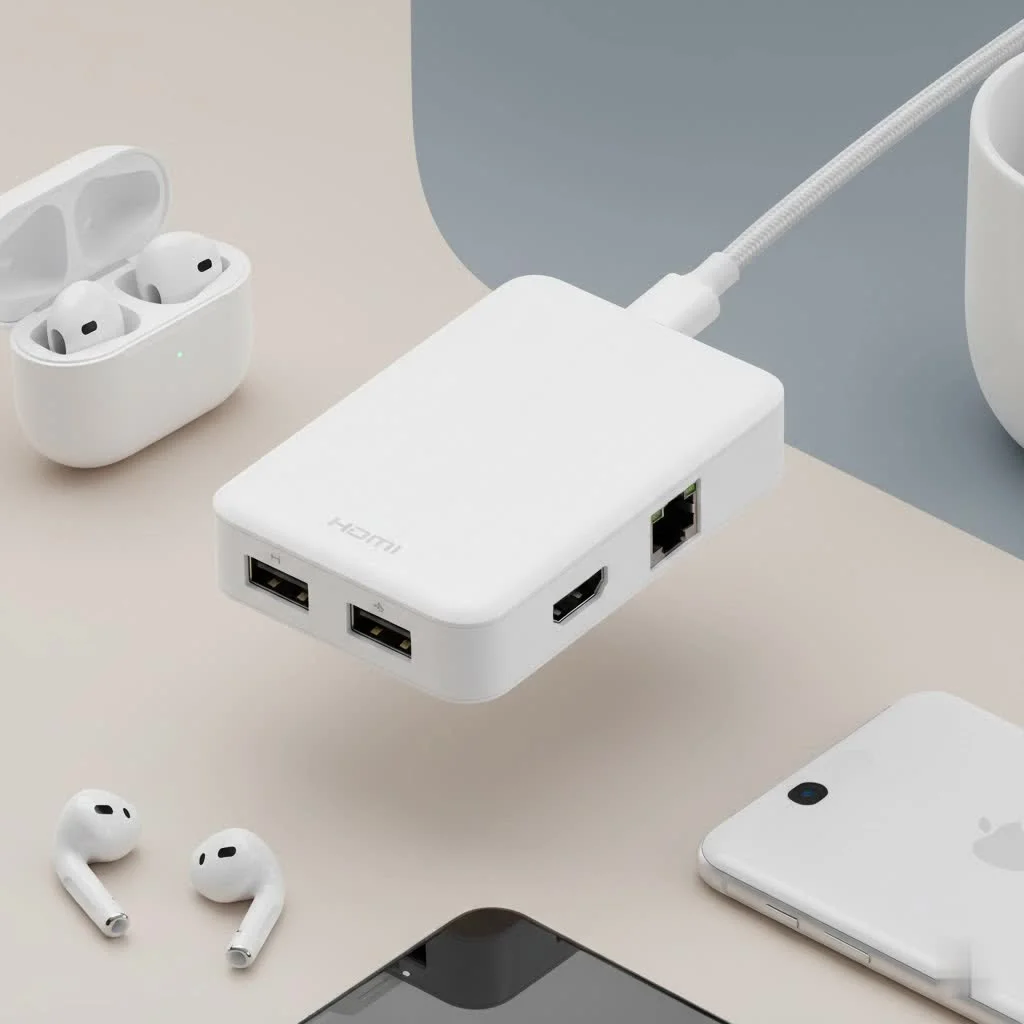
At its core, a USB switch hub is a device that manages connections. However, the term can be a bit ambiguous and often refers to two distinct types of products. One lets multiple computers share a single USB device (or several), while the other is a more traditional hub that includes individual power switches for each port. This guide will demystify both, helping you choose the perfect tool for the job and finally end the cable-swapping chaos. For see our usb hubs recommendations on this site.
What is a USB Switch Hub, Really?
Let’s clear up the confusion. When people search for a “switch hub USB,” they typically mean one of two things: a USB Sharing Switch or a USB Hub with Individual Port Switches. While they both manage USB connections, they solve very different problems.
The USB Sharing Switch: One Device, Multiple PCs
A USB Sharing Switch is a device that allows two or more computers to share access to one or more USB peripherals. Think of it as a digital gatekeeper for your printer, scanner, or external hard drive. Instead of unplugging the USB cable from your desktop and plugging it into your laptop, you simply press a button on the switch to toggle which computer has access to the device.
These are incredibly useful in home offices or small workgroups where you might have a desktop and a laptop but only one printer.
- Best For: Sharing a non-networked printer, scanner, or webcam between two computers.
- How it Works: The switch has multiple “upstream” USB ports (to connect to your computers) and one or more “downstream” ports (to connect your peripherals). A physical button or a software utility swaps the active connection.
The USB Hub with Power Switches: Command and Control
This is a more conventional USB hub—a device that expands one USB port into many—but with a crucial addition: each individual port has its own on/off button and often an LED indicator. This gives you precise control over which devices are drawing power and are actively connected to your computer.
Why is this useful? Some peripherals, like external hard drives or high-power webcams, can draw power even when not in use. A hub with switches lets you completely power them down without yanking the cable, preventing unnecessary wear and tear on the ports.
- Best For: Managing multiple external hard drives, controlling power-hungry peripherals, or for anyone who frequently connects and disconnects devices.
- How it Works: It functions like a standard USB hub, but the individual power buttons act as circuit breakers for each port, cutting both the data connection and the power supply.
How to Choose the Right USB Switch Hub for You
Selecting the perfect device depends entirely on your specific needs. Here’s a breakdown of the essential features to consider before you buy.
1. Identify Your Primary Need: Sharing vs. Control
|
Our Picks for the Best USB Hub in 2026
As an Amazon Associate I earn from qualifying purchases.
|
||
| Num | Product | Action |
|---|---|---|
| 1 | USB C Docking Station with M.2 NVMe SSD Enclosure 10Gbps, 9 in 1 USB-C Hub, Type C SSD Slot with 4K@60Hz HDMI, USB 3.2 Gen2, PD100W, SD/TF Card Reader, Laptop Docking Station for Dell/HP/Lenovo/Mac |

|
| 2 | Powered USB Hub, Wenter 11-Port USB Splitter Hub (10 Faster Data Transfer Ports+ 1 Smart Charging Port) with Individual LED On/Off Switches, USB Hub 3.0 Powered with Power Adapter for Mac, PC |
|
| 3 | Anker USB Hub 4 Ports with 5Gbps Data Transfer, Multiple USB 3.0 Hub, USB Splitter for Laptop, Extender for A Port Laptop, PC, Desktop and More [Charging Not Supported](0.7 ft USB-A) |
|
| 4 | Anker Laptop Docking Station Dual Monitor, 8-in-1 USB C Hub, 4K Dual Monitor with 2 HDMI, 1 Gbps Ethernet Hub, 85W Power Delivery, SD Card Reader for MacBook Pro, XPS and More (Charger not Included) |
|
| 5 | USB Hub 3.0, 7-Port USB Hub Splitter with Individual On/Off Switches and Lights, 3.2ft/1m Long Cable Compatible with MacBook, Laptop, Surface Pro, PS4, PC, Flash Drive, Mobile HDD |
|
| 6 | UGREEN USB 3.0 Hub, 4 Ports USB A Splitter Ultra-Slim USB Expander for Mouse, Keyboard, Flash Drive, U Disk, Printer Compatible with Laptop, Desktop PC, Xbox, PS5, and More |
|
| 7 | Powered USB Hub 10Gbps, intpw 9-Port USB 3.2 Hub, USB C Hub with USB A/USB C 3.2, 4 USB 3.0, 2 PD 45W Charging Ports, 65W Power Adapter and 3.3FT Cable, Aluminum USB Hub for Laptop, iPhone 17/16/15,PC |
|
| 8 | 3-in-1 USB C Splitter, 3 in 1 Type-C Charging Data Cable Data Transmission Decive Charging Adapter Power Charger Equipment for ome Office Use, Fast & Efficient |
|
| 9 | 13 in 1 USB C Docking Station - Dual Monitor, Triple Display, 8 USB C/A Ports, Ethernet, Audio - LIONWEI USB C Hub for MacBook,Dell,HP,Lenovo,Surface |
|
| 10 | P9R PRO USB C Hub Ethernet, 10 in 1 USB Docking Station 10Gbps with 4K@60Hz HDMI, USB C and 2 USB A 3.2, LAN, 2 USB A 2.0, PD 100W, SD/TF Ports, USB to Ethernet Adapter for PC, iPhone 16/15, Mac |
|
First, answer this fundamental question: Are you trying to share one device between multiple computers, or do you need to control multiple devices connected to a single computer?
- If you answered sharing, you need a USB Sharing Switch.
- If you answered control, you need a USB Hub with Individual Power Switches.
2. Count Your Connections: Ports and Computers
For a USB Sharing Switch, consider how many computers and peripherals you need to connect. The most common configuration is a “2-in, 4-out” switch, meaning two computers can share up to four USB devices. Some models support up to four computers.
For a USB Hub with Power Switches, the number of downstream ports is the main factor. They typically range from 4 to 16 ports. Choose one that gives you a few extra ports for future expansion.
3. Don’t Compromise on Speed: USB Standards
The USB standard determines the maximum data transfer speed. For the best performance, match the hub’s standard to your devices.
- USB 2.0: Offers speeds up to 480 Mbps. It’s fine for keyboards, mice, and older printers, but it will be a major bottleneck for storage devices.
- USB 3.0 (or USB 3.1 Gen 1 / USB 3.2 Gen 1): Provides speeds up to 5 Gbps. This is the sweet spot for performance and price, ideal for external hard drives, SSDs, and webcams.
- USB 3.1 Gen 2 (or USB 3.2 Gen 2): Bumps the speed up to 10 Gbps. This is essential for power users, video editors, and anyone transferring large files from super-fast external SSDs.
- USB-C: This refers to the connector type, not the speed. A USB-C hub can support various speeds (like 5 Gbps, 10 Gbps, or even Thunderbolt speeds). It’s the modern standard for laptops and many new devices.
“Many users overlook the importance of matching USB standards,” notes hardware expert Caroline Jennings. “Plugging a high-speed USB 3.0 SSD into an old USB 2.0 hub is like forcing a sports car to drive on a gravel road—you simply won’t get the performance you paid for.”
4. The Power Question: Powered vs. Bus-Powered
This is a critical consideration, especially for hubs with multiple ports.
- Bus-Powered Hubs: These draw all their power directly from the computer’s USB port. They are portable but can’t reliably support power-hungry devices like external hard drives, CD drives, or multiple devices at once.
- Powered Hubs: These come with their own external AC adapter. This provides dedicated, stable power to every port, ensuring all your connected devices run reliably without overloading your computer’s USB port.
Rule of Thumb: If you plan to connect more than two devices or any device that has a motor (like an external hard drive or disc drive), always choose a powered hub.
Real-World Scenarios: Where a USB Switch Hub Shines
Let’s look at some practical applications to see how these devices can transform your setup.
The Home Office Hero
Problem: You have a personal desktop and a work laptop. You need to use the same external monitor, keyboard, mouse, and webcam for both, plus share a printer.
Solution: A combination! You might use a KVM switch (a specialized USB switch that also handles video like HDMI or DisplayPort) for your monitor, keyboard, and mouse. Then, you would use a separate 2-in, 4-out USB Sharing Switch for your printer, scanner, and other peripherals. This lets you seamlessly switch your entire workstation between computers with the press of a button.
The Digital Artist’s Command Center
Problem: You’re a photographer or video editor with multiple external hard drives for projects, backups, and archives connected to your single editing machine. You don’t need them all running at once.
Solution: A 10-port powered USB 3.1 Hub with Individual Switches. This allows you to keep all your drives connected but only power on the specific ones you need for a project. This reduces power consumption, minimizes electronic noise, and can even extend the lifespan of your drives by keeping them off when not in use.
Frequently Asked Questions (FAQ)
Q: Does a USB switch hub reduce transfer speed?
A: A quality, powered USB switch or hub should not noticeably reduce speed, provided it supports the same or a higher USB standard than your device (e.g., using a USB 3.0 hub for a USB 3.0 device). However, all devices on a single hub share the total bandwidth of the single port it’s plugged into on your computer.
Q: Can I use a USB switch hub for charging my phone?
A: Yes, most powered USB hubs can charge devices. However, they may not support the fast-charging protocols (like Qualcomm Quick Charge or USB Power Delivery) that your phone’s dedicated charger uses. Charging will often be slower.
Q: Do I need to install drivers for a USB switch hub?
A: Generally, no. Most modern USB switch hubs are plug-and-play and do not require any special drivers for operating systems like Windows, macOS, or Linux. Some advanced sharing switches may offer optional software for easier switching.
Q: What’s the difference between a USB switch and a KVM switch?
A: A USB switch only handles USB connections. A KVM (Keyboard, Video, Mouse) switch is a more comprehensive device designed to share a keyboard, a video monitor (HDMI, DisplayPort, etc.), and a mouse between multiple computers. If you need to share your screen, you need a KVM switch.
The Final Word: Take Control of Your Connections
Choosing the right switch hub USB is about identifying your primary bottleneck. Are you tired of swapping cables between computers, or are you overwhelmed by the number of powered devices on your desk? By understanding the fundamental difference between a sharing switch and a hub with power control, you can select a device that truly simplifies your digital life. Invest in a quality, powered model that matches your speed requirements, and you’ll wonder how you ever managed the cable clutter before.
Get our weekly buyer guide
Practical specs, not advice. Unsubscribe anytime.

This was super helpful in clarifying the two distinct types of USB switch hubs. I always got them confused. I needed one to share my webcam and microphone between my gaming PC and my streaming PC, and the guide pointed me towards the right kind of switch. Setup was a breeze and it’s working flawlessly.
I’ve been looking for a way to share my printer between my two computers without having to get up and switch cables every time. The explanation of how a USB switch hub lets multiple computers share a single device was exactly what I needed. It works great, though I wish the power adapter cable was a little longer for my specific setup.
I was so tired of constantly swapping my external hard drive between my work laptop and my personal desktop. This guide really helped me understand the difference between a switch and a regular hub. I ended up getting a 2-in-1 out-switch and it’s been a game-changer for my desk setup. No more cable chaos, everything is so much smoother now.
I bought a hub with individual power switches for each port, thinking it would help me manage my various gadgets better. While it does declutter my desk a bit, some of my older USB 2.0 devices seem to have a slight delay when I power them on through the hub. It’s not a dealbreaker, but something to be aware of if you have a mix of old and new tech.