In today’s world of sleek, minimalist laptops, the scarcity of ports is a real problem. If you’ve ever tried to connect an external monitor, a mouse, and a USB drive to your new notebook all at once, you’ve felt the frustration. This is where a USB and HDMI hub comes in, transforming a single port—usually a USB-C—into a multifunctional workstation. It’s the simple, elegant solution to the modern port-deprived dilemma, allowing you to expand your connectivity and unleash your device’s full potential.
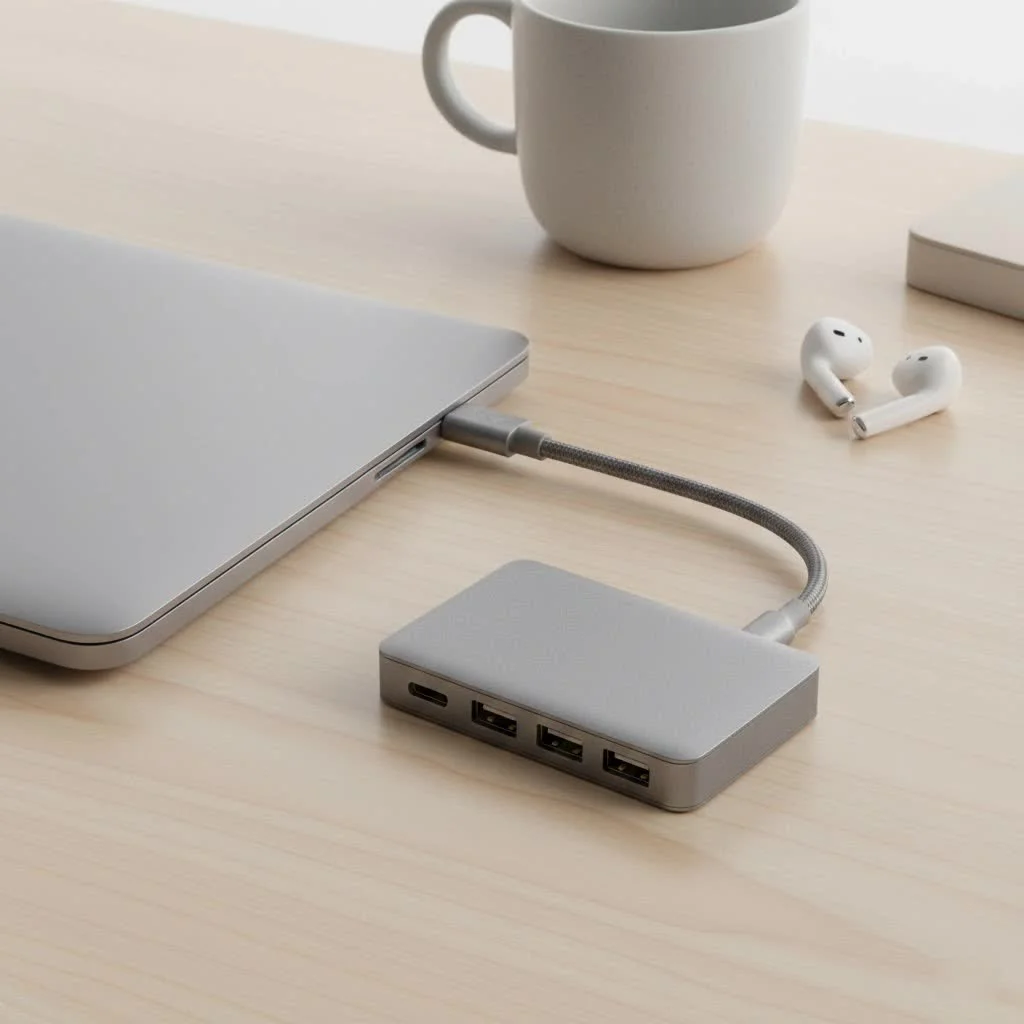
But with so many options on the market, how do you choose the right one? This guide will walk you through everything you need to know about USB and HDMI hubs, from the different types and their best uses to the critical features you should look for before you buy. For browse all usb hubs articles on this site.
What Exactly is a USB and HDMI Hub?
A USB and HDMI hub is a compact adapter that plugs into a single port on your computer (typically USB-C) and provides multiple outputs. At its core, it’s designed to give you back the essential ports that modern laptops have sacrificed for size and aesthetics. A standard hub of this type will always include at least one HDMI port for video output and several USB ports for connecting peripherals.
Think of it as a power strip for your data and video. You plug one thing into the wall and get multiple outlets. Similarly, you plug the hub into your laptop and get a variety of ports to connect all your essential gear.
“The rise of the USB-C standard has been a double-edged sword,” notes tech expert David Chen. “It offers incredible speed and versatility, but it has also led to the removal of legacy ports. A good USB and HDMI hub isn’t just an accessory; for many professionals and creatives, it’s an absolute necessity to bridge that gap.”
The Different Types of Hubs Explained
While the core function is the same, these hubs come in various configurations. Understanding the differences is key to finding the perfect match for your needs.
Basic USB-C to HDMI and USB Hubs
This is the most common and straightforward type. It’s a small, portable adapter that usually offers:
- One HDMI port (often supporting 4K resolution)
- Two or three USB-A ports (typically USB 3.0 for faster data transfer)
- Sometimes, an additional USB-C port for passthrough charging
These are perfect for the average user who needs to connect an external display and a couple of peripherals like a keyboard and mouse. They are lightweight, easy to carry, and generally the most affordable option.
Multiport Adapters with More Options
|
Our Picks for the Best USB Hub in 2026
As an Amazon Associate I earn from qualifying purchases.
|
||
| Num | Product | Action |
|---|---|---|
| 1 | Anker USB Hub 4 Ports with 5Gbps Data Transfer, Multiple USB 3.0 Hub, USB Splitter for Laptop, Extender for A Port Laptop, PC, Desktop and More [Charging Not Supported](0.7 ft USB-A) |
 on Amazon](https://meeob.com/wp-content/plugins/amazon-tables/assets/images/buy.png)
|
| 2 | 13 in 1 USB C Docking Station - Dual Monitor, Triple Display, 8 USB C/A Ports, Ethernet, Audio - LIONWEI USB C Hub for MacBook,Dell,HP,Lenovo,Surface |
|
| 3 | P9R PRO USB C Hub Ethernet, 10 in 1 USB Docking Station 10Gbps with 4K@60Hz HDMI, USB C and 2 USB A 3.2, LAN, 2 USB A 2.0, PD 100W, SD/TF Ports, USB to Ethernet Adapter for PC, iPhone 16/15, Mac |
|
| 4 | USB C Docking Station with M.2 NVMe SSD Enclosure 10Gbps, 9 in 1 USB-C Hub, Type C SSD Slot with 4K@60Hz HDMI, USB 3.2 Gen2, PD100W, SD/TF Card Reader, Laptop Docking Station for Dell/HP/Lenovo/Mac |
|
| 5 | Anker Laptop Docking Station Dual Monitor, 8-in-1 USB C Hub, 4K Dual Monitor with 2 HDMI, 1 Gbps Ethernet Hub, 85W Power Delivery, SD Card Reader for MacBook Pro, XPS and More (Charger not Included) |
|
| 6 | USB Hub 3.0, 7-Port USB Hub Splitter with Individual On/Off Switches and Lights, 3.2ft/1m Long Cable Compatible with MacBook, Laptop, Surface Pro, PS4, PC, Flash Drive, Mobile HDD |
|
| 7 | Powered USB Hub, Wenter 11-Port USB Splitter Hub (10 Faster Data Transfer Ports+ 1 Smart Charging Port) with Individual LED On/Off Switches, USB Hub 3.0 Powered with Power Adapter for Mac, PC |
|
| 8 | UGREEN USB 3.0 Hub, 4 Ports USB A Splitter Ultra-Slim USB Expander for Mouse, Keyboard, Flash Drive, U Disk, Printer Compatible with Laptop, Desktop PC, Xbox, PS5, and More |
|
| 9 | 3-in-1 USB C Splitter, 3 in 1 Type-C Charging Data Cable Data Transmission Decive Charging Adapter Power Charger Equipment for ome Office Use, Fast & Efficient |
|
| 10 | Powered USB Hub 10Gbps, intpw 9-Port USB 3.2 Hub, USB C Hub with USB A/USB C 3.2, 4 USB 3.0, 2 PD 45W Charging Ports, 65W Power Adapter and 3.3FT Cable, Aluminum USB Hub for Laptop, iPhone 17/16/15,PC |
|
For those who need more than the basics, multiport adapters offer a wider array of connections. In addition to HDMI and USB-A ports, these more advanced hubs can include:
- SD and microSD card readers: A lifesaver for photographers and videographers who need to transfer files from their cameras.
- Ethernet port: Provides a stable, wired internet connection, which is crucial for online gaming, streaming, or when Wi-Fi is unreliable.
- USB-C Power Delivery (PD) port: This is a game-changer. It allows you to charge your laptop through the hub, so you don’t lose your only USB-C port while the hub is connected.
Advanced Hubs and Mini-Docking Stations
Blurring the line between a hub and a full docking station, these powerful devices are designed for a permanent desk setup. They offer everything a multiport adapter does but often in greater numbers and with higher specifications. You might find hubs that support dual HDMI outputs for multiple monitors, have faster USB ports, and deliver more power to charge your laptop and other devices simultaneously.
How to Choose the Right USB and HDMI Hub for You
Selecting the right hub depends entirely on your specific use case. Here’s a breakdown of the key factors to consider to ensure you get a device that meets your needs without overpaying for features you won’t use.
1. Check Your Host Device’s Port
First and foremost, what port are you connecting the hub to? Most modern hubs are designed for USB-C, but it’s crucial to ensure your laptop’s USB-C port supports DisplayPort Alternate Mode (DP Alt Mode). This feature is what allows the USB-C port to transmit a video signal to the HDMI port on the hub. Most high-end and mid-range laptops with USB-C have this, but some budget models may not. Check your device’s specifications before buying.
2. Video Output: The HDMI Port Matters
Not all HDMI ports are created equal. The most important specification to look for is the resolution and refresh rate it supports.
- 4K at 30Hz: This is the standard for most budget-friendly hubs. It’s perfectly fine for watching videos, presentations, and general productivity tasks.
- 4K at 60Hz: This provides a much smoother, more fluid experience, which is essential for video editing, graphic design, and gaming. If your work involves fast-moving visuals, spending a little extra for a 60Hz-capable hub is well worth it.
3. USB Port Speed and Type
The USB ports on the hub are for your peripherals. Pay attention to their type and speed.
- USB-A vs. USB-C: Most hubs offer USB-A 3.0 ports, which are backward compatible and suitable for most devices (keyboards, mice, flash drives). Some newer hubs also include an extra USB-C data port.
- USB 2.0 vs. USB 3.0: A USB 3.0 port (often colored blue) offers data transfer speeds up to 5Gbps, which is about 10 times faster than USB 2.0. For transferring large files from an external hard drive, USB 3.0 is a must-have.
4. The Importance of Power Delivery (PD)
If your laptop has only one or two USB-C ports, a hub with Power Delivery is critical. A PD port allows you to connect your laptop’s charger to the hub, which then passes power through to your laptop. This means you can charge your device and use all the hub’s ports simultaneously with a single connection. Check the wattage of the PD port—it should be close to your laptop’s original charger (e.g., 60W, 85W, or 100W) for optimal charging speed.
A Quick Checklist for Buying a Hub
- Compatibility: Does my laptop’s USB-C port support DP Alt Mode?
- HDMI Specs: Do I need 4K@30Hz or is the smoother 4K@60Hz better for my work?
- Port Selection: How many USB ports do I need? Do I need an SD card reader or an Ethernet port?
- Power Needs: Does my laptop have limited ports? Is a Power Delivery (PD) port essential for my setup?
- Portability: Do I need a small hub for travel or a larger one for a permanent desk setup?
Potential Drawbacks and How to Avoid Them
While incredibly useful, USB and HDMI hubs are not without potential issues. Being aware of them can help you make a better choice.
- Overheating: Hubs that handle power, video, and data can get warm, especially compact models. Look for hubs with an aluminum casing, as it helps dissipate heat better than plastic.
- Lag or Flickering: A low-quality hub can sometimes cause your external monitor to flicker or lag. This is often due to poor shielding or components. Sticking to reputable brands with positive user reviews is the best way to avoid this.
- Power Issues: If you connect too many power-hungry devices (like external hard drives) to a non-powered hub, they may not work correctly. If you plan to use multiple high-power peripherals, consider a powered USB hub or a docking station.
Conclusion: The Key to Unlocking Your Setup
A USB and HDMI hub is a small investment that pays huge dividends in productivity and convenience. It breaks down the barriers imposed by modern laptop design, allowing you to create a versatile and powerful workstation wherever you go. By understanding your specific needs—from video output requirements to the number and type of ports you’ll use—you can confidently choose a hub that seamlessly integrates into your workflow. Say goodbye to carrying a bag full of dongles and hello to the simplicity of a single, powerful connection.
Get our weekly buyer guide
Practical specs, not advice. Unsubscribe anytime.

I was constantly juggling dongles for my new MacBook Air, and it was driving me crazy. This guide really helped me understand the different types of hubs. I ended up getting a USB-C hub with multiple USB 3.0 ports and an HDMI output, and it’s been a game-changer for my home office setup. No more unplugging my mouse to connect a flash drive!
The info on critical features to look for was super helpful. I needed something that could handle my external monitor and still have room for a couple of peripherals. The hub I chose based on the recommendations works great, though I wish it had one more USB-A port. Still, it’s a huge improvement over my old setup.
I got a basic USB and HDMI hub for my work laptop, mainly for presentations. It does the job for connecting to the projector, but I’ve noticed a slight delay when I have too many things plugged in at once. It’s fine for just the monitor, but if I add a keyboard and mouse, things get a little sluggish. Maybe I should have sprung for a more premium option.
My biggest frustration was always the lack of ports on my ultrabook. This guide really clarified how a single USB-C port could be transformed into a full workstation. I invested in one of the recommended hubs, and now I can connect my external SSD, keyboard, and an extra display without any issues. It’s made my workflow so much smoother.