Modern laptops are marvels of slim, lightweight design. But this sleekness often comes at a cost: a severe lack of ports. If you’ve ever tried to connect your new laptop to an external monitor or TV, you’ve likely encountered this problem head-on. That single USB-C port is powerful, but it can’t do everything at once—unless you have the right tool. This is where a USB C hub HDMI becomes not just a convenience, but an essential accessory for students, professionals, and creatives alike. It’s the simple, elegant solution to expand your connectivity and unlock your device’s full potential.
At Meeob, we’ve spent over a decade testing and analyzing every type of USB hub on the market. We understand that choosing the right one can feel overwhelming. This guide will demystify the process, breaking down everything you need to know to select the perfect hub for your setup.
What Exactly Is a USB-C Hub with HDMI?
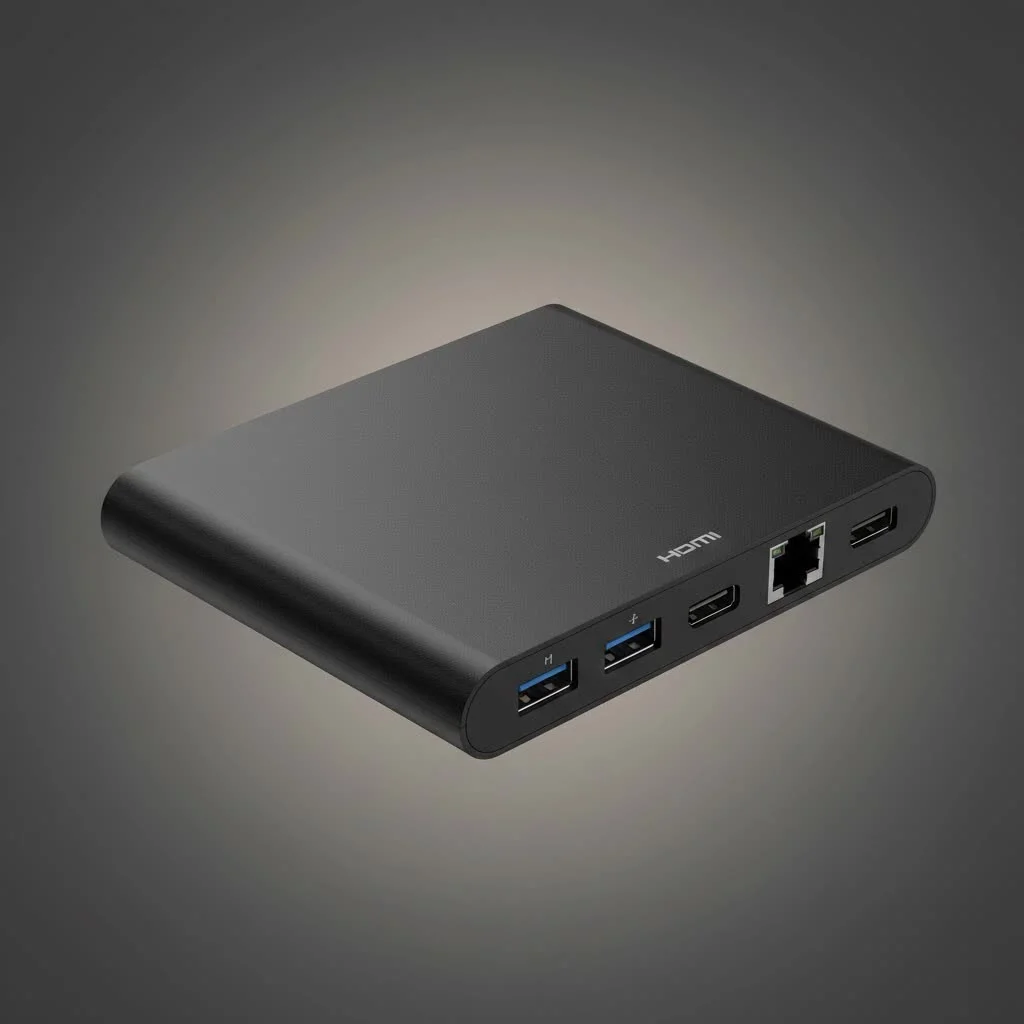
Think of a USB-C hub with an HDMI port as a high-tech multi-tool for your laptop, tablet, or even smartphone. It plugs into a single USB-C port (the small, oval-shaped one) and instantly gives you multiple other ports. The star of the show, of course, is the HDMI port, which allows you to send high-definition video and audio to an external display like a monitor, TV, or projector.
But most hubs don’t stop there. They often include a variety of other useful connections, turning one port into a powerful workstation. Common additions include:
- USB-A ports: For connecting older devices like keyboards, mice, and flash drives.
- SD and microSD card readers: Essential for photographers and videographers.
- Ethernet port: For a stable, wired internet connection.
- USB-C Power Delivery (PD) port: To charge your laptop through the hub, so you don’t lose your only charging port.
Why a USB-C Hub HDMI is a Modern Necessity
In an era of remote work and digital creation, the ability to extend your screen is crucial for productivity. A second monitor allows you to multitask efficiently, whether you’re comparing documents, coding on one screen while previewing on another, or keeping your communication apps visible while focusing on your main task. A USB C hub HDMI is the bridge that makes this seamless workflow possible.
It’s also an indispensable tool for presentations. Instead of fumbling with incompatible adapters, you can confidently walk into any meeting room, plug your hub into your laptop and the room’s display, and start your presentation without a hitch.
Key Features to Look for in a USB-C Hub HDMI
Not all hubs are created equal. The specs can be confusing, but focusing on a few key features will ensure you get a device that meets your needs now and in the future.
HDMI Port Specifications: The Resolution Revolution
|
Our Picks for the Best USB Hub in 2026
As an Amazon Associate I earn from qualifying purchases.
|
||
| Num | Product | Action |
|---|---|---|
| 1 | 13 in 1 USB C Docking Station - Dual Monitor, Triple Display, 8 USB C/A Ports, Ethernet, Audio - LIONWEI USB C Hub for MacBook,Dell,HP,Lenovo,Surface |

|
| 2 | Powered USB Hub 10Gbps, intpw 9-Port USB 3.2 Hub, USB C Hub with USB A/USB C 3.2, 4 USB 3.0, 2 PD 45W Charging Ports, 65W Power Adapter and 3.3FT Cable, Aluminum USB Hub for Laptop, iPhone 17/16/15,PC |
|
| 3 | UGREEN USB 3.0 Hub, 4 Ports USB A Splitter Ultra-Slim USB Expander for Mouse, Keyboard, Flash Drive, U Disk, Printer Compatible with Laptop, Desktop PC, Xbox, PS5, and More |
|
| 4 | Powered USB Hub, Wenter 11-Port USB Splitter Hub (10 Faster Data Transfer Ports+ 1 Smart Charging Port) with Individual LED On/Off Switches, USB Hub 3.0 Powered with Power Adapter for Mac, PC |
|
| 5 | USB Hub 3.0, 7-Port USB Hub Splitter with Individual On/Off Switches and Lights, 3.2ft/1m Long Cable Compatible with MacBook, Laptop, Surface Pro, PS4, PC, Flash Drive, Mobile HDD |
|
| 6 | Anker Laptop Docking Station Dual Monitor, 8-in-1 USB C Hub, 4K Dual Monitor with 2 HDMI, 1 Gbps Ethernet Hub, 85W Power Delivery, SD Card Reader for MacBook Pro, XPS and More (Charger not Included) |
|
| 7 | P9R PRO USB C Hub Ethernet, 10 in 1 USB Docking Station 10Gbps with 4K@60Hz HDMI, USB C and 2 USB A 3.2, LAN, 2 USB A 2.0, PD 100W, SD/TF Ports, USB to Ethernet Adapter for PC, iPhone 16/15, Mac |
|
| 8 | 3-in-1 USB C Splitter, 3 in 1 Type-C Charging Data Cable Data Transmission Decive Charging Adapter Power Charger Equipment for ome Office Use, Fast & Efficient |
|
| 9 | USB C Docking Station with M.2 NVMe SSD Enclosure 10Gbps, 9 in 1 USB-C Hub, Type C SSD Slot with 4K@60Hz HDMI, USB 3.2 Gen2, PD100W, SD/TF Card Reader, Laptop Docking Station for Dell/HP/Lenovo/Mac |
|
| 10 | Anker USB Hub 4 Ports with 5Gbps Data Transfer, Multiple USB 3.0 Hub, USB Splitter for Laptop, Extender for A Port Laptop, PC, Desktop and More [Charging Not Supported](0.7 ft USB-A) |
|
The capability of the HDMI port is arguably the most important feature. This determines the quality of the video you can output.
- 4K@30Hz: This is the baseline for most budget-friendly hubs. It’s perfectly fine for static work like spreadsheets, web browsing, and watching standard videos. However, at this refresh rate, mouse movements and fast-paced video can appear slightly choppy.
- 4K@60Hz: This is the sweet spot for most users. It provides a much smoother, more fluid experience, making it ideal for video editing, casual gaming, and general use. The difference between 30Hz and 60Hz is immediately noticeable and worth the extra cost for anyone who spends significant time using an external monitor.
- 8K or 4K@120Hz: This is the high-end, targeting creative professionals with specialized monitors and hardcore gamers. It requires a compatible laptop and display, but it delivers an incredibly sharp and ultra-smooth image.
Power Delivery (PD) Passthrough
This feature is non-negotiable for most laptop users. A hub with Power Delivery has a dedicated USB-C input port that you connect your laptop’s charger to. The hub then “passes through” the power to your laptop while simultaneously running all the other ports. Without PD, using a hub would mean you couldn’t charge your device at the same time, which defeats the purpose for long work sessions. Look for hubs that support at least 60W of power delivery, with 100W being ideal for more powerful laptops like the MacBook Pro.
More Than Just HDMI: The Port Selection
Consider what other devices you use daily. A good USB C hub HDMI should complement your workflow.
- USB-A Ports: How many legacy devices do you have? Look for at least two USB-A ports. Pay attention to the speed—USB 3.0 (often blue-colored) offers significantly faster data transfer speeds than USB 2.0.
- Ethernet Port: If you need a more reliable and faster internet connection than Wi-Fi can provide, an Ethernet port is a must-have. This is especially important for online gamers, streamers, and professionals who transfer large files.
- Card Readers: For photographers, videographers, and drone pilots, built-in SD and/or microSD card readers are incredibly convenient, eliminating the need for a separate dongle.
According to our in-house expert, Johnathan Carter, “People often focus solely on the 4K capability, but the real differentiator for a quality USB-C hub is its thermal management and stable Power Delivery. A hub that overheats or can’t consistently charge your laptop under load is a weak link in your setup.”
How to Choose the Right USB-C Hub HDMI for You
The best hub is the one that fits your specific use case. Let’s break it down.
For the Everyday User or Student
If you mainly need to connect to a second monitor for browsing, writing essays, and watching lectures, you don’t need to break the bank.
- Focus on: A compact hub with at least one 4K@30Hz HDMI port, one or two USB-A 3.0 ports, and Power Delivery.
- Example Use: Connecting a laptop to a dorm room TV for a bigger screen while charging it and using a wireless mouse.
For the Creative Professional
Photographers, video editors, and designers have more demanding needs. Speed and high resolution are critical.
- Focus on: A hub with a 4K@60Hz HDMI port, multiple fast USB-A and USB-C data ports, and high-speed SD/microSD card readers (UHS-II is a plus).
- Example Use: Importing 4K footage from an SD card, editing it on a high-resolution external monitor, and backing it up to an external SSD, all while charging the laptop.
For the Power User or Gamer
For those who push their tech to the limits, every detail matters. Stability, speed, and refresh rate are paramount.
- Focus on: A robust hub with 4K@60Hz or higher, a Gigabit Ethernet port for lag-free connectivity, and high-wattage (100W) Power Delivery to keep power-hungry laptops juiced up.
- Example Use: Gaming on a 1440p or 4K high-refresh-rate monitor with a wired connection for minimum latency, while also connecting a mechanical keyboard and gaming mouse.
Frequently Asked Questions (FAQ)
Q: Will a USB-C hub with HDMI work with my MacBook/Windows laptop?
A: Yes, provided your laptop’s USB-C port supports “DisplayPort Alternate Mode” (DP Alt Mode). This feature allows the USB-C port to transmit video signals. Most modern laptops from Apple, Dell, HP, Lenovo, and others support this, but it’s always best to check your device’s specifications to be certain.
Q: Can I connect two monitors with one USB-C hub?
A: You can, but only if you buy a hub specifically designed for dual-monitor support, which will have two HDMI ports. Note that Macs with standard M1/M2/M3 chips only natively support one external display. You would need a MacBook Pro with a Pro/Max/Ultra chip or a hub that uses special DisplayLink technology to connect more.
Q: Why is my external monitor flickering when connected through the hub?
A: Flickering can be caused by several things: a poor-quality or damaged HDMI cable, insufficient power to the hub, or a driver issue. Try using a different, high-quality HDMI cable first. If that doesn’t work, ensure your laptop’s power adapter is connected to the hub’s PD port. Finally, check for any available driver updates for your laptop’s graphics.
Q: Does a USB-C hub make my internet or data transfer slower?
A: A well-made hub should not noticeably slow down your other connections. However, cheap, poorly shielded hubs can sometimes cause interference. A hub with a dedicated Gigabit Ethernet port will almost always provide a faster and more stable connection than Wi-Fi.
Q: Is it safe to leave my USB-C hub plugged in all the time?
A: Generally, yes. Quality hubs are designed to manage power and heat effectively. It’s normal for them to get warm during use, especially when charging your laptop and running an external display. However, if a hub becomes excessively hot to the touch, you should unplug it as a precaution.
Your Connection, Your Choice
Choosing the right USB C hub HDMI is about empowering your workflow. By understanding the key features like display resolution, Power Delivery, and port selection, you can confidently select a device that transforms your single USB-C port into a versatile and productive command center. Stop juggling dongles and unlock the true potential of your technology. Explore your options, find the hub that matches your daily needs, and enjoy the freedom of seamless connectivity.
Get our weekly buyer guide
Practical specs, not advice. Unsubscribe anytime.

As a professional who travels a lot, I needed a reliable solution for presentations. My new ultrabook only has two USB-C ports, which is a nightmare when you need to connect to a projector and a flash drive. The advice here about looking for hubs with Power Delivery was spot on. My only minor complaint is that the hub I chose gets a little warm after extended use, but it hasn’t affected performance.
My new laptop’s lack of ports was driving me crazy, especially when trying to connect to my older peripherals. This guide was super helpful in explaining how a single USB-C port can be expanded. I picked up a hub with an Ethernet port too, which has made my internet connection much more stable than Wi-Fi. It’s truly an essential accessory for anyone with a modern, slim laptop.
I was so tired of juggling adapters just to connect my MacBook to my external monitor and charge it at the same time. This guide really helped me understand the different types of USB-C hubs. I ended up getting one with multiple USB 3.0 ports and an HDMI out, and it’s been a game-changer for my home office setup. Everything works seamlessly, and I finally have all the connectivity I need.
I appreciate the breakdown of what to look for in a USB-C hub, especially the part about HDMI versions. I bought a cheaper model based on a recommendation elsewhere and found the video quality to be a bit inconsistent on my 4K TV. It works, but sometimes there’s a slight flicker. Next time, I’ll definitely invest in one of the higher-rated brands mentioned for better reliability.