An Amazon USB hub expands a single USB port on your computer into multiple ports, allowing you to connect more devices simultaneously. This is essential for modern, thin laptops that often have limited built-in ports, enabling connections for peripherals like mice, keyboards, external hard drives, and monitors. Choosing the right hub involves considering port types (USB-C vs. USB-A), power delivery (powered vs. unpowered), data transfer speeds (e.g., 5 Gbps for USB 3.0), and the specific port array needed for your workflow.

As the lead content creator at Meeob.com, I’ve spent over a decade testing and analyzing these essential gadgets. This guide will cut through the noise, helping you understand exactly what to look for and how to find the perfect Amazon USB hub for your needs.
Why Do You Need a USB Hub in the First Place?
In the quest for thinner and lighter laptops, manufacturers have drastically reduced the number of built-in ports. While this minimalist design looks great, it creates a practical problem for everyday users. A USB hub acts as an external splitter, turning a single USB port (like USB-C or USB-A) into a gateway for multiple devices. It allows you to connect everything from keyboards and mice to external monitors and SD cards simultaneously.
Key Things to Consider Before Buying a USB Hub on Amazon
Choosing the right hub isn’t about finding the one with the most ports. It’s about matching its features to your specific workflow. Before you click “Add to Cart,” let’s break down the most important factors.
USB-C vs. USB-A: Know Your Main Connection
First, look at the ports on your computer.
- USB-A: This is the traditional, rectangular USB port that has been the standard for decades. If you have an older laptop or a desktop PC, you likely have plenty of these.
- USB-C: This is the smaller, oval-shaped, reversible connector found on most new laptops, tablets, and smartphones. It’s more versatile than USB-A and can support everything from data transfer to video output and power delivery.
Your choice of an Amazon USB hub should start with a model that plugs into the primary port on your host device, whether that’s USB-A or the more modern USB-C.
Powered vs. Unpowered: The Power Dilemma
This is one of the most critical decisions you’ll make.
- Unpowered (or Bus-Powered) Hubs: These hubs draw power directly from the computer they are connected to. They are perfect for low-power devices like flash drives, mice, or keyboards. They are generally smaller, more portable, and cheaper.
- Powered Hubs: These hubs come with their own external power adapter that plugs into a wall outlet. This provides dedicated power to each port, making them essential for high-power devices like external hard drives, webcams, or for charging multiple smartphones at once.
As our Senior Tech Editor, Alex Carter, often says, “Trying to run an external hard drive off an unpowered hub is like trying to water a garden with a spray bottle. It might work for a moment, but it’s not going to get the job done reliably. For anything that spins or charges, go with a powered hub.”
Data Transfer Speeds Explained
|
Our Picks for the Best USB Hub in 2026
As an Amazon Associate I earn from qualifying purchases.
|
||
| Num | Product | Action |
|---|---|---|
| 1 | 13 in 1 USB C Docking Station - Dual Monitor, Triple Display, 8 USB C/A Ports, Ethernet, Audio - LIONWEI USB C Hub for MacBook,Dell,HP,Lenovo,Surface |

|
| 2 | Anker Laptop Docking Station Dual Monitor, 8-in-1 USB C Hub, 4K Dual Monitor with 2 HDMI, 1 Gbps Ethernet Hub, 85W Power Delivery, SD Card Reader for MacBook Pro, XPS and More (Charger not Included) |
|
| 3 | P9R PRO USB C Hub Ethernet, 10 in 1 USB Docking Station 10Gbps with 4K@60Hz HDMI, USB C and 2 USB A 3.2, LAN, 2 USB A 2.0, PD 100W, SD/TF Ports, USB to Ethernet Adapter for PC, iPhone 16/15, Mac |
|
| 4 | 3-in-1 USB C Splitter, 3 in 1 Type-C Charging Data Cable Data Transmission Decive Charging Adapter Power Charger Equipment for ome Office Use, Fast & Efficient |
|
| 5 | Powered USB Hub 10Gbps, intpw 9-Port USB 3.2 Hub, USB C Hub with USB A/USB C 3.2, 4 USB 3.0, 2 PD 45W Charging Ports, 65W Power Adapter and 3.3FT Cable, Aluminum USB Hub for Laptop, iPhone 17/16/15,PC |
|
| 6 | UGREEN USB 3.0 Hub, 4 Ports USB A Splitter Ultra-Slim USB Expander for Mouse, Keyboard, Flash Drive, U Disk, Printer Compatible with Laptop, Desktop PC, Xbox, PS5, and More |
|
| 7 | Anker USB Hub 4 Ports with 5Gbps Data Transfer, Multiple USB 3.0 Hub, USB Splitter for Laptop, Extender for A Port Laptop, PC, Desktop and More [Charging Not Supported](0.7 ft USB-A) |
|
| 8 | USB Hub 3.0, 7-Port USB Hub Splitter with Individual On/Off Switches and Lights, 3.2ft/1m Long Cable Compatible with MacBook, Laptop, Surface Pro, PS4, PC, Flash Drive, Mobile HDD |
|
| 9 | Powered USB Hub, Wenter 11-Port USB Splitter Hub (10 Faster Data Transfer Ports+ 1 Smart Charging Port) with Individual LED On/Off Switches, USB Hub 3.0 Powered with Power Adapter for Mac, PC |
|
| 10 | USB C Docking Station with M.2 NVMe SSD Enclosure 10Gbps, 9 in 1 USB-C Hub, Type C SSD Slot with 4K@60Hz HDMI, USB 3.2 Gen2, PD100W, SD/TF Card Reader, Laptop Docking Station for Dell/HP/Lenovo/Mac |
|
You’ll see different USB standards mentioned in product listings. Here’s a quick rundown:
- USB 2.0: An older standard with a max speed of 480 Mbps. It’s fine for mice and keyboards but too slow for file transfers. Avoid these for anything data-intensive.
- USB 3.0/3.1 Gen 1/3.2 Gen 1: These all offer speeds up to 5 Gbps. This is the sweet spot for most users, offering fast file transfers without a premium price tag.
- USB 3.1 Gen 2/3.2 Gen 2: These double the speed to 10 Gbps. They are great for professionals who frequently move large files, like video editors or photographers.
- Thunderbolt 3/4 (and now USB4): Found on USB-C connectors, these are the fastest available, with speeds up to 40 Gbps. They can handle multiple high-resolution displays and lightning-fast data transfers.
What Kind of Ports Do You Need?
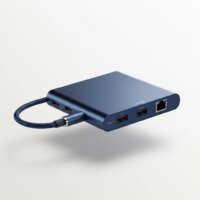
A modern Amazon USB hub is often a multiport adapter. Think about all the devices you use daily.
- Extra USB-A/USB-C Ports: For connecting peripherals and storage.
- HDMI/DisplayPort: For connecting one or more external monitors. Check the supported resolution and refresh rate (e.g., 4K at 60Hz).
- SD/microSD Card Reader: A must-have for photographers and videographers.
- Ethernet Port: For a stable, wired internet connection, which is often faster and more reliable than Wi-Fi.
- Audio Jack: For connecting headphones or speakers.
Create a list of your must-have ports to narrow down your options significantly.
How to Spot a Quality Hub on Amazon
The sheer volume of brands on Amazon can be overwhelming. Many are unfamiliar, and it’s hard to tell quality products from cheap knock-offs. Here’s how to be a savvy shopper.
Read Between the Lines of Customer Reviews
Don’t just look at the average star rating.
- Filter for recent reviews: A product that was great two years ago might have quality control issues now.
- Look for detailed reviews: Pay attention to reviews from users who have a similar setup to yours (e.g., “Works great with my M2 MacBook Air”).
- Watch out for mentions of overheating or connectivity drops: These are common failure points for poorly made hubs.
Check the Brand’s Reputation
While you may not have heard of every brand, some have built a strong reputation for quality peripherals. Brands like Anker, UGREEN, Belkin, and Satechi are often considered reliable choices in the USB hub space. They generally offer better build quality, more reliable performance, and decent customer support.
Frequently Asked Questions (FAQ)
Can a USB hub damage my computer?
A well-made USB hub from a reputable brand will not damage your computer. However, a cheap, poorly constructed hub could potentially cause issues with power delivery. It’s best to stick with trusted brands like Anker or Belkin to ensure safety.
Do all USB hubs work with all devices?
Most USB hubs work with a wide range of devices due to the universal USB standard. However, compatibility issues can arise, particularly with complex hubs featuring video or Ethernet ports, so always verify the product listing for your specific operating system (Windows, macOS, Linux).
Will a USB hub slow down my devices?
A USB hub shares the bandwidth of the single port it’s connected to, which can lead to slowdowns if multiple high-speed devices are used heavily and simultaneously. For typical use with low-bandwidth devices like mice, keyboards, and occasional file transfers, a slowdown is generally not noticeable.
What is the difference between a USB hub and a docking station?
A USB hub primarily expands the number of USB ports, offering basic connectivity. A docking station is a more comprehensive solution, typically featuring its own power supply, multiple video outputs, and a broader array of ports for a full desktop setup, making it larger and more expensive than a hub.
Your Perfect Hub Awaits
Choosing the right Amazon USB hub doesn’t have to be complicated. By focusing on your specific needs—the types of ports on your computer, the devices you plan to connect, and your power requirements—you can easily filter out the noise. Remember to prioritize well-known brands and carefully read recent, detailed reviews. Armed with this knowledge, you are now ready to expand your connectivity and make your digital life much more convenient.
Frequently Asked Questions
Can a USB hub damage my computer?
A well-made USB hub from a reputable brand will not damage your computer. However, a cheap, poorly constructed hub could potentially cause issues with power delivery, so it's best to stick with trusted brands like Anker or Belkin to ensure safety.
Do all USB hubs work with all devices?
Most USB hubs work with a wide range of devices due to the universal USB standard. However, compatibility issues can arise, particularly with complex hubs featuring video or Ethernet ports, so always verify the product listing for your specific operating system (Windows, macOS, Linux).
Will a USB hub slow down my devices?
A USB hub shares the bandwidth of the single port it's connected to, which can lead to slowdowns if multiple high-speed devices are used heavily and simultaneously. For typical use with low-bandwidth devices like mice, keyboards, and occasional file transfers, a slowdown is generally not noticeable.
What is the difference between a USB hub and a docking station?
A USB hub primarily expands the number of USB ports, offering basic connectivity. A docking station is a more comprehensive solution, typically featuring its own power supply, multiple video outputs, and a broader array of ports for a full desktop setup, making it larger and more expensive than a hub.
What are the key factors to consider when buying a USB hub?
When buying a USB hub, consider the type of main connection (USB-C or USB-A), whether you need a powered or unpowered hub for your devices, the required data transfer speeds (e.g., 5 Gbps for USB 3.0), and the specific types of ports you need, such as HDMI or Ethernet.
Get our weekly buyer guide
Practical specs, not advice. Unsubscribe anytime.
I was constantly juggling between my mouse, keyboard, and external SSD on my new ultrabook. This guide really helped me understand the difference between powered and unpowered hubs. I ended up getting a powered USB-C hub with 5 Gbps transfer speeds, and it’s been a game-changer. Everything connects perfectly now, even my portable monitor.
My laptop only has two USB-A ports, and I needed more for my work setup. The advice on considering the specific port array was super helpful. I found a great Amazon USB hub that gave me exactly the mix of USB-A and USB-C ports I needed. It works great for my external hard drives and charging my phone, no complaints so far.
I picked up a hub based on the recommendations for thin laptops, specifically looking for something to connect my older peripherals. While it does expand my single USB-C port, I’ve noticed that when I have too many things plugged in, especially my external hard drive and a webcam, the data transfer speeds seem to slow down a bit. It’s not terrible, but it’s noticeable sometimes.
Finally, a clear explanation of USB 3.0 speeds and why it matters! I’ve bought a few cheap hubs before that just didn’t cut it for my video editing setup. This time, I invested in a hub that explicitly stated 5 Gbps and had good power delivery, and the difference is night and day. My external SSD performs flawlessly now, even with other devices connected.