So, you’ve got a sleek, powerful MacBook, but you’ve quickly run into a modern problem: a shortage of ports. Apple’s minimalist design, focusing on USB-C (or Thunderbolt), means that connecting your trusty old devices—like a mouse, keyboard, external monitor, or SD card—suddenly requires an adapter. This is where a Macbook Usb Hub becomes not just a handy accessory, but an essential part of your setup. But with a sea of options out there, how do you choose the right one?
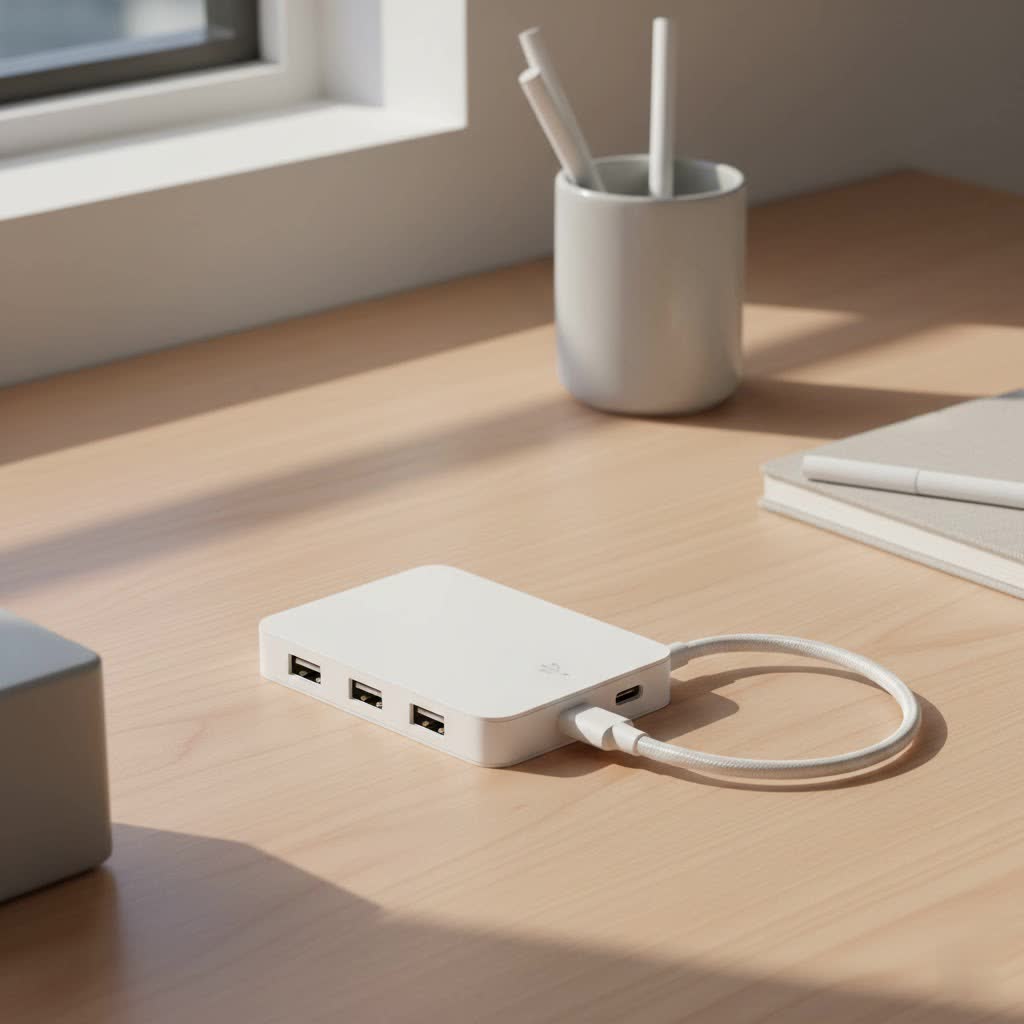
As the team behind Meeob, with over a decade of hands-on experience with these gadgets, we’re here to demystify the process. This guide will walk you through everything you need to know, from understanding the different ports to picking a hub that perfectly matches your workflow, ensuring you get the most out of your Apple experience.
Why Do You Even Need a MacBook USB Hub?
In the pursuit of thinner and lighter laptops, Apple made the switch to the versatile USB-C port. While this port is incredibly powerful—handling data, video, and power all at once—it leaves behind a legacy of devices that use the traditional USB-A, HDMI, and other connectors.
A MacBook USB hub acts as a bridge, expanding a single USB-C port on your laptop into a variety of useful connections. Think of it as a power strip for your data. Instead of being limited to one or two ports, you suddenly have the freedom to:
- Connect to an external 4K monitor or TV via HDMI.
- Transfer photos from your camera’s SD card.
- Plug in a reliable wired Ethernet connection for faster internet.
- Use your favorite USB-A keyboard, mouse, and external hard drives.
- Charge your MacBook and all connected devices simultaneously.
Without a hub, you’d be stuck buying and carrying a tangled mess of individual adapters, which is both expensive and inconvenient.
The Key Features to Look For in a MacBook USB Hub
Navigating the technical specifications of a USB hub can feel overwhelming. Let’s break down the most important features to consider so you can make an informed decision.
Port Selection: What Connections Do You Need?
The most crucial factor is the selection of ports. Don’t pay for ports you’ll never use. Take a moment to think about your daily workflow.
- USB-A (3.0/3.1): Essential for connecting legacy devices like mice, keyboards, flash drives, and external hard drives. Look for hubs with at least two of these.
- HDMI: A must-have for connecting to external monitors, TVs, or projectors. Check if it supports 4K resolution and at what refresh rate (30Hz is common, but 60Hz provides a smoother experience).
- SD/microSD Card Readers: If you’re a photographer, videographer, or drone pilot, this is non-negotiable. It saves you from carrying a separate card reader.
- Ethernet Port: For those who need a stable, high-speed internet connection for gaming, streaming, or large file transfers, a hub with a Gigabit Ethernet port is a lifesaver.
- USB-C Power Delivery (PD): This is a critical feature. A USB-C PD port allows you to charge your MacBook through the hub. You plug your MacBook’s charger into the hub, and the hub passes power to your laptop while running all the other connected devices.
- Audio Jack (3.5mm): While many MacBooks still have an audio jack, some models don’t. If you rely on wired headphones, this port can be a welcome addition.
|
Our Picks for the Best USB Hub in 2026
As an Amazon Associate I earn from qualifying purchases.
|
||
| Num | Product | Action |
|---|---|---|
| 1 | 3-in-1 USB C Splitter, 3 in 1 Type-C Charging Data Cable Data Transmission Decive Charging Adapter Power Charger Equipment for ome Office Use, Fast & Efficient |

|
| 2 | Powered USB Hub, Wenter 11-Port USB Splitter Hub (10 Faster Data Transfer Ports+ 1 Smart Charging Port) with Individual LED On/Off Switches, USB Hub 3.0 Powered with Power Adapter for Mac, PC |
|
| 3 | UGREEN USB 3.0 Hub, 4 Ports USB A Splitter Ultra-Slim USB Expander for Mouse, Keyboard, Flash Drive, U Disk, Printer Compatible with Laptop, Desktop PC, Xbox, PS5, and More |
|
| 4 | 13 in 1 USB C Docking Station - Dual Monitor, Triple Display, 8 USB C/A Ports, Ethernet, Audio - LIONWEI USB C Hub for MacBook,Dell,HP,Lenovo,Surface |
|
| 5 | P9R PRO USB C Hub Ethernet, 10 in 1 USB Docking Station 10Gbps with 4K@60Hz HDMI, USB C and 2 USB A 3.2, LAN, 2 USB A 2.0, PD 100W, SD/TF Ports, USB to Ethernet Adapter for PC, iPhone 16/15, Mac |
|
| 6 | Anker Laptop Docking Station Dual Monitor, 8-in-1 USB C Hub, 4K Dual Monitor with 2 HDMI, 1 Gbps Ethernet Hub, 85W Power Delivery, SD Card Reader for MacBook Pro, XPS and More (Charger not Included) |
|
| 7 | Anker USB Hub 4 Ports with 5Gbps Data Transfer, Multiple USB 3.0 Hub, USB Splitter for Laptop, Extender for A Port Laptop, PC, Desktop and More [Charging Not Supported](0.7 ft USB-A) |
|
| 8 | USB C Docking Station with M.2 NVMe SSD Enclosure 10Gbps, 9 in 1 USB-C Hub, Type C SSD Slot with 4K@60Hz HDMI, USB 3.2 Gen2, PD100W, SD/TF Card Reader, Laptop Docking Station for Dell/HP/Lenovo/Mac |
|
| 9 | USB Hub 3.0, 7-Port USB Hub Splitter with Individual On/Off Switches and Lights, 3.2ft/1m Long Cable Compatible with MacBook, Laptop, Surface Pro, PS4, PC, Flash Drive, Mobile HDD |
|
| 10 | Powered USB Hub 10Gbps, intpw 9-Port USB 3.2 Hub, USB C Hub with USB A/USB C 3.2, 4 USB 3.0, 2 PD 45W Charging Ports, 65W Power Adapter and 3.3FT Cable, Aluminum USB Hub for Laptop, iPhone 17/16/15,PC |
|
Power Delivery (PD): The Secret to a One-Cable Setup
Power Delivery is a game-changer. Without it, you’d have to use one of your MacBook’s precious USB-C ports for charging and the other for the hub. With PD, you can achieve a clean, one-cable setup.
Pay attention to the wattage. Your MacBook charger might be 67W or 96W, but the hub itself consumes some power (typically 5-15W) to operate. So, if a hub is rated for 100W PD passthrough, it might only deliver 85-95W to your MacBook. For most users with a MacBook Air or Pro, a hub with at least 60W of power delivery is recommended.
Data Transfer Speeds: Don’t Get Stuck in the Slow Lane
Not all USB ports are created equal. You’ll see terms like USB 3.0, 3.1, and 3.2. Here’s a simple breakdown:
- USB 3.0 (also called USB 3.2 Gen 1): Offers speeds up to 5Gbps. This is great for most everyday peripherals like mice, keyboards, and webcams.
- USB 3.1 (also called USB 3.2 Gen 2): Bumps the speed up to 10Gbps. This is ideal for transferring large files quickly from external SSDs.
For most users, 5Gbps is plenty fast. But if your work involves large video files or frequent backups to fast external drives, look for a hub that supports 10Gbps speeds.
Thunderbolt vs. USB-C: What’s the Difference?
This is a common point of confusion. All Thunderbolt ports (3, 4, and 5) use the USB-C connector shape, but they are far more powerful.
- USB-C Hub: A standard hub that offers a variety of ports and works with any USB-C equipped device. It’s perfect for most users’ needs and is more affordable.
- Thunderbolt Dock: A high-performance device that leverages the full bandwidth of a Thunderbolt port (40Gbps). It can support multiple high-resolution displays (like dual 4K at 60Hz), daisy-chaining of other Thunderbolt devices, and faster data transfer. They are also significantly more expensive.
As hardware analyst David Chen from Tech-Clarity Insights notes, “For 90% of MacBook users, a high-quality USB-C hub provides the perfect balance of functionality and cost. A Thunderbolt dock is a professional tool for power users who need to drive multiple 4K displays or work with massive video files.”
For most people, a reliable MacBook USB hub using the USB-C standard is the right choice.
How to Choose the Right MacBook USB Hub for You
To make it even simpler, let’s consider a few common user types and what they should look for.
For the Student or Everyday User:
You primarily use your MacBook for browsing, writing papers, and streaming media. You occasionally need to connect a flash drive or an external display for a presentation.
- Your Ideal Hub: A compact, portable hub with 2-3 USB-A ports, an HDMI port, and an SD card reader is perfect. Power Delivery is a huge plus for convenience.
For the Remote Worker or Hybrid Professional:
Your MacBook is your office. You have a dedicated desk setup with an external monitor, a full-size keyboard and mouse, and you join a lot of video calls where a stable internet connection is key.
- Your Ideal Hub: Look for a model with 4K@60Hz HDMI support, a Gigabit Ethernet port, multiple USB-A ports for all your peripherals, and at least 85W of Power Delivery to keep your MacBook Pro charged under load.
For the Creative Professional (Photographer/Videographer):
You are constantly offloading large files from cameras and editing on the go. Speed and efficiency are your top priorities.
- Your Ideal Hub: Prioritize a hub with fast SD and microSD card readers (UHS-II if possible) and USB-A ports with 10Gbps data speeds for connecting fast external SSDs. Multiple display outputs and strong Power Delivery are also essential.
Frequently Asked Questions (FAQ)
Will a cheap USB hub damage my MacBook?
A poorly made, uncertified USB hub can potentially cause issues, from unstable connections to, in rare cases, electrical damage. It’s always best to invest in a hub from a reputable brand that has over-current and short-circuit protection.
Do MacBook USB hubs overheat?
It’s normal for a hub to get warm during use, especially when using Power Delivery and multiple ports at once. This is because it’s converting power and managing data. However, it should not become dangerously hot to the touch. Reputable brands design their hubs with aluminum casings to help dissipate heat effectively.
Can I use any USB-C hub with my MacBook?
For the most part, yes. The USB-C standard is designed to be universal. However, for features like specific display refresh rates (e.g., 4K@60Hz) or full Thunderbolt speeds, you need to ensure both your MacBook and the hub support them.
What is the real difference between a USB hub and a dock?
A USB hub is typically smaller, bus-powered (drawing power from the laptop), and more portable. A dock is a larger, stationary unit that almost always has its own dedicated power adapter. Docks generally offer more ports, higher power output, and advanced features like the ability to drive multiple external monitors, making them a more permanent desktop solution.
Conclusion: The Right Hub Unlocks Your MacBook’s Potential
A MacBook is a powerful tool, but its full potential is only unlocked when you can easily connect it to the world around you. Choosing the right MacBook USB hub is a small investment that pays huge dividends in convenience, productivity, and flexibility.
By evaluating your personal needs—the ports you use daily, your power requirements, and your workflow—you can confidently select a hub that transforms your single USB-C port into a versatile command center. Forget the dongle life and embrace the simplicity of a single, powerful accessory that bridges the gap between your MacBook and all your favorite devices.
