In today’s world of sleek, minimalist laptops, the scarcity of ports has become a universal frustration. You have a powerful machine, but connecting a monitor, a mouse, a keyboard, and an external drive all at once feels like an impossible puzzle. This is where an Anker Usb Hub transforms from a simple accessory into an essential productivity powerhouse. As a leading name in charging and connectivity, Anker offers a dizzying array of options, but how do you choose the one that’s perfect for you?
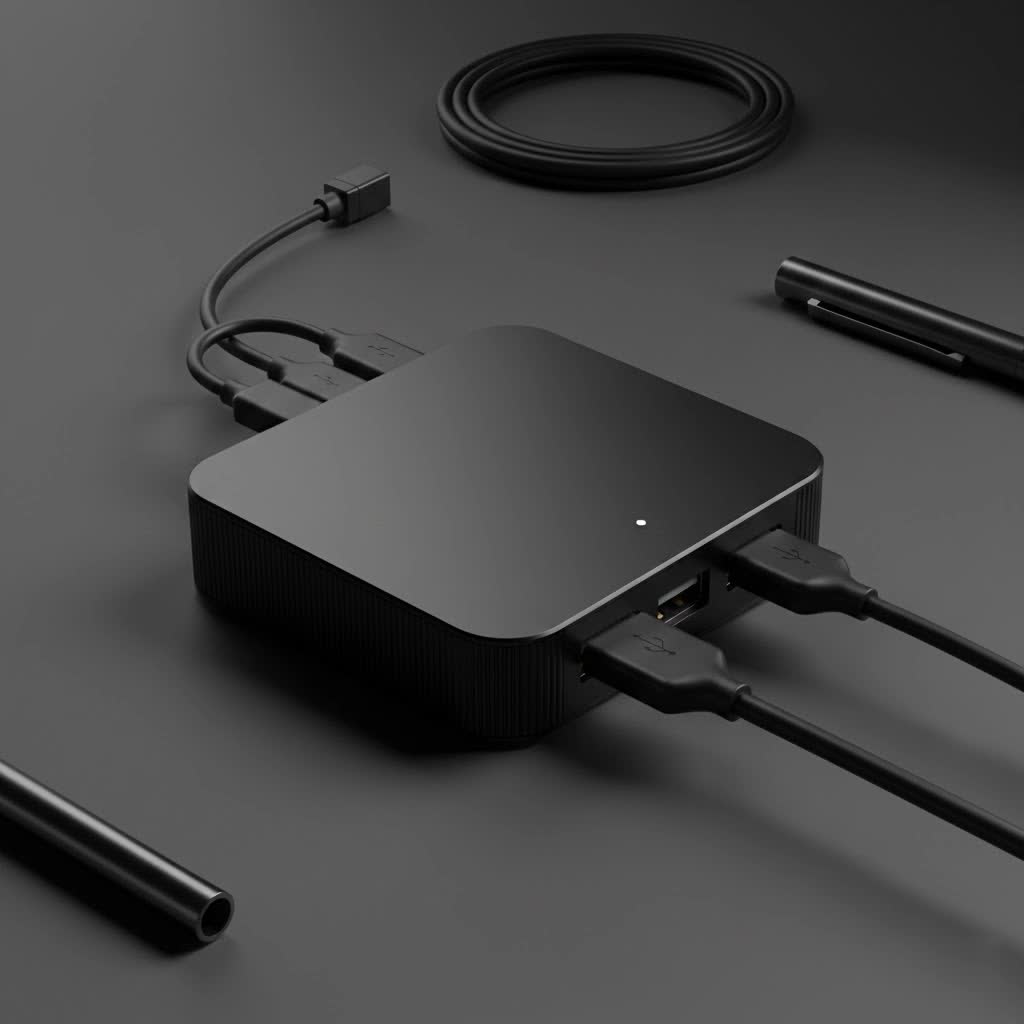
This comprehensive guide will demystify the world of Anker hubs. We’ll break down the key models, explain the technical jargon in simple terms, and walk you through a step-by-step process to select the hub that perfectly matches your workflow, devices, and ambitions. Let’s expand your connectivity and unlock your device’s true potential.
Why Do You Need an Anker USB Hub?
Modern laptops, especially Ultrabooks and MacBooks, have sacrificed ports for a slim profile. While this looks great, it creates a practical bottleneck. You might have only one or two USB-C ports to handle everything from charging to data transfer and video output. An Anker USB hub instantly solves this problem by turning a single port into a versatile docking station for all your peripherals.
But why choose Anker specifically? Over the past decade, Anker has built a rock-solid reputation for three key things:
- Reliability: Their products are known for durable construction and consistent performance, minimizing issues like overheating or signal drops that plague lesser-known brands.
- Cutting-Edge Technology: Anker often incorporates the latest standards, such as high-wattage Power Delivery (PD) for pass-through charging and high-speed data transfer ports.
- User-Centric Design: Their hubs are typically compact, lightweight, and thoughtfully designed to complement modern devices, making them ideal for both home office and travel setups.
Decoding Anker’s USB Hub Lineup: Key Models Explained
Anker organizes its hubs into different series, but it’s often easier to understand them by their function and target user. Let’s explore a few popular models that represent different use cases.
For the Everyday User: The Anker 341 (7-in-1) USB-C Hub
This is the workhorse of the Anker lineup and arguably one of the most popular models. The Anker 341 is a perfect all-rounder for students, office workers, and general home users who need to bridge the gap between their USB-C laptop and legacy peripherals.
- Key Ports: It typically features a 4K HDMI port, two USB-A 3.0 ports, SD and microSD card slots, a USB-C data port, and a USB-C Power Delivery input port.
- Best For: Connecting an external monitor, transferring photos from a camera, using a wireless mouse dongle, and charging your laptop simultaneously. It covers all the essential bases for a standard desk setup.
|
Our Picks for the Best USB Hub in 2026
As an Amazon Associate I earn from qualifying purchases.
|
||
| Num | Product | Action |
|---|---|---|
| 1 | 13 in 1 USB C Docking Station - Dual Monitor, Triple Display, 8 USB C/A Ports, Ethernet, Audio - LIONWEI USB C Hub for MacBook,Dell,HP,Lenovo,Surface |

|
| 2 | USB C Docking Station with M.2 NVMe SSD Enclosure 10Gbps, 9 in 1 USB-C Hub, Type C SSD Slot with 4K@60Hz HDMI, USB 3.2 Gen2, PD100W, SD/TF Card Reader, Laptop Docking Station for Dell/HP/Lenovo/Mac |
|
| 3 | Powered USB Hub, Wenter 11-Port USB Splitter Hub (10 Faster Data Transfer Ports+ 1 Smart Charging Port) with Individual LED On/Off Switches, USB Hub 3.0 Powered with Power Adapter for Mac, PC |
|
| 4 | UGREEN USB 3.0 Hub, 4 Ports USB A Splitter Ultra-Slim USB Expander for Mouse, Keyboard, Flash Drive, U Disk, Printer Compatible with Laptop, Desktop PC, Xbox, PS5, and More |
|
| 5 | Powered USB Hub 10Gbps, intpw 9-Port USB 3.2 Hub, USB C Hub with USB A/USB C 3.2, 4 USB 3.0, 2 PD 45W Charging Ports, 65W Power Adapter and 3.3FT Cable, Aluminum USB Hub for Laptop, iPhone 17/16/15,PC |
|
| 6 | USB Hub 3.0, 7-Port USB Hub Splitter with Individual On/Off Switches and Lights, 3.2ft/1m Long Cable Compatible with MacBook, Laptop, Surface Pro, PS4, PC, Flash Drive, Mobile HDD |
|
| 7 | Anker USB Hub 4 Ports with 5Gbps Data Transfer, Multiple USB 3.0 Hub, USB Splitter for Laptop, Extender for A Port Laptop, PC, Desktop and More [Charging Not Supported](0.7 ft USB-A) |
|
| 8 | 3-in-1 USB C Splitter, 3 in 1 Type-C Charging Data Cable Data Transmission Decive Charging Adapter Power Charger Equipment for ome Office Use, Fast & Efficient |
|
| 9 | P9R PRO USB C Hub Ethernet, 10 in 1 USB Docking Station 10Gbps with 4K@60Hz HDMI, USB C and 2 USB A 3.2, LAN, 2 USB A 2.0, PD 100W, SD/TF Ports, USB to Ethernet Adapter for PC, iPhone 16/15, Mac |
|
| 10 | Anker Laptop Docking Station Dual Monitor, 8-in-1 USB C Hub, 4K Dual Monitor with 2 HDMI, 1 Gbps Ethernet Hub, 85W Power Delivery, SD Card Reader for MacBook Pro, XPS and More (Charger not Included) |
|
For the Power User & Creative Pro: The Anker 555 (8-in-1) USB-C Hub
If your workflow involves large file transfers, high-resolution video, or a need for a stable wired internet connection, you’ll want to step up to a more powerful model like the Anker 555. This hub is built for performance.
- Key Ports: It includes everything the 7-in-1 has but often adds a crucial Gigabit Ethernet port. Furthermore, its ports are usually upgraded, offering faster data transfer speeds (up to 10Gbps) and better video output (4K@60Hz).
- Best For: Video editors, photographers, programmers, and anyone who needs a lag-free, high-bandwidth connection. The Ethernet port is a game-changer for online gaming or downloading massive files, and the higher refresh rate on the HDMI port provides a much smoother visual experience.
For Ultimate Portability: The Anker 332 USB-C Hub (5-in-1)
For the digital nomad or frequent traveler, bulk is the enemy. The Anker 332 is designed with portability in mind. It’s slim, lightweight, and provides just the essential ports without any extra fluff.
- Key Ports: This compact hub usually offers a 4K HDMI port, two USB-A ports, and USB-C Power Delivery. It forgoes features like the SD card reader or Ethernet to save space.
- Best For: Tossing in a laptop bag for presentations, working from a coffee shop, or anyone who needs a simple way to connect a monitor and a USB drive on the go.
How to Choose the Perfect Anker USB Hub for Your Needs
Feeling overwhelmed? Don’t be. Choosing the right Anker USB hub comes down to answering a few simple questions about your habits and your hardware. Use this checklist to find your perfect match.
1. What Ports Do You Actually Need?
Take inventory of the devices you use daily.
- External Monitor: You’ll need an HDMI port. Check if your monitor supports 4K and at what refresh rate. For a smoother experience, look for a hub that offers 4K@60Hz.
- Mouse, Keyboard, Webcam: These typically use USB-A ports. Count how many you need to connect at once.
- External Hard Drives: For fast file transfers, ensure the hub has USB-A or USB-C ports rated for at least 5Gbps (USB 3.0). For even faster SSDs, look for 10Gbps ports.
- Photography/Videography: Built-in SD and microSD card slots are a must.
- Wired Internet: A Gigabit Ethernet port is essential for the most stable and fast connection.
2. Will You Charge Your Laptop Through the Hub?
This feature is called Power Delivery (PD). It allows you to plug your laptop’s USB-C charger into the hub, which then “passes through” the power to your laptop while still running all the other connected devices.
“Pay close attention to the Power Delivery wattage,” advises Alex Carter, a senior tech analyst. “The hub itself consumes some power, usually around 15W. So, if you have a 65W laptop charger, you should look for a hub that supports at least 85W PD input to ensure your laptop gets the full power it needs.”
3. How Important is Data Transfer Speed?
Not all USB ports are created equal.
- USB 2.0 (480Mbps): Fine for a mouse or keyboard, but painfully slow for file transfers. Most Anker hubs have moved beyond this.
- USB 3.0/3.1 Gen 1 (5Gbps): This is the standard on most modern hubs. It’s great for external hard drives and fast data backups. A 10GB file takes less than 30 seconds to transfer.
- USB 3.1 Gen 2 (10Gbps): Found on more premium hubs, this speed is ideal for professionals working with large files, like 4K video footage from an external SSD.
4. What Device Are You Using?
While most Anker USB-C hubs are widely compatible, always double-check the product page for compatibility with your specific device, whether it’s a MacBook Pro, Dell XPS, HP Spectre, or iPad Pro. This is especially important for video output and charging features.
Frequently Asked Questions about Anker USB Hubs
Will an Anker USB hub slow down my internet speed?
An Anker USB hub with an Ethernet port will provide a faster and more stable connection than Wi-Fi. If you’re referring to Wi-Fi interference, this was a known issue with early USB 3.0 devices, but reputable brands like Anker design their hubs with proper shielding to prevent this.
Can I use an Anker USB hub for gaming?
Absolutely. For gaming, choose a hub with a Gigabit Ethernet port for a low-latency connection and an HDMI port that supports 4K@60Hz or 1080p@120Hz for a smooth frame rate. This will ensure your peripherals and display perform at their best.
Does the Anker USB hub get hot?
It’s normal for a USB hub to become warm during use, especially when using Power Delivery charging and multiple ports simultaneously. Anker hubs are designed with thermal management systems to dissipate heat safely. However, if a hub ever becomes too hot to touch, you should disconnect it.
What’s the difference between an Anker USB hub and a docking station?
The lines are blurring, but generally, a hub is smaller, more portable, and connects via an integrated cable. A docking station is a larger, stationary unit that often has its own power supply and may offer more ports and features, like the ability to drive multiple monitors.
Conclusion: Expand Your Connectivity with Confidence
Choosing the right Anker USB hub is a simple process of matching your daily needs with the right set of features. By evaluating the ports you require, your power needs, and your primary use case—whether it’s for travel, general productivity, or a high-performance creative workstation—you can confidently select a device that will serve you reliably for years to come. Stop juggling adapters and unlock the full potential of your laptop with a single, elegant solution.
