A USB hub splitter, more accurately called a USB hub, is a device that expands a single USB port on a computer into multiple ports, allowing several USB devices to be connected simultaneously. These hubs act as a central point for managing data flow and power distribution, preventing the common frustration of running out of available ports for peripherals like mice, keyboards, external hard drives, and webcams.
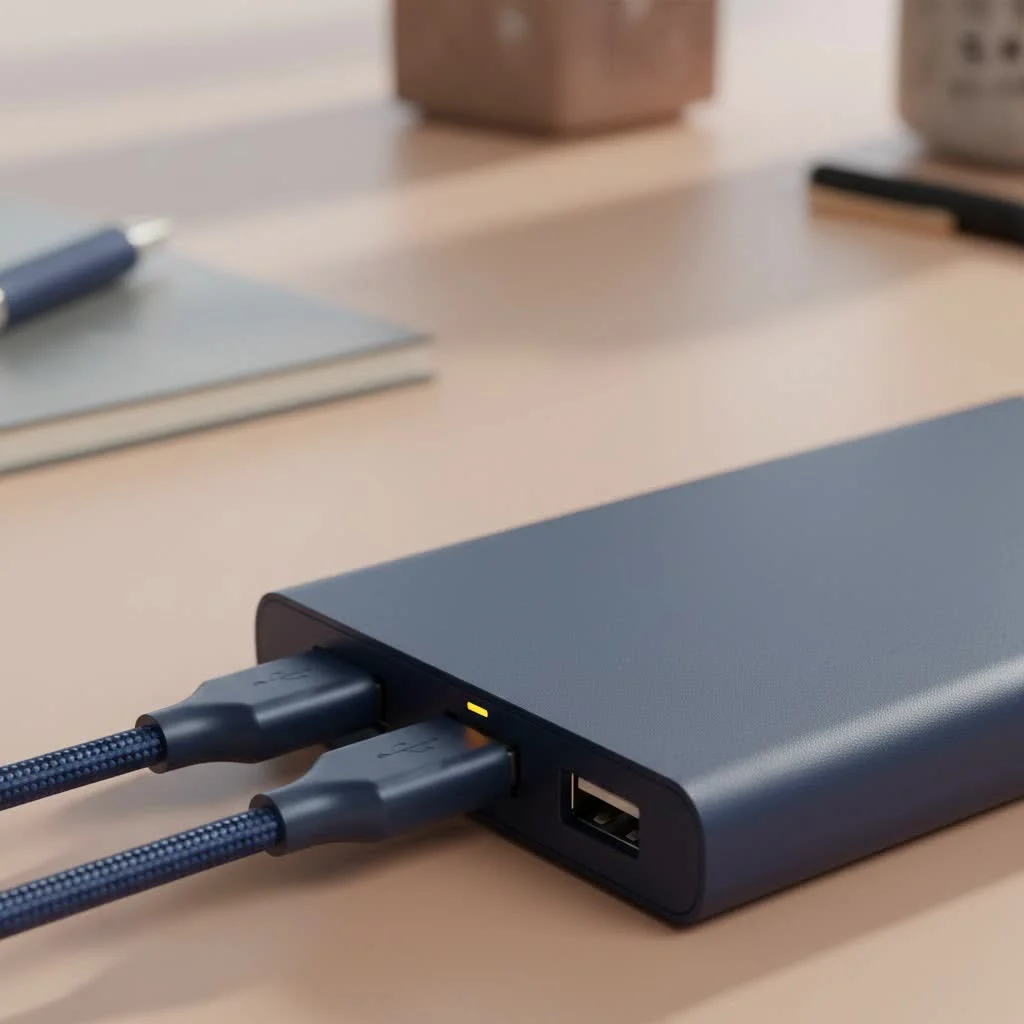
As a specialist with over a decade of experience in connectivity hardware, I’m here to demystify the world of USB hubs. This guide will break down everything you need to know, helping you expand your connectivity with confidence and efficiency.
USB Hub vs. USB Splitter: Is There a Difference?
First, let’s clear up some confusion. While many people use the term “USB splitter,” the technically correct term for the device you’re looking for is a USB hub.
A true “splitter,” often a simple Y-cable, is designed to split a power connection, not a data connection. Trying to use a simple Y-cable to connect two data devices (like two external hard drives) to a single computer port will not work and can even cause data corruption or hardware damage. A USB hub, on the other hand, is an intelligent device with a controller chip that manages data flow and power distribution between multiple ports, allowing them all to communicate with your computer correctly. So, throughout this article, when we say USB hub splitter, we are referring to a USB hub.
“Think of a USB hub as a smart traffic controller for your data,” says Johnathan Carter, a senior tech analyst. “It doesn’t just split the road; it manages the intersections, ensuring every device gets its turn to communicate with the host computer without causing collisions.”
Types of USB Hub Splitters You Need to Know
Not all USB hubs are created equal. Understanding the key differences is crucial for picking one that fits your needs. They primarily differ in how they are powered and the USB standards they support.
Powered vs. Non-Powered (Bus-Powered) Hubs
This is the most critical distinction to understand. The choice between a powered and a non-powered hub depends entirely on the devices you plan to connect.
- Non-Powered (Bus-Powered) Hubs: These hubs draw all their power directly from the computer’s USB port they are plugged into. They are small, portable, and convenient for connecting low-power devices like a mouse, keyboard, or flash drive. However, the total power is limited and shared among all connected devices. If you plug in too many power-hungry gadgets, they may not work correctly or at all.
- Powered Hubs: These hubs come with their own external power adapter that plugs into a wall outlet. This provides dedicated power to each port, ensuring even high-draw devices like external hard drives, webcams, printers, and smartphones get the stable power they need to function reliably. If you plan to connect more than two or three devices, or any device that requires significant power, a powered hub is the safest and most reliable choice.
USB Standards: USB 2.0, USB 3.0, and USB-C Hubs
|
Our Picks for the Best USB Hub in 2026
As an Amazon Associate I earn from qualifying purchases.
|
||
| Num | Product | Action |
|---|---|---|
| 1 | USB Hub 3.0, 7-Port USB Hub Splitter with Individual On/Off Switches and Lights, 3.2ft/1m Long Cable Compatible with MacBook, Laptop, Surface Pro, PS4, PC, Flash Drive, Mobile HDD |

|
| 2 | UGREEN USB 3.0 Hub, 4 Ports USB A Splitter Ultra-Slim USB Expander for Mouse, Keyboard, Flash Drive, U Disk, Printer Compatible with Laptop, Desktop PC, Xbox, PS5, and More |
|
| 3 | Anker USB Hub 4 Ports with 5Gbps Data Transfer, Multiple USB 3.0 Hub, USB Splitter for Laptop, Extender for A Port Laptop, PC, Desktop and More [Charging Not Supported](0.7 ft USB-A) |
|
| 4 | P9R PRO USB C Hub Ethernet, 10 in 1 USB Docking Station 10Gbps with 4K@60Hz HDMI, USB C and 2 USB A 3.2, LAN, 2 USB A 2.0, PD 100W, SD/TF Ports, USB to Ethernet Adapter for PC, iPhone 16/15, Mac |
|
| 5 | 13 in 1 USB C Docking Station - Dual Monitor, Triple Display, 8 USB C/A Ports, Ethernet, Audio - LIONWEI USB C Hub for MacBook,Dell,HP,Lenovo,Surface |
|
| 6 | Powered USB Hub 10Gbps, intpw 9-Port USB 3.2 Hub, USB C Hub with USB A/USB C 3.2, 4 USB 3.0, 2 PD 45W Charging Ports, 65W Power Adapter and 3.3FT Cable, Aluminum USB Hub for Laptop, iPhone 17/16/15,PC |
|
| 7 | 3-in-1 USB C Splitter, 3 in 1 Type-C Charging Data Cable Data Transmission Decive Charging Adapter Power Charger Equipment for ome Office Use, Fast & Efficient |
|
| 8 | USB C Docking Station with M.2 NVMe SSD Enclosure 10Gbps, 9 in 1 USB-C Hub, Type C SSD Slot with 4K@60Hz HDMI, USB 3.2 Gen2, PD100W, SD/TF Card Reader, Laptop Docking Station for Dell/HP/Lenovo/Mac |
|
| 9 | Powered USB Hub, Wenter 11-Port USB Splitter Hub (10 Faster Data Transfer Ports+ 1 Smart Charging Port) with Individual LED On/Off Switches, USB Hub 3.0 Powered with Power Adapter for Mac, PC |
|
| 10 | Anker Laptop Docking Station Dual Monitor, 8-in-1 USB C Hub, 4K Dual Monitor with 2 HDMI, 1 Gbps Ethernet Hub, 85W Power Delivery, SD Card Reader for MacBook Pro, XPS and More (Charger not Included) |
|
The USB standard determines the hub’s data transfer speed and sometimes the physical shape of the connector.
- USB 2.0 Hubs: This is an older standard with a maximum data transfer speed of 480 Mbps (megabits per second). While functional for basic peripherals like keyboards and mice, it’s too slow for transferring large files. They are budget-friendly but largely obsolete for anything beyond basic use.
- USB 3.0 Hubs (and newer): Often identifiable by their blue-colored ports, USB 3.0 (also known as USB 3.1 Gen 1 or USB 3.2 Gen 1) offers speeds up to 5 Gbps (gigabits per second)—more than 10 times faster than USB 2.0. This is the standard for modern computing, ideal for external SSDs, high-resolution webcams, and fast file transfers. Newer standards like USB 3.2 Gen 2 offer even faster speeds (10 Gbps).
- USB-C Hubs: USB-C refers to the physical connector type—the small, oval, reversible plug found on most modern laptops, tablets, and smartphones. USB-C hubs can support various protocols, including USB 3.1/3.2 for fast data, DisplayPort for video output, and Power Delivery (PD) for charging your laptop through the hub itself. These are often called multiport adapters.
Hubs with Extra Features
Many modern USB-C hubs are more like mini-docking stations, offering a variety of ports beyond just USB-A:
- HDMI/DisplayPort: For connecting external monitors.
- Ethernet Port: For a stable, wired internet connection.
- SD/MicroSD Card Readers: For photographers and videographers.
- Audio Jack: For connecting headphones or speakers.
How to Choose the Right USB Hub Splitter
Selecting the perfect USB hub splitter is a straightforward process when you know what to look for. Follow these steps to find your ideal match.
Step 1: Count Your Devices (Number of Ports)
Start by listing all the USB devices you intend to connect simultaneously. It’s always a good idea to choose a hub with one or two more ports than you currently need to accommodate future purchases. Common configurations are 4-port, 7-port, and even 10-port hubs.
Step 2: Check Your Power Needs
Analyze your list of devices. Are they low-power (mouse, flash drive) or high-power (external HDD, webcam, phone charging)?
- Low-power devices only: A non-powered, bus-powered hub will likely suffice.
- A mix of devices or any high-power ones: A powered hub is essential for stability and performance.
Step 3: Match the Connection Type (USB-A vs. USB-C)
Look at the ports on your computer.
- Older laptops/desktops with rectangular USB-A ports: You’ll need a hub with a USB-A upstream cable.
- Modern laptops (MacBooks, Ultrabooks) with oval USB-C ports: You’ll need a USB-C hub. Many USB-C hubs provide a mix of USB-A ports for legacy devices and other connections like HDMI.
Step 4: Consider Your Speed Requirements
Think about how you’ll use the hub.
- For basic peripherals: A USB 2.0 hub is technically okay, but a USB 3.0 hub is a better, future-proof choice and often costs only slightly more.
- For transferring large files or using high-performance devices: A USB 3.0 hub (or newer) is non-negotiable. Ensure both the hub and your computer’s port support the same standard to get the maximum speed.
Frequently Asked Questions (FAQ)
Do USB hub splitters slow down data transfer?
Yes, a USB hub can slow down data transfer because all devices connected to it share the bandwidth of the single computer port. However, for most uses, this is unnoticeable. A USB 3.0 hub offers 5 Gbps, allowing multiple devices to operate without significant performance drops unless large files are simultaneously transferred from several high-speed devices.
Can a USB hub splitter damage my computer?
A well-made USB hub from a reputable brand will not damage your computer, as it includes circuitry for safe power and data management. However, cheap, unbranded hubs or faulty Y-splitter cables can potentially cause short circuits or power surges that could damage your computer’s USB port. Always invest in a quality hub to protect your hardware.
How many devices can I connect to a USB hub?
The USB standard theoretically allows for up to 127 devices to be connected through a series of daisy-chained hubs. In practice, the limit is determined by the number of ports on the hub and the available power. For a stable setup, it is best to use a powered hub for any arrangement involving more than a few devices.
What’s the difference between a USB hub and a docking station?
A USB hub’s primary function is to expand the number of USB ports. A docking station is a more comprehensive solution designed to transform a laptop into a full desktop setup, typically including multiple video outputs, Ethernet, audio, and robust power delivery to charge the laptop, all through a single cable.
Conclusion: Expand Your Connectivity with Confidence
A USB hub splitter is an essential accessory in today’s port-limited world. It solves the common problem of “not enough ports” by giving you the freedom to connect all your essential peripherals without constantly swapping cables.
By understanding the key differences between powered and non-powered hubs, recognizing the importance of matching USB standards, and assessing your own specific needs, you can easily choose the perfect hub. Whether you need a simple 4-port hub for your laptop bag or a powerful 10-port powered hub for your desktop command center, the right choice will streamline your workflow and make your digital life significantly more convenient.
Frequently Asked Questions
Do USB hub splitters slow down data transfer speeds?
Yes, a USB hub can slow down data transfer because all devices connected to it share the bandwidth of the single computer port. However, for most uses, this is unnoticeable. A USB 3.0 hub offers 5 Gbps, allowing multiple devices to operate without significant performance drops unless large files are simultaneously transferred from several high-speed devices.
Can a USB hub splitter cause damage to my computer?
A well-made USB hub from a reputable brand will not damage your computer, as it includes circuitry for safe power and data management. However, cheap, unbranded hubs or faulty Y-splitter cables can potentially cause short circuits or power surges that could damage your computer's USB port. Always invest in a quality hub to protect your hardware.
What is the maximum number of devices I can connect to a USB hub?
The USB standard theoretically allows for up to 127 devices to be connected through a series of daisy-chained hubs. In practice, the limit is determined by the number of ports on the hub and the available power. For a stable setup, it is best to use a powered hub for any arrangement involving more than a few devices.
What is the key difference between a USB hub and a docking station?
A USB hub's primary function is to expand the number of USB ports. A docking station is a more comprehensive solution designed to transform a laptop into a full desktop setup, typically including multiple video outputs, Ethernet, audio, and robust power delivery to charge the laptop, all through a single cable.
Should I choose a powered or non-powered USB hub?
The choice depends on your devices. For low-power devices like a mouse or keyboard, a non-powered hub is sufficient. For high-power devices such as external hard drives, webcams, or charging smartphones, a powered hub with its own external power adapter is essential for stable performance and reliability.
How to Choose the Right USB Hub Splitter
Selecting the perfect USB hub splitter involves assessing your device count, power needs, connection types, and speed requirements.
List all the USB devices you intend to connect simultaneously. It's advisable to choose a hub with one or two more ports than you currently need to accommodate future purchases. Common configurations include 4-port, 7-port, and 10-port hubs.
Analyze whether your devices are low-power (e.g., mouse, flash drive) or high-power (e.g., external HDD, webcam, phone charging). A non-powered hub suffices for low-power devices, but a powered hub is essential for a mix of devices or any high-power ones to ensure stability and performance.
Examine the USB ports on your computer. Older laptops/desktops with rectangular USB-A ports require a hub with a USB-A upstream cable. Modern laptops with oval USB-C ports need a USB-C hub, which often provides a mix of USB-A ports and other connections like HDMI.
Think about how you'll use the hub. For basic peripherals, a USB 2.0 hub is technically okay, but a USB 3.0 hub is a better, future-proof choice. For transferring large files or using high-performance devices, a USB 3.0 hub (or newer) is non-negotiable, ensuring both the hub and your computer's port support the same standard for maximum speed.
Get our weekly buyer guide
Practical specs, not advice. Unsubscribe anytime.
I was constantly juggling between my mouse, keyboard, and external hard drive because my laptop only has two USB ports. This guide really helped me understand the difference between a hub and a splitter, and I ended up getting a powered USB 3.0 hub. It’s been a game-changer for my home office setup, no more unplugging things just to charge my phone!
Great info here! I’ve always just bought whatever USB hub was cheapest, but learning about power distribution and data flow was really helpful. I upgraded to a hub with individual port switches, which is super convenient for my various peripherals like my webcam and printer. It’s working great, though I wish it had one more USB-C port.
I got a basic unpowered USB hub after reading this, hoping to connect my old external hard drive and a flash drive. While it works for the flash drive, my external hard drive sometimes disconnects unexpectedly. I think I might need to invest in a powered hub for that particular device, as the guide mentioned some devices need more power.
Finally, a clear explanation of USB hubs! I was so tired of running out of ports for my gaming setup. I followed the advice and got a USB 3.1 hub, and the speed difference for transferring large files to my external SSD is noticeable. It’s fantastic to have all my accessories, including my headset and controller, connected without any issues.