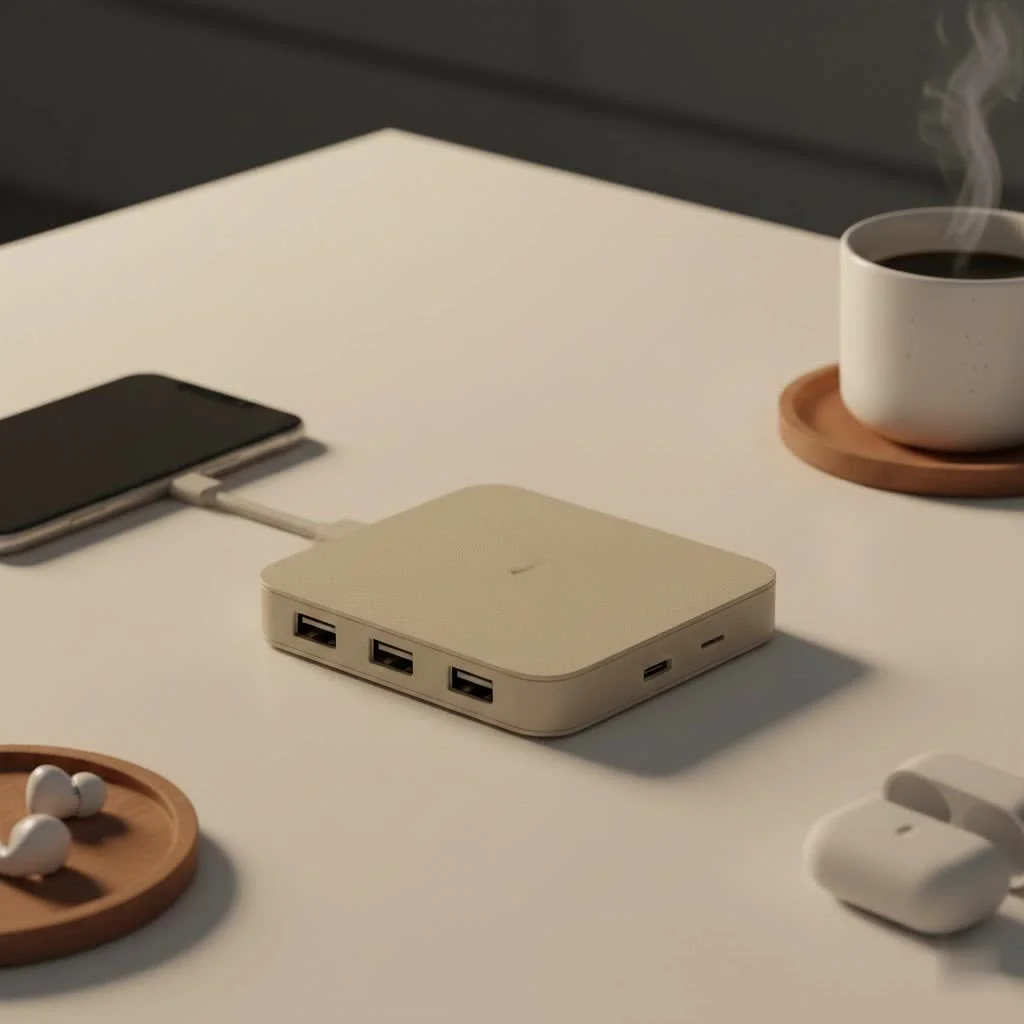
A Mac USB-C hub is an essential accessory that expands a MacBook’s single USB-C port into multiple connections, allowing users to connect external monitors, flash drives, and charge their laptop simultaneously. This small device transforms a minimalist MacBook into a versatile workstation, addressing the common issue of limited built-in ports on modern Apple laptops.
What is a Mac USB C Hub, and Do You Really Need One?
A Mac USB-C hub plugs into one of your MacBook’s USB-C or Thunderbolt ports, expanding it into multiple ports of different types. It acts as a data and peripheral power strip, providing access to HDMI for displays, USB-A for older devices, SD card slots for cameras, and more. While similar to docking stations, hubs are typically smaller, bus-powered, and designed for portability, making them ideal for users on the go or those needing a few essential ports. Docks are larger, often have dedicated power supplies, and are better suited for stationary desk setups with more extensive port requirements. For most MacBook Pro and MacBook Air users, a quality USB-C hub is the more practical and essential accessory.
Decoding the Ports: A Guide to Choosing Your Hub
The best USB-C hub for you depends entirely on what devices you plan to connect. Understanding the most common port types and their functions is crucial for making an informed decision.
For Visual Creatives & Presenters: HDMI and DisplayPort
Connecting your Mac to an external monitor, TV, or projector often requires a video port. Look for a hub that supports 4K at 60Hz for a smooth, flicker-free experience, especially important for video editing and graphic design. Most MacBooks from 2018 onward support DisplayPort 1.4, which is necessary for 4K at 60Hz. For dual monitor support, note that base-model MacBooks with standard M1, M2, or M3 chips officially support only one external display. To extend your desktop across two different external screens, you will need a hub with DisplayLink technology, which uses special software to bypass Apple’s limitation.
For the Everyday User: USB-A
The classic rectangular USB-A port remains relevant for many peripherals like keyboards, mice, printers, webcams, and older external hard drives. A good hub should include at least two USB-A ports. Prioritize USB 3.0 ports for speeds up to 5Gbps, suitable for most accessories. For faster file transfers from external SSDs, seek ports rated at 10Gbps.
For Photographers & Videographers: SD & MicroSD Card Readers
Content creators benefit greatly from a built-in SD card reader, eliminating the need for an extra dongle. For optimal performance, choose a hub with UHS-II card readers, which offer significantly faster transfer speeds (up to 312MB/s) compared to older UHS-I standards, saving considerable time when offloading large photo and video files.
For the Power User & Remote Worker: Ethernet
|
Our Picks for the Best USB Hub in 2026
As an Amazon Associate I earn from qualifying purchases.
|
||
| Num | Product | Action |
|---|---|---|
| 1 | Powered USB Hub 10Gbps, intpw 9-Port USB 3.2 Hub, USB C Hub with USB A/USB C 3.2, 4 USB 3.0, 2 PD 45W Charging Ports, 65W Power Adapter and 3.3FT Cable, Aluminum USB Hub for Laptop, iPhone 17/16/15,PC |

|
| 2 | P9R PRO USB C Hub Ethernet, 10 in 1 USB Docking Station 10Gbps with 4K@60Hz HDMI, USB C and 2 USB A 3.2, LAN, 2 USB A 2.0, PD 100W, SD/TF Ports, USB to Ethernet Adapter for PC, iPhone 16/15, Mac |
|
| 3 | Anker Laptop Docking Station Dual Monitor, 8-in-1 USB C Hub, 4K Dual Monitor with 2 HDMI, 1 Gbps Ethernet Hub, 85W Power Delivery, SD Card Reader for MacBook Pro, XPS and More (Charger not Included) |
|
| 4 | Anker USB Hub 4 Ports with 5Gbps Data Transfer, Multiple USB 3.0 Hub, USB Splitter for Laptop, Extender for A Port Laptop, PC, Desktop and More [Charging Not Supported](0.7 ft USB-A) |
|
| 5 | USB Hub 3.0, 7-Port USB Hub Splitter with Individual On/Off Switches and Lights, 3.2ft/1m Long Cable Compatible with MacBook, Laptop, Surface Pro, PS4, PC, Flash Drive, Mobile HDD |
|
| 6 | 13 in 1 USB C Docking Station - Dual Monitor, Triple Display, 8 USB C/A Ports, Ethernet, Audio - LIONWEI USB C Hub for MacBook,Dell,HP,Lenovo,Surface |
|
| 7 | USB C Docking Station with M.2 NVMe SSD Enclosure 10Gbps, 9 in 1 USB-C Hub, Type C SSD Slot with 4K@60Hz HDMI, USB 3.2 Gen2, PD100W, SD/TF Card Reader, Laptop Docking Station for Dell/HP/Lenovo/Mac |
|
| 8 | 3-in-1 USB C Splitter, 3 in 1 Type-C Charging Data Cable Data Transmission Decive Charging Adapter Power Charger Equipment for ome Office Use, Fast & Efficient |
|
| 9 | Powered USB Hub, Wenter 11-Port USB Splitter Hub (10 Faster Data Transfer Ports+ 1 Smart Charging Port) with Individual LED On/Off Switches, USB Hub 3.0 Powered with Power Adapter for Mac, PC |
|
| 10 | UGREEN USB 3.0 Hub, 4 Ports USB A Splitter Ultra-Slim USB Expander for Mouse, Keyboard, Flash Drive, U Disk, Printer Compatible with Laptop, Desktop PC, Xbox, PS5, and More |
|
A wired Ethernet connection provides superior stability and speed compared to Wi-Fi, making it essential for video conferencing, online gaming, or transferring large files from a network drive. Most hubs offer a standard Gigabit Ethernet (1Gbps) port, sufficient for most home and office networks. Some premium hubs now feature 2.5Gbps Ethernet for even faster, future-proofed performance.
The All-Important Connector: Power Delivery (PD)
Power Delivery (PD) is a critical feature, allowing you to charge your MacBook directly through the hub. You connect your MacBook’s USB-C charger to the hub’s designated PD input port, and the hub then passes power to your laptop while simultaneously operating all connected peripherals. Tech expert Johnathan Carter states, “Without Power Delivery, you’re forced to choose between charging your Mac and using your accessories.”
Always check the wattage: MacBook Air models require around 30W, 13″ & 14″ MacBook Pro models need 67W or more, and 16″ MacBook Pro models demand at least 96W for optimal charging. Select a hub with a PD rating that meets or exceeds your MacBook’s requirements, remembering that the hub itself consumes 10-15W; a 100W PD input hub will deliver approximately 85-90W to your Mac.
Thunderbolt vs. Standard USB-C Hubs: Do You Need the Extra Speed?
Many MacBook ports are Thunderbolt 3 or 4, a supercharged version of USB-C offering up to 40Gbps bandwidth. While all Thunderbolt ports are compatible with standard USB-C hubs, a true Thunderbolt or USB4 hub can leverage this higher speed. Thunderbolt hubs are beneficial for video professionals transferring massive 4K or 8K files, power users connecting multiple high-resolution displays (like 5K or 6K monitors), and anyone needing maximum performance for external GPU enclosures or high-speed RAID storage arrays. For most users, a standard 10Gbps USB-C hub is sufficient and more affordable.
Frequently Asked Questions (FAQ)
Can a cheap USB-C hub damage my Mac?
Yes, poorly made or uncertified hubs can potentially damage your MacBook’s ports over time due to inadequate power management or electrical shielding. It is recommended to choose reputable brands such as Anker, Satechi, Baseus, or UGREEN, which have established track records for quality.
Will a Mac USB-C hub work with my iPad Pro?
Yes, most USB-C hubs are cross-compatible with modern iPad Pro and iPad Air models, as these devices also feature a USB-C port. This compatibility allows you to connect your iPad to external displays, USB drives, and SD cards, enhancing its functionality.
Why won’t my hub let me extend my desktop to two monitors?
This limitation is typically due to the base-model M1/M2/M3 MacBook chips, which officially support only one external display. To use two external displays in an extended desktop mode, you need a MacBook with a Pro, Max, or Ultra chip, or a hub that specifically incorporates DisplayLink technology.
How much Power Delivery do I really need?
You should match the hub’s Power Delivery (PD) output to the wattage of the charger that came with your MacBook. Using a lower-wattage hub can result in slow charging or even battery drain under heavy use; a 100W PD input is generally a safe and effective choice for most MacBook models.
Your MacBook’s Full Potential, Unlocked
Choosing the right mac usb c hub transforms your MacBook into a versatile and powerful workstation. By identifying the ports you use most—whether it’s HDMI for a second screen, an SD card reader for your creative workflow, or an Ethernet port for unshakable connectivity—you can find a single, elegant accessory that bridges the gap between your MacBook’s minimalist design and your real-world needs. Stop juggling dongles and start building the seamless setup you deserve.
Frequently Asked Questions
Can a cheap USB-C hub damage my Mac?
Yes, poorly made or uncertified hubs can potentially damage your MacBook's ports over time due to inadequate power management or electrical shielding. It is recommended to choose reputable brands such as Anker, Satechi, Baseus, or UGREEN, which have established track records for quality.
Will a Mac USB-C hub work with my iPad Pro?
Yes, most USB-C hubs are cross-compatible with modern iPad Pro and iPad Air models, as these devices also feature a USB-C port. This compatibility allows you to connect your iPad to external displays, USB drives, and SD cards, enhancing its functionality.
Why won't my hub let me extend my desktop to two monitors?
This limitation is typically due to the base-model M1/M2/M3 MacBook chips, which officially support only one external display. To use two external displays in an extended desktop mode, you need a MacBook with a Pro, Max, or Ultra chip, or a hub that specifically incorporates DisplayLink technology.
How much Power Delivery do I really need?
You should match the hub's Power Delivery (PD) output to the wattage of the charger that came with your MacBook. Using a lower-wattage hub can result in slow charging or even battery drain under heavy use; a 100W PD input is generally a safe and effective choice for most MacBook models.
What is the difference between a USB-C hub and a docking station?
USB-C hubs are typically smaller, bus-powered, and designed for portability, offering essential ports for on-the-go use. Docking stations are larger, usually have their own dedicated power supply, and are meant for stationary desk setups, often providing more ports and higher performance capabilities.
Get our weekly buyer guide
Practical specs, not advice. Unsubscribe anytime.

As someone who’s always on the go, the portability of these hubs is a huge plus. I used to struggle with connecting my MacBook to projectors and external drives when traveling, but this small device makes it so easy. It’s definitely an essential accessory for modern Apple laptops, especially with how few built-in ports they have now.
I’ve been using a Mac USB-C hub for a few weeks now, and it’s been a game-changer for my MacBook Air. I love being able to connect my external monitor and a couple of flash drives without having to constantly swap cables. It really does transform my minimalist setup into a much more versatile workstation, just like the post mentioned. Highly recommend for anyone with limited ports!
I got a hub specifically for the SD card slot for my camera, and while it works, the transfer speeds aren’t as fast as I hoped. It’s convenient to have all the ports in one place, but I might need to look into a different brand if I want quicker photo uploads. Still, it’s better than carrying around multiple adapters.
This hub is pretty solid. I picked one up after reading about how they expand a single USB-C port into multiple connections. It works great for my HDMI display and I can finally use my older USB-A devices again. My only minor gripe is that it gets a little warm when I’m charging my laptop through it, but it’s not a dealbreaker.