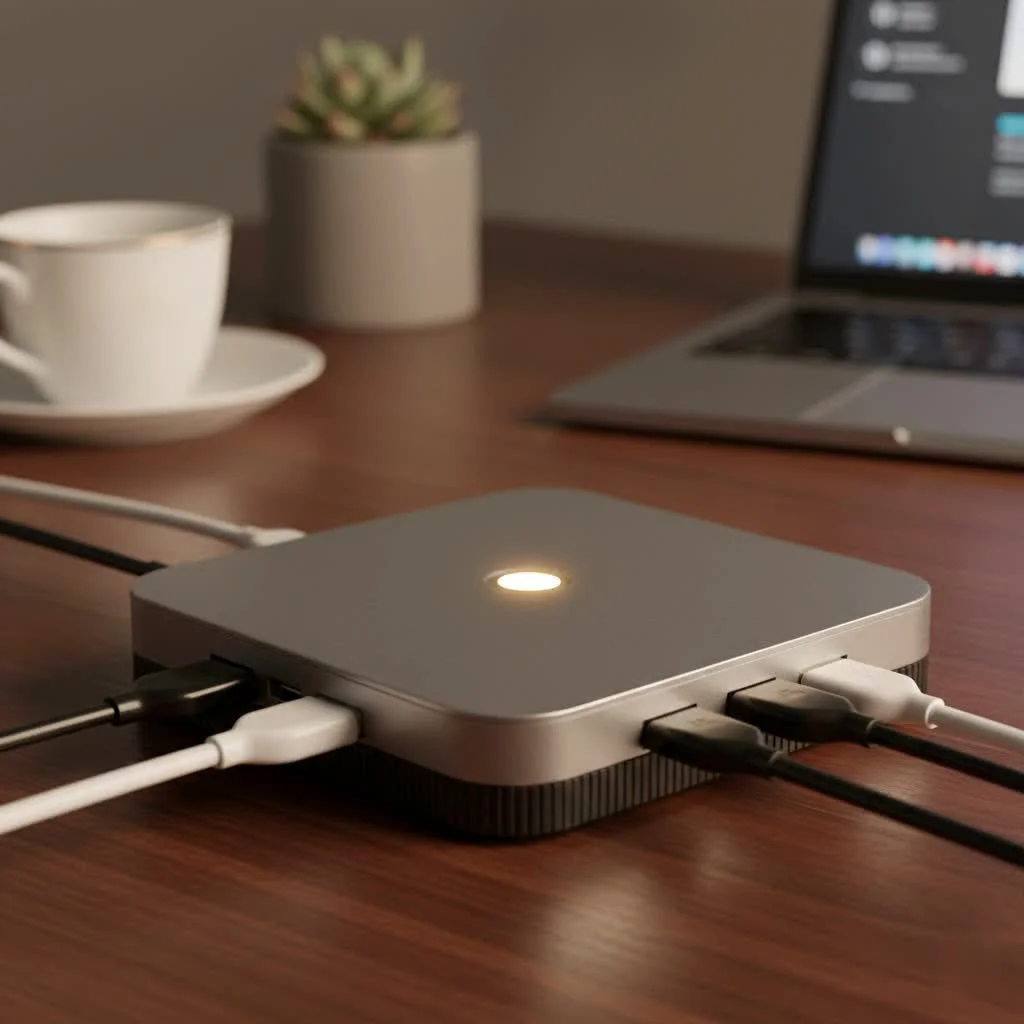
A USB hub expands a single Universal Serial Bus (USB) port into several, allowing users to connect more peripherals to their computer or host device than its built-in ports would otherwise allow. These essential devices act as a central station, transforming one port into multiple possibilities for various gadgets, from laptops and tablets to smartphones and external drives.
The Different Flavors of USB Hubs Explained
Not all USB hubs are created equal. They vary significantly in speed, power delivery, and the types of ports they offer. Understanding these differences is key to choosing the right device for your specific needs.
Powered vs. Unpowered (Bus-Powered) Hubs
One of the most critical distinctions is between powered and unpowered hubs.
-
Unpowered (Bus-Powered) Hubs: These hubs draw their power directly from the host device they are plugged into. They are generally smaller, more portable, and less expensive. However, the power they provide is shared among all connected devices. This makes them suitable for low-power peripherals like flash drives, mice, and keyboards. They are not ideal for devices that require more energy, such as external hard drives or webcams.
-
Powered (Self-Powered) Hubs: These hubs come with their own external power adapter that plugs into a wall outlet. This dedicated power source means each port can supply the maximum power allowed by the USB standard. Powered hubs are the go-to choice for connecting high-drain devices or multiple devices simultaneously without performance issues. If you plan to connect external drives, scanners, or charge gadgets, a powered USB hub is essential for stability and reliability.
“Choosing between a powered and an unpowered hub is the first major decision a user needs to make,” says connectivity expert James Chen. “It all comes down to what you plan to connect. For a stable, multi-device setup, especially with power-hungry peripherals, a powered hub is always the safer and more reliable option.”
Understanding USB Standards and Speeds
The USB standard determines the data transfer speed of the hub. Over the years, these standards have evolved, offering progressively faster performance.
-
USB 2.0: An older standard, offering transfer speeds up to 480 Mbps (megabits per second). While largely outdated for data-heavy tasks, it’s still sufficient for basic peripherals like keyboards and mice.
-
USB 3.0 / USB 3.1 Gen 1 / USB 3.2 Gen 1: These names all refer to the same standard, which offers a significant speed boost up to 5 Gbps (gigabits per second), about ten times faster than USB 2.0. This is the baseline for modern hubs and is suitable for transferring files from external hard drives and SSDs.
-
USB 3.1 Gen 2 / USB 3.2 Gen 2: This standard doubles the speed to 10 Gbps, making it excellent for high-performance devices like fast external SSDs and video capture hardware.
-
USB4 and Thunderbolt 4: Found on newer devices, especially those with USB-C ports, these standards represent the pinnacle of performance. They offer speeds up to 40 Gbps and can support multiple high-resolution displays and other high-bandwidth peripherals through a single connection.
The Rise of the USB-C Hub
|
Our Picks for the Best USB Hub in 2026
As an Amazon Associate I earn from qualifying purchases.
|
||
| Num | Product | Action |
|---|---|---|
| 1 | Anker Laptop Docking Station Dual Monitor, 8-in-1 USB C Hub, 4K Dual Monitor with 2 HDMI, 1 Gbps Ethernet Hub, 85W Power Delivery, SD Card Reader for MacBook Pro, XPS and More (Charger not Included) |

|
| 2 | USB Hub 3.0, 7-Port USB Hub Splitter with Individual On/Off Switches and Lights, 3.2ft/1m Long Cable Compatible with MacBook, Laptop, Surface Pro, PS4, PC, Flash Drive, Mobile HDD |
|
| 3 | USB C Docking Station with M.2 NVMe SSD Enclosure 10Gbps, 9 in 1 USB-C Hub, Type C SSD Slot with 4K@60Hz HDMI, USB 3.2 Gen2, PD100W, SD/TF Card Reader, Laptop Docking Station for Dell/HP/Lenovo/Mac |
|
| 4 | 3-in-1 USB C Splitter, 3 in 1 Type-C Charging Data Cable Data Transmission Decive Charging Adapter Power Charger Equipment for ome Office Use, Fast & Efficient |
|
| 5 | UGREEN USB 3.0 Hub, 4 Ports USB A Splitter Ultra-Slim USB Expander for Mouse, Keyboard, Flash Drive, U Disk, Printer Compatible with Laptop, Desktop PC, Xbox, PS5, and More |
|
| 6 | Powered USB Hub, Wenter 11-Port USB Splitter Hub (10 Faster Data Transfer Ports+ 1 Smart Charging Port) with Individual LED On/Off Switches, USB Hub 3.0 Powered with Power Adapter for Mac, PC |
|
| 7 | 13 in 1 USB C Docking Station - Dual Monitor, Triple Display, 8 USB C/A Ports, Ethernet, Audio - LIONWEI USB C Hub for MacBook,Dell,HP,Lenovo,Surface |
|
| 8 | Powered USB Hub 10Gbps, intpw 9-Port USB 3.2 Hub, USB C Hub with USB A/USB C 3.2, 4 USB 3.0, 2 PD 45W Charging Ports, 65W Power Adapter and 3.3FT Cable, Aluminum USB Hub for Laptop, iPhone 17/16/15,PC |
|
| 9 | P9R PRO USB C Hub Ethernet, 10 in 1 USB Docking Station 10Gbps with 4K@60Hz HDMI, USB C and 2 USB A 3.2, LAN, 2 USB A 2.0, PD 100W, SD/TF Ports, USB to Ethernet Adapter for PC, iPhone 16/15, Mac |
|
| 10 | Anker USB Hub 4 Ports with 5Gbps Data Transfer, Multiple USB 3.0 Hub, USB Splitter for Laptop, Extender for A Port Laptop, PC, Desktop and More [Charging Not Supported](0.7 ft USB-A) |
|
The USB-C connector has revolutionized connectivity with its reversible design and incredible versatility. A USB-C hub (often called a multiport adapter) does much more than just add extra USB ports. It can transform a single USB-C port on a modern laptop into a complete workstation. Common ports found on a USB-C hub include:
- HDMI/DisplayPort: For connecting external monitors.
- SD/microSD Card Readers: A must-have for photographers and videographers.
- Ethernet Port: For a stable, wired internet connection.
- USB-A Ports: To connect legacy devices.
- Audio Jack: For headphones or speakers.
- USB-C Power Delivery (PD): This allows you to charge your laptop through the hub itself, freeing up another port on your device.
How to Choose the Perfect USB Hub for Your Needs
Selecting the right USB hub depends entirely on how you intend to use it. Here’s a checklist to guide your decision-making process.
1. What Devices Will You Connect?
Make a list of all the peripherals you plan to use. If your list includes high-power devices like external drives, printers, or webcams, you should opt for a powered hub. For simple accessories like a mouse and a flash drive, an unpowered hub will suffice.
2. What Speeds Do You Require?
If your work involves transferring large files, editing videos, or using high-speed external SSDs, a USB 3.1 Gen 2 or Thunderbolt 4 hub is a worthwhile investment. For everyday use and standard office peripherals, a USB 3.0 hub provides more than enough speed.
3. What Types of Ports Do You Need?
Consider the full range of your connectivity needs. Do you need to connect an external monitor? Then look for a hub with an HDMI or DisplayPort output. Are you a photographer? A built-in SD card reader will be invaluable. Do you need a reliable internet connection for streaming or online gaming? An Ethernet port is a must.
4. How Important is Portability?
If you’re constantly on the move, a compact, unpowered USB-C multiport adapter is a great choice. It can easily fit into a laptop bag and provides essential ports for presentations and remote work. For a permanent desk setup, a larger, powered desktop hub with more ports might be more practical.
Potential Downsides and How to Mitigate Them
While incredibly useful, a poorly chosen USB hub can sometimes cause issues. Overloading an unpowered hub can lead to devices disconnecting randomly or not being recognized by your computer. Using a cheap, uncertified hub could potentially even damage your host device due to poor power management.
To avoid these problems, always purchase hubs from reputable brands that adhere to USB-IF (USB Implementers Forum) standards. Reading reviews and ensuring a hub has features like over-current protection can provide peace of mind.
Conclusion: The Key to Connectivity
The USB hub is an indispensable tool for anyone looking to expand the functionality of their computer. From simple, portable models for light use to powerful, feature-rich hubs that can turn a laptop into a full-fledged desktop workstation, there is a solution for every need. By considering the types of devices you’ll use, the speed you require, and the specific ports you need, you can confidently choose a hub that will simplify your digital life. Investing in the right hub not only eliminates the frustration of limited ports but also unlocks the full potential of your devices, creating a more efficient and organized workspace.
Get our weekly buyer guide
Practical specs, not advice. Unsubscribe anytime.

Finally got a powered USB hub for my desktop setup, and it’s exactly what I needed. I was always running into issues with my external hard drive disconnecting when I had too many things plugged into my old unpowered one. This new one handles everything, including charging my phone, without a hitch. The extra power delivery really makes a difference.
I picked up one of the smaller, unpowered USB hubs mentioned, hoping to use it for my tablet. While it works for my flash drive, it struggles a bit when I try to connect my portable SSD. I guess I should have gone for a powered option if I wanted to use more power-hungry devices. It’s fine for basic stuff, though.
I’ve been using a bus-powered USB hub for my laptop for a few weeks now, and it’s been a game-changer. I love how portable it is, and it’s perfect for connecting my wireless mouse and keyboard dongle without needing an extra power brick. Definitely freed up some much-needed ports on my MacBook Air.
This information about the different flavors of USB hubs was super helpful. I always just grabbed whatever was cheapest, but understanding the speed and port types really helped me choose the right one for my gaming rig. Now I have plenty of USB 3.0 ports for all my peripherals and VR headset without any lag.