Have you ever found yourself in a digital juggling act, constantly unplugging your mouse to make room for a flash drive, or needing to connect an external monitor and a keyboard to a laptop that only has two ports? In our increasingly connected world, the demand for ports often outstrips the supply, especially with today’s sleek, minimalist laptops. This is precisely where a Usb Expansion Hub becomes not just a convenience, but an essential tool for a productive and clutter-free workspace. Think of it as a power strip for your data, turning one of your computer’s USB ports into a multitude of connection possibilities.
What is a USB Expansion Hub?
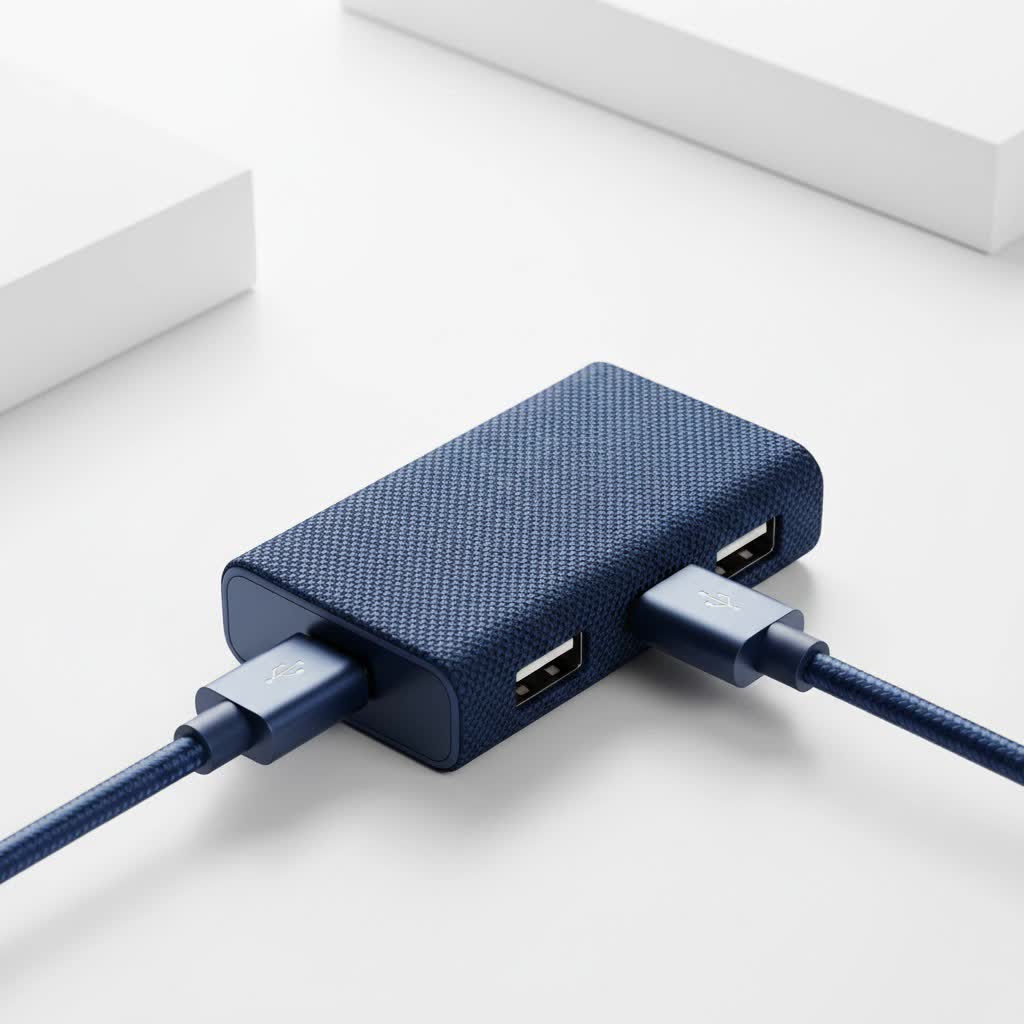
At its core, a USB expansion hub is a small device that plugs into a single Universal Serial Bus (USB) port on your computer and offers multiple extra ports. This allows you to simultaneously connect a variety of peripherals—such as a keyboard, mouse, external hard drive, printer, and webcam—using just one of your computer’s built-in ports. It’s a simple solution to a very common problem, instantly boosting your device’s connectivity and making your digital life significantly easier.
Powered vs. Non-Powered: Which One Do You Need?
One of the first decisions you’ll face when choosing a hub is whether to get a powered or a non-powered model. The difference is critical and depends entirely on what you plan to connect.
Non-Powered (Bus-Powered) Hubs
A non-powered hub draws all its electricity directly from the computer it’s connected to. This makes it incredibly portable and convenient, as there’s no extra power adapter to carry around.
- Best for: Low-power devices like a mouse, keyboard, flash drives, or a game controller.
- Limitations: The power supplied by a single computer port is limited. If you connect too many devices, or even one power-hungry device, you may experience connection drops or find that your peripherals don’t work at all.
|
Our Picks for the Best USB Hub in 2026
As an Amazon Associate I earn from qualifying purchases.
|
||
| Num | Product | Action |
|---|---|---|
| 1 | Powered USB Hub 10Gbps, intpw 9-Port USB 3.2 Hub, USB C Hub with USB A/USB C 3.2, 4 USB 3.0, 2 PD 45W Charging Ports, 65W Power Adapter and 3.3FT Cable, Aluminum USB Hub for Laptop, iPhone 17/16/15,PC |

|
| 2 | Anker USB Hub 4 Ports with 5Gbps Data Transfer, Multiple USB 3.0 Hub, USB Splitter for Laptop, Extender for A Port Laptop, PC, Desktop and More [Charging Not Supported](0.7 ft USB-A) |
|
| 3 | USB C Docking Station with M.2 NVMe SSD Enclosure 10Gbps, 9 in 1 USB-C Hub, Type C SSD Slot with 4K@60Hz HDMI, USB 3.2 Gen2, PD100W, SD/TF Card Reader, Laptop Docking Station for Dell/HP/Lenovo/Mac |
|
| 4 | UGREEN USB 3.0 Hub, 4 Ports USB A Splitter Ultra-Slim USB Expander for Mouse, Keyboard, Flash Drive, U Disk, Printer Compatible with Laptop, Desktop PC, Xbox, PS5, and More |
|
| 5 | USB Hub 3.0, 7-Port USB Hub Splitter with Individual On/Off Switches and Lights, 3.2ft/1m Long Cable Compatible with MacBook, Laptop, Surface Pro, PS4, PC, Flash Drive, Mobile HDD |
|
| 6 | 13 in 1 USB C Docking Station - Dual Monitor, Triple Display, 8 USB C/A Ports, Ethernet, Audio - LIONWEI USB C Hub for MacBook,Dell,HP,Lenovo,Surface |
|
| 7 | Powered USB Hub, Wenter 11-Port USB Splitter Hub (10 Faster Data Transfer Ports+ 1 Smart Charging Port) with Individual LED On/Off Switches, USB Hub 3.0 Powered with Power Adapter for Mac, PC |
|
| 8 | 3-in-1 USB C Splitter, 3 in 1 Type-C Charging Data Cable Data Transmission Decive Charging Adapter Power Charger Equipment for ome Office Use, Fast & Efficient |
|
| 9 | Anker Laptop Docking Station Dual Monitor, 8-in-1 USB C Hub, 4K Dual Monitor with 2 HDMI, 1 Gbps Ethernet Hub, 85W Power Delivery, SD Card Reader for MacBook Pro, XPS and More (Charger not Included) |
|
| 10 | P9R PRO USB C Hub Ethernet, 10 in 1 USB Docking Station 10Gbps with 4K@60Hz HDMI, USB C and 2 USB A 3.2, LAN, 2 USB A 2.0, PD 100W, SD/TF Ports, USB to Ethernet Adapter for PC, iPhone 16/15, Mac |
|
Powered Hubs
A powered hub comes with its own external AC adapter that plugs into a wall outlet. This means it provides its own dedicated power source to every connected device, ensuring each port gets the full voltage it needs to function correctly.
- Best for: High-power devices such as external hard drives, SSDs, webcams, printers, or for charging your smartphone.
- Advantage: Stability is the key benefit. You can use every port simultaneously without worrying about overloading the hub or your computer’s USB port. “For anyone creating a permanent desk setup, a powered hub is a no-brainer,” notes David Chen, a hardware analyst. “It guarantees that high-performance peripherals, like external drives used for video editing, receive consistent power and won’t fail during a critical task.”
How to Choose the Right USB Expansion Hub
Selecting the perfect hub means matching its features to your specific needs. Going in with a clear idea of what you want to connect will save you from buying a hub that’s either insufficient or overkill.
Step 1: Count Your Devices and Port Types
Start by making a list of all the peripherals you use regularly. Don’t just count them; note the type of connector each one uses.
- USB-A: The classic, rectangular USB port. Still the most common connector for mice, keyboards, and flash drives.
- USB-C: The newer, smaller, oval-shaped reversible port. Found on modern laptops, smartphones, and many new peripherals. It often supports higher speeds and features like video output.
- Beyond USB: Do you need more than just data ports? Many hubs are multiport adapters that also include:
- HDMI or DisplayPort: For connecting one or more external monitors.
- Ethernet Port: For a stable, wired internet connection.
- SD/MicroSD Card Reader: Essential for photographers and videographers.
- Audio Jack: For connecting headphones or speakers.
Step 2: Consider Power Delivery (PD)
If you’re using a modern laptop that charges via USB-C, look for a hub with USB-C Power Delivery (PD). This feature allows the hub to pass power from your laptop’s charger through the hub and into your computer. This means you can charge your laptop and use all the hub’s ports simultaneously, all through a single USB-C connection. It’s a game-changer for maintaining a one-cable setup.
Step 3: Check the Speed
Not all USB ports are created equal. The speed of the hub determines how fast data can move between your computer and your peripherals.
- USB 3.0 (or USB 3.2 Gen 1): Offers speeds up to 5 Gbps. This is great for general use and is fast enough for most external hard drives.
- USB 3.2 Gen 2: Doubles the speed to 10 Gbps. Ideal for transferring large files quickly, like 4K video, from a high-speed SSD.
- Thunderbolt 4 / USB4: The fastest available, offering speeds up to 40 Gbps. These are typically found on higher-end hubs and docking stations and can support multiple high-resolution displays and lightning-fast data transfer.
Frequently Asked Questions (FAQ)
What’s the difference between a USB hub and a docking station?
A USB hub primarily focuses on adding more USB ports. A docking station is a more robust type of hub designed for a complete desktop experience, often including multiple video outputs (HDMI, DisplayPort), an Ethernet port, audio jacks, and its own power supply as standard features.
Will a USB expansion hub slow down my devices?
A hub shares the bandwidth of the single port it’s connected to. If you connect multiple high-speed devices (like two external SSDs) and use them heavily at the same time, you may see a reduction in speed. For everyday use with a mouse, keyboard, and a single flash drive, you are unlikely to notice any slowdown.
Can a cheap USB hub damage my computer or devices?
Yes, a poorly made, uncertified hub can potentially cause damage. It might fail to regulate power correctly, leading to shorts or power surges that could harm your computer’s motherboard or the peripherals connected to it. It’s always best to invest in a hub from a reputable brand.
How many USB hubs can you connect together?
While you can technically “daisy-chain” hubs by plugging one into another, it’s generally not recommended. Each hub adds a layer of complexity and potential power or data bottlenecks. The maximum number of devices the USB standard supports is 127, but you’ll hit practical performance limits long before that. For best results, connect your primary hub directly to your computer.
The Final Connection
A USB expansion hub is an indispensable accessory in the modern tech toolkit. By understanding the key differences between powered and non-powered models, identifying the ports you need, and considering features like Power Delivery, you can easily find the perfect device to streamline your workflow. It transforms a single port into a gateway of productivity, eliminating clutter and ensuring all your essential tools are connected and ready to go whenever you are.
