In our ever-expanding digital lives, the number of devices we rely on daily is constantly growing. From laptops and tablets to smartphones, external hard drives, and webcams, everything needs a connection. The problem? The number of ports on our primary devices, especially modern ultra-thin laptops, is shrinking. This is where a Multi Port Usb Hub transforms from a simple accessory into an essential productivity powerhouse. If you’ve ever found yourself juggling cables or unplugging one device to make room for another, you’ve come to the right place. Welcome to Meeob, where we untangle the complex world of connectivity.
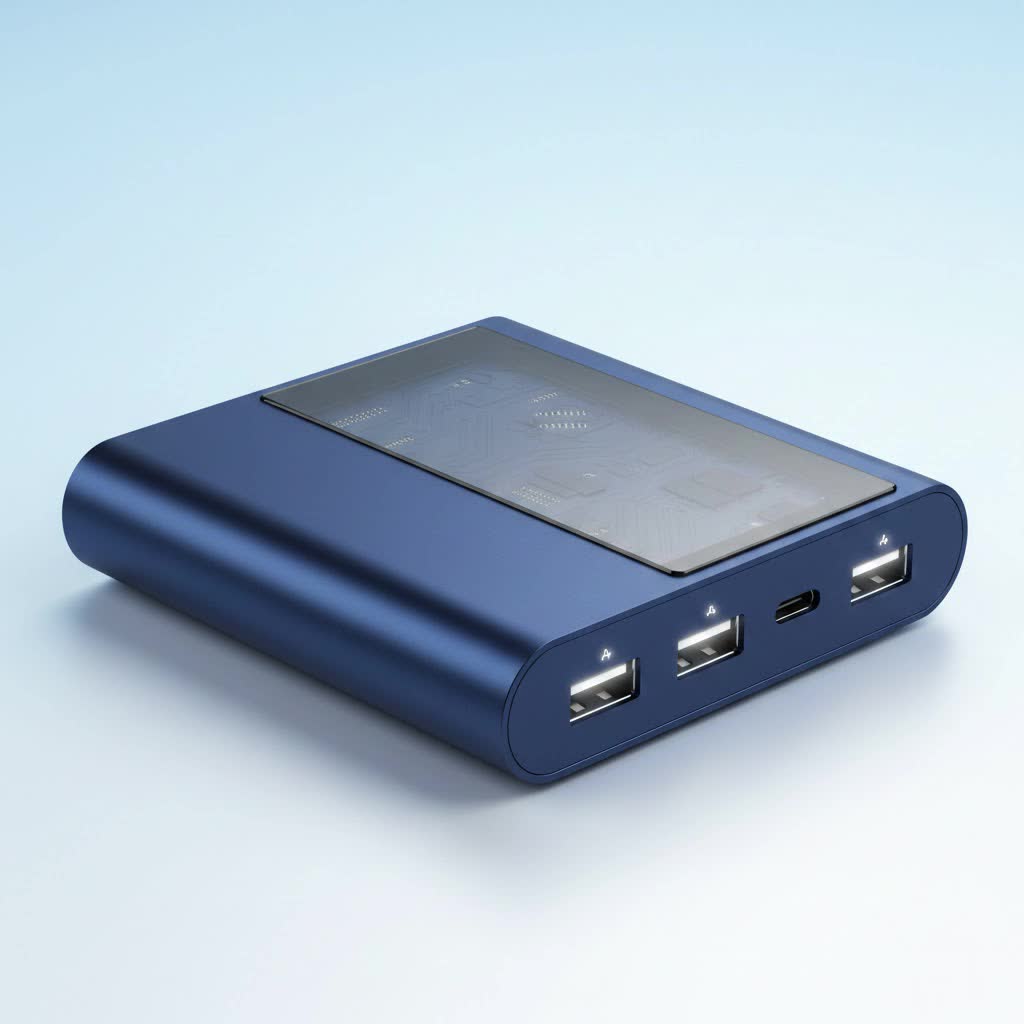
A multi port USB hub is a device that expands a single USB port (like USB-A or USB-C) into several, allowing you to connect multiple peripherals to your computer simultaneously. Think of it as a power strip for your data. Instead of being limited to the two or three ports on your laptop, a hub gives you the freedom to connect everything you need—your mouse, keyboard, flash drive, and even an external monitor—all at once. It’s the simple, elegant solution to modern port scarcity.
Why a USB Hub is No Longer a Luxury
In the past, USB hubs were for power users with a dozen gadgets. Today, they’re for everyone. The trend towards minimalist design in laptops, particularly with the widespread adoption of USB-C, means fewer built-in ports. For most users, this creates an immediate bottleneck.
Consider a typical workday. You need to connect your wireless mouse dongle, an external keyboard for better ergonomics, a USB stick to grab a file, and maybe charge your phone. A laptop with only two USB-C ports simply can’t handle this without help. A multi port USB hub elegantly solves this issue, turning one port into a central station for all your peripherals. It declutters your workspace, simplifies your workflow, and ensures you’re always ready to connect.
Powered vs. Unpowered Hubs: What’s the Difference?
When you start shopping for a USB hub, you’ll immediately encounter two main categories: powered and unpowered (or “bus-powered”). Understanding the distinction is crucial for choosing the right one for your needs.
Unpowered (Bus-Powered) Hubs
An unpowered hub draws all its electricity directly from the host computer it’s plugged into.
- Pros: Highly portable, compact, and less expensive. They don’t require a separate power adapter, making them perfect for travel or mobile work setups.
- Cons: They have a limited power output, which is shared among all connected devices. This is fine for low-power peripherals like a mouse, keyboard, or flash drive. However, they can struggle with high-power devices like external hard drives, webcams, or charging a smartphone.
|
Our Picks for the Best USB Hub in 2026
As an Amazon Associate I earn from qualifying purchases.
|
||
| Num | Product | Action |
|---|---|---|
| 1 | Anker USB Hub 4 Ports with 5Gbps Data Transfer, Multiple USB 3.0 Hub, USB Splitter for Laptop, Extender for A Port Laptop, PC, Desktop and More [Charging Not Supported](0.7 ft USB-A) |
 on Amazon](https://meeob.com/wp-content/plugins/amazon-tables/assets/images/buy.png)
|
| 2 | P9R PRO USB C Hub Ethernet, 10 in 1 USB Docking Station 10Gbps with 4K@60Hz HDMI, USB C and 2 USB A 3.2, LAN, 2 USB A 2.0, PD 100W, SD/TF Ports, USB to Ethernet Adapter for PC, iPhone 16/15, Mac |
|
| 3 | Powered USB Hub, Wenter 11-Port USB Splitter Hub (10 Faster Data Transfer Ports+ 1 Smart Charging Port) with Individual LED On/Off Switches, USB Hub 3.0 Powered with Power Adapter for Mac, PC |
|
| 4 | Powered USB Hub 10Gbps, intpw 9-Port USB 3.2 Hub, USB C Hub with USB A/USB C 3.2, 4 USB 3.0, 2 PD 45W Charging Ports, 65W Power Adapter and 3.3FT Cable, Aluminum USB Hub for Laptop, iPhone 17/16/15,PC |
|
| 5 | USB Hub 3.0, 7-Port USB Hub Splitter with Individual On/Off Switches and Lights, 3.2ft/1m Long Cable Compatible with MacBook, Laptop, Surface Pro, PS4, PC, Flash Drive, Mobile HDD |
|
| 6 | USB C Docking Station with M.2 NVMe SSD Enclosure 10Gbps, 9 in 1 USB-C Hub, Type C SSD Slot with 4K@60Hz HDMI, USB 3.2 Gen2, PD100W, SD/TF Card Reader, Laptop Docking Station for Dell/HP/Lenovo/Mac |
|
| 7 | 13 in 1 USB C Docking Station - Dual Monitor, Triple Display, 8 USB C/A Ports, Ethernet, Audio - LIONWEI USB C Hub for MacBook,Dell,HP,Lenovo,Surface |
|
| 8 | 3-in-1 USB C Splitter, 3 in 1 Type-C Charging Data Cable Data Transmission Decive Charging Adapter Power Charger Equipment for ome Office Use, Fast & Efficient |
|
| 9 | UGREEN USB 3.0 Hub, 4 Ports USB A Splitter Ultra-Slim USB Expander for Mouse, Keyboard, Flash Drive, U Disk, Printer Compatible with Laptop, Desktop PC, Xbox, PS5, and More |
|
| 10 | Anker Laptop Docking Station Dual Monitor, 8-in-1 USB C Hub, 4K Dual Monitor with 2 HDMI, 1 Gbps Ethernet Hub, 85W Power Delivery, SD Card Reader for MacBook Pro, XPS and More (Charger not Included) |
|
Powered Hubs
A powered hub comes with its own external power adapter that plugs into a wall outlet. This means it provides its own dedicated power source to the connected devices.
- Pros: Delivers consistent and ample power to each port. This makes it ideal for running multiple high-drain devices simultaneously without performance issues. It’s the most stable and reliable option for a permanent desk setup.
- Cons: Less portable due to the extra power brick and cable. They are also generally more expensive.
As our lead hardware analyst, David Chen, often says, “Choosing between a powered and unpowered hub comes down to your primary use case. For a work-from-home desk that supports monitors and hard drives, a powered hub is non-negotiable. For a professional on the go, the portability of a bus-powered hub is a lifesaver.”
How to Choose the Perfect Multi Port USB Hub
Navigating the sea of options can be daunting. Let’s break down the key features to look for to ensure you get a hub that perfectly matches your needs.
1. The Right Mix of Ports
Not all hubs are created equal. The most important factor is the selection of ports it offers. Think about the devices you use every day and the ones you might use in the future.
- USB-A: The classic rectangular port. Essential for connecting legacy devices like mice, keyboards, printers, and older flash drives.
- USB-C: The modern, reversible oval port. Many newer devices use this standard. Some hubs offer USB-C for data transfer, while others provide it for Power Delivery (PD) to charge your laptop.
- HDMI/DisplayPort: Crucial if you want to connect one or more external monitors to your laptop. Check the supported resolution and refresh rate (e.g., 4K at 60Hz).
- Ethernet Port: For a stable, high-speed internet connection, an Ethernet port is far more reliable than Wi-Fi. A must-have for gamers, streamers, and anyone who deals with large file transfers.
- SD/MicroSD Card Readers: A massive convenience for photographers, videographers, and content creators who need to transfer files from their cameras quickly.
2. Data Transfer Speed: USB Standards
The speed of your hub determines how quickly files are transferred. This is dictated by the USB standard it supports.
- USB 2.0: An older standard with a max speed of 480 Mbps. Suitable for basic peripherals like keyboards and mice, but far too slow for file transfers. Avoid this for anything but the most basic use cases.
- USB 3.0/3.1 Gen 1/3.2 Gen 1: These are all different names for the same standard, offering speeds up to 5 Gbps. This is the sweet spot for most users, providing fast file transfers for external hard drives and SSDs.
- USB 3.1 Gen 2/3.2 Gen 2: This standard doubles the speed to 10 Gbps, ideal for professionals working with large files, such as video editors.
- Thunderbolt 3/4 & USB4: These are the fastest standards available, offering speeds up to 40 Gbps. They can support multiple 4K displays and high-speed external storage. These are typically found in more expensive hubs and docking stations.
3. Power Delivery (PD)
Power Delivery is a game-changing feature that allows a multi port USB hub to charge your host laptop through the same USB-C cable it uses for data. If your laptop charges via USB-C, a hub with PD means you can plug in your laptop’s power adapter to the hub, and it will pass power through to your laptop while also running all your other peripherals. Check the wattage (e.g., 60W, 85W, 100W) to ensure it’s sufficient to charge your specific laptop model effectively.
Frequently Asked Questions (FAQ)
Will a multi port USB hub slow down my devices?
A quality USB hub should not noticeably slow down your devices for everyday use. A hub shares the total bandwidth of the single port it’s connected to. So, if you are performing multiple high-bandwidth activities simultaneously (like transferring large files from two different external drives), you might see a reduction in speed. For most users connecting a mouse, keyboard, and flash drive, there will be no perceptible slowdown.
Can a cheap USB hub damage my computer or peripherals?
Yes, a poorly made, cheap USB hub can potentially damage your equipment. Low-quality hubs may lack essential safety features like overcurrent protection or proper power management. This can lead to power surges that could harm your computer’s motherboard or the devices connected to it. It is always recommended to invest in a hub from a reputable brand.
How many devices can I actually connect?
Theoretically, you can daisy-chain hubs to connect up to 127 devices to a single host controller. However, in practice, this is limited by both the power and bandwidth available from the host port. For a stable setup, it’s best to stick to the number of ports available on your primary hub.
What’s the real difference between a USB hub and a docking station?
The line is blurring, but generally, a USB hub focuses on expanding the number of USB ports. A docking station is a more comprehensive solution, often powered, and designed to turn a laptop into a full-fledged desktop setup. Docks typically offer a wider array of ports (multiple display outputs, more USB ports, audio jacks) and are more robust, but also much larger and more expensive.
Do I really need a powered USB hub?
You need a powered USB hub if you plan to connect devices that draw a lot of power. This includes external hard drives (especially older, spinning ones), CD/DVD writers, high-resolution webcams, or if you want to charge your phone or tablet through the hub. If you only use low-power devices like a keyboard, mouse, and thumb drive, an unpowered hub is sufficient.
Conclusion: Your Connectivity Command Center
In a world demanding more connections from fewer ports, the multi port USB hub is the indispensable bridge for your digital life. It’s more than just an accessory; it’s a tool that streamlines your workflow, cleans up your desk, and unlocks the full potential of your devices. By considering your specific needs—the types of ports you require, the speed you need for your tasks, and whether your devices demand a powered solution—you can confidently choose the perfect hub. Don’t let port limitations be your productivity bottleneck. Invest in a quality hub and create your own seamless, powerful, and connected workspace.
