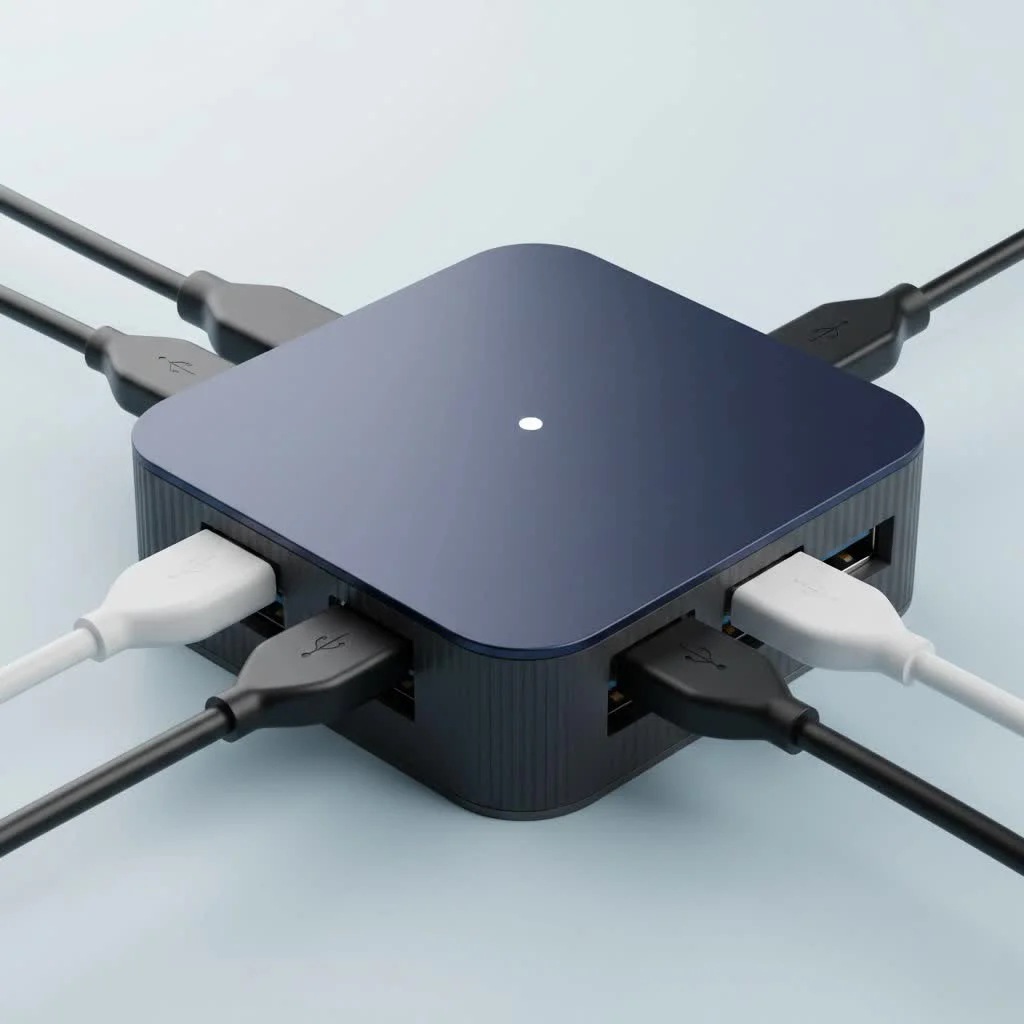
A powered USB 3 hub is an essential accessory that connects directly to a wall outlet via its own AC adapter, providing dedicated and consistent power to every connected device. Unlike unpowered hubs that split a computer’s limited USB power, a powered hub ensures stable operation for high-demand peripherals like external hard drives, webcams, and charging devices, preventing disconnections and slow performance.
What’s the Real Difference: Powered vs. Unpowered Hubs?
At first glance, powered and unpowered USB hubs look similar, both offering more ports. However, the crucial difference lies in their electricity source. An unpowered (or passive) hub splits the single stream of power from your computer’s USB port among all connected devices. A powered USB 3 hub, on the other hand, plugs directly into a wall outlet with its own AC adapter, providing dedicated, consistent power to every single port. For see our usb hubs recommendations on this site.
Think of it like this: an unpowered hub is like splitting a single garden hose into four smaller hoses—the water pressure drops for everyone. A powered hub gives each of the four new hoses its own dedicated water tap.
| Feature | Unpowered USB Hub | Powered USB 3 Hub |
|---|---|---|
| Power Source | Host computer’s USB port | External AC wall adapter |
| Best For | Low-power devices (mice, keyboards, flash drives) | High-power devices (HDDs, SSDs, webcams, printers) |
| Stability | Can be unstable if overloaded | Highly stable and reliable connection |
| Charging | Very slow or no charging capability | Can charge devices, sometimes with dedicated ports |
| Port Count | Typically fewer ports (2-4) | Often more ports (4-10+) |
Key Benefits of Upgrading to a Powered USB 3.0 Hub
Making the switch to a powered hub isn’t just about adding ports; it’s about upgrading the capability and reliability of your entire setup. Here’s what you gain.
Unmatched Stability for All Your Devices
The primary advantage is stable, consistent power. When devices don’t get enough power from an unpowered hub, they can behave erratically. External hard drives might fail to mount or disconnect during a file transfer, corrupting your data. A powered hub ensures every device gets the juice it needs to run flawlessly, all the time.
Powering High-Demand Peripherals
Many essential peripherals are surprisingly power-hungry. A single USB 3.0 port on a computer provides about 900mA (0.9A) of power, which is easily overwhelmed. A powered USB 3 hub is essential for running devices like:
- External Hard Drives (HDDs) and Solid-State Drives (SSDs)
- High-resolution webcams and scanners
- Printers and audio interfaces
- Gaming peripherals with RGB lighting
- VR headsets
“The most common point of failure in complex peripheral setups isn’t the devices themselves, but inadequate power delivery. A powered hub removes that variable, ensuring a stable foundation for your hardware.” – David Chen, Lead Hardware Analyst
Faster and More Reliable Data Transfers
|
Our Picks for the Best USB Hub in 2026
As an Amazon Associate I earn from qualifying purchases.
|
||
| Num | Product | Action |
|---|---|---|
| 1 | USB C Docking Station with M.2 NVMe SSD Enclosure 10Gbps, 9 in 1 USB-C Hub, Type C SSD Slot with 4K@60Hz HDMI, USB 3.2 Gen2, PD100W, SD/TF Card Reader, Laptop Docking Station for Dell/HP/Lenovo/Mac |

|
| 2 | 3-in-1 USB C Splitter, 3 in 1 Type-C Charging Data Cable Data Transmission Decive Charging Adapter Power Charger Equipment for ome Office Use, Fast & Efficient |
|
| 3 | P9R PRO USB C Hub Ethernet, 10 in 1 USB Docking Station 10Gbps with 4K@60Hz HDMI, USB C and 2 USB A 3.2, LAN, 2 USB A 2.0, PD 100W, SD/TF Ports, USB to Ethernet Adapter for PC, iPhone 16/15, Mac |
|
| 4 | UGREEN USB 3.0 Hub, 4 Ports USB A Splitter Ultra-Slim USB Expander for Mouse, Keyboard, Flash Drive, U Disk, Printer Compatible with Laptop, Desktop PC, Xbox, PS5, and More |
|
| 5 | Anker Laptop Docking Station Dual Monitor, 8-in-1 USB C Hub, 4K Dual Monitor with 2 HDMI, 1 Gbps Ethernet Hub, 85W Power Delivery, SD Card Reader for MacBook Pro, XPS and More (Charger not Included) |
|
| 6 | 13 in 1 USB C Docking Station - Dual Monitor, Triple Display, 8 USB C/A Ports, Ethernet, Audio - LIONWEI USB C Hub for MacBook,Dell,HP,Lenovo,Surface |
|
| 7 | USB Hub 3.0, 7-Port USB Hub Splitter with Individual On/Off Switches and Lights, 3.2ft/1m Long Cable Compatible with MacBook, Laptop, Surface Pro, PS4, PC, Flash Drive, Mobile HDD |
|
| 8 | Powered USB Hub 10Gbps, intpw 9-Port USB 3.2 Hub, USB C Hub with USB A/USB C 3.2, 4 USB 3.0, 2 PD 45W Charging Ports, 65W Power Adapter and 3.3FT Cable, Aluminum USB Hub for Laptop, iPhone 17/16/15,PC |
|
| 9 | Powered USB Hub, Wenter 11-Port USB Splitter Hub (10 Faster Data Transfer Ports+ 1 Smart Charging Port) with Individual LED On/Off Switches, USB Hub 3.0 Powered with Power Adapter for Mac, PC |
|
| 10 | Anker USB Hub 4 Ports with 5Gbps Data Transfer, Multiple USB 3.0 Hub, USB Splitter for Laptop, Extender for A Port Laptop, PC, Desktop and More [Charging Not Supported](0.7 ft USB-A) |
|
The “3.0” in the name stands for SuperSpeed data transfer, offering theoretical speeds up to 5Gbps. While both hub types support this speed, a powered hub maintains it more reliably. When multiple devices are transferring data simultaneously, a powered hub’s stable electrical current prevents speed drops and ensures your files move as quickly as the standard allows.
Conveniently Charge Your Devices
Many powered hubs come with dedicated charging ports, often identifiable by a small battery symbol. These ports are designed to deliver more power (typically 1.5A to 2.4A) than standard data ports, allowing you to charge your smartphone, tablet, or other gadgets quickly without needing a separate wall charger.
How to Choose the Right Powered USB 3.0 Hub
With many options on the market, selecting the perfect powered USB 3 hub can feel daunting. Focus on these four key areas to find the right fit for your needs.
1. Number and Type of Ports
First, count how many devices you plan to connect regularly and add one or two extra for future-proofing. Hubs commonly come in 4, 7, or 10-port configurations. Also, consider the type of ports. While most will be USB-A (the classic rectangle), you may want a hub that also includes one or two USB-C ports to connect more modern devices.
2. Total Power Output
This is the most critical technical specification. The power is measured in Amps (A) or Watts (W). To figure out what you need, look at the power requirements of your devices. A higher total output means the hub can support more high-demand devices running at once.
- Good: A 4-port hub with a 12V/2A (24W) adapter is a solid baseline.
- Better: A 7-port hub with a 12V/3A (36W) adapter provides more headroom.
- Best: For power users with multiple drives, look for hubs with 40W, 60W, or even higher power adapters.
3. Build Quality and Design
Since this device will be a central part of your desk, its construction matters. Look for hubs with a sturdy aluminum or high-quality plastic casing that helps dissipate heat. Consider the layout—do you prefer ports in a line or a square configuration? Also, check the length of the included power cord and USB cable to ensure they can reach from your computer to your desired location.
4. Essential Extra Features
Certain features can significantly improve your user experience.
- Individual Port Switches: These allow you to turn off specific ports without unplugging the device, which is great for managing power and preventing unnecessary wear.
- LED Indicators: Simple lights that show which ports are active and receiving power.
- BC 1.2 Charging Ports: This indicates a port is optimized for charging devices by delivering higher amperage.
- Surge Protection: An important safety feature that protects your connected devices from electrical spikes.
Frequently Asked Questions (FAQ)
What is the difference between USB 3.0, 3.1, and 3.2? They primarily differ in speed. USB 3.0 (now technically called USB 3.2 Gen 1) offers speeds up to 5Gbps. USB 3.1 (USB 3.2 Gen 2) doubles that to 10Gbps. For most users, a powered USB 3 hub at 5Gbps is more than fast enough for everyday tasks and file transfers.
Can I plug a powered USB hub into another powered USB hub? This is called “daisy-chaining.” While technically possible, it is generally not recommended. It can lead to power delivery issues and reduced performance. It’s better to buy a single hub with enough ports for your needs.
Do powered USB hubs use electricity when nothing is connected? Yes, like most electronics with an AC adapter, the hub will draw a very small amount of “vampire” power even when idle. However, the consumption is minimal. If you have a hub with a main power switch, you can turn it off completely.
Will a powered USB 3.0 hub work with older USB 2.0 devices? Absolutely. The USB standard is backward compatible. You can plug your older USB 2.0 devices into a USB 3.0 hub, and they will work perfectly, though they will be limited to USB 2.0 speeds.
Can a powered USB hub damage my computer or devices? A well-made hub from a reputable brand will not damage your equipment. They are designed with safety circuits to manage power flow. Damage is extremely rare and usually associated with cheap, uncertified products. Stick to trusted brands to ensure the safety of your devices.
The Final Word
In a world of ever-expanding digital tools, a reliable powered USB 3 hub is no longer a luxury—it’s a necessity for an efficient and powerful workflow. It solves the problem of limited ports while ensuring your most important devices, from external hard drives to webcams, get the stable power they need to perform at their best. By evaluating your needs based on port count, power output, and key features, you can choose the perfect hub to declutter your desk and supercharge your productivity.
How to Choose the Right Powered USB 3.0 Hub
Selecting the ideal powered USB 3.0 hub involves evaluating your specific needs based on port count, power output, build quality, and essential extra features to ensure optimal performance and reliability for your devices.
Count the number of devices you regularly connect and add one or two extra ports for future expansion. Common configurations include 4, 7, or 10 ports. Consider if you need USB-A ports, USB-C ports, or a combination for modern devices.
Examine the power requirements of your devices, measured in Amps (A) or Watts (W). A 4-port hub with a 24W adapter is a good baseline, while power users with multiple drives should look for hubs with 40W, 60W, or higher power adapters to ensure sufficient power delivery.
Choose a hub with sturdy construction, such as aluminum or high-quality plastic, which aids in heat dissipation. Consider the port layout (linear or square) and verify the length of the included power cord and USB cable to ensure they fit your workspace setup.
Prioritize features like individual port switches for power management, LED indicators to show active ports, BC 1.2 charging ports for faster device charging, and surge protection to safeguard your connected equipment from electrical spikes.
Get our weekly buyer guide
Practical specs, not advice. Unsubscribe anytime.

The hub works well for the most part, providing stable power to my devices. I appreciate that it plugs directly into a wall outlet, which was a key feature I was looking for. My only minor complaint is that the AC adapter cable is a bit shorter than I expected, limiting where I can place it on my desk. Otherwise, it’s a decent solution for adding more ports.
This powered hub is exactly what I needed for my home office setup. I was always running out of ports and my devices were performing slowly. Now, everything gets consistent power, and I can charge my phone and use my high-demand peripherals without any issues. It’s a solid improvement over just splitting my computer’s limited USB power.
I finally upgraded to a powered USB 3 hub after dealing with constant disconnections from my old unpowered one. This thing is a game-changer! My external hard drive and webcam now work flawlessly, even when I have multiple devices plugged in. The dedicated power from the wall outlet really makes all the difference for stable operation.
I’ve been using this powered USB 3 hub for a few weeks now, and it’s fantastic. No more worrying about my external drives randomly disconnecting or my charging devices being sluggish. The consistent power supply is evident, and it handles all my peripherals, including a couple of power-hungry ones, without breaking a sweat. Definitely recommend for anyone with multiple devices.