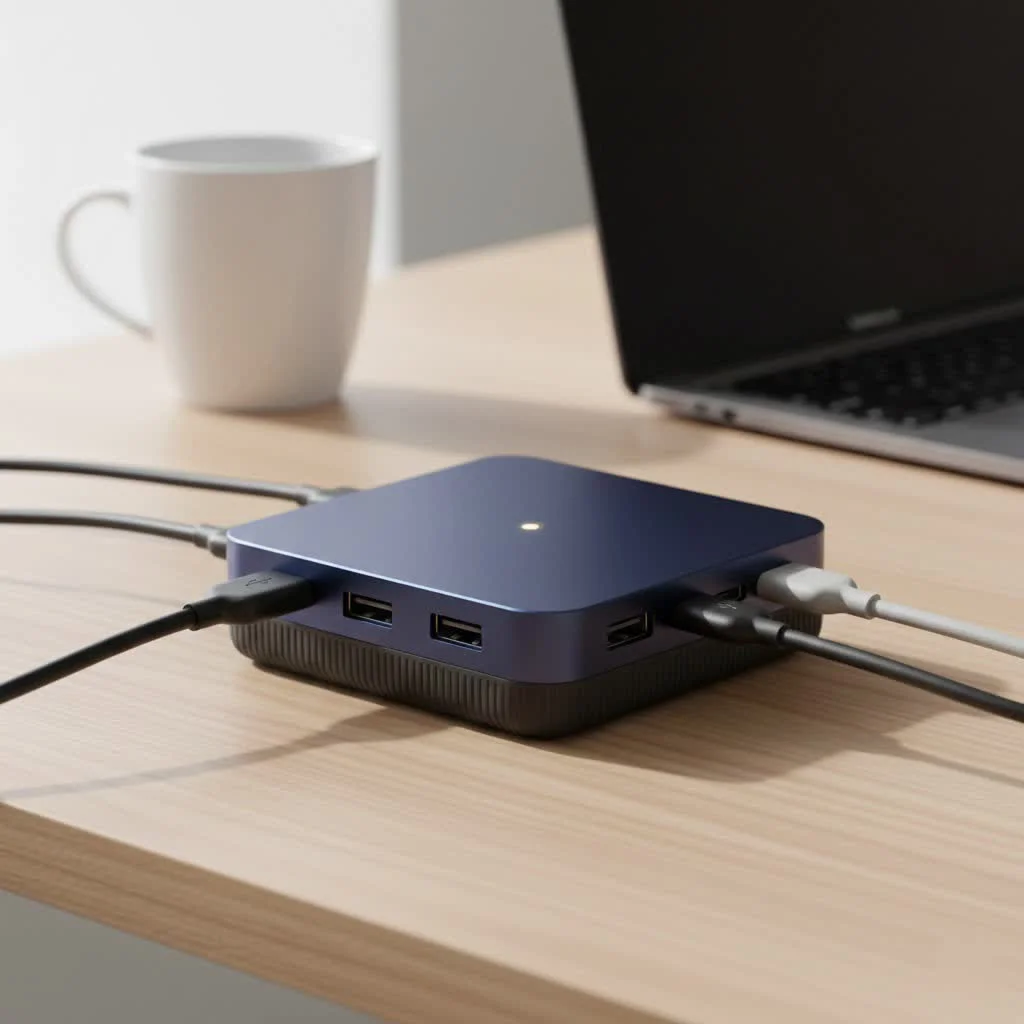
A USB-C hub with Power Delivery (PD) is an essential productivity tool that consolidates power, data, and video into a single USB-C connection for modern laptops. It utilizes the USB Power Delivery protocol to transfer significantly higher power, up to 140W, allowing it to charge power-hungry devices like laptops while simultaneously connecting peripherals. This eliminates cable clutter and streamlines workflows for users with limited USB-C ports.
What is USB-C Power Delivery (PD)?
At its core, USB Power Delivery (PD) is a charging standard that enables significantly higher power transfer through a USB-C connection. Unlike standard USB ports that offer minimal power, PD negotiates higher voltage and current, allowing it to rapidly and safely charge devices such as laptops, tablets, and gaming consoles. A hub USB C Power Delivery integrates this powerful charging technology, creating a central point for both connectivity and power. For shop curated usb hubs on this site.
How Does Pass-Through Charging Work?
The key feature of a USB-C PD hub is “pass-through charging,” a simple concept:
- You connect your laptop’s original USB-C power adapter to the hub’s dedicated PD input port.
- You then connect the hub’s integrated USB-C cable to your laptop.
- The hub efficiently “passes through” power from your adapter to charge your laptop, while all its other ports (e.g., HDMI, USB-A, SD card readers) remain fully operational.
This creates a seamless, single-cable connection to your laptop for simultaneous power, data, and video.
Why a Hub with Power Delivery is a major upgrade
The primary benefit of a PD hub is its undeniable convenience. For users of modern ultrabooks like the MacBook Air, MacBook Pro, or Dell XPS, which often have a limited number of USB-C ports, a PD hub is crucial. It transforms a single port into a versatile workstation.
Consider this scenario: you arrive at your desk, make one single USB-C connection, and instantly your laptop is charging, connected to an external 4K monitor, a wired keyboard, a mouse, and an external hard drive. This is the efficiency of a hub USB C Power Delivery. It significantly reduces cable clutter and eliminates the need to plug and unplug multiple accessories every time you move your laptop.
“The goal of modern hardware is to reduce friction in the user’s workflow,” notes tech analyst Sarah Jenkins. “A USB-C hub with Power Delivery is a perfect example of this. It consolidates multiple functions into one plug, saving time and mental energy.”
How to Choose the Perfect Hub USB C Power Delivery
Not all PD hubs are created equal. Selecting the wrong one can result in slow charging or even a complete failure to charge your laptop. Here’s what to consider to ensure you choose the right hub for your setup.
1. Match the Wattage to Your Laptop’s Needs
|
Our Picks for the Best USB Hub in 2026
As an Amazon Associate I earn from qualifying purchases.
|
||
| Num | Product | Action |
|---|---|---|
| 1 | USB Hub 3.0, 7-Port USB Hub Splitter with Individual On/Off Switches and Lights, 3.2ft/1m Long Cable Compatible with MacBook, Laptop, Surface Pro, PS4, PC, Flash Drive, Mobile HDD |

|
| 2 | USB C Docking Station with M.2 NVMe SSD Enclosure 10Gbps, 9 in 1 USB-C Hub, Type C SSD Slot with 4K@60Hz HDMI, USB 3.2 Gen2, PD100W, SD/TF Card Reader, Laptop Docking Station for Dell/HP/Lenovo/Mac |
|
| 3 | UGREEN USB 3.0 Hub, 4 Ports USB A Splitter Ultra-Slim USB Expander for Mouse, Keyboard, Flash Drive, U Disk, Printer Compatible with Laptop, Desktop PC, Xbox, PS5, and More |
|
| 4 | 3-in-1 USB C Splitter, 3 in 1 Type-C Charging Data Cable Data Transmission Decive Charging Adapter Power Charger Equipment for ome Office Use, Fast & Efficient |
|
| 5 | Powered USB Hub 10Gbps, intpw 9-Port USB 3.2 Hub, USB C Hub with USB A/USB C 3.2, 4 USB 3.0, 2 PD 45W Charging Ports, 65W Power Adapter and 3.3FT Cable, Aluminum USB Hub for Laptop, iPhone 17/16/15,PC |
|
| 6 | P9R PRO USB C Hub Ethernet, 10 in 1 USB Docking Station 10Gbps with 4K@60Hz HDMI, USB C and 2 USB A 3.2, LAN, 2 USB A 2.0, PD 100W, SD/TF Ports, USB to Ethernet Adapter for PC, iPhone 16/15, Mac |
|
| 7 | Anker Laptop Docking Station Dual Monitor, 8-in-1 USB C Hub, 4K Dual Monitor with 2 HDMI, 1 Gbps Ethernet Hub, 85W Power Delivery, SD Card Reader for MacBook Pro, XPS and More (Charger not Included) |
|
| 8 | 13 in 1 USB C Docking Station - Dual Monitor, Triple Display, 8 USB C/A Ports, Ethernet, Audio - LIONWEI USB C Hub for MacBook,Dell,HP,Lenovo,Surface |
|
| 9 | Powered USB Hub, Wenter 11-Port USB Splitter Hub (10 Faster Data Transfer Ports+ 1 Smart Charging Port) with Individual LED On/Off Switches, USB Hub 3.0 Powered with Power Adapter for Mac, PC |
|
| 10 | Anker USB Hub 4 Ports with 5Gbps Data Transfer, Multiple USB 3.0 Hub, USB Splitter for Laptop, Extender for A Port Laptop, PC, Desktop and More [Charging Not Supported](0.7 ft USB-A) |
|
This is the most critical factor. Your laptop’s power adapter is rated to provide the optimal amount of power (measured in watts, W) for efficient charging.
- Check Your Adapter: Examine the fine print on your laptop’s charger. It will specify its output, such as 30W, 65W, 96W, or even 140W.
- Match the Hub’s Output: The hub you select should support at least that much power. Using a 60W hub with a laptop that requires 96W will lead to very slow charging or, under heavy load, the battery may continue to drain. It is always safer to choose a hub that matches or exceeds your charger’s wattage.
2. Understand the Hub’s Power Consumption
A common point of confusion is that the hub itself consumes power to operate its internal electronics and any connected peripherals. This means the power delivered to your laptop will be slightly less than the power supplied to the hub.
- Example: If you connect a 100W power adapter to a hub, the hub might use 10-15W for its own functions. Consequently, it will only pass through 85-90W to your laptop.
- What to do: Reputable manufacturers are transparent about this. Look for specifications such as “100W PD Input, 85W Max Output to Laptop.” Always prioritize the output wattage to ensure it is sufficient for your device.
3. Consider the Ports You Actually Need
Beyond power, the primary purpose of a hub is expansion. Avoid paying for ports you will never use. Create a checklist of your daily peripherals.
- Video Output: Do you require HDMI or DisplayPort? Do you need 4K resolution at 60Hz for smoother video, or is 30Hz acceptable? For optimal video performance, 4K@60Hz is highly recommended.
- USB-A Ports: How many legacy devices, such as mice, keyboards, or flash drives, do you use? Look for USB 3.0 (often colored blue) for faster data transfer speeds (5Gbps or higher).
- Connectivity: Do you need a reliable wired internet connection? If so, an Ethernet port is essential.
- Other Media: For photographers and videographers, integrated SD and microSD card readers offer significant convenience.
4. Don’t Skimp on Build Quality
A hub USB C Power Delivery handles both your valuable data and significant electrical current. A poorly made hub can be frustrating to use and pose a safety risk.
- Materials: Opt for hubs with an aluminum casing, which is durable and effectively dissipates heat.
- Brand Reputation: Stick with well-known and trusted brands in the accessory market, such as Anker, Belkin, CalDigit, or Satechi. These brands typically offer better warranties and customer support.
- Certifications: While not always explicitly listed, hubs that have undergone safety certifications (like UL, CE, or FCC) provide an additional layer of peace of mind.
Frequently Asked Questions (FAQ)
Can I use a PD hub without the power adapter plugged in?
Yes, a PD hub will still function as a data and video adapter without the power adapter connected, drawing a small amount of power from the laptop. However, it will not charge your laptop in this configuration.
Will a 100W hub charge my 65W laptop faster?
No, a 100W hub will not charge a 65W laptop faster. The Power Delivery standard involves a “handshake” between the charger, hub, and laptop, and your laptop will only draw the maximum power it is designed to handle, which is 65W in this case. Using a more powerful charger is safe but will not exceed the device’s charging limits.
Is there a difference between a Thunderbolt and a USB-C PD hub?
Yes, there is a significant difference. While both use the same physical connector, Thunderbolt is a more advanced technology offering much higher data transfer speeds (typically 40Gbps compared to 5 or 10Gbps for standard USB-C). All Thunderbolt hubs support Power Delivery, but not all USB-C PD hubs are Thunderbolt-compatible. For most users not requiring high-speed external SSDs or multiple 4K displays, a standard hub USB C Power Delivery is usually sufficient and more cost-effective.
Can a cheap hub damage my laptop?
Yes, a low-quality hub can potentially damage your laptop. Cheap hubs may lack essential safety features such as proper over-current and over-heating protection. Investing in a hub from a reputable brand like Anker or Belkin is a small but crucial price to pay to protect your expensive laptop from potential electrical damage.
The Final Connection
Choosing the right hub USB C Power Delivery is more than just adding ports; it’s an investment in a more efficient, organized, and powerful workflow. By understanding your laptop’s power requirements and identifying your daily connection needs, you can select a hub that will reliably serve as the core of your digital workspace. Embrace the simplicity of a single-cable solution and say goodbye to dongle clutter.
Frequently Asked Questions
What is USB-C Power Delivery and how does it work?
USB-C Power Delivery (PD) is a charging standard that allows for significantly higher power transfer, up to 140W, through a USB-C connection. It works by negotiating a higher voltage and current between the charger, hub, and device, enabling rapid and safe charging for power-hungry devices like laptops. This protocol ensures efficient power delivery while maintaining data and video connectivity.
Can I use a PD hub without the power adapter plugged in?
Yes, you can use a PD hub without its power adapter plugged in. In this configuration, the hub will still function as a data and video adapter, drawing a small amount of power directly from your laptop. However, it will not be able to charge your laptop, as the pass-through charging feature requires an external power source connected to the hub.
Will a 100W USB-C hub charge my 65W laptop faster?
No, a 100W USB-C hub will not charge a 65W laptop faster than a 65W charger. The Power Delivery standard ensures that your laptop will only draw the maximum amount of power it is designed to handle, which is 65W in this scenario. While using a more powerful charger or hub is safe, it will not exceed your device's inherent charging limits.
What is the difference between a Thunderbolt and a USB-C PD hub?
Thunderbolt and USB-C PD hubs both use the same physical connector but differ significantly in capability. Thunderbolt is a more powerful technology offering much higher data transfer speeds, typically 40Gbps, compared to 5 or 10Gbps for standard USB-C. All Thunderbolt hubs support Power Delivery, but not all USB-C PD hubs are Thunderbolt-compatible. For most users, a standard USB-C PD hub is sufficient and more affordable.
How much power does a USB-C hub consume for its own operation?
A USB-C hub typically consumes 10-15W of power for its own internal electronics and to power connected peripherals. This means that if you connect a 100W power adapter to the hub, it will pass through approximately 85-90W to your laptop. Reputable manufacturers usually specify the maximum output wattage to the laptop, which is the crucial figure to consider.
What build quality features should I look for in a USB-C PD hub?
When choosing a USB-C PD hub, look for an aluminum casing for durability and effective heat dissipation. Prioritize well-known and trusted brands like Anker, Belkin, or Satechi, as they often provide better warranties and customer support. Additionally, hubs with safety certifications such as UL, CE, or FCC offer an extra layer of peace of mind regarding product safety and reliability.
Get our weekly buyer guide
Practical specs, not advice. Unsubscribe anytime.

I was excited about the idea of consolidating everything with a USB-C PD hub, especially for my gaming console. While it works fine for my laptop, I found that the power delivery wasn’t quite robust enough to consistently charge my Nintendo Switch while playing graphics-intensive games through the hub. It’s good for data and video, but the charging aspect for that specific use case was a bit disappointing.
The explanation of the USB Power Delivery protocol was really clear. I was always confused about why some hubs charged faster than others. Now I understand the importance of checking the wattage. My new hub with 140W PD is fantastic; it charges my high-end laptop super fast and keeps all my accessories connected without a hitch. No more juggling multiple adapters!
I finally upgraded to a USB-C hub with Power Delivery and it’s been a game changer for my WFH setup. Being able to charge my MacBook Pro and connect my external monitor and SSD all through one port is amazing. The 100W PD passthrough on the model I got is more than enough for my laptop, and it really does cut down on cable clutter like the guide mentioned. Highly recommend for anyone with a newer laptop.
This guide was super helpful in understanding what to look for. I picked up a hub that supports up to 60W PD, which is perfect for my work laptop. It handles my peripherals well, and I love not having to carry a separate charger. My only minor gripe is that the hub itself gets a little warm sometimes, but it hasn’t affected performance.