A quality desktop USB hub expands a single USB port on your computer into multiple ports, acting as the central nervous system of your workspace to manage cables and connect numerous peripherals simultaneously. The most crucial decision when selecting one is choosing between a powered or unpowered model, with powered hubs generally recommended for stable performance and device charging.
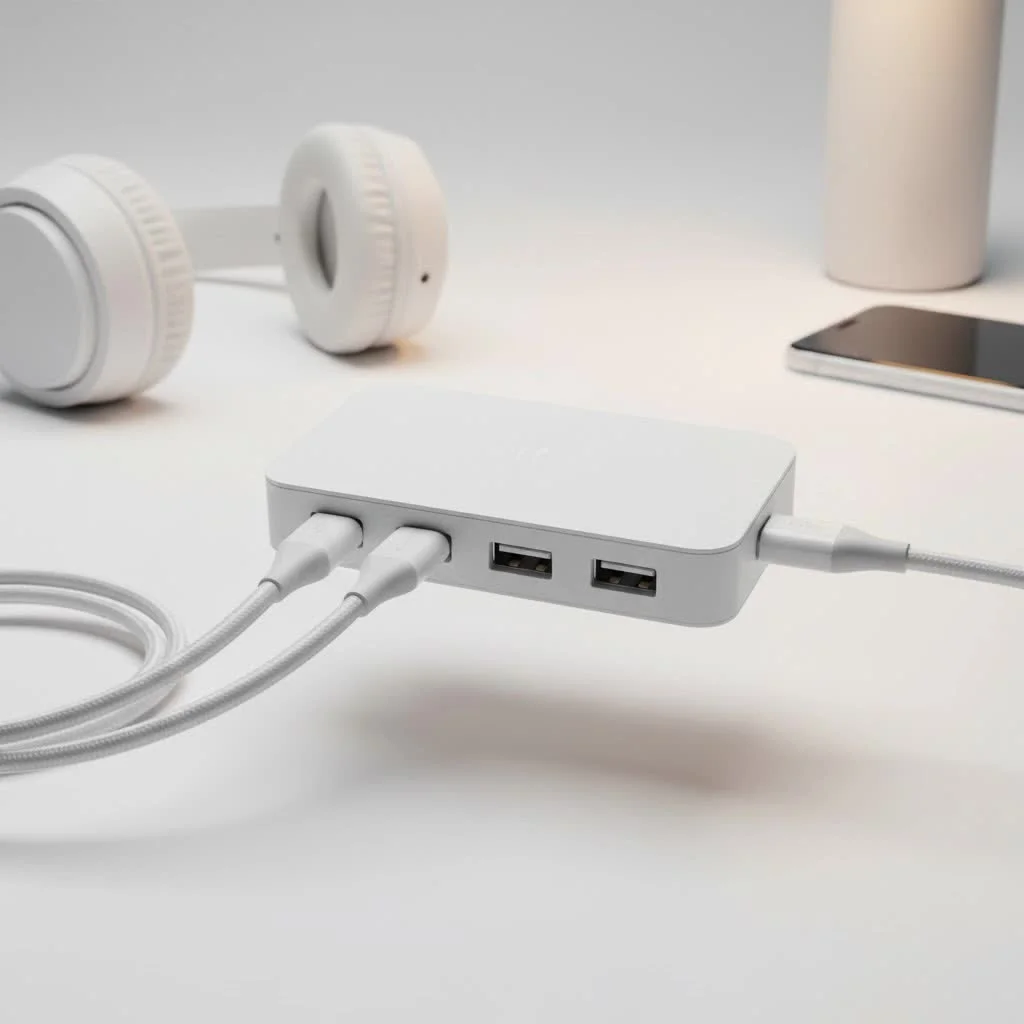
What Exactly Is a Desktop USB Hub?
Think of a desktop USB hub as a power strip for your data devices. It takes a single USB port on your computer (either a laptop or a desktop) and multiplies it, giving you several additional ports to connect all your peripherals simultaneously. Unlike small, portable hubs designed for travel, desktop hubs are built to be a permanent fixture on your desk, offering more ports, robust power options, and a design that helps you manage cables more effectively. For more usb hubs guides on this site.
Powered vs. Unpowered: Which Desktop USB Hub Do You Need?
The single most important decision when choosing a desktop USB hub is whether to get a powered or an unpowered model. The choice directly impacts which devices you can reliably connect.
Powered USB Hubs: The Workhorse of Your Desk
A powered USB hub comes with its own external AC adapter that plugs into a wall outlet. This means it provides its own source of power to the connected devices, rather than drawing limited power from your computer.
You should choose a powered hub if you plan to connect:
- High-power devices: This includes anything that needs significant energy to run, such as external hard drives (HDDs), solid-state drives (SSDs), webcams, printers, or scanners.
- Multiple devices at once: Even low-power devices can collectively draw more power than an unpowered hub can supply.
- Charging devices: If you want to charge your smartphone, tablet, or other gadgets, a powered hub is essential.
“A powered desktop USB hub ensures that every connected device receives stable and consistent power, which is critical for data integrity and performance, especially with sensitive equipment like external storage drives.” – Alex Tran, Senior Hardware Analyst at Meeob.
Unpowered (Bus-Powered) Hubs: For Light Duty Only
An unpowered hub draws all its power directly from the computer’s USB port. This limited power is then split among all the devices connected to the hub. While simpler and less cluttered without an extra power brick, they have significant limitations.
An unpowered hub might be sufficient if you only connect:
- Low-power devices: Think keyboards, mice, or simple flash drives.
- One or two devices at a time: They are not designed to handle a full load of peripherals.
For a dedicated desk setup, a powered hub is almost always the superior and safer choice to prevent performance issues and potential data loss.
Key Features to Look For in a Desktop USB Hub
Once you’ve decided on a powered hub, it’s time to look at the finer details. These features will determine the hub’s performance, longevity, and convenience.
Number and Type of Ports
|
Our Picks for the Best USB Hub in 2026
As an Amazon Associate I earn from qualifying purchases.
|
||
| Num | Product | Action |
|---|---|---|
| 1 | 13 in 1 USB C Docking Station - Dual Monitor, Triple Display, 8 USB C/A Ports, Ethernet, Audio - LIONWEI USB C Hub for MacBook,Dell,HP,Lenovo,Surface |

|
| 2 | 3-in-1 USB C Splitter, 3 in 1 Type-C Charging Data Cable Data Transmission Decive Charging Adapter Power Charger Equipment for ome Office Use, Fast & Efficient |
|
| 3 | Powered USB Hub, Wenter 11-Port USB Splitter Hub (10 Faster Data Transfer Ports+ 1 Smart Charging Port) with Individual LED On/Off Switches, USB Hub 3.0 Powered with Power Adapter for Mac, PC |
|
| 4 | UGREEN USB 3.0 Hub, 4 Ports USB A Splitter Ultra-Slim USB Expander for Mouse, Keyboard, Flash Drive, U Disk, Printer Compatible with Laptop, Desktop PC, Xbox, PS5, and More |
|
| 5 | P9R PRO USB C Hub Ethernet, 10 in 1 USB Docking Station 10Gbps with 4K@60Hz HDMI, USB C and 2 USB A 3.2, LAN, 2 USB A 2.0, PD 100W, SD/TF Ports, USB to Ethernet Adapter for PC, iPhone 16/15, Mac |
|
| 6 | USB C Docking Station with M.2 NVMe SSD Enclosure 10Gbps, 9 in 1 USB-C Hub, Type C SSD Slot with 4K@60Hz HDMI, USB 3.2 Gen2, PD100W, SD/TF Card Reader, Laptop Docking Station for Dell/HP/Lenovo/Mac |
|
| 7 | Powered USB Hub 10Gbps, intpw 9-Port USB 3.2 Hub, USB C Hub with USB A/USB C 3.2, 4 USB 3.0, 2 PD 45W Charging Ports, 65W Power Adapter and 3.3FT Cable, Aluminum USB Hub for Laptop, iPhone 17/16/15,PC |
|
| 8 | Anker Laptop Docking Station Dual Monitor, 8-in-1 USB C Hub, 4K Dual Monitor with 2 HDMI, 1 Gbps Ethernet Hub, 85W Power Delivery, SD Card Reader for MacBook Pro, XPS and More (Charger not Included) |
|
| 9 | USB Hub 3.0, 7-Port USB Hub Splitter with Individual On/Off Switches and Lights, 3.2ft/1m Long Cable Compatible with MacBook, Laptop, Surface Pro, PS4, PC, Flash Drive, Mobile HDD |
|
| 10 | Anker USB Hub 4 Ports with 5Gbps Data Transfer, Multiple USB 3.0 Hub, USB Splitter for Laptop, Extender for A Port Laptop, PC, Desktop and More [Charging Not Supported](0.7 ft USB-A) |
|
Consider both your current and future needs. Count the number of devices you use daily and add a couple of extra ports for future expansion. Also, look at the type of ports offered. Most hubs focus on the standard rectangular USB-A ports, but with modern devices, having one or two USB-C ports is becoming increasingly important for versatility.
USB Standards and Data Transfer Speed
Not all USB ports are created equal. The USB version determines the maximum data transfer speed, which is crucial for tasks like file transfers.
- USB 2.0: An older standard with a slow speed of 480 Mbps. Avoid hubs that only use this, as they will create a significant bottleneck.
- USB 3.0 / 3.1 Gen 1 / 3.2 Gen 1: These are different names for the same standard, offering speeds up to 5 Gbps. This is the sweet spot for most users, providing a fast and responsive experience for most peripherals.
- USB 3.1 Gen 2 / 3.2 Gen 2: These offer double the speed at 10 Gbps, ideal for professionals who frequently transfer large files from fast SSDs or video equipment.
Power Delivery (PD) for Charging
Some advanced USB-C hubs include Power Delivery, a feature that allows them to pass significant power to your laptop. If you have a modern laptop that charges via USB-C, a hub with PD can charge your laptop while also connecting all your other devices, all through a single cable. Check the wattage (e.g., 65W, 100W) to ensure it’s enough for your specific laptop model.
Build Quality and Design
Since this device will live on your desk, its construction matters. Hubs with an aluminum casing tend to be more durable and better at dissipating heat than their plastic counterparts. Also, consider the port layout. Generous spacing between ports will allow you to plug in bulky connectors without blocking adjacent slots.
Extra Features
Some desktop hubs come with valuable bonus features that can further streamline your workspace:
- Individual Power Switches: Allow you to turn off specific devices without unplugging them.
- LED Indicators: Show which ports are active.
- Ethernet Port: Provides a stable, wired internet connection for your laptop.
- SD/MicroSD Card Readers: A huge convenience for photographers and videographers.
How to Choose the Right Desktop USB Hub for Your Setup
Feeling overwhelmed? Follow this simple checklist to find your perfect match.
- Count Your Devices: List every USB device you use regularly. Don’t forget your phone charger, flash drives, and any other peripherals.
- Identify Power Needs: Separate your list into high-power (external drives, webcams) and low-power (mouse, keyboard) devices. If you have even one high-power device, choose a powered hub.
- Check Your Computer’s Port: Does your computer connect to the hub via USB-A or the newer USB-C? Make sure the hub’s upstream connector matches your computer.
- Prioritize Speed: If you work with large files, invest in a hub with USB 3.0 (5 Gbps) or higher speeds.
- Consider Your Workspace: Look at the hub’s cord length to ensure it can reach from your computer to its desired spot on your desk.
Frequently Asked Questions (FAQ)
What is the difference between a USB hub and a docking station?A desktop USB hub primarily expands your USB ports. A docking station is a more comprehensive solution that often includes video ports (HDMI, DisplayPort), an Ethernet port, audio jacks, and USB ports, effectively turning a laptop into a full desktop setup.
Do USB hubs slow down data transfer speeds?A quality USB hub should not slow down your devices. It will operate at the speed of the port it’s plugged into. However, a cheap, poorly made hub or an overloaded unpowered hub can certainly cause performance issues.
Can a USB hub damage my computer or devices?A well-made powered hub from a reputable brand is perfectly safe. It includes circuitry to protect against overcurrent and power surges. However, extremely cheap, unbranded hubs can pose a risk, so it’s wise to invest in a quality product.
How many USB devices can I connect to a single hub?Theoretically, you can connect up to 127 devices, but this is limited by the power and bandwidth available. For practical purposes, stick to the number of ports provided on your powered hub.
Conclusion: Power Up Your Productivity
Choosing the right desktop USB hub is about more than just adding ports; it’s about creating a more efficient, organized, and powerful workstation. By understanding the critical difference between powered and unpowered models and paying attention to key features like port types, speed standards, and build quality, you can select a hub that will serve as a reliable foundation for your digital life. Take a moment to assess your needs, invest in a quality powered hub, and say goodbye to the constant hassle of swapping cables forever.
Frequently Asked Questions
What is the main difference between a USB hub and a docking station?
A desktop USB hub primarily expands your computer's USB ports. In contrast, a docking station is a more comprehensive solution that typically includes video ports (like HDMI or DisplayPort), an Ethernet port, audio jacks, and USB ports, effectively transforming a laptop into a full desktop workstation.
Will using a USB hub reduce my data transfer speeds?
A quality USB hub from a reputable brand should not inherently slow down your devices; it operates at the speed of the port it's connected to. However, a poorly manufactured or overloaded unpowered hub can indeed cause significant performance issues and slower data transfer rates.
Can a USB hub potentially damage my computer or connected devices?
A well-made powered USB hub from a reputable brand is generally safe, as it includes protective circuitry against overcurrent and power surges. Conversely, extremely cheap, unbranded hubs may lack these safety features and could pose a risk to your computer or peripherals, making a quality investment advisable.
How many USB devices can be connected to a single hub?
Theoretically, a single USB hub can support up to 127 devices, but this is limited by the available power and bandwidth. For practical purposes, it is best to connect devices up to the number of physical ports provided on your powered hub to ensure optimal performance.
Why is a powered USB hub often recommended over an unpowered one?
A powered USB hub is recommended because it has its own external power supply, providing stable and consistent power to all connected devices. This is crucial for high-power devices like external hard drives and for charging, preventing performance issues and potential data loss that can occur with unpowered hubs.
Choose the Right Desktop USB Hub
Follow these steps to select the perfect desktop USB hub for your computer setup, ensuring optimal connectivity and performance.
List every USB device you use regularly, including your phone charger, flash drives, and any other peripherals. This helps determine the minimum number of ports you will need.
Categorize your devices into high-power (e.g., external drives, webcams) and low-power (e.g., mouse, keyboard). If you have even one high-power device, always choose a powered hub to ensure stable operation.
Determine if your computer connects to the hub via a USB-A or the newer USB-C port. Ensure the hub's upstream connector matches your computer's available port for compatibility.
If you frequently transfer large files, invest in a hub with USB 3.0 (5 Gbps) or higher speeds. This ensures fast and efficient data transfer, avoiding bottlenecks.
Evaluate the hub's cord length to confirm it can comfortably reach from your computer to its intended spot on your desk. Also, consider the port layout for ease of access with bulky connectors.
Get our weekly buyer guide
Practical specs, not advice. Unsubscribe anytime.

I finally upgraded to a powered USB hub after struggling with my old unpowered one. The difference is night and day! My external hard drive used to randomly disconnect, but with the new hub, everything stays connected and charges perfectly. It really does act like the central nervous system for my desk setup, keeping all my peripherals happy.
I picked up a new hub based on some of the recommendations here, specifically looking for something to manage my cables better. While it does expand my ports, I’m a little disappointed that the charging speed for my tablet isn’t as fast as I hoped, even with a powered model. It’s fine for data, but I still need a separate wall charger for quick power-ups.
This guide was super helpful in deciding on a new desktop USB hub. I needed something robust for my home office, and the advice about powered vs. unpowered models was spot on. I went with a 7-port powered hub and it’s been fantastic for my keyboard, mouse, webcam, and even charging my phone. No more juggling ports on my PC tower!
My desk was a mess of cables and I was always unplugging one device to plug in another. Getting a dedicated desktop USB hub has been a game-changer. I love having all my devices, from my printer to my drawing tablet, connected at once without any issues. It’s exactly what I needed to streamline my workspace.