A USB hub expands a single Universal Serial Bus (USB) port on your computer into multiple ports, allowing you to connect several peripherals simultaneously. These devices are essential for modern setups, transforming one USB port into many and enabling connections for items like mice, external hard drives, and charging cables. Understanding the different types of USB ports and their power requirements is crucial for selecting the right hub to enhance connectivity and productivity.
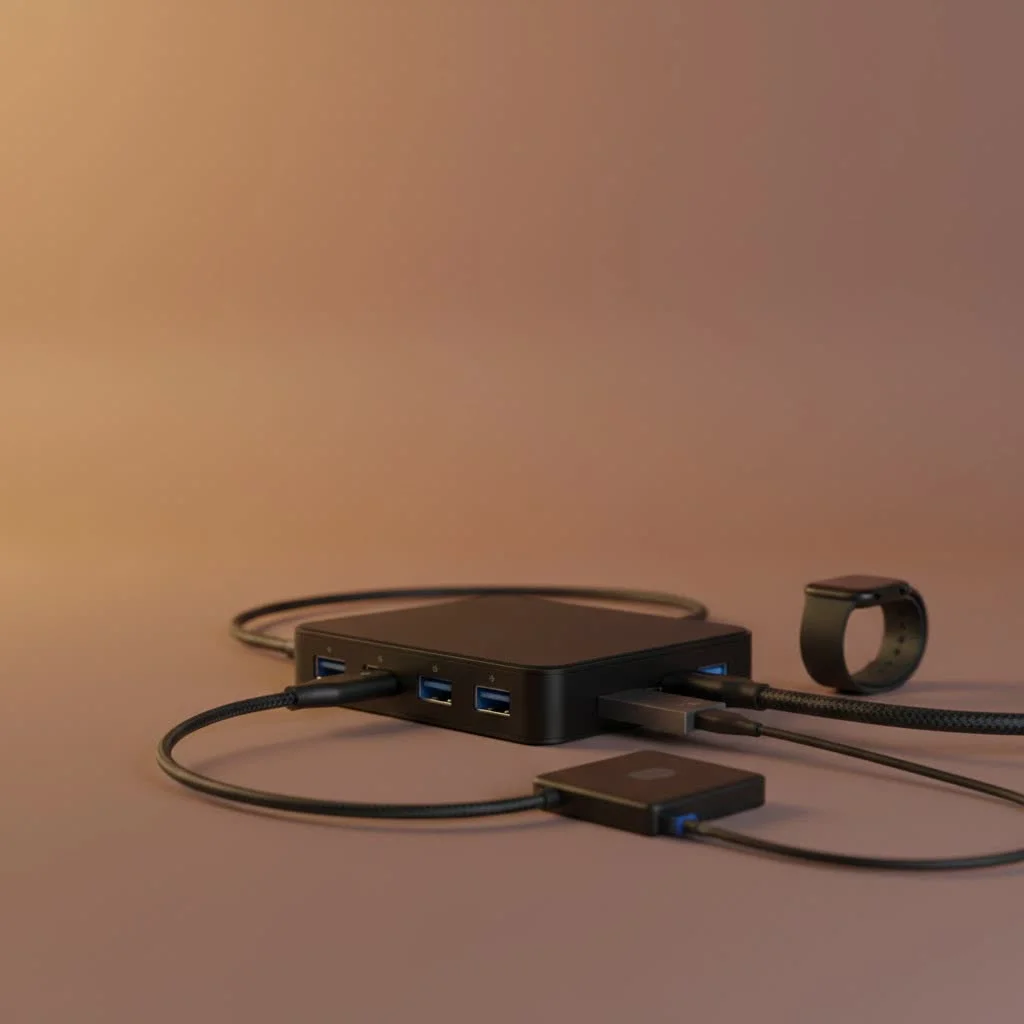
As a hardware specialist at Meeob for over a decade, I’ve observed how the correct hub can transform a cluttered workspace into an efficient one. This guide will detail everything you need to know about USB hub ports, covering types, speeds, and how to choose the ideal one for your setup. For expert usb hubs reviews on this site.
What Exactly is a USB Hub?
At its core, a USB hub is a simple device that expands a single Universal Serial Bus (USB) port into multiple ports. It acts as a bridge, allowing your computer to communicate with several peripherals simultaneously. Whether you’re connecting keyboards, mice, printers, webcams, or external storage, the hub manages the data flow between them and your host computer, making it an indispensable tool for both home and professional users.
The Different Types of USB Hub Ports Explained
Not all USB ports are created equal. Understanding the differences is key to ensuring you get the performance you need from your peripherals. Hubs can feature a variety of port types, each with its own capabilities.
USB-A Ports: The Classic Connector
The rectangular USB-A port is the one most of us are familiar with. It’s been the standard for decades, but even within this classic design, there are different versions that offer vastly different speeds.
- USB 2.0: This is the older standard, typically offering data transfer speeds of up to 480 Mbps. These ports are perfectly fine for connecting low-power, low-speed devices like a keyboard, mouse, or a basic printer. They are usually black inside.
- USB 3.0 / 3.1 / 3.2: Often identified by a blue color inside the port, these offer significantly faster speeds. USB 3.0 starts at 5 Gbps, while newer versions like 3.1 and 3.2 can reach 10 Gbps and even 20 Gbps, respectively. These faster ports are ideal for devices where data speed is critical, such as external SSDs, 4K webcams, or when transferring large files.
USB-C Ports: The Modern Standard
The USB-C port is the newer, oval-shaped connector that’s becoming the standard on most new laptops, tablets, and smartphones. Its advantages go far beyond just being reversible (so you never have to guess which way to plug it in).
- High-Speed Data Transfer: USB-C ports can support the fastest USB standards, including USB4 and Thunderbolt 4, with potential speeds of up to 40 Gbps.
- Power Delivery (PD): This is a major upgrade. USB-C ports with PD can deliver up to 100W of power, enough to charge a laptop. This means you can plug your laptop’s charger into the hub, and it will pass power through to your computer while also running all your other connected devices.
- Alternate Modes: USB-C is incredibly versatile. It can carry video signals using “DisplayPort Alt Mode,” allowing you to connect an external monitor (like HDMI or DisplayPort) through the hub.
Beyond Data: Specialized Ports on a Hub
|
Our Picks for the Best USB Hub in 2026
As an Amazon Associate I earn from qualifying purchases.
|
||
| Num | Product | Action |
|---|---|---|
| 1 | USB Hub 3.0, 7-Port USB Hub Splitter with Individual On/Off Switches and Lights, 3.2ft/1m Long Cable Compatible with MacBook, Laptop, Surface Pro, PS4, PC, Flash Drive, Mobile HDD |

|
| 2 | 3-in-1 USB C Splitter, 3 in 1 Type-C Charging Data Cable Data Transmission Decive Charging Adapter Power Charger Equipment for ome Office Use, Fast & Efficient |
|
| 3 | Anker USB Hub 4 Ports with 5Gbps Data Transfer, Multiple USB 3.0 Hub, USB Splitter for Laptop, Extender for A Port Laptop, PC, Desktop and More [Charging Not Supported](0.7 ft USB-A) |
|
| 4 | P9R PRO USB C Hub Ethernet, 10 in 1 USB Docking Station 10Gbps with 4K@60Hz HDMI, USB C and 2 USB A 3.2, LAN, 2 USB A 2.0, PD 100W, SD/TF Ports, USB to Ethernet Adapter for PC, iPhone 16/15, Mac |
|
| 5 | Anker Laptop Docking Station Dual Monitor, 8-in-1 USB C Hub, 4K Dual Monitor with 2 HDMI, 1 Gbps Ethernet Hub, 85W Power Delivery, SD Card Reader for MacBook Pro, XPS and More (Charger not Included) |
|
| 6 | 13 in 1 USB C Docking Station - Dual Monitor, Triple Display, 8 USB C/A Ports, Ethernet, Audio - LIONWEI USB C Hub for MacBook,Dell,HP,Lenovo,Surface |
|
| 7 | Powered USB Hub 10Gbps, intpw 9-Port USB 3.2 Hub, USB C Hub with USB A/USB C 3.2, 4 USB 3.0, 2 PD 45W Charging Ports, 65W Power Adapter and 3.3FT Cable, Aluminum USB Hub for Laptop, iPhone 17/16/15,PC |
|
| 8 | Powered USB Hub, Wenter 11-Port USB Splitter Hub (10 Faster Data Transfer Ports+ 1 Smart Charging Port) with Individual LED On/Off Switches, USB Hub 3.0 Powered with Power Adapter for Mac, PC |
|
| 9 | USB C Docking Station with M.2 NVMe SSD Enclosure 10Gbps, 9 in 1 USB-C Hub, Type C SSD Slot with 4K@60Hz HDMI, USB 3.2 Gen2, PD100W, SD/TF Card Reader, Laptop Docking Station for Dell/HP/Lenovo/Mac |
|
| 10 | UGREEN USB 3.0 Hub, 4 Ports USB A Splitter Ultra-Slim USB Expander for Mouse, Keyboard, Flash Drive, U Disk, Printer Compatible with Laptop, Desktop PC, Xbox, PS5, and More |
|
Modern USB-C hubs are often multi-port adapters that go beyond simple USB expansion. To create a truly all-in-one docking station, many hubs include a variety of other useful ports:
- HDMI/DisplayPort: For connecting to external monitors, projectors, or TVs.
- Ethernet: For a stable, wired internet connection that’s faster and more reliable than Wi-Fi.
- SD/MicroSD Card Readers: A must-have for photographers and videographers to easily transfer files from their cameras.
- 3.5mm Audio Jack: For connecting headphones or speakers.
Powered vs. Unpowered USB Hubs: What’s the Difference?
One of the most critical decisions when choosing a hub is whether to get a powered or unpowered model. The choice depends entirely on the types of devices you plan to connect.
Unpowered (Passive) Hubs
An unpowered hub, also known as a bus-powered hub, draws all of its power directly from the host computer’s USB port. This power is then shared among all the devices connected to the hub.
- Best for: Low-power devices like mice, keyboards, and USB flash drives.
- Pros: Highly portable, compact, and affordable. No extra power brick to carry.
- Cons: Can struggle with devices that need more power. Connecting too many devices, or even one power-hungry device, can lead to disconnections or failures.
Powered (Active) Hubs
A powered hub comes with its own external AC adapter that plugs into a wall outlet. This allows it to provide its own power to connected devices, rather than relying on the computer.
- Best for: High-power devices like external hard drives (especially those with spinning disks), webcams, scanners, printers, and for charging smartphones or tablets.
- Pros: Provides stable and consistent power to every port, ensuring reliable performance for all connected devices.
- Cons: Less portable due to the extra power adapter and cable. Generally more expensive.
Expert Tip from Meeob: As David Chen, our Lead Hardware Specialist, often says, “People consistently underestimate their power needs. My rule of thumb is, if you’re connecting anything with a moving part or a charging circuit, like an external drive or a phone, always opt for a powered hub port USB. It prevents a world of performance headaches and data corruption risks down the line.”
How to Choose the Right USB Hub for Your Needs
With so many options, selecting the right hub can feel overwhelming. Follow these simple steps to find the perfect match for your workflow.
Step 1: Count Your Devices
Start by listing all the USB devices you use regularly. Then, add one or two extra ports for future-proofing. It’s always better to have an extra port you don’t need than to need an extra port you don’t have.
Step 2: Check Your Computer’s Port
Look at the ports on your host device. Do you have USB-A or USB-C? You’ll want a hub that connects to your computer with the correct plug. Most modern hubs connect via USB-C, but adapters are available.
Step 3: Assess Your Speed Requirements
Think about how you use your devices. If you’re primarily connecting a keyboard and mouse, a USB 2.0 hub will be sufficient. However, if you’re transferring large files from an external SSD or using a high-resolution webcam, you’ll need the bandwidth of a USB 3.0 or higher hub.
Step 4: Consider Your Power Needs
Refer back to the powered vs. unpowered section. If you plan to connect any power-hungry peripherals, a powered hub is the only reliable choice. If you only need a few low-power devices on the go, an unpowered hub is fine.
Step 5: Think About Extra Functionality
Do you need to connect to an external monitor? Do you need a wired internet connection or an SD card reader? Choose a multi-port hub that consolidates all the connections you need into a single device to reduce clutter and simplify your setup.
Frequently Asked Questions (FAQ)
Q: Do USB hubs slow down data transfer speeds?A: Yes, technically they do, because all devices connected to the hub share the bandwidth of the single port it’s plugged into. However, for most everyday uses like connecting a mouse, keyboard, and webcam, this slowdown is completely unnoticeable. You’ll only see a potential bottleneck if you’re using multiple high-speed devices, like two external SSDs, at the exact same time.
Q: Can you plug a USB hub into another USB hub?A: This is called “daisy-chaining.” While it is technically possible, it is generally not recommended. Chaining hubs, especially unpowered ones, can lead to significant power and stability issues, causing devices to disconnect randomly.
Q: Will a USB-C hub work with a Thunderbolt port?A: Yes. Thunderbolt 3 and Thunderbolt 4 ports use the same physical USB-C connector and are fully compatible with USB-C hubs and devices. Plugging a USB-C hub into a Thunderbolt port will work perfectly.
Q: Does the length of the hub’s cable matter?A: For most users, no. However, for very high-speed data transfer, a shorter, high-quality cable can sometimes provide a more stable connection. For general use, the cable length that comes with the hub is perfectly fine.
Q: Can a powered USB hub charge my devices even when the computer is off?A: This depends on the hub. Some powered hubs are designed to function as standalone charging stations and will provide power to the ports even when not connected to a computer or when the computer is asleep. Check the product specifications to see if it supports this feature.
Conclusion: Expanding Your Digital World
Choosing the right hub port USB is about more than just adding ports; it’s about creating a more efficient, organized, and powerful workspace. By understanding the different types of ports, assessing your power and speed requirements, and considering what extra functionalities you need, you can select a hub that perfectly complements your devices and workflow. A well-chosen hub can eliminate cable clutter, streamline your connections, and ultimately help you get more done with less hassle.
How to Choose the Right USB Hub
Selecting the appropriate USB hub involves assessing your device count, computer's port type, speed requirements, power needs, and desired extra functionalities.
List all USB devices you use regularly, such as mice, keyboards, and external drives. Add one or two extra ports to this count for future expansion, ensuring you have sufficient connectivity for evolving needs.
Identify the type of USB ports on your host computer, typically USB-A or USB-C. Choose a hub that connects to your computer with the correct plug type; most modern hubs use USB-C, but adapters are available for compatibility.
Consider how you use your devices. For basic peripherals like a keyboard and mouse, a USB 2.0 hub is sufficient. For high-bandwidth tasks, such as transferring large files from an external SSD or using a 4K webcam, opt for a USB 3.0 or higher hub to ensure adequate data transfer speeds.
Determine if your connected devices are power-hungry. If you plan to connect external hard drives, webcams, or charge smartphones, a powered hub with an external AC adapter is the reliable choice. For only a few low-power devices, an unpowered hub is acceptable.
Evaluate if you need additional features beyond basic USB expansion, such as HDMI/DisplayPort for external monitors, an Ethernet port for wired internet, or SD/MicroSD card readers. A multi-port hub consolidating these connections can reduce clutter and simplify your setup.
Get our weekly buyer guide
Practical specs, not advice. Unsubscribe anytime.

I got a new hub that was supposed to be great for multiple peripherals, but I’m finding that when I connect my mouse and my webcam at the same time, the webcam sometimes lags. It’s probably an issue with the power delivery, which I learned about here. It’s still better than having no extra ports, but I might need to look into a powered hub next time.
I’ve been using a basic USB 2.0 hub for years, but after reading about the speed differences, I decided to invest in a USB 3.0 hub. The difference in transfer speeds for my external hard drive is incredible! I wish I had made the switch sooner. It’s great to finally have enough ports without sacrificing performance.
This information on different USB port types was super helpful. I always just bought whatever was cheapest, but understanding the distinction between USB-A, USB-C, and Thunderbolt has really changed how I approach my setup. My new hub handles my monitor and all my accessories flawlessly. No more dongle mess!
I finally upgraded to a USB-C hub after struggling with limited ports on my new laptop. This guide really helped me understand the power requirements, and now I can connect my external SSD, keyboard, and even charge my phone all through one hub. It’s made my desk setup so much cleaner and more efficient. Definitely a game-changer for productivity!