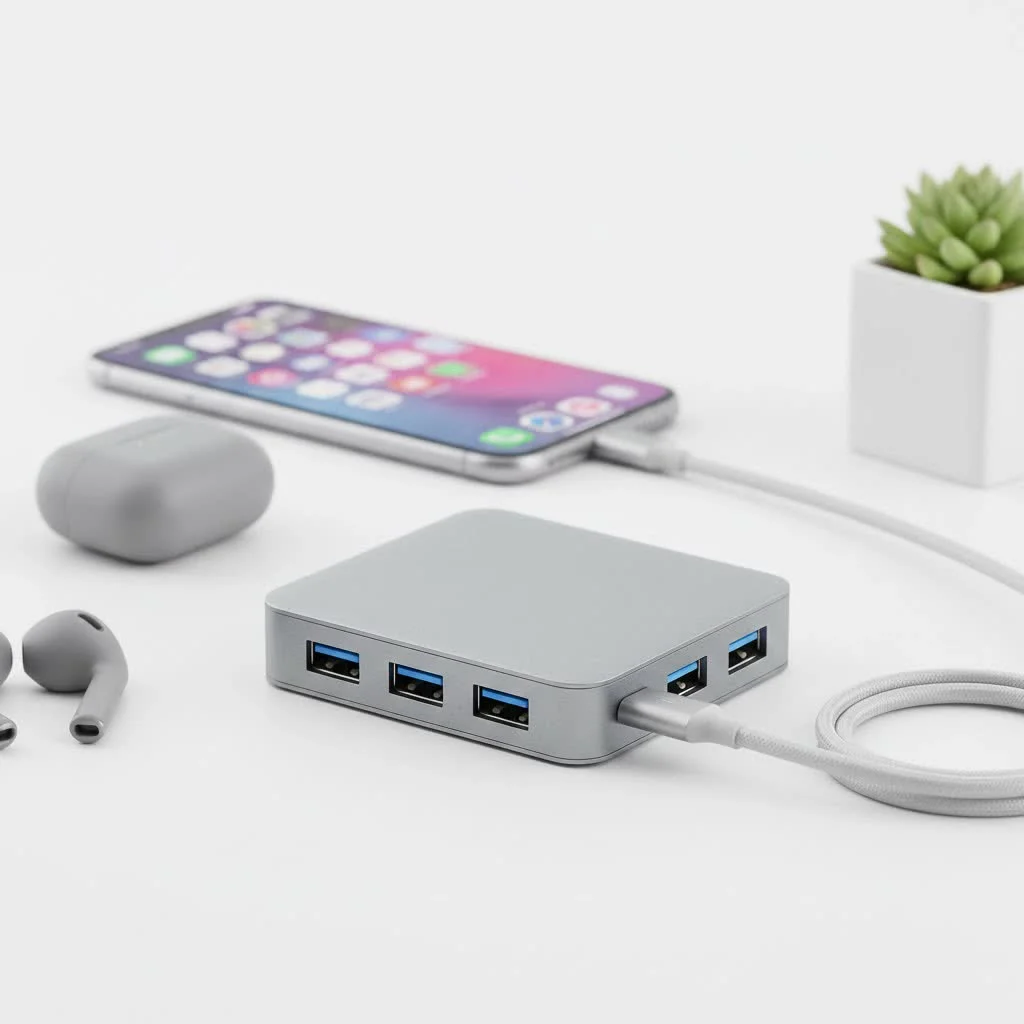
A USB to USB-C hub is a multiport adapter that plugs into a single USB-C port on a host device, such as a laptop, tablet, or phone, and provides multiple other ports, including traditional USB-A ports for older peripherals. This essential tool bridges the gap between modern USB-C-only devices and legacy USB-A accessories like mice, keyboards, and external hard drives, instantly expanding connectivity.
As a content creator for Meeob.com, I have spent years demystifying technology for users, and I am here to guide you through everything you need to know about choosing and using the perfect hub.
What Exactly Is a USB to USB-C Hub?
A USB to USB-C hub is a multiport adapter that plugs into a single USB-C port on your host device (like a laptop, tablet, or even a phone) and provides multiple other ports. Most importantly, it includes one or more traditional USB-A ports, allowing you to connect older peripherals. However, most modern hubs offer much more, transforming one port into a versatile docking station.
Think of it as a power strip for your data and devices. Instead of being limited by the few ports on your laptop, a hub gives you the freedom to connect everything you need, all at once.
Why Do I Need One?
The primary reason is simple: modern laptops, especially ultrabooks like the MacBook Air, Dell XPS, and HP Spectre, prioritize a thin and light design, often at the cost of port variety. They typically feature one or two USB-C (or Thunderbolt) ports and little else.
A hub helps you:
- Connect Legacy Devices: Easily plug in your existing USB-A keyboards, mice, flash drives, and external hard drives.
- Expand Your Display: Many hubs come with HDMI or DisplayPort outputs to connect to an external monitor or TV.
- Transfer Photos and Videos: Built-in SD and microSD card readers are a lifesaver for photographers and videographers.
- Get a Stable Internet Connection: An Ethernet port provides a more reliable, faster connection than Wi-Fi for gaming or large file transfers.
- Charge Your Laptop: Hubs with Power Delivery (PD) passthrough charging let you power your laptop through the hub itself, so you don’t lose a charging port.
Key Features to Look for in a USB to USB-C Hub
Not all hubs are created equal. The right one for you depends entirely on your specific needs. Here’s a breakdown of the most important features to consider before you buy.
Port Selection
|
Our Picks for the Best USB Hub in 2026
As an Amazon Associate I earn from qualifying purchases.
|
||
| Num | Product | Action |
|---|---|---|
| 1 | Anker Laptop Docking Station Dual Monitor, 8-in-1 USB C Hub, 4K Dual Monitor with 2 HDMI, 1 Gbps Ethernet Hub, 85W Power Delivery, SD Card Reader for MacBook Pro, XPS and More (Charger not Included) |

|
| 2 | Anker USB Hub 4 Ports with 5Gbps Data Transfer, Multiple USB 3.0 Hub, USB Splitter for Laptop, Extender for A Port Laptop, PC, Desktop and More [Charging Not Supported](0.7 ft USB-A) |
|
| 3 | UGREEN USB 3.0 Hub, 4 Ports USB A Splitter Ultra-Slim USB Expander for Mouse, Keyboard, Flash Drive, U Disk, Printer Compatible with Laptop, Desktop PC, Xbox, PS5, and More |
|
| 4 | Powered USB Hub, Wenter 11-Port USB Splitter Hub (10 Faster Data Transfer Ports+ 1 Smart Charging Port) with Individual LED On/Off Switches, USB Hub 3.0 Powered with Power Adapter for Mac, PC |
|
| 5 | Powered USB Hub 10Gbps, intpw 9-Port USB 3.2 Hub, USB C Hub with USB A/USB C 3.2, 4 USB 3.0, 2 PD 45W Charging Ports, 65W Power Adapter and 3.3FT Cable, Aluminum USB Hub for Laptop, iPhone 17/16/15,PC |
|
| 6 | USB Hub 3.0, 7-Port USB Hub Splitter with Individual On/Off Switches and Lights, 3.2ft/1m Long Cable Compatible with MacBook, Laptop, Surface Pro, PS4, PC, Flash Drive, Mobile HDD |
|
| 7 | 13 in 1 USB C Docking Station - Dual Monitor, Triple Display, 8 USB C/A Ports, Ethernet, Audio - LIONWEI USB C Hub for MacBook,Dell,HP,Lenovo,Surface |
|
| 8 | 3-in-1 USB C Splitter, 3 in 1 Type-C Charging Data Cable Data Transmission Decive Charging Adapter Power Charger Equipment for ome Office Use, Fast & Efficient |
|
| 9 | USB C Docking Station with M.2 NVMe SSD Enclosure 10Gbps, 9 in 1 USB-C Hub, Type C SSD Slot with 4K@60Hz HDMI, USB 3.2 Gen2, PD100W, SD/TF Card Reader, Laptop Docking Station for Dell/HP/Lenovo/Mac |
|
| 10 | P9R PRO USB C Hub Ethernet, 10 in 1 USB Docking Station 10Gbps with 4K@60Hz HDMI, USB C and 2 USB A 3.2, LAN, 2 USB A 2.0, PD 100W, SD/TF Ports, USB to Ethernet Adapter for PC, iPhone 16/15, Mac |
|
The first thing to check is the variety of ports offered. Don’t just buy the one with the most ports; think about which ones you’ll actually use.
- USB-A Ports: How many do you need? Consider your mouse, keyboard, and an extra for a flash drive. Look for hubs with USB 3.0 (often blue-colored) for faster data transfer speeds (5Gbps or more) compared to the older USB 2.0 standard.
- HDMI or DisplayPort: Essential for connecting an external monitor. Check the supported resolution and refresh rate. The standard is 4K at 30Hz, but if you’re a gamer or video editor, look for one that supports 4K at 60Hz for a smoother experience.
- Ethernet Port: If you need a stable wired internet connection, a hub with a Gigabit Ethernet port is a must.
- SD/microSD Card Reader: A non-negotiable for anyone working with cameras.
- Audio Jack: While less common, some hubs include a 3.5mm audio jack for headphones or speakers.
“The goal of a good hub isn’t just to add ports; it’s to streamline your workflow. The perfect hub anticipates your needs, whether you’re a creative professional offloading footage or a remote worker setting up a home office.” — David Chen, Lead Tech Analyst.
Power Delivery (PD) Passthrough
This is one of the most crucial features. A hub with Power Delivery allows you to connect your laptop’s USB-C charger to the hub, which then passes power through to your laptop while still running all the other connected devices.
Pay close attention to the wattage. Your laptop has a minimum power requirement (e.g., 60W, 85W, 100W). Your hub should support at least that much, minus a small amount (around 10-15W) that the hub itself uses to operate. For example, if your laptop needs 85W, look for a hub with 100W PD to ensure it charges at full speed.
Data Transfer Speeds
The speed of your USB ports matters, especially for transferring large files. Here’s a quick guide:
- USB 3.0 (also called USB 3.1 Gen 1 or USB 3.2 Gen 1): Offers speeds up to 5Gbps. This is great for most everyday tasks, including external hard drives and fast flash drives.
- USB 3.1 Gen 2 (or USB 3.2 Gen 2): Bumps the speed up to 10Gbps. This is ideal for working with high-speed SSDs.
- USB 2.0: Limited to 480Mbps. These ports are fine for a mouse or keyboard but will feel painfully slow for file transfers.
Build Quality and Design
Since a USB to USB-C hub is often a travel companion, build quality is important.
- Materials: Aluminum hubs tend to be more durable and better at dissipating heat than their plastic counterparts.
- Cable: Consider the length of the built-in cable. A short cable is portable, but a slightly longer one can reduce strain on your laptop’s port and offer more flexibility in how you position it on your desk.
- Portability: If you’re always on the go, a compact and lightweight hub is key. If it’s for a permanent desk setup, a larger, more robust hub might be a better choice.
How to Choose the Right Hub for You
Let’s match a hub to your lifestyle.
For the Everyday User or Student
You primarily use your laptop for browsing, email, and document editing. You occasionally need to connect a flash drive or an external monitor for a presentation.
- What you need: A simple, portable hub with 2-3 USB-A 3.0 ports and one HDMI port. 60W Power Delivery is usually sufficient.
For the Creative Professional (Photographer/Videographer)
You’re constantly transferring large files from cameras and working with high-resolution media on external drives.
- What you need: Speed is your priority. Look for a hub with multiple USB-A ports running at 10Gbps, a fast UHS-II SD/microSD card reader, and an HDMI port that supports 4K at 60Hz. 100W Power Delivery is recommended.
For the Remote Worker
You’re building a comfortable and efficient home office. You need to connect a full-sized keyboard, mouse, monitor, and webcam, and you want a stable internet connection.
- What you need: A desktop-style hub or “dock” is a great option. Prioritize a Gigabit Ethernet port, multiple USB-A ports, at least one 4K HDMI port, and robust Power Delivery (100W) to keep everything running smoothly.
Frequently Asked Questions (FAQ)
Q: Will a USB-C hub slow down my internet or devices?
A: A high-quality hub should not noticeably slow down your devices. However, cheaper, poorly-made hubs can sometimes cause interference or fail to deliver advertised speeds. Stick to reputable brands to ensure reliable performance.
Q: Can I plug a USB-C hub into a Thunderbolt port?
A: Yes. Thunderbolt 3 and Thunderbolt 4 ports are physically identical to USB-C and are fully compatible with USB-C devices and hubs. You can plug a USB-C hub into a Thunderbolt port and it will work perfectly.
Q: Do USB-C hubs get hot?
A: It’s normal for a hub to get warm during use, especially when multiple ports are active and it’s passing through a lot of power. This is why hubs with aluminum casings are often preferred, as they help dissipate heat more effectively. If a hub becomes too hot to touch, you should disconnect it.
Q: Is there a difference between a USB-C hub and a USB-C dock?
A: The terms are often used interchangeably, but generally, a “dock” or “docking station” is a larger, less portable unit with its own power supply, offering even more ports and power than a typical bus-powered “hub.” Hubs are designed for portability, while docks are meant for stationary desk setups.
Q: Can I use a USB to USB-C hub with my tablet or smartphone?
A: Yes! Many modern tablets (like the iPad Pro/Air) and Android smartphones with USB-C ports support hubs. This can turn your mobile device into a mini-workstation, allowing you to connect a keyboard, mouse, external display, and storage all at once.
Conclusion: Your Bridge to a Connected World
The USB to USB-C hub is more than just an adapter; it’s an essential bridge between the technology of yesterday and the innovations of tomorrow. It empowers you to get the most out of your modern devices without leaving your trusted peripherals behind. By considering your specific needs—from the number and type of ports to power requirements and data speeds—you can find the perfect hub to simplify your digital life. No more fumbling with multiple dongles. Just one simple, powerful connection to rule them all.
Get our weekly buyer guide
Practical specs, not advice. Unsubscribe anytime.
I bought this hub specifically to bridge the gap between my new phone and some legacy USB-A accessories. While it does connect them, I’ve noticed that sometimes my phone doesn’t recognize the external drive right away, and I have to unplug and replug the hub. It’s a bit inconvenient, but it eventually works.
As a content creator, I’m constantly juggling different devices and peripherals. This multiport adapter has been a game-changer for my workflow. Being able to plug in my camera, microphone, and an external SSD all through one USB-C port on my laptop is incredibly efficient. Highly recommend for anyone with modern USB-C-only devices.
I recently upgraded my laptop to a new model with only USB-C ports, and this hub has been a lifesaver! I can finally connect my old USB-A mouse and keyboard without needing a bunch of separate dongles. It’s super compact and works perfectly for my home office setup, instantly expanding my connectivity.
This USB to USB-C hub is exactly what I needed for my tablet. I use it to connect an external hard drive and a flash drive, and it handles data transfer speeds really well. My only minor complaint is that it gets a little warm after extended use, but it hasn’t affected performance.